Hello! Welcome back to our advanced Power Platform course.
In our last lesson, we successfully consumed data from a custom connector, bridging the gap between your Canvas App and external REST APIs. Now that you know how to bring data into your app, it's time to master the art of manipulating and combining that data efficiently using Power Fx.
Today's learning outcome is to implement complex formulas combining Filter, LookUp, and With functions for advanced scenarios. As a developer, you're used to writing code that is not only correct but also performant and readable. The functions we'll cover today are the Power Fx equivalent of foundational programming constructs that help achieve those same goals.
This image neatly captures the essence of Power Fx: expressing complex logic in a concise, declarative way.
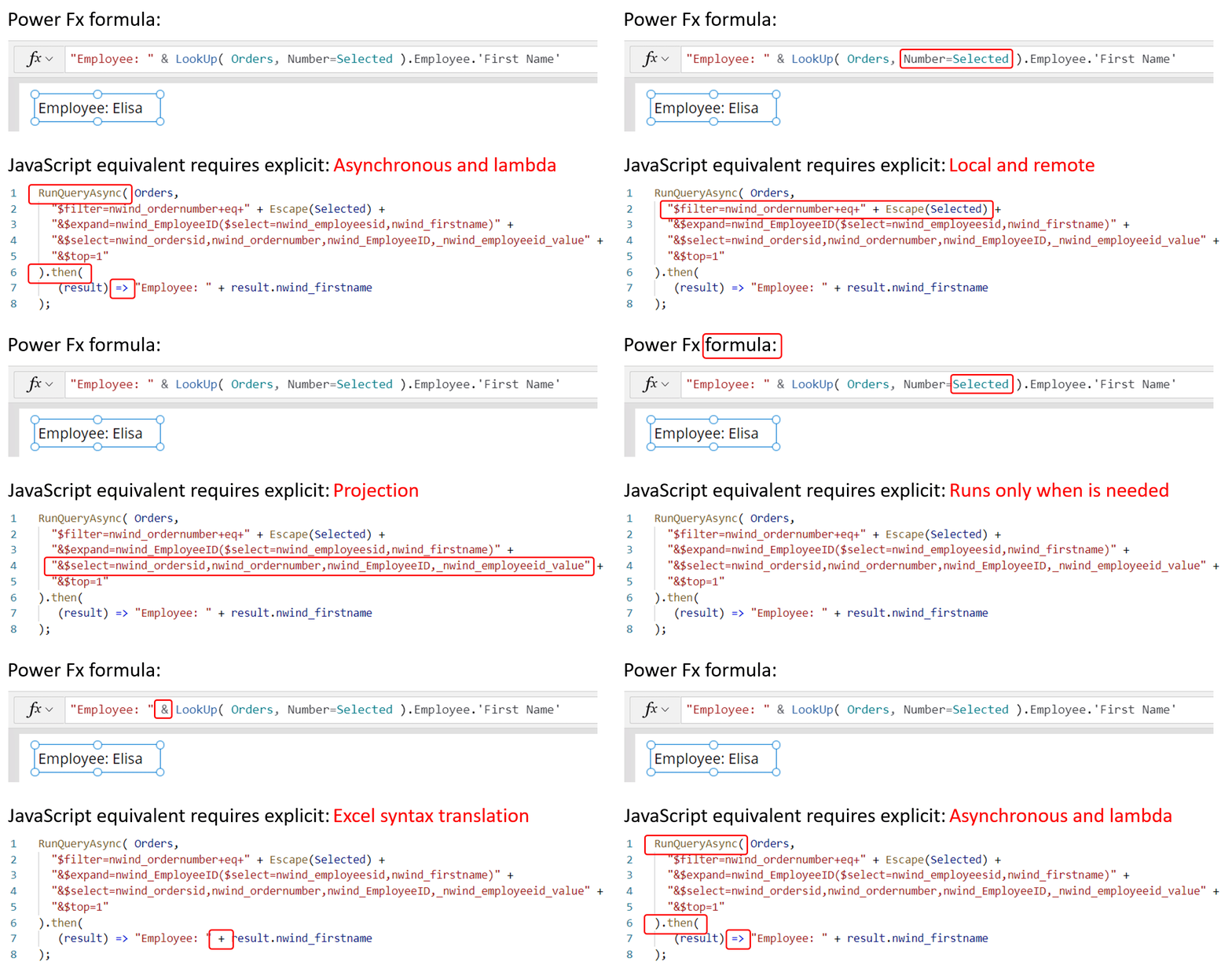
The formula shown uses LookUp. Today, we'll go deeper, combining it with Filter and the powerful With function to build sophisticated, optimized logic that is essential for enterprise-grade applications and for success on the PL-400 exam.
1. The Foundation: LookUp vs. Filter
First, let's clarify the fundamental difference between LookUp and Filter. While both are used to find data, they serve distinct purposes:
LookUp(Source, Condition): Returns the first single record from a data source that matches the condition. It's optimized for retrieving one specific item.Filter(Source, Condition): Returns a table of records from the data source that match the condition. This is for when you need zero, one, or multiple matching items.
A common mistake is to use First(Filter(...)) to get a single record. While this works, it's less efficient and less readable than using LookUp. LookUp is the correct tool for the job when you know you only need the first matching record.
The following video provides an excellent summary of the LookUp function and this important distinction.
Watch these short clips from Shane Young's video, 'Power Apps LookUp Function,' to understand the core purpose of LookUp and how it compares to Filter.
Please watch from 0:35 to 5:04. (0:35 - 3:15): Focus on the basic syntax of LookUp and understand that it returns a single record. (3:15 - 5:04): Pay close attention to the comparison between LookUp and the First(Filter(...)) pattern. This explains why LookUp is the preferred, more efficient method.
You can also create more complex conditions within LookUp using operators like && (And) and || (Or), much like you would in a WHERE clause in SQL or a conditional statement in C#. For example:LookUp(Products, Category = "Electronics" && Price < 100)
2. The Optimizer: The With Function
The With function is one of the most powerful tools in a Power Fx developer's arsenal for improving performance and readability. Its syntax is With(Scope, Formula).
With evaluates a record and makes its values available as named fields within the Formula part. Think of it as creating a temporary, read-only scope. This has two major benefits that will appeal to your developer background:
- Performance: It avoids redundant calculations and data source calls. If you need multiple fields from the same looked-up record, you can perform the
LookUponce insideWithand then reference the resulting fields multiple times. - Readability: It allows you to assign simple, descriptive names to complex expressions, making your formulas much easier to understand and maintain, similar to using a well-named local variable or a SQL Common Table Expression (CTE).
Let's see how this works in practice.
Using The With Function In Power Apps
The article 'Using The With Function In Power Apps' by Craig White from Platforms of Power provides excellent before-and-after examples that demonstrate the power of With. The SQL temp table analogy is particularly apt.
Please read the section titled 'With function to replace multiple lookups'. Notice how six separate LookUp calls are replaced by a single LookUp inside a With block. Also, read the 'Speed test' section (and look at the results table) to see the measured performance benefit.
The video below also demonstrates this exact optimization pattern. Seeing it in action can help solidify the concept.
This clip from Shane Young's video on the With function provides a practical demonstration of replacing an inefficient double-lookup pattern with a much cleaner and more performant With function.
Watch the segment from 9:08 to 12:11. The presenter shows a common but inefficient formula that performs two lookups to the same data source. He then refactors it using With to make only a single data source call.
Test your understanding!
You have a Products table with columns ProductID, Name, Price, and StockLevel. You need to display the following text in a label for a selected product (varSelectedProductID):
"Product: [Name], Price: $[Price], Stock: [StockLevel] units"
The inefficient way would be:
"Product: " & LookUp(Products, ProductID = varSelectedProductID).Name &
", Price: $" & LookUp(Products, ProductID = varSelectedProductID).Price &
", Stock: " & LookUp(Products, ProductID = varSelectedProductID).StockLevel & " units"
This formula makes three separate calls to the Products table. How would you rewrite this using the With function to be more efficient?
Show answer
You would use With to perform the LookUp once and store the resulting record in a temporary variable, like ProductRecord. Then, you can reference the fields of that record multiple times within the formula.
With(
    { ProductRecord: LookUp(Products, ProductID = varSelectedProductID) },
    "Product: " & ProductRecord.Name &
    ", Price: $" & ProductRecord.Price &
    ", Stock: " & ProductRecord.StockLevel & " units"
)
This version makes only one call to the data source, making it significantly more performant, especially in networked scenarios.
3. Advanced Scenarios: Combining the Functions
Now let's combine these functions to solve more complex, real-world problems.
Scenario 1: The "Upsert" Pattern (Update or Insert)
A very common requirement is to update a record if it exists, or create a new one if it doesn't. A naive approach would involve one LookUp to check for existence and then another LookUp inside the Patch function to update the found record. We can do better with With.
In this pattern, we LookUp the record and store it in our With scope. We then use IsBlank() to check if our temporary record is empty. If it is, we Patch with Defaults() to create a new record. If it's not empty, we Patch using the temporary record itself as the record to update.
This video clip demonstrates this advanced pattern perfectly.
This final clip from Shane Young's video shows the elegant 'upsert' pattern. Pay close attention to the syntax used to store the looked-up record, as it's a powerful technique.
Watch from 12:11 to 15:11. The presenter explains how to refactor an inefficient conditional patch into an optimized version using With. Note the trick of wrapping the lookup result in a record { FoundRecord: LookUp(...) } to be able to reference the entire record later.
Scenario 2: Aggregating Data from Multiple Sources
Imagine you need to create a new record in an Expenses table. The data for this new record comes from multiple places: the current user's profile, a Venues table, and a user's selection from a dropdown.
Without With, your Patch function would be a complex and hard-to-read nest of multiple LookUp calls. By using nested With functions, you can break down the logic into clear, manageable steps.
Using The With Function In Power Apps
This article section provides a superb example of using nested With functions to create a clean, readable, and performant Patch statement.
Read the section 'Embedding With functions'. Analyze the 'before' code with its many lookups inside the Patch. Then, carefully study the 'after' code. See how it first uses With to get the meal budget and user data, then a nested With to calculate the specific budget, and finally a clean Patch statement that references these temporary variables.
This pattern of composing data from multiple sources before performing a final action is extremely common in business applications and is a key skill for a Power Platform developer.
4. A Critical Warning: With and Delegation
Delegation is a crucial concept for ensuring your app performs well with large data sources. It refers to Power Fx's ability to offload data processing to the data source itself (like Dataverse or SQL Server) instead of pulling all the data into the app for processing locally.
A common misconception is that With can be used to bypass delegation limits. This is not true. The With function merely hides the delegation warning from the Power Apps Studio UI.
The rule is:
- The query used to create the scope inside the
Withfunction must be delegable. - You can then perform non-delegable operations on the result of that query (the temporary record or table), because that data is now held in your app's local memory.
Using The With Function In Power Apps
It's vital to understand this distinction to avoid performance bottlenecks. This section of the article clearly explains and demonstrates this behavior.
Please read the section 'With and delegation'. It shows how a non-delegable Filter returns incomplete data, and wrapping it in With doesn't fix the problem—it just hides the warning triangle. This is a critical piece of knowledge for any professional developer.
Conclusion
In this lesson, we moved beyond basic data retrieval and learned how to write sophisticated, optimized Power Fx formulas. By combining LookUp, Filter, and With, you can build clean, performant, and maintainable logic for complex business scenarios.
Key Takeaways:
LookUpvs.Filter: UseLookUpto efficiently retrieve a single record; useFilterto retrieve a table of records. Avoid theFirst(Filter(...))anti-pattern.- The
WithFunction: Your key to performance and readability. Use it to create a temporary scope for values, eliminating redundant data source calls and making formulas easier to understand. - Advanced Patterns: You can combine these functions to implement powerful patterns like conditional "upserts" and data aggregation from multiple sources before a
Patch. - Delegation: Remember that
Withdoes not solve delegation issues. The initial query to populate theWithscope must still be delegable when working with large datasets.
Up Next:
We have now covered several advanced techniques for building robust Canvas Apps, from custom connectors to complex formulas. In the next module, we will shift our focus to Model-driven Apps. The first lesson will cover how to design Model-driven Apps applying modern best practices for app modules, site maps, and user experience, moving from low-level formulas to high-level application architecture.