Hello! Welcome to your next lesson in the "Executing Your First Trades" module.
In our last session, we distinguished between market, limit, and stop-loss orders. You learned that a market order is your instruction to a broker to buy or sell a stock immediately at the best available price. It prioritizes speed over price control.
Today, we'll put that theory into practice. Your goal for this lesson is to learn how to execute a stock purchase using a market order on a brokerage platform. This is one of the most fundamental skills in investing. By the end of this lesson, you will understand the exact steps to take to go from wanting to own a stock to actually having it in your account.
The Anatomy of a Trade
Whether you're day trading or buying an ETF for the next 30 years, the mechanics of placing a trade are the same. You'll use a form on your brokerage website or app called a trade ticket or order entry screen. While the layout varies slightly between brokers, the core information you need to provide is universal.
Let's look at how to find and use this trade ticket on a real brokerage platform. We'll start with a detailed walkthrough using Fidelity as an example.
How to Buy Stocks with Fidelity - Full Example
The video 'How to Buy Stocks with Fidelity' provides an excellent, practical demonstration. We will watch the first part to see how to access the trade ticket and find the stock you want to buy.
Watch from 00:47 to 02:17. Focus on these steps: Navigating to the 'Trade' section. Finding the 'expanded trade ticket'. Using the search box to find a stock by its name (Apple) or ticker symbol (AAPL).
As you saw, the trade ticket is your command center. It shows your available cash and has fields for all the necessary details of your order. To show how similar this process is across different platforms, let's see how it looks on Charles Schwab.
How to Buy Stocks with Charles Schwab
This video, 'How to Buy Stocks with Charles Schwab', shows a slightly different interface but covers the exact same steps of navigating to the trade section and looking up a symbol.
Watch from 00:43 to 02:10. Notice the similarities to the Fidelity platform: you click 'Trade' and then look up the stock using its ticker symbol (AAPL). Don't worry about all the extra information on the screen; focus on locating the trade ticket and the symbol lookup.
Regardless of the broker, the first steps are always to find the trading tool and specify the security you want to trade.
Step-by-Step: Placing a Market Order
Now that you know where to go, let's walk through the process of filling out the trade ticket to buy a stock with a market order.
Here is a static image that breaks down the process visually. We will go through each of these steps in detail.
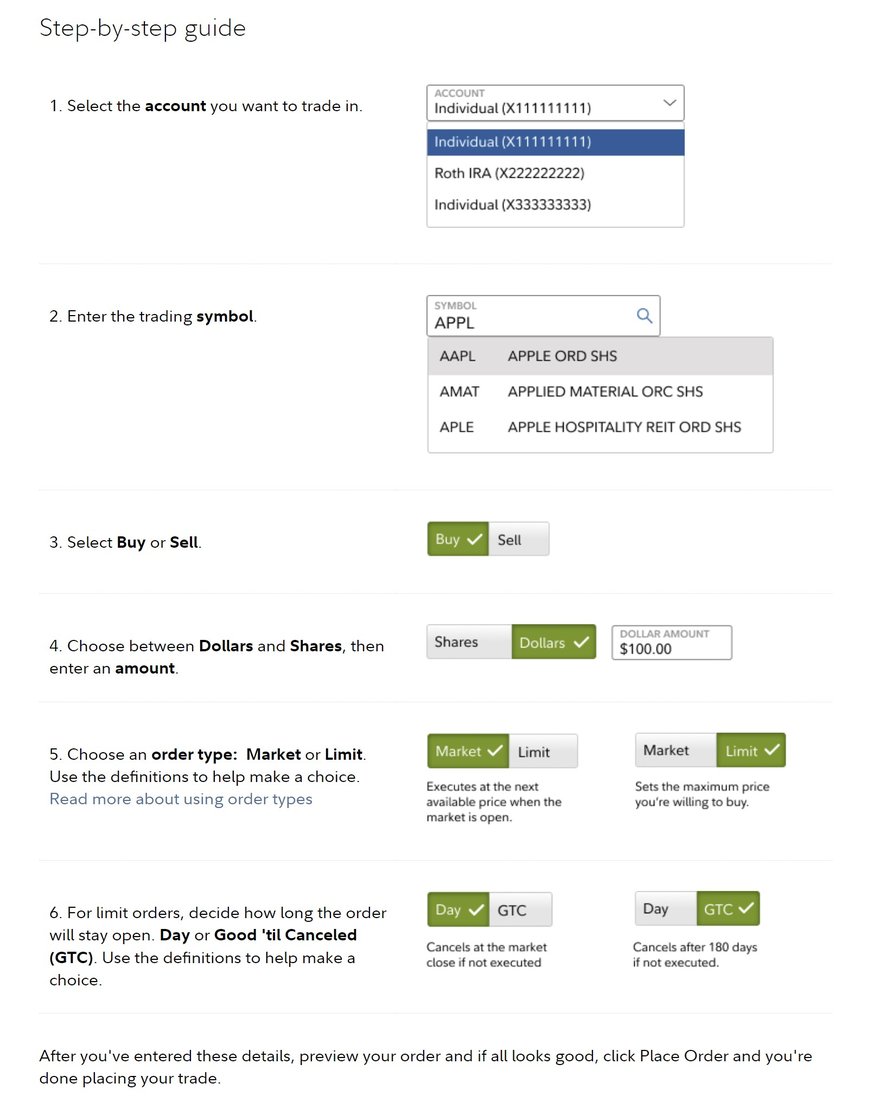
1. Action: Buy
This is straightforward. You'll select "Buy" to indicate you want to purchase shares.
2. Quantity: How many shares?
You need to specify how much you want to buy. This is typically done in one of two ways:
- Shares: You enter the number of whole shares you want to purchase (e.g., 1, 5, 100).
- Dollars: Many brokers now allow you to enter a dollar amount (e.g., $100, $500). They will then buy as many shares as that amount can afford, including fractional shares if necessary.
For our first trade, we'll focus on buying a specific number of shares.
3. Order Type: Market
This is where you apply what you learned in the last lesson. You'll select "Market" from a dropdown menu. By doing this, you are telling the broker: "I want to buy this stock now at the current best price."
Let's see this step in action.
How to Buy Stocks with Fidelity - Full Example
Returning to the Fidelity video, this clip focuses on selecting the quantity and choosing the 'Market' order type.
Watch from 04:27 to 04:59. The narrator explains that a market order aims to get filled as quickly as possible at the current ask price.
The concept is clearly defined in this brief reading.
This article from Fidelity, 'How to trade stocks and ETFs', provides a clear definition of a market order.
Read the paragraph under the heading 'What are order types?'. It reinforces that a market order is the fastest option but the price isn't guaranteed.
4. Preview and Place Order
This is your final checkpoint. Before you commit, the platform will show you a summary of your order. It's crucial to review this carefully. Check these three things:
- Symbol: Are you buying the right stock?
- Quantity: Is the number of shares correct?
- Order Type: Does it say "Market"?
The summary will also show an estimated cost. Remember, for a market order, this is an estimate. The final price will be the best one available at the moment of execution, which should be very close to the estimate for a liquid stock. You'll also see the commission, which is typically $0 for stock trades at major online brokers.
Let's watch the final steps: previewing, placing the order, and confirming that it's been filled.
How to Buy Stocks with Fidelity - Full Example
In this final clip from the Fidelity video, you'll see the preview screen, the placing of the order, and how the new stock appears in the account's 'Positions' tab.
Watch from 06:54 to 08:13. Pay attention to the confirmation message and how the bought stock (Apple) immediately shows up as a holding in the account.
Test your understanding!
You are about to buy 10 shares of Microsoft (MSFT) using a market order. You get to the "Preview Order" screen. What three essential pieces of information should you double-check before clicking "Place Order"?
Show answer
You should confirm:
- The stock symbol is correct (MSFT).
- The quantity is correct (10 shares).
- The order type is correct (Market).
Checking these prevents costly mistakes like buying the wrong stock or the wrong amount.
Putting It All Together
You've now seen the entire process. While the interface may vary, the steps are consistent across platforms. This reading provides a concise, step-by-step list that summarizes the entire process.
The article 'How to trade stocks and ETFs' offers a simple, numbered list that you can use as a checklist for placing your first trade.
Read the section titled 'How to buy or sell stocks and ETFs at Fidelity'. The 8-step process described is a great summary of what we've covered in this lesson.
Conclusion
Congratulations! You now have the practical knowledge to execute your first stock purchase. This is a crucial milestone that moves you from being a student of the market to an active participant.
Here are the key takeaways from today's lesson:
- The Trade Ticket: This is the standard form used on all brokerage platforms to enter an order.
- The Core Steps: The process involves (1) navigating to the trade ticket, (2) entering the stock symbol, (3) selecting "Buy," (4) specifying the quantity, and (5) choosing "Market" as the order type.
- The Final Check: Always use the "Preview Order" screen to confirm the symbol, quantity, and order type before placing the trade.
- Confirmation: After placing the order, you can confirm its execution by checking your account's order status and seeing the new stock in your positions/holdings.
In our next lesson, we will build on this skill. You will learn how to execute a stock sale using a limit order on a brokerage platform. This will introduce you to the other side of a trade—selling—and give you more control over the price you receive.