Welcome back! In our last lesson, we established that your Chromebook's "Penguin" environment is a self-contained Debian Linux system. Now that you have a solid mental model of what your Linux environment is, we can start to explore what's inside it.
This lesson will guide you through the layout of the Linux filesystem. Think of it like learning the floor plan of a new house or the street map of a city. Every file and folder (or "directory," as it's more commonly called in Linux) has a designated place. Understanding this structure is a fundamental step toward mastering Linux. We will focus on the Filesystem Hierarchy Standard (FHS) and the specific roles of the most important directories: /, /home, /etc, and /var.
A Place for Everything: The Filesystem Hierarchy
If you've used Windows, you're likely familiar with organizing files across different drive letters like C: or D:. Linux takes a different approach. Everything in Linux exists under a single, tree-like structure that starts at the root directory, which is represented by a single forward slash: /.
Every other directory and file on the system is a branch or leaf on this tree, starting from /. This unified structure is one of the hallmarks of Unix-like operating systems.
To prevent chaos, most Linux distributions, including the Debian system you are using, follow a set of conventions called the Filesystem Hierarchy Standard (FHS). The FHS defines the purpose of the main directories, ensuring that programs and users can reliably predict where to find things. For example, system configuration files are always in one place, and user documents are in another.
This standardized layout makes the system feel consistent and logical once you learn the rules. The diagram below provides a great high-level overview of this structure.
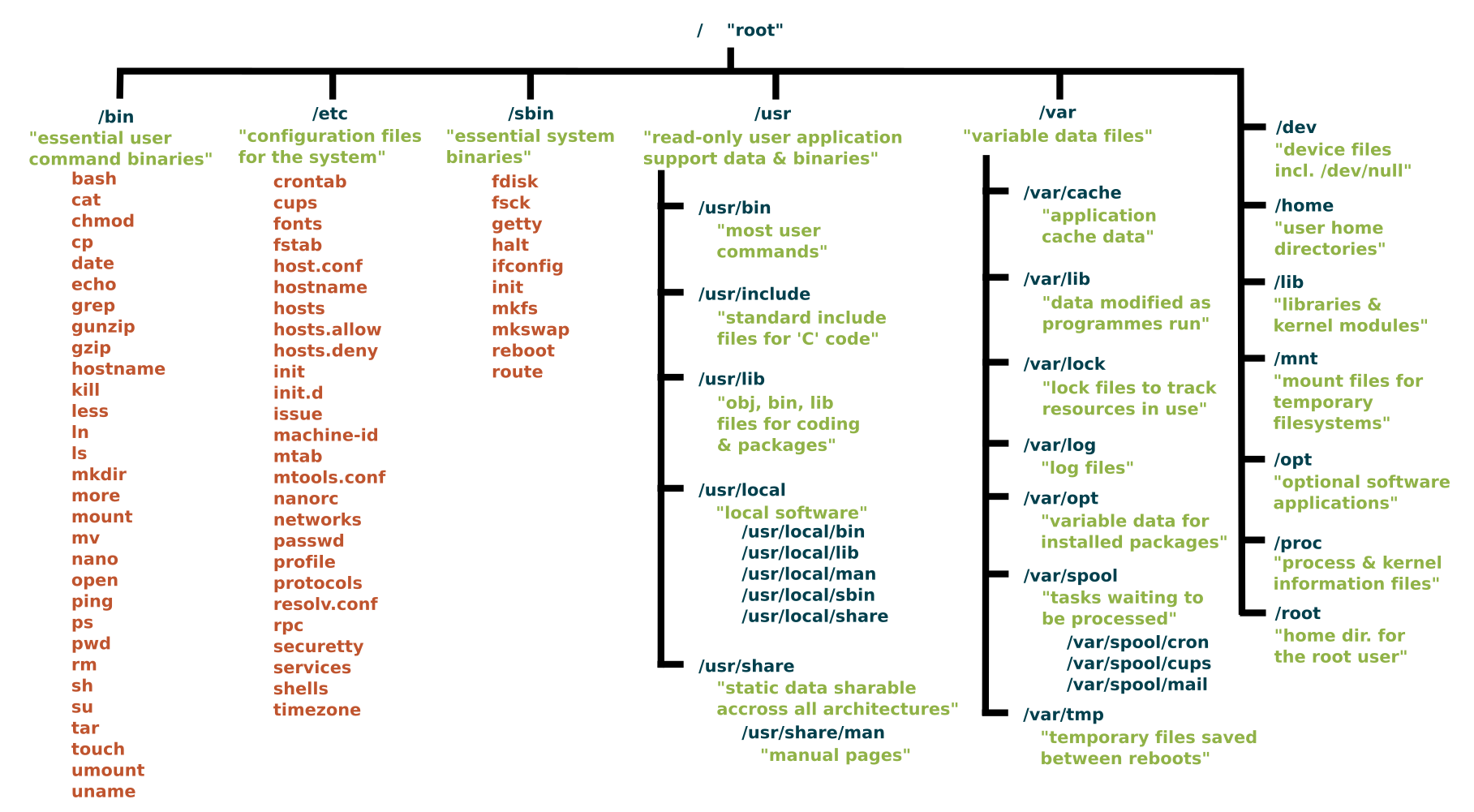
The Core Directories: An In-depth Look
Now, let's explore the purpose of the most important directories you'll interact with. We will use a comprehensive article as our guide. It provides a clear breakdown of the entire hierarchy.
The Linux File System Hierarchy: Understanding Directory Structure and Organization
This blog post by Dhakrey provides a detailed yet accessible guide to the FHS. We will read it in sections as we discuss each key directory.
For now, start by reading the introductory sections to get a firm grasp of the core principles. Focus on: The section "The Filesystem Hierarchy Standard (FHS)" for a definition and key principles. The brief section on The Root Directory (/).
As you've just read, the root directory / is the container for everything else. Now let's look at the most significant directories inside it.
/home: Your Personal Space
This is the most important directory for you as a user. The /home directory contains a personal subdirectory for each user on the system. In your case, since you are the primary user, you will have a directory named /home/<your_username>. This is where all your personal files—documents, downloads, music, and the source code you write—will be stored.
You have full control over your own home directory. The system is designed this way to keep user data separate from the operating system files, which is crucial for security and organization.
Now, let's return to the article to read more about the /home directory.
The Linux File System Hierarchy: Understanding Directory Structure and Organization
This section details the purpose and structure of user home directories.
Please read the section titled /home - User Home Directories. Pay attention to the mention of "hidden configuration files" (those starting with a .), as they are used to store your personal application settings.
/etc: The System's Control Panel
The /etc directory (often pronounced "et-see") is where system-wide configuration files are stored. Think of it as the central control panel for your entire Linux environment. The files in /etc dictate how the operating system and its services behave.
For example, files in /etc define your network settings, manage the sources from which you can install software, and configure user groups. You won't typically create your own files here, but as you become more advanced, you may need to edit existing ones to customize system behavior. It's a directory to be treated with care—making incorrect changes here can affect your system's stability.
Let's read the corresponding section in our guide.
The Linux File System Hierarchy: Understanding Directory Structure and Organization
This section explains the role of /etc as the hub for configuration.
Read the section /etc - Configuration Files. You don't need to memorize all the file names, but try to grasp the type of information that is stored here.
/var: The System's Logbook and Workspace
The /var directory is for variable data. Unlike the static configuration files in /etc, the contents of /var are expected to change constantly during the normal operation of the system.
The most common use of this directory is for log files, which are stored in /var/log. The system and various applications record their activities, errors, and other important events in these logs. When something goes wrong, the log files in /var/log are often the first place to look for clues.
Other variable data, such as application cache, email spools, and printer queues, also live here. It's the dynamic, ever-changing part of the filesystem.
Let's see what the article has to say.
The Linux File System Hierarchy: Understanding Directory Structure and Organization
This section covers the purpose of the /var directory.
Read the section titled /var - Variable Data. Focus on understanding the purpose of /var/log and /var/cache.
A Practical Tour
Theory is useful, but seeing is believing. Let's take a quick tour of your filesystem using the command line. Open the Terminal app on your Chromebook.
-
Go to the root directory and look around:
Typecd /and press Enter. Then typels -lFand press Enter.
You will see a list of all the directories we've discussed, such ashome,etc,var,bin, andusr. The-lFflags makelsshow a detailed list and add a/to the end of directory names. -
Explore your home:
Typecd /homeand thenls. You should see your username listed as a directory. Navigate into it withcd <your_username>. Now you are in your personal home directory. This is where you'll do most of your work. -
Peek inside
/etc:
Typecd /etcand thenls. You'll see a large number of configuration files. To see a preview without flooding your screen, you can usels | head. To prove you're running Debian, try this command:cat /etc/os-release. It will print the contents of a file that identifies your operating system. -
Check the logs in
/var:
Typecd /var/logand thenls. You'll see various log files, such assyslog(general system messages) anddpkg.log(Debian package manager logs). You can view the last few entries of a log with a command liketail dpkg.log.
This hands-on tour should help solidify the concepts we've covered. You've now seen the structure of your Linux system with your own eyes.
Conclusion
In this lesson, you've learned the fundamental organizing principle of the Linux filesystem. You now have a mental map of where the system keeps its most important files.
Here are the key takeaways:
- The Linux filesystem is a single hierarchical tree starting from the root directory (
/). - The Filesystem Hierarchy Standard (FHS) provides a consistent layout for all Linux distributions.
/homeis your personal space for all your files and data./etcis the control panel, holding system-wide configuration files./varcontains variable data that changes during system operation, most notably log files in/var/log.
Understanding this structure is not just academic; it's a practical skill that will help you locate files, understand program installations, and troubleshoot problems.
In our next module, we will put this knowledge to use. Now that you know the layout of the land, we'll focus on the tools you need to manage your own files and directories within your /home directory: creating them, moving them, and changing their properties.