Hello! Welcome back to our module on Command-Line Data Manipulation.
In our last lesson, we mastered grep, a tool for selecting specific lines from text based on a pattern. This is perfect for finding all the error messages in a log file, but what if you only want the IP address from each of those error lines? Trying to craft a regular expression with grep to isolate just one part of a line can be complex and unwieldy.
This is where our next tool comes in. Today's learning outcome is to extract specific columns of text from a file or command output using the cut command. While grep filters vertically (choosing rows), cut filters horizontally (choosing columns). This skill is another crucial building block for creating powerful command-line pipelines to parse data, a daily activity in security analysis and ethical hacking.
1. Understanding cut: Fields and Delimiters
The most common way to use cut is to slice text based on a delimiter. A delimiter is simply a character that separates distinct pieces of information, or fields. Think of a comma-separated value (CSV) file: the comma is the delimiter, and each value between the commas is a field.
To cut by fields, you need to tell the cut command two things:
- What the delimiter character is, using the
-doption. - Which field(s) you want to extract, using the
-foption.
Let's start with a foundational video that introduces these concepts.
Linux Crash Course - The cut Command
The video "Linux Crash Course - The cut Command" by Learn Linux TV provides a great introduction. Pay close attention to why the first attempt to cut by field doesn't work as expected—it's a common stumbling block for beginners.
Watch the section from 08:16 to 10:09. This clip explains what a field is, why you must specify a delimiter with -d, and how to select fields with -f.
As the video explained, cut defaults to using the Tab character as a delimiter. Since most structured text files don't use tabs, you almost always need to specify the delimiter with -d.
A Real-World Example: Parsing /etc/passwd
A classic and highly relevant use case for cut is parsing the /etc/passwd file. As you'll recall from our user administration module, this file stores user account information, with each piece of data separated by a colon (:). This makes it perfect for cut.
If we want to get a clean list of all usernames on the system, we can cut out the first field from this file.
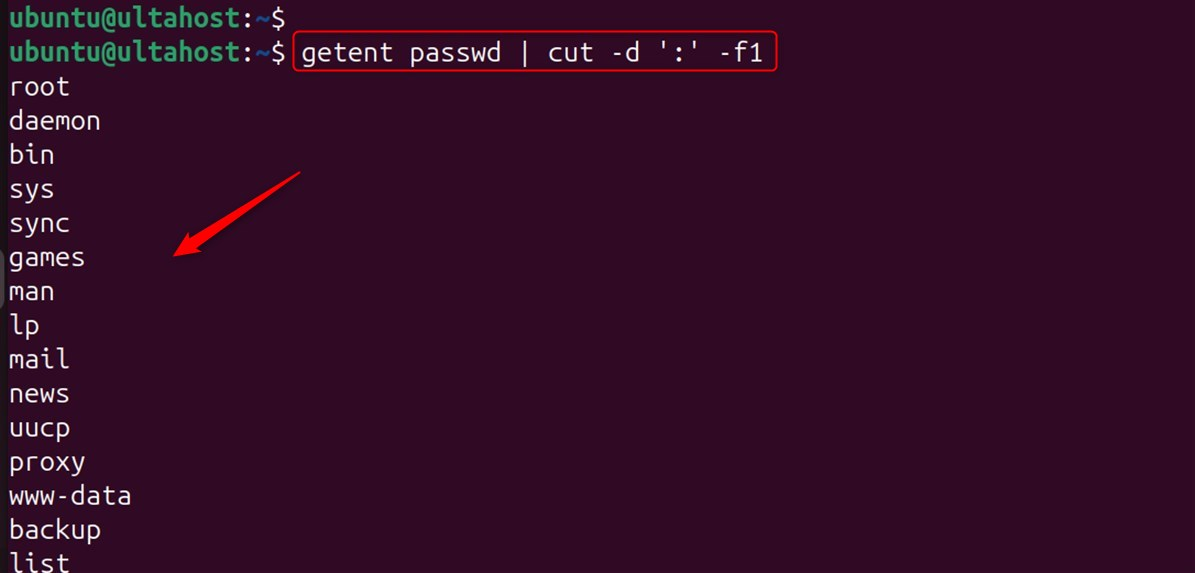
Let's watch a detailed walkthrough of this exact scenario.
Linux Crash Course - The cut Command
We'll continue with the Learn Linux TV video, which now demonstrates this practical /etc/passwd example.
Watch from 10:09 to 13:18. The video shows how to use -d':' and -f1 to extract usernames. It highlights how cut is designed to work with structured, multi-line files like this one—a much more realistic scenario than the single-line examples we started with.
2. Advanced Field Selection
The -f option is more flexible than just selecting a single field. You can select:
- A range of fields:
cut -f 1-3(fields 1, 2, and 3) - An open-ended range:
cut -f 3-(from field 3 to the end of the line) - A list of specific fields:
cut -f 1,5,7(fields 1, 5, and 7) - Any combination of the above.
the `cut` command (beginner - intermediate) anthony explains #310
The video "the cut command" by anthonywritescode gives a rapid and clear demonstration of these different ways to select fields.
Watch the segment from 02:13 to 03:57. The presenter quickly covers selecting single fields, ranges, open ranges, and comma-separated lists of fields.
For a detailed textual reference on cutting by fields, including how to combine cut with grep, you can review the following article.
How to Use the Linux cut Command
The article "How to Use the Linux cut Command" from How-To Geek provides excellent written examples that reinforce what we've seen in the videos.
Read the section titled "Using cut With Delimited Data". It covers the /etc/passwd example again and shows how to select multiple fields and ranges. It also introduces the --complement option, a useful trick to show everything except the selected fields.
3. Cutting by Position: Characters and Bytes
Sometimes, data isn't neatly separated by a delimiter. The output of some commands, like ls -l, is structured by fixed-width columns. In these cases, it's more reliable to cut by character or byte position.
-c(character): Extracts specific characters based on their position in the line.-b(byte): Extracts specific bytes based on their position.
For simple text using the English alphabet (ASCII), bytes and characters are the same. But for text with special characters (like é or π), one character can be made up of multiple bytes. As a general rule, if you think in terms of letters and symbols, use -c.
The selection syntax is the same as for fields: 1, 1-10, 1,5,10, 5-, etc.
For example, the permissions string in ls -l output always occupies the first 10 characters of the line. We can extract it reliably like this:
ls -l | cut -c 1-10
Let's watch a demonstration of cutting by byte and character.
Linux Crash Course - The cut Command
We'll go back to the Learn Linux TV video, which covers cutting by bytes and characters at the beginning.
Watch the segment from 03:01 to 08:16. The video explains the -b (byte) and -c (character) options, shows how to specify ranges and lists, and clarifies the subtle but important difference between the two options, especially regarding multi-byte characters.
Hands-On Practice
Time to put this into practice. Imagine you're analyzing system data. Use the sample data below and construct the cut command to achieve each goal.
Sample Data 1: user_data.txt (This is a colon-delimited file)
root:x:0:0:root:/root:/bin/bash
daemon:x:1:1:daemon:/usr/sbin:/usr/sbin/nologin
j-carter:x:1001:1001:John Carter:/home/j-carter:/bin/bash
l-croft:x:1002:1002:Lara Croft:/home/l-croft:/bin/zsh
s-drake:x:1003:1003:Sam Drake:/home/s-drake:/usr/sbin/nologin
Sample Data 2: ls-output.txt (This is output from ls -l)
-rwxr-xr-x 1 root  root   4096 Dec 11 10:20 run_analysis.sh
-rw------- 1 l-croft l-croft 128 Dec 11 11:30 private_key
drwxr-xr-x 2 j-carter j-carter 4096 Dec 10 09:00 reports
Write the single command-line pipeline to solve each task:
- From
user_data.txt, display only the usernames (field 1). - From
user_data.txt, display the username (field 1) and their default shell (field 7). - From
ls-output.txt, display only the file permissions (the first 10 characters). - Challenge: Combine
grepandcut. Fromuser_data.txt, find all users who use/bin/bashas their shell, and display only their usernames.
Conclusion
Excellent work. You've now added another essential data manipulation tool to your command-line arsenal. You can not only select rows with grep but also carve out the exact columns you need with cut.
Key Takeaways:
cutis used to extract horizontal sections (columns) of text.- For delimited data (like CSVs or
/etc/passwd), use-dto specify the delimiter and-fto select fields. - For fixed-width data (like
ls -loutput), use-cto select character positions. - You can select single items (
-f 1), ranges (-f 1-3), open-ended ranges (-f 3-), and lists (-f 1,3). - The real power of
cutis realized when you pipe the output of other commands (likegrep,cat, orps) into it.
Next Lesson Preview:
We've selected rows (grep) and extracted columns (cut). What if you need to perform more complex changes, like finding and replacing text within a line? In our next lesson, we'll dive into sed, the stream editor. It's a powerful tool that reads text and applies transformations to it on the fly, allowing for sophisticated text manipulation that goes beyond simple cutting and filtering.