Hello! Welcome to the next lesson in our journey through Linux storage management.
In our last session, we used lsblk and fdisk -l to get a "map" of the storage devices on a system. You learned to identify disks and the partitions on them. This is a vital first step in post-exploitation enumeration, as it tells you about the target's physical and logical storage layout.
Now, we'll zoom in and answer the question we ended with: what exactly is a partition, and why do we bother creating them? Today's lesson is all about the "why" behind the "what" you saw. We will describe basic disk partitioning concepts and when partitioning is relevant.
Understanding this is fundamental. It not only makes you a better system administrator but also gives you the insight to quickly assess a compromised machine's configuration, spot unusual layouts, and identify potential places where data might be stored or separated.
1. What is Disk Partitioning?
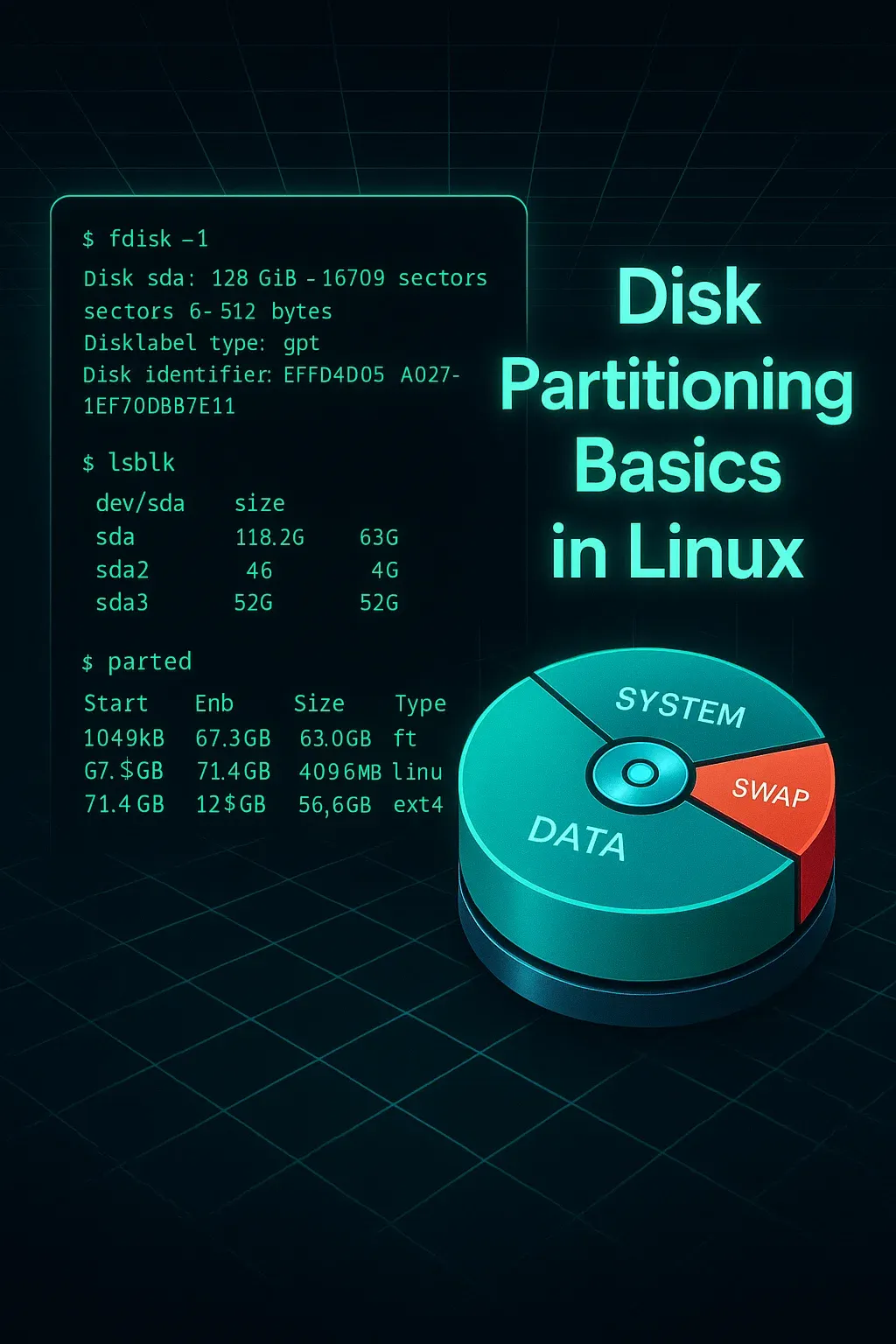
At the most basic level, partitioning is the act of dividing a single physical storage drive (like an SSD or HDD) into one or more logically separate sections. Each section, or partition, can be managed independently, as if it were its own smaller disk.
This is like taking an empty warehouse (your disk) and building internal walls to create separate rooms (your partitions) for different purposes.
To get a clear and friendly introduction to this concept, let's watch the beginning of a video from a fellow Linux enthusiast.
Partitioning Your Linux Drives: Does It Provide Any Benefits?
The video "Partitioning Your Linux Drives: Does It Provide Any Benefits?" by Brodie Robertson starts with a perfect, straightforward explanation of what a partition is.
Watch the first minute of the video (00:00 - 01:06). The core idea is that partitions are 'independently managed subsections' of a drive.
2. The Blueprint: MBR vs. GPT Partition Tables
So, how does the computer keep track of where these "walls" are? It uses a partition table, which is a small, special area on the disk that stores the layout of all the partitions. Think of it as the master blueprint for the drive.
There are two main types of partition tables you will encounter:
- MBR (Master Boot Record): The older, traditional standard. It has been around since the early days of personal computing.
- GPT (GUID Partition Table): The modern standard, part of the UEFI specification that has replaced the legacy BIOS system on most new computers.
The video you just watched briefly introduces these. Let's dig a bit deeper into what makes them different.

To solidify your understanding, let's consult a couple of excellent text resources.
A Practical Guide to Partitioning in Linux
The article "A Practical Guide to Partitioning in Linux" provides a concise table comparing the features of MBR and GPT. This is great for a quick overview.
Read the section "Choosing Your Partition Table: MBR vs. GPT" and pay close attention to the table comparing features like max disk size, max partitions, and data integrity.
Now, for the level of detail an Arch user would appreciate, let's turn to the ArchWiki. It provides clear guidelines on when to choose one over the other, which is crucial knowledge for both building systems and understanding existing ones.
The ArchWiki page on Partitioning offers the definitive guide on choosing between GPT and MBR, especially in contexts like dual-booting or dealing with large disks.
Read the section "Choosing between GPT and MBR". Focus on the bulleted list that gives practical reasons for choosing one over the other (e.g., disk size > 2 TiB, UEFI boot, dual-booting with Windows).
In summary: unless you are dealing with very old hardware (legacy BIOS) or need to maintain compatibility with a 32-bit Windows dual-boot, GPT is the superior and recommended choice. Its support for larger disks, more partitions, and built-in redundancy makes it the modern standard.
3. The "Why": When is Partitioning Relevant?
Now for the main question. We know what partitions are, but why do we use them? A single large partition for everything seems simpler. The relevance of partitioning comes down to organization, security, and stability.
The following video segment covers the most common reasons for partitioning from a desktop user's perspective. These are motivations you've likely encountered or will encounter when installing or managing your own systems.
Partitioning Your Linux Drives: Does It Provide Any Benefits?
Let's return to Brodie Robertson's video. He does an excellent job explaining the practical benefits of having multiple partitions.
Watch from 02:47 to 06:32. Pay attention to the different scenarios he describes where partitioning is beneficial: Installing multiple operating systems (dual-booting). Creating a separate swap partition. Separating your /home directory to make OS re-installation painless. Simplifying backups by targeting specific partitions. Spanning your OS across multiple physical drives.
From a security and server administration perspective—which is highly relevant to your goals—the most important reason is isolation.
If your web server's logs (/var/log) or temporary files (/tmp) are on the same partition as the root filesystem (/), a bug or a misconfiguration could cause log files to grow uncontrollably, fill the entire disk, and crash the whole server. By placing /var on its own partition, you contain the problem. The /var partition might fill up, but the core operating system on / will keep running.
This principle of isolation is a cornerstone of building robust and secure systems. When you compromise a machine, identifying its partition scheme can tell you a lot about how professionally it was set up.
4. Common Partitioning Schemes
So, which directories are commonly given their own partitions? While you could partition almost any directory, a few standard schemes have emerged.
Let's look at the most common discrete partitions and why they are separated.
The ArchWiki provides the canonical breakdown of which directories are good candidates for their own partitions.
Skim the section titled "Discrete partitions". You don't need to memorize everything, but get familiar with the purpose of these common separate partitions: / (root): Essential. Contains the core OS. /boot: Contains the kernel and bootloader files. Sometimes required depending on the setup. /home: Contains all your personal user files. Separating it protects your data during an OS reinstall. Swap: Used as virtual memory. /var: Contains variable data like logs and caches. Separating it improves stability.
To see what a real-world implementation looks like, the same video provides a walkthrough of a typical Arch Linux setup.
Partitioning Your Linux Drives: Does It Provide Any Benefits?
Finally, let's see how these concepts are applied in a practical Arch Linux installation, which should be very relatable for you.
Watch from 15:08 to 17:02. The presenter uses lsblk to show his own partition setup, explaining how he has spread his system (/, /boot, swap) and personal files (/home) across two different physical drives (an NVMe SSD and an HDD).
Hands-On: Analyze Your Own System
Now, apply what you've learned. Open a terminal on your Arch machine and investigate your own setup.
- Run
lsblk -f. - Run
sudo fdisk -l.
Based on the output, try to answer these questions:
- What partition table does your main drive use (GPT or MBR/dos)?
- Which partition is mounted as your root (
/)? - Do you have a separate partition for
/home? How about/bootor a swap partition? - Looking at your setup, can you guess why it was partitioned that way during installation? Does it follow one of the common schemes we discussed?
This exercise will connect the theoretical concepts of partitioning directly to the practical reality of your own working environment.
Conclusion
In this lesson, you've moved beyond simply listing partitions to understanding the fundamental concepts behind them.
Key Takeaways:
- Partitions are logical divisions of a physical disk, allowing each section to be managed separately.
- The partition table (MBR or GPT) is the blueprint for this division. GPT is the modern, more capable standard.
- Partitioning is relevant for dual-booting, data separation (like keeping
/homesafe), performance (e.g., separateswap), and crucially for stability and security through isolation (e.g., a separate/var). - A common "discrete" partitioning scheme involves separate partitions for
/,/boot,/home, andswap.
Next Lesson Preview:
We've seen how to identify partitions and understand why they exist. But how does the operating system make a partition's contents available at a specific location, like /home? In our next lesson, we will explore this process by learning how to mount and unmount filesystems manually using mount and umount.