Introduction
Hello! Welcome to your first lesson. Your goal is to become proficient in ethical hacking, and you've rightly decided to start by building a rock-solid foundation in Linux. This course is designed to give you just that, starting with the absolute essentials.
In this lesson, we'll explore the Linux filesystem. Our objective is to navigate the Linux filesystem hierarchy and explain the purpose of key directories like /etc, /var, /tmp, and /home.
Think of the filesystem as the map of a city. Before you can plan a route, find a specific building, or understand how the city functions, you need to understand its layout. For an ethical hacker, the filesystem is the map of the target system. Knowing where to find configuration files, user data, log files, and programs is a fundamental skill for both attacking and defending a machine. Let's begin by drawing that map.
The Foundation: A Single Tree
The first and most important concept to grasp about the Linux filesystem is its structure. Unlike Windows, which separates everything into drives (like C:, D:), Linux organizes everything into a single, inverted tree structure.
Navigating the Linux File System: Master ls, cd, pwd, and Beyond
To understand this core concept, please read the introductory section from the article 'Navigating the Linux File System'. It explains the Filesystem Hierarchy Standard (FHS) and the 'inverted tree' structure.
Read the section titled 'The Filesystem Hierarchy Standard: How Linux Organizes Everything'. This will establish the foundational model we'll be using.
The key takeaways are:
- Everything starts from the root directory, represented by a single forward slash (
/). - This structure is standardized by the Filesystem Hierarchy Standard (FHS), which means the knowledge you gain here will apply to nearly every Linux distribution you encounter, including your Arch system.
- Even physical devices like hard drives or USB sticks are integrated into this single tree when they are "mounted".
Another core principle is that in Linux, everything is treated as a file. This includes not just documents and programs, but also directories, hardware devices (like your keyboard or hard drive), and system information.
This concept can be abstract, so let's watch a short video that demonstrates it.
the Linux File System explained in 1,233 seconds // Linux for Hackers // EP 2
This clip from the 'Linux for Hackers' series by NetworkChuck provides a great, high-energy introduction to the 'everything is a file' concept and shows a practical example.
Watch the following two segments: From 02:34 to 03:31 to understand the 'everything is a file' concept. From 14:14 to 15:33, where the video demonstrates this by treating a hard drive as a file located in the /dev directory.
A Tour of the Filesystem
Now that we have the basic structure, let's explore the main directories you'll find under /. Knowing the purpose of each is crucial.
This diagram provides a great visual overview of the standard hierarchy. Keep it in mind as we go through each directory.
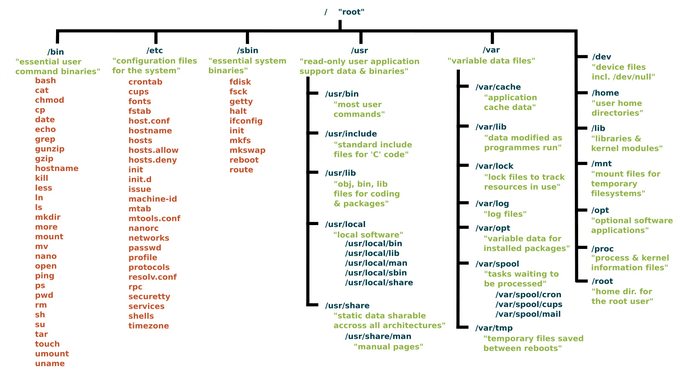
For a detailed breakdown, we'll turn to a comprehensive guide from The Linux Foundation. It walks through each major directory one by one.
Classic SysAdmin: The Linux Filesystem Explained
Please read the following sections from the article 'Classic SysAdmin: The Linux Filesystem Explained'. This will be our primary guide for the tour.
Read the main 'Directories' section. It contains subsections for each key directory from /bin to /var. Focus on understanding the purpose of each one.
Let's summarize and categorize the most important directories for your goals:
1. Configuration & User Data
These directories are a primary target during the reconnaissance phase of a hack.
/etc(Etcetera, or "Everything To Configure"): This is one of the most critical directories. It contains system-wide configuration files for almost all services and programs. As an attacker, you'd look here for information about the system's setup, network services, and potentially misconfigured files./home: This is where personal directories for regular users are stored. For a user namedalex, their home would be/home/alex. This directory contains their documents, downloads, and user-specific configuration files (often hidden, starting with a.). For example, SSH keys are commonly found in/home/user/.ssh/./root: This is the home directory for the superuser (therootuser). It's separate from/hometo ensure the root user can still log in and access their files even if/homeis on a separate, unmounted drive. Accessing this directory is often a key objective after gaining initial access to a system.
2. Executable Programs (Binaries)
These directories contain the commands you run in the terminal.
/bin(Binaries): Contains essential commands available to all users, likels,cp, andmv./sbin(System Binaries): Contains essential commands for system administration that are typically reserved for therootuser, such asfdisk(for partitioning) andiptables(for firewall rules)./usr/binand/usr/sbin: Historically, these held non-essential user and system binaries. On many modern systems like Arch,/binis simply a symbolic link to/usr/bin, consolidating all programs in one place. You can check this on your own system withls -l /.
3. System Operations & Data
These directories are vital for the system's runtime operation and for forensic analysis.
/var(Variable): Stores variable data files that are expected to grow in size. The most important subdirectory for you is/var/log, which contains log files for the system and various applications. Logs are a goldmine for both defenders (investigating a breach) and attackers (covering their tracks)./tmp(Temporary): A world-writable directory for temporary files created by applications. Because any user can often write here, it's a common place for attackers to download scripts or store temporary files during an exploit./boot: Contains the files needed to boot the system, including the Linux kernel. You should almost never touch the files in here manually./dev(Devices): As you saw in the video, this is where Linux maintains device files. Your hard drives (/dev/sda), terminals (/dev/tty), and even a "null" device (/dev/null) for discarding output are represented here.
4. Virtual & Mounted Filesystems
/proc&/sys: These are not real directories on your disk. They are virtual filesystems created by the kernel in memory. They expose a vast amount of information about running processes (/proc) and system hardware (/sys)./mnt&/media: These are used as mount points./mediais typically for removable media like USB drives that are automatically mounted by the system./mntis traditionally used for manually mounting filesystems.
Practical Exploration
Theory is good, but hands-on practice is better. The best way to learn the filesystem is to explore it. The three most essential commands for this are:
pwd(Print Working Directory): Tells you where you are.ls(List): Shows you what's in the current directory.cd(Change Directory): Moves you to another directory.
Now, on your own Arch Linux machine, open a terminal and try the following:
- Check your location: Type
pwd. You'll likely be in your home directory,/home/yourusername. - Move to
/etc: Typecd /etc. - List the contents: Type
ls. You'll see many configuration files. - Find a specific file: Look for
fstabby typingls fstab. This file defines how disk partitions are mounted. Usecat fstabto view its contents (don't worry about understanding it yet). - Explore the logs: Navigate to the log directory with
cd /var/log. Usels -ltto list the files sorted by modification time, showing the most recent logs at the top. This is a common command for sysadmins and security analysts. - Find a command: Use the
whichcommand to locate thelsexecutable. Typewhich ls. It will likely show/usr/bin/ls, confirming how modern systems organize binaries.
Why This Matters for Hacking
Understanding the filesystem isn't just an academic exercise; it's a critical skill for ethical hacking.
Navigating the Linux File System: Master ls, cd, pwd, and Beyond
To tie all of this directly to your goal, please read this final section. It explicitly details why filesystem knowledge is a core cybersecurity skill for both offense and defense.
Read the section titled 'File System Navigation as a Cybersecurity Skill'. Pay close attention to the examples given for both defenders and attackers.
In post-exploitation, once an attacker gains initial access, their first steps almost always involve navigating the filesystem to:
- Find sensitive data: Look in
/etcfor configuration files with passwords, in/home/*/.sshfor private keys, or in/var/www/for web application source code. - Understand the user environment: Check
/etc/passwdto see a list of users on the system. - Establish persistence: Find a writable directory like
/tmpto place a malicious script, then look for ways to run it automatically (e.g., via a misconfigured service found in/etc).
Conclusion
You've taken your first major step into the world of Linux. You now have a mental map of the terrain.
Key Takeaways:
- The Linux filesystem is a single tree starting at
/, governed by the Filesystem Hierarchy Standard (FHS). - Everything in Linux is treated as a file, from text documents to hardware devices.
- Each directory has a specific purpose. For your goals, the most critical directories to know are:
/etc: System-wide configuration./home&/root: User data and personal settings./var: Variable data, especially/var/logfor logs./tmp: Temporary files, often used by attackers./bin&/sbin: Command binaries.
This knowledge is the foundation upon which all your future command-line skills will be built.
Next Lesson Preview:
In the next lesson, we will learn how to redirect standard input/output and chain commands together using pipes (|), >, >>, and <. This will allow you to take the simple commands you're learning, like ls and cat, and combine them into powerful, one-line operations to process data and find exactly what you're looking for on a system.