Introduction
Welcome back! In our last lesson, you built a mental map of the Linux filesystem, learning the purpose of critical directories like /etc, /var, and /home. You also practiced basic navigation with ls, cd, and pwd. These commands are the building blocks, but their true power is unlocked when you can manipulate their data streams.
Today, we're going to learn how to do just that. Our objective is to redirect standard input/output and chain commands together using pipes (|), >/>>, and <. This is a fundamental skill that transforms simple commands into a powerful toolkit for data processing. For an ethical hacker, this means you can filter massive log files for a single clue, save reconnaissance results to a file for later analysis, and build custom, one-line tools on the fly.
Let's get started.
The Three Standard Streams
Every command you run on the Linux command line operates with at least three standard data streams. Understanding these is the key to controlling the flow of information.
- Standard Input (stdin): Where a command gets its input. By default, this is your keyboard.
- Standard Output (stdout): Where a command sends its successful results. By default, this is your terminal screen.
- Standard Error (stderr): Where a command sends its error messages. By default, this is also your terminal screen.
The following video provides a clear explanation of these three streams in practice.
Linux Back to Basics Episode 7: I/O Redirection
Watch this first segment from the video 'Linux Back to Basics Episode 7: I/O Redirection' by Douglas Rumbaugh. It clearly illustrates the default behavior of stdin, stdout, and stderr.
Watch from 00:31 to 02:48. Pay attention to how a successful ls command uses stdout, while a command that fails (like running a package manager without root privileges) uses stderr.
Redirecting Output: Capturing a Command's Results
What if you don't want a command's output to just appear on the screen? What if you want to save it to a file? This is called output redirection, and it's essential for saving scan results, wordlists, or any other data you generate.
This is done using the > and >> operators.
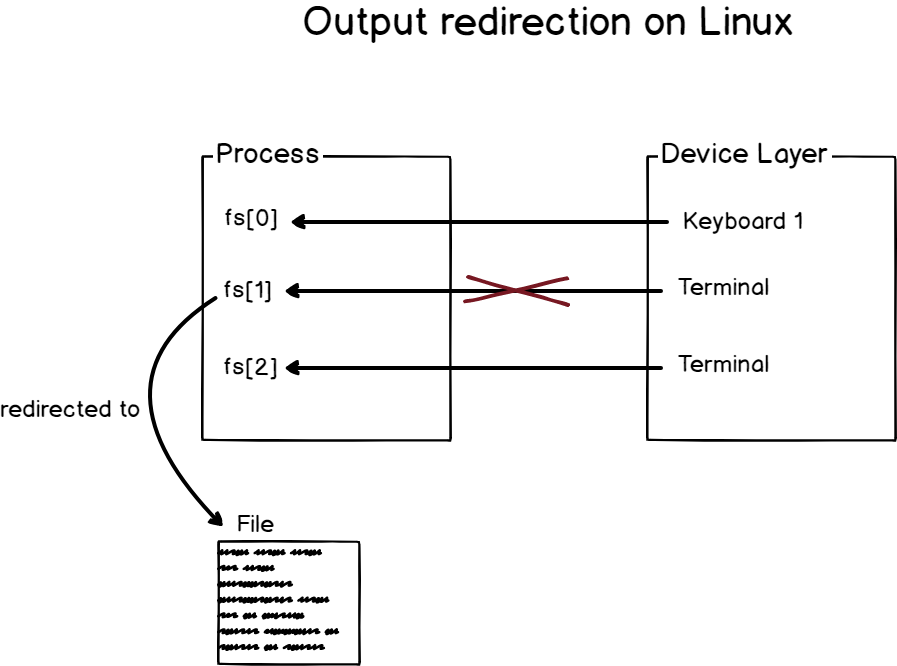
Let's see how this works.
Linux Back to Basics Episode 7: I/O Redirection
The next part of the same video demonstrates how to use > to overwrite a file with a command's output and >> to append to it.
Watch from 02:48 to 07:58. The video will cover: Using > to save the output of ls to a file, overwriting any previous content. Using >> to add the output of ls to the end of a file, preserving the existing content.
Key Distinction:
command > filename.txt: Overwrites the file. Use this when you want a fresh start.command >> filename.txt: Appends to the file. Use this when you are building a log or adding to a list.
Redirecting Errors and More
You might have noticed that if a command produces an error, > won't capture it. That's because > only redirects stdout. To control stderr, we need to be more specific.
Linux identifies the standard streams with numbers called file descriptors:
0: stdin1: stdout2: stderr
So, > is actually a shortcut for 1>. To redirect errors, you use 2>.
Linux Back to Basics Episode 7: I/O Redirection
Let's continue with the video to see how to redirect standard error and how to redirect both stdout and stderr.
Watch from 07:58 to 10:58. This section explains: How to use 2> to capture error messages in a separate file. The formal 1> syntax for stdout. The &> operator for redirecting both stdout and stderr to the same file.
A common and very useful technique in hacking and scripting is to discard unwanted error messages (like "Permission denied" when searching the whole filesystem). You can do this by redirecting stderr to a special "black hole" file called /dev/null.
Example: find / -name "secret.txt" 2> /dev/null
This command searches the entire filesystem for "secret.txt". It will print any results it finds to the screen, but all the "Permission denied" errors will be silently discarded.
Redirecting Input: Feeding a Command from a File
Just as you can redirect output, you can also change a command's input source from the keyboard to a file using the < operator. This is useful for commands that are designed to process data fed into them.
Linux Back to Basics Episode 7: I/O Redirection
This next clip introduces the concept of input redirection using the grep command, a powerful tool for searching text that we'll cover in more detail later.
Watch from 10:58 to 13:06. The video shows how to use < to make the grep command search for a pattern within a file, using that file as its standard input.
Pipes: Chaining Commands for Maximum Power
This is where your command-line capabilities will take a massive leap. The pipe operator | allows you to take the stdout of one command and use it directly as the stdin for another command. You can chain multiple commands together to create powerful, on-the-fly data processing pipelines.
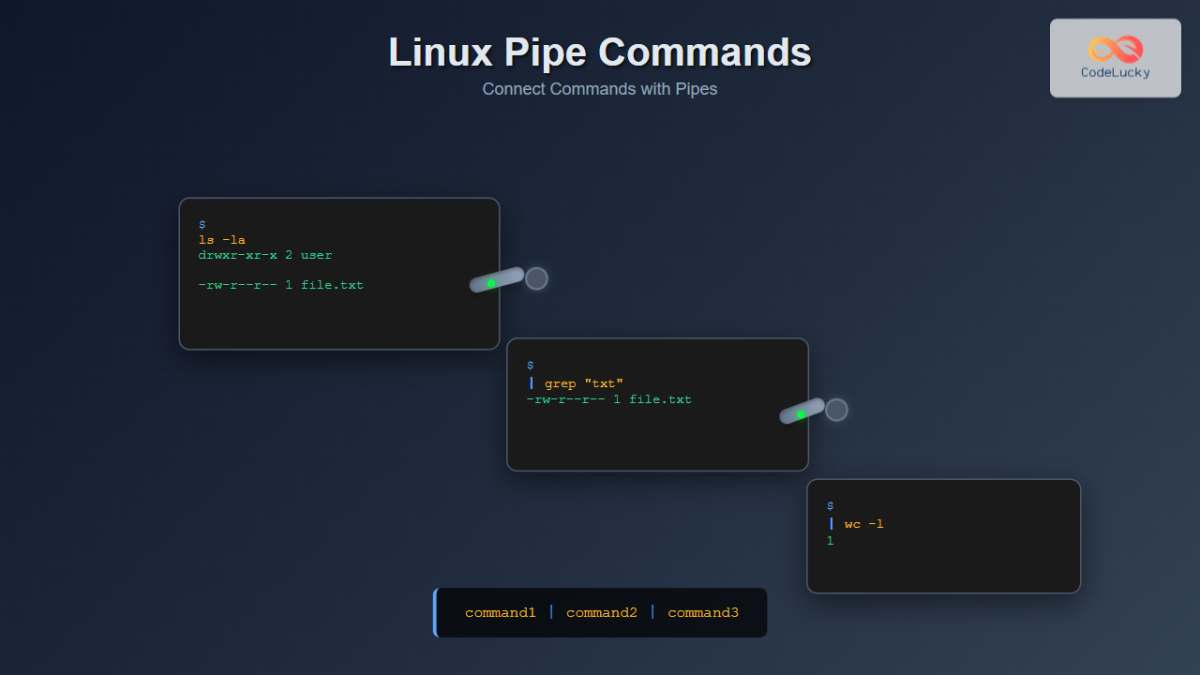
Let's see this in action.
Linux Back to Basics Episode 7: I/O Redirection
The final segment of this video explains and demonstrates the use of the pipe (|).
Watch from 13:33 to 17:25. Focus on the example of piping ps aux into grep. This is a classic pattern used to find specific running processes, a task you'll perform constantly in security assessments.
This technique is incredibly versatile. You can use it to:
- List processes and filter for a specific one:
ps aux | grep "apache" - List files and count how many there are:
ls -1 | wc -l - Find lines in a log file that contain an IP address:
cat /var/log/auth.log | grep "192.168.1.101"
Combining All Streams in a Pipeline
By default, the pipe | only passes stdout. What if you want to pass both stdout and stderr to the next command? You need to combine the streams first. The common syntax for this is 2>&1. This tells the shell to "redirect stream 2 (stderr) to the same place as stream 1 (stdout)".
Linux PIPES and REDIRECTS: Command Line Ninja Skillz
This short video from Shawn Powers gives a very clear, hands-on demonstration of why 2>&1 is necessary when you want to pipe errors along with standard output.
Watch from 07:46 to 09:23, and then the demonstration from 14:56 to 15:38. Notice how without 2>&1, the error from cat goes to the terminal, but with 2>&1, the error message is successfully piped into the less command.
Hands-on Practice
Now it's time to put this all together on your Arch Linux system. Theory is one thing, but muscle memory is built through practice. Open your terminal and work through these challenges.
This reading provides a series of structured exercises. We will work through a selection of them to solidify your understanding. The resource is a tutorial from Seneca College.
You don't need to read the entire page, just use the command examples in the 'Investigation 1' and 'Investigation 2' sections as a guide for the exercises below. Do not worry about the ~osl640 paths or checking scripts mentioned; they are specific to that course.
Challenge 1: Output Redirection
- Navigate to your home directory (
cd ~). - Create a new directory for this exercise:
mkdir lesson2_practiceand enter it:cd lesson2_practice. - List the contents of your
/etcdirectory in long format and redirect the output to a file namedetc_listing.txt.- Hint:
ls -l /etc > etc_listing.txt
- Hint:
- Now, get the current date and append it to the
etc_listing.txtfile.- Hint:
date >> etc_listing.txt
- Hint:
- Verify your work by viewing the file's contents:
cat etc_listing.txt. You should see the file list followed by the date.
Challenge 2: Error Redirection
- Try to view a file that doesn't exist:
cat no_such_file. Note the error message on your screen. - Now, run the same command but redirect the error message to a file called
errors.log. You should see nothing on your screen.- Hint:
cat no_such_file 2> errors.log
- Hint:
- Confirm the error was captured:
cat errors.log. - Try to find all files named
hostson your system, but discard all 'Permission denied' errors.- Hint:
find / -name "hosts" 2> /dev/null
- Hint:
Challenge 3: Piping and Filtering
- List all the running processes on your system and use a pipe to filter the output to show only the lines containing the name of your shell (e.g., "bash" or "zsh").
- Hint:
ps aux | grep "bash"
- Hint:
- Chain three commands: List the contents of
/bin, usegrepto filter for files containing the letter 'a', and then usewc -lto count how many there are.- Hint:
ls /bin | grep a | wc -l
- Hint:
- Combine piping and redirection: Find all the services that
systemdis managing, filter for the ones that are "running", and save that list to a file calledrunning_services.txt.- Hint:
systemctl list-units --type=service | grep "running" > running_services.txt
- Hint:
Conclusion
Excellent work. You've just learned one of the most powerful and flexible features of the Linux command line. These operators are not just conveniences; they are the grammar you use to compose complex operations from simple tools.
Key Takeaways:
- All commands operate with three streams: stdin (0), stdout (1), and stderr (2).
- Redirection changes where these streams point.
>redirects stdout, overwriting files.>>redirects stdout, appending to files.<redirects stdin, feeding a file to a command.2>redirects stderr. Use2> /dev/nullto silence errors.
- The pipe (
|) is a connector, sending the stdout of one command to the stdin of the next. - You can create powerful pipelines by chaining multiple commands to filter, process, and analyze data directly on the command line.
Next Lesson Preview:
In the next lesson, we'll dive into a critical topic for system security: the Linux permission model. You will learn to explain what owner, group, and others mean, and how to interpret permission strings like rwxr-xr--. This is fundamental to understanding how to protect files and how attackers look for misconfigurations to exploit.