Introduction
Welcome back! In the last lesson, we focused on decoding the permission strings (rwxr-xr--) you see with ls -l. You now know how to read and interpret who can access a file and what they can do (read, write, or execute). This is the skill of assessment.
Today, we move from assessment to action. This lesson is about taking control of file permissions. Our learning outcome is to modify file and directory permissions using chmod with both symbolic and numeric notation.
For your goal of becoming an ethical hacker, this is a critical, hands-on skill. You will constantly encounter situations where you need to:
- Make your own tools and scripts executable.
- Secure sensitive files by removing permissions from others.
- Identify and exploit insecure permissions on a target system.
We'll cover the two primary ways to use the chmod (change mode) command: the intuitive symbolic mode and the efficient numeric (or octal) mode.
Part 1: Symbolic Mode - The Descriptive Way
Symbolic mode is the easiest to understand because it uses letters and symbols that directly correspond to the permissions you're changing. Think of it as telling the system exactly what you want to do in a descriptive sentence.
Let's start by watching a video that demonstrates this method. It picks up right where our last lesson's video left off.
Linux Crash Course - Understanding File & Directory Permissions
This segment from Learn Linux TV's 'Understanding File & Directory Permissions' will walk you through changing permissions using symbolic notation. Pay close attention to the characters used to represent the user, the action, and the permission itself.
Watch from 14:04 to 21:25. The video will show you how to make a file executable and then modify permissions for the user, group, and others using + to add and - to remove permissions.
As the video demonstrated, the syntax for symbolic mode is composed of three parts:
-
Who is affected?
u- the user (owner)g- the groupo- othersa- all (the default if you don't specify)
-
What action to take?
+- add a permission-- remove a permission=- set the permissions exactly as specified (overwriting existing ones)
-
Which permission?
r- readw- writex- execute
Examples:
chmod u+x myscript.sh: For the user, add the execute permission. (This is how you make a script you've written runnable).chmod g-w confidential.txt: For the group, remove the write permission.chmod o=r public_info.txt: For others, set the permission to be read-only (and nothing else).chmod a-x data.file: For all (user, group, and others), remove the execute permission.chmod ug+w,o-w project/: You can also combine operations. Here, for user and group, add write permission, and for others, remove write permission.
Part 2: Numeric (Octal) Mode - The Efficient Way
While symbolic mode is descriptive, numeric mode is often faster and is the standard you'll see in documentation and scripts. It uses a three-digit octal number (like 755 or 644) to represent the entire permission set for the user, group, and others simultaneously.
This method is based on the following values:
- read (r) = 4
- write (w) = 2
- execute (x) = 1
To set the permissions for one category (user, group, or other), you simply add the values together.
rwx= 4 + 2 + 1 = 7r-x= 4 + 0 + 1 = 5rw-= 4 + 2 + 0 = 6r--= 4 + 0 + 0 = 4
The following image provides a great visual breakdown of this conversion.
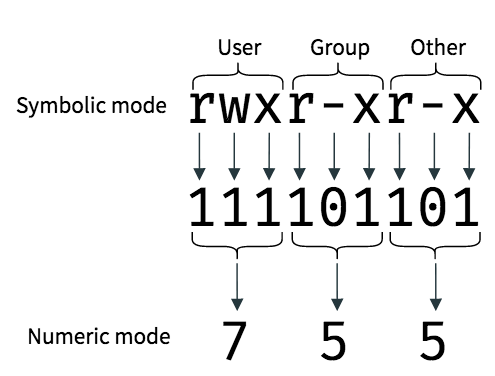
A chmod command in numeric mode uses three of these digits in order: User, Group, Others.chmod 755 filename means:
- User: 7 (
rwx) - Group: 5 (
r-x) - Others: 5 (
r-x)
Let's watch the final part of the video, which explains and demonstrates this numeric method.
Linux Crash Course - Understanding File & Directory Permissions
Continuing with the same Learn Linux TV video, this segment introduces the numerical (octal) representation of permissions. It clearly explains how the values 4, 2, and 1 correspond to read, write, and execute.
Watch from 21:25 to 27:22. Focus on how the numbers are added together to create a specific permission set and how a three-digit number defines the permissions for user, group, and others all at once.
Common Numeric Permissions:
From a security perspective, you should know these common patterns:
chmod 755: (rwxr-xr-x) - Full control for the owner, read and execute for everyone else. Common for programs and directories that need to be accessible to all users.chmod 644: (rw-r--r--) - Writable by the owner, readable by everyone else. Very common for web server files and other non-executable data files.chmod 600: (rw-------) - Only the owner can read and write. No one else has any access. This is ideal for highly sensitive files, such as your private SSH keys (~/.ssh/id_rsa).
Hands-on Lab: Securing a Script
Time to apply this on your Arch Linux system. We'll simulate a common scenario: you've created a new tool and need to set its permissions correctly.
Open your terminal and follow along.
-
Create a dummy script:
touch recon_tool.sh echo '#!/bin/bash' >> recon_tool.sh echo 'echo "Running reconnaissance..."' >> recon_tool.sh -
Check initial permissions:
ls -l recon_tool.shYou'll likely see something like
-rw-r--r--(644) or-rw-rw-r--(664), depending on your system's default settings. Notice there is nox. -
Attempt to run it:
./recon_tool.shThis will fail with a
bash: ./recon_tool.sh: Permission deniederror. The system is correctly telling you that the file is not executable. -
Make it executable (Symbolic Mode):
Let's add execute permission for your user only.chmod u+x recon_tool.sh ls -l recon_tool.shThe permissions should now be
-rwxr--r--(744) or similar. Now, try running it again. It should work!./recon_tool.sh -
Set final permissions (Numeric Mode):
A script like this shouldn't be world-readable. Let's lock it down so only you can read/write/execute it, and your group can only read/execute it. Others get no permissions. This corresponds torwxfor user (7),r-xfor group (5), and---for others (0). The command ischmod 750.chmod 750 recon_tool.sh ls -l recon_tool.shThe output will be
-rwxr-x---. This is a much more secure and intentional permission set.
Practice Exercises
Now, test your knowledge with a couple of exercises from a high-quality learning resource by the Linux Professional Institute.
The LPI Learning materials offer excellent guided exercises. Let's try two of them to solidify your understanding of both symbolic and numeric modes.
Navigate to the 'Guided Exercises' section. Try to solve questions 2 and 3 on your own. Then, scroll down to the 'Answers to Guided Exercises' section to check your work and understand the reasoning.
Conclusion
You have now gained a fundamental skill for any Linux power user, system administrator, or ethical hacker. You can not only interpret file permissions but also modify them with precision to control access.
Key Takeaways:
- The
chmodcommand is used to change file and directory permissions. - Symbolic mode (
u+x,g-w) is descriptive and useful for changing specific flags without altering others. - Numeric (octal) mode (
755,644) is efficient and sets the entire permission state at once, which is great for scripting and ensuring consistency. - The octal values are Read (4), Write (2), and Execute (1). These are summed for each of User, Group, and Others.
- Applying the principle of least privilege—giving users and processes only the permissions they absolutely need—is a core security concept.
chmodis your primary tool for implementing it.
Next Lesson Preview:
Permissions control what can be done with a file, but they are checked based on who the file's owner and group are. In the next lesson, we will complete the picture of file access control by learning how to change ownership with the chown and chgrp commands.