Hello! Welcome back to the course.
In our last lesson, we focused on a crucial strategic shift: using AI to design financial analysis frameworks and checklists without exposing confidential data. You learned to act as an "architect," prompting the AI for methodologies and reusable templates.
Today, we move from architecture to construction. We'll take those high-level frameworks and translate them into the practical building blocks of any financial analysis: spreadsheet formulas. The learning outcome for this lesson is to use AI to explain, debug, and write complex Excel or Google Sheets formulas. This skill bridges the gap between your strategic intent and the granular execution in your day-to-day work, significantly boosting your productivity.
Given your background in both finance and programming, you're well-positioned to master this. You already understand that precise syntax is critical and that debugging is a core part of building anything complex. We'll apply that same mindset to spreadsheet formulas, using AI as an intelligent assistant.
1. Writing Formulas: From Logic to Live Function
The most common use of AI for spreadsheets is generating formulas from a natural language description. The key to success here is providing the right context, a principle we've emphasized throughout the course.
Let's begin by reading an article that perfectly captures the right mindset for this task.
The Ultimate Guide to Gemini for Excel: Automating Complex Formulas
The article "The Ultimate Guide to Gemini for Excel" provides an excellent foundation for our lesson. It explains why simply asking for a function name is a waste of AI's potential and how to effectively prompt for complex logic.
Please read the beginning of the article, focusing on these sections: The introduction, which contrasts asking for simple syntax with asking the AI to solve a logic problem. Stop Writing Nested IF Statements Manually, which shows how to describe the desired outcome. Context is the Only Thing That Matters, which details how to provide a 'map' of your spreadsheet for copy-paste-ready formulas.
As the article stresses, you are the architect; Gemini is the builder. Your job is to provide a clear blueprint.
Generating Formulas in Excel
Let's see this in action within a realistic corporate finance context. The following video shows how to prompt an AI to build formulas for a weekly pacing model in Excel.
Excel for FP&A: Using AI to Build PERFECT Financial Models
This video from FP&A expert Christian Wattig is a masterclass in prompting for specific financial formulas. It demonstrates an iterative process of building a model by asking for formulas one by one and providing clear context.
Please watch the following segments: Context (00:27 - 02:37): Understand the financial model being built (a weekly pacing report). First Prompt (02:37 - 05:52): Pay close attention to the five components of the prompt used to generate a SUMIFS formula. This is a great template. Second Prompt & Refinement (09:30 - 12:00): Notice how the AI makes an incorrect assumption about the data format, and how the user provides a simple follow-up prompt to correct it. This iterative refinement is a crucial skill.
The key takeaway is that a great prompt for a formula includes:
- Goal/Role: "I'm a finance manager building a pacing report."
- Context/Layout: "Actual revenue is in row 22. The date is in cell E35."
- Task: "Sum the actual revenue up to the date specified."
- Format: "Provide a formula I can paste directly into Excel."
Generating Formulas in Google Sheets
While you can use the same prompting techniques in the Gemini web interface for Google Sheets formulas, Google provides a more integrated experience. There are two primary ways to have Gemini interact with your Sheets data.
Google Gemini Spreadsheet Uploading: Excel And CSV File ...
This article from Data Studios clearly explains the two main ways Gemini supports spreadsheet work and the strengths of each.
Please read the sections 'Data Analysis Features Depend On Whether The Work Happens In Gemini Apps Or Inside Google Sheets' and 'Formula Handling Is Strongest Inside Google Sheets'. Focus on the two tables that summarize the capabilities and best-fit workflows for each environment.
As the article highlights, for generating and troubleshooting formulas, working directly inside Google Sheets is the most powerful approach. This is done through the integrated Gemini sidebar and the =AI() formula.
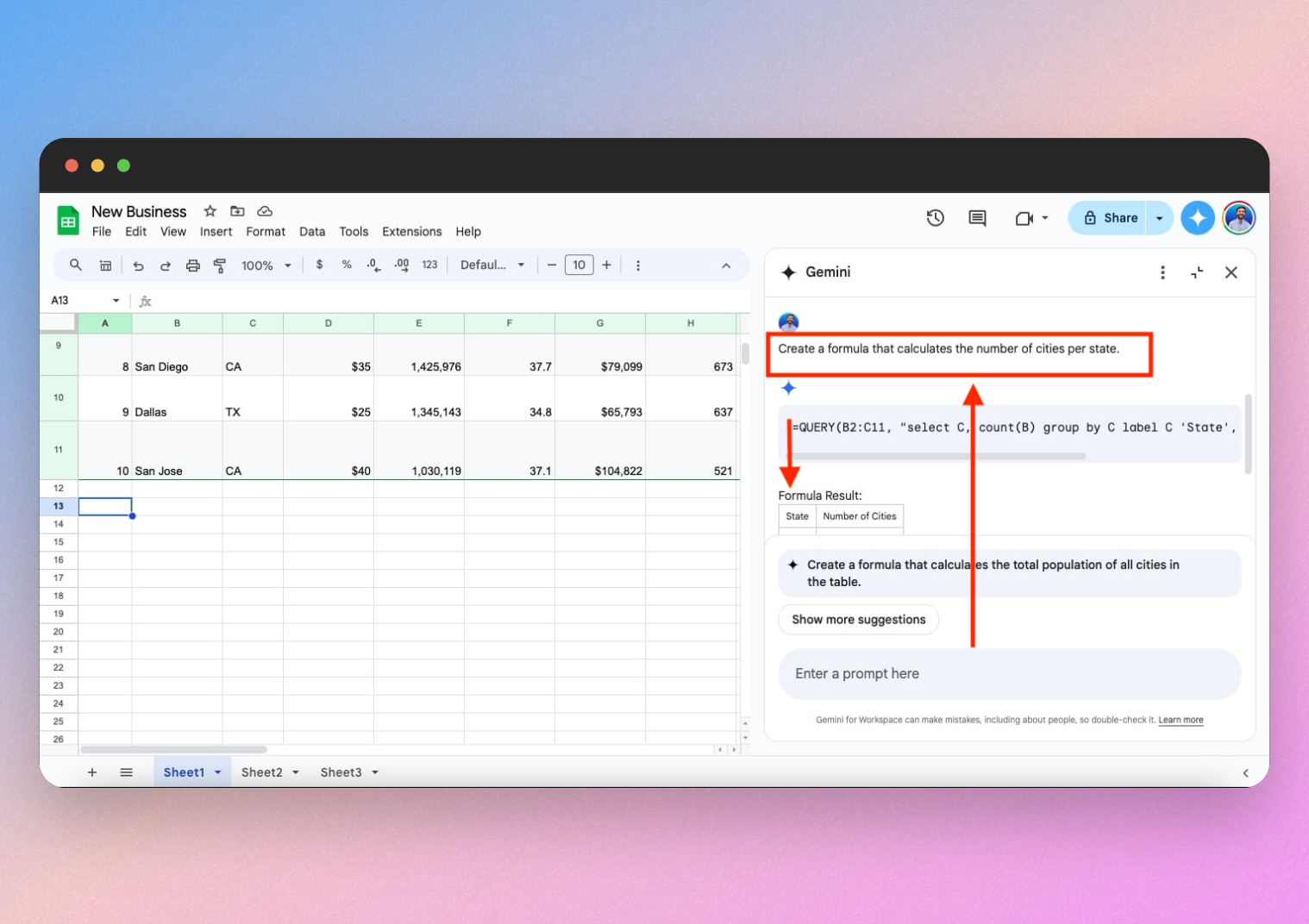
The following video gives a brief demonstration of using this feature for data organization tasks, which relies on generating formulas behind the scenes.
Gemini & the NEW AI Formula: Unlock the Power of AI in Google Sheets!
This video shows the new =AI() formula in action within Google Sheets, which is a powerful way to perform tasks that would otherwise require complex formulas.
Watch the two demonstrations: Categorizing Products (03:03 - 05:52): See how the =AI() formula is used with a natural language prompt to categorize data. Extracting Information (05:52 - 07:43): This example shows how the formula can parse text to extract specific information, like product size.
While these examples are for data cleaning, you can use the same =AI("prompt", cell_reference) structure for numerical calculations as well.
2. Explaining and Debugging "Spaghetti" Formulas
One of the most valuable uses of AI is deciphering complex, nested formulas that you've inherited from colleagues—what the article we read earlier aptly calls "spaghetti formulas." Your programming experience with debugging and refactoring code is directly analogous here.
AI can act as a translator, turning confusing syntax into a clear, step-by-step explanation.
The Ultimate Guide to Excel: Automating Complex Formulas
Let's return to "The Ultimate Guide to Gemini for Excel" to explore its advice on debugging.
Please read the section titled 'Decoding "Spaghetti" Formulas'. It provides a clear, effective prompt for explaining a complex formula and then improving it.
Practice Exercise: Decoding and Refactoring
Let's try this with a practical example. Imagine you've inherited a spreadsheet with the following formula in cell C5:
=IFERROR(VLOOKUP(A5, 'SalesData'!$A$2:$G$100, MATCH("Q2 Revenue", 'SalesData'!$A$1:$G$1, 0), FALSE), "Not Found")
This is a moderately complex formula that is prone to breaking if the structure of the 'SalesData' sheet changes.
Your Task:
-
Open Gemini Pro.
-
Paste the following prompt:
I have the following Excel formula. Please do two things: 1. Explain exactly what this formula is doing in plain English, breaking it down step-by-step. 2. Rewrite the formula using modern Excel functions like XLOOKUP to make it more robust and easier to read. Here is the formula: =IFERROR(VLOOKUP(A5, 'SalesData'!$A$2:$G$100, MATCH("Q2 Revenue", 'SalesData'!$A$1:$G$1, 0), FALSE), "Not Found") -
Analyze the result. Gemini should correctly identify that the formula is looking up a value from cell
A5, usingMATCHto dynamically find the "Q2 Revenue" column, and wrapping it inIFERRORto handle lookup failures. It should then provide a cleanerXLOOKUPequivalent, which combines the functionality ofVLOOKUPandMATCHinto a single, more intuitive function.
3. The Golden Rule: Trust but Verify
AI is an incredibly powerful tool, but it's not infallible. Especially in a high-stakes field like corporate finance, you must always verify the output.
The article "The Ultimate Guide to Gemini for Excel" makes this point well in its final section, "Why Accuracy Checks Still Matter" (LINK, section 5). The AI might occasionally "hallucinate" a function that doesn't exist in your version of Excel or make a subtle logic error.
Your verification process should always include:
- Sanity Check: Does the output look reasonable?
- Sample Test: Run the formula on a small, known data sample where you can manually calculate the correct result.
- Error Handling: If you get an error like
#NAME?, tell the AI. It can often provide an alternative for older versions of Excel or different platforms (like Google Sheets).
Conclusion
You now have a powerful, three-part framework for working with spreadsheet formulas using AI:
- Write: Generate new formulas by clearly describing your logical goal and the layout of your data. Remember to be specific with cell references and sheet names.
- Explain: Decode complex, inherited formulas by asking the AI to break them down into plain English. This is invaluable for auditing and understanding legacy models.
- Debug & Refactor: After getting an explanation, ask the AI to rewrite convoluted formulas using modern, more efficient functions like
XLOOKUPorFILTER.
By combining these AI techniques with your own financial expertise and a rigorous verification process, you can dramatically accelerate your spreadsheet-based work.
Key Takeaways:
- Prompt for logic and outcome, not just function names.
- Always provide the context of your spreadsheet layout.
- Use Gemini inside Google Sheets for the most integrated formula generation and debugging experience.
- Treat AI as a debugger and refactoring partner to simplify "spaghetti" formulas.
- Always verify the AI's output before relying on it for critical analysis.
In our next lesson, we will zoom out from individual formulas to the model as a whole. You will learn how to use AI to audit and suggest extensions for financial models by describing their structure and logic, a natural next step in leveraging AI as a true analytical partner.