Introduction
In our previous lesson, we dove into the essential skills of selecting and filtering data within a Pandas DataFrame using .loc, .iloc, and boolean indexing. You're now equipped to slice and dice data that's already loaded into memory. But in any real-world machine learning project, data doesn't just appear in your code; it comes from external sources like files, databases, or APIs.
This lesson bridges that gap. We will focus on loading data from one of the most common file formats you'll encounter: the CSV file. You will learn how to use Pandas to read a CSV file into a DataFrame and then perform the crucial first steps of inspecting its structure to understand what you're working with. This skill is the true starting point for virtually every data analysis and machine learning task.
From Text File to DataFrame: The Role of read_csv
At its core, a CSV (Comma-Separated Values) file is just a plain text file. Each line in the file represents a row of data, and the values within that row are separated by a delimiter, most commonly a comma. The first line often serves as a header, defining the names of the columns.
Pandas provides a powerful and flexible function, pd.read_csv(), that handles the work of parsing this text file and loading it into a structured DataFrame.
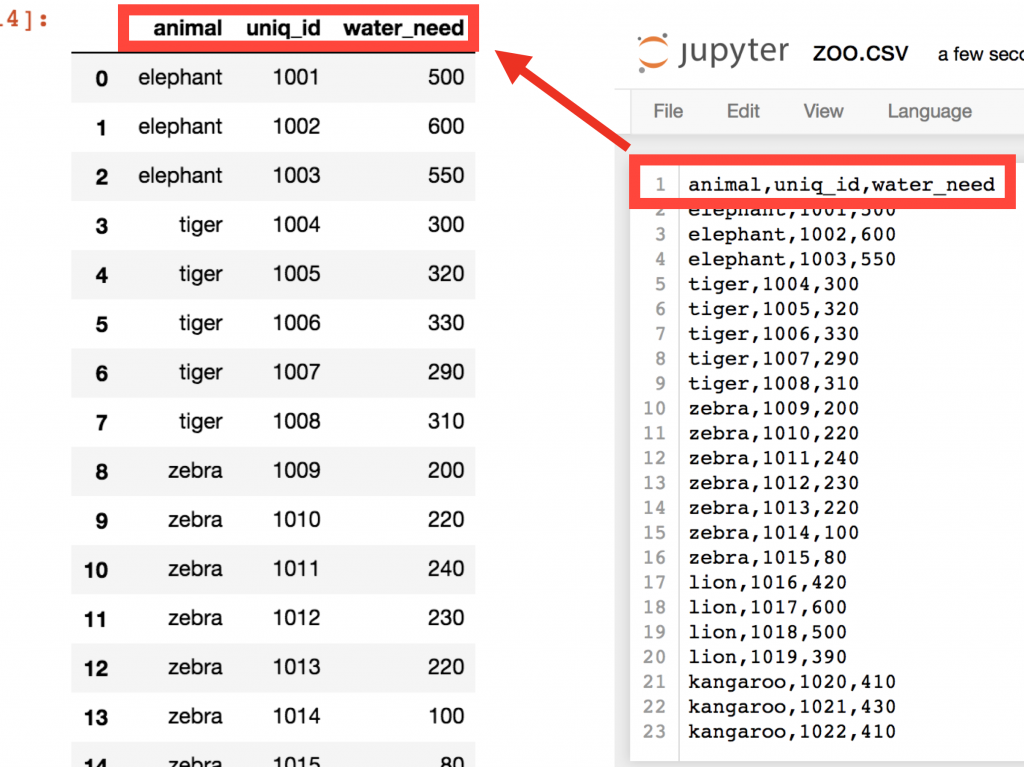
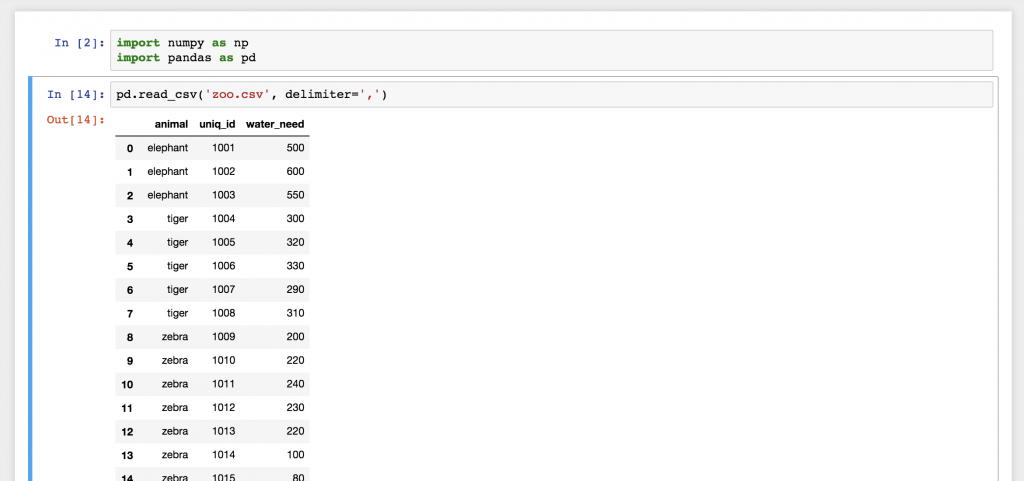
The most basic use of the function is straightforward: you simply provide the path to the file.
import pandas as pd


# Assuming 'zoo.csv' is in the same directory
df = pd.read_csv('zoo.csv')
The result is a DataFrame ready for analysis.
For a practical demonstration of loading a real-world dataset, the following video is an excellent starting point. It walks through the process of downloading a dataset and loading it into a DataFrame.
Python Pandas Tutorial (Part 1): Getting Started with Data Analysis - Installation and Loading Data
Watch the first part of this tutorial from Corey Schafer. The initial segment shows how to download and organize a real dataset. The key part for us is the demonstration of the read_csv function.
Focus on the process of downloading the data from this section. Then, pay close attention to how the CSV file is loaded into a DataFrame using pd.read_csv from this segment.
First Look: Inspecting Your New DataFrame
Once you've loaded a dataset, you should never assume it's clean or formatted as you expect. The very first step is always to inspect its structure and get a feel for its contents. Pandas provides several convenient methods and attributes for this "first look" analysis.
The official Pandas documentation provides a great tutorial on this initial inspection process.
How do I read and write tabular data? - Pandas - PyData |
This guide from the official Pandas documentation walks you through the essential methods for inspecting a DataFrame after loading it from a file.
Start by reading the section that demonstrates loading the data. Then, focus on the methods for inspection: How to use .head() to view the top rows of the data. How to check the data types of each column using the .dtypes attribute. How to get a full technical summary using the .info() method, which is one of the most useful inspection tools.
Let's summarize the key inspection tools you just read about:
.head(n)and.tail(n): These methods allow you to view the firstnrows and the lastnrows, respectively. If you don't specifyn, they default to 5 rows. This is perfect for a quick glance to ensure the data loaded correctly and to see the column names and sample values..shape: This is an attribute (not a method, so no parentheses) that returns a tuple representing the dimensions of the DataFrame:(number_of_rows, number_of_columns). It's a quick way to understand the scale of your dataset..info(): This method provides a concise technical summary. It tells you the number of rows (entries), the number of columns, the name and data type (Dtype) of each column, and, crucially, the number of non-null values in each column. This is your primary tool for spotting missing data at a high level..columns: An attribute that returns an Index object containing all the column names..dtypes: An attribute that returns a Series with the data type of each column.
The video you watched earlier also has a great segment explaining .shape and .info(). Let's revisit it to solidify your understanding.
Python Pandas Tutorial (Part 1): Getting Started with Data Analysis - Installation and Loading Data
This part of the Corey Schafer tutorial explains how to use .shape and .info() to get an overview of the dataset's size and technical characteristics.
Watch from this segment, where the presenter demonstrates how to check the dimensions of the DataFrame and interpret the output of the .info() method, including the column data types.
Customizing Your Import with read_csv Parameters
Real-world CSV files aren't always perfectly formatted. They might use a different separator, lack a header row, or contain a column that would be better suited as the DataFrame's index. The pd.read_csv() function has a rich set of optional parameters to handle these situations.
The following article provides a clear overview of some of the most useful parameters.
pandas read_csv() Tutorial: Importing Data
This tutorial from DataCamp explains several key parameters for read_csv that give you more control over the data import process.
Please read the following sections: Setting an index column with index_col. This is useful for creating a more meaningful index, which you know from our previous lesson is valuable for label-based selection with .loc. Selecting specific columns with usecols. This is very efficient for large datasets where you only need a subset of the data. Finally, review the table of common parameters. You don't need to memorize it, but it's good to be aware of what's possible, especially parameters like sep (for different delimiters), header (if your file has no header), names (to provide your own column names), and nrows (to read only a small part of a huge file).
To see some of these parameters in a live coding context, the following video provides quick, clear examples for handling files with different separators or no headers.
How to Read and Write CSV with Pandas
This video from Tony Teaches Tech quickly demonstrates how to handle common CSV variations.
Watch how the sep parameter is used to read a tab-separated file (TSV example). Then, see how to handle files without a header row using header=None and how to provide your own column titles with the names parameter (no header example).
Conclusion
Congratulations on completing the first module of our course! You have built a solid foundation in using Python's data science toolkit. In this final lesson, you've moved from working with manually created data to loading and inspecting real-world datasets from CSV files, a cornerstone skill for any machine learning practitioner.
Here are the key takeaways:
- Loading Data: The
pd.read_csv()function is your primary tool for importing data from CSV files into a Pandas DataFrame. - Initial Inspection: Always inspect your data immediately after loading. Use
.head(),.tail(),.shape, and especially.info()to understand the structure, size, and integrity of your dataset. - Customization:
pd.read_csv()is highly flexible. Parameters likeindex_col,usecols,sep, andheaderallow you to handle many common variations in file formats.
With the ability to load, inspect, and manipulate data, you are now ready to move beyond the tools and start exploring the theories that make machine learning possible. In our next module, we will shift gears to the Mathematical and Statistical Foundations of AI. We'll begin by learning how to interpret vectors and matrices, the fundamental mathematical objects used to represent data and perform transformations in virtually all machine learning algorithms.