Welcome to the second module of our course! We've spent the past few weeks building a solid mathematical toolkit, which has trained our minds for logical and abstract thinking. Now, it's time to transition from the language of mathematics to the language of computers. This lesson marks your official start as a programmer.
Our goal for today is to set up a Python development environment and execute a Python script. This is a foundational step for any programmer. True to your preference for understanding principles first, we will begin by exploring the theory of how a computer understands your code. Only then will we get our hands dirty with the practical setup, installing the necessary software, and running your very first program.
1. From Human Ideas to Machine Actions: The Role of the Translator
At its core, programming is about giving instructions to a computer. The challenge is that we think in languages like English or Chinese, while a computer's processor understands only one language: machine code, a sequence of ones and zeros. Writing directly in machine code is incredibly tedious and difficult.
To bridge this gap, we use high-level programming languages like Python. A high-level language uses words and syntax that are much closer to human language, allowing us to express complex ideas more naturally. Your written Python code is called source code.
However, the computer still can't understand source code directly. It needs a special program to act as a translator. There are two main types of translators: compilers and interpreters.
Beginners Guide to Programming - Interpreters vs Compilers
This article from Dan Fletcher's blog provides a clear, non-technical explanation of how source code is translated into instructions a computer can execute. It's perfect for understanding the conceptual foundation before we start coding.
Please read the following sections: Start with "Recap: What is a Program?" to understand why translation is necessary. Next, read "So what is a compiler?" to learn about the first type of translator. Then, read "What’s an interpreter?" to understand the second type, which is what Python uses. Finally, read the first three paragraphs of "Interpreters vs Compilers" to see a direct comparison of their advantages and disadvantages.
As the article explains, Python is an interpreted language. When you "run" a Python script, you are actually handing it to the Python interpreter. The interpreter reads your code line by line, translates it, and tells the computer to execute the instruction immediately before moving on to the next line.
The process in modern Python is a little more nuanced and efficient. It's actually a hybrid approach, which is shown in the diagram below.

Here's a breakdown of the diagram:
- Editor: This is the program where you write your source code (e.g., Visual Studio Code).
- Source File: This is the file you save, which contains your Python code, typically with a
.pyextension. - Python Interpreter: This is the core engine.
- Compiler: The interpreter first compiles your human-readable source code into a lower-level, platform-independent set of instructions called bytecode. This isn't machine code yet, but it's a step closer.
- Virtual Machine (VM): This bytecode is then run on the Python Virtual Machine, which is the part that acts as a true interpreter, executing the bytecode instructions.
- Library modules: Your program can also pull in pre-written code from libraries to perform common tasks, which the VM also manages.
- Running Program: The final result of the VM executing the bytecode.
You don't need to memorize these steps, but understanding this process—that your code goes through a translation—is a key piece of computer science theory.
2. Setting Up Your Development Environment
Now for the practical part. A programmer's "development environment" consists of the tools they use to write and run code. For us, this will be two key pieces of software:
- The Python Interpreter: The engine that understands and executes Python code.
- A Code Editor: A specialized text editor for writing code. We will use Visual Studio Code (VS Code), a free, popular, and powerful editor made by Microsoft.
Let's install and configure these tools step-by-step. The following video provides an excellent visual guide for the entire process. I will break down the steps and link to the relevant timestamps.
How to Install Python and VS Code + BONUS Roadmap! (Step-by-Step) | #Python Course 2
This video from "Data with Baraa" will walk us through the complete setup of Python and Visual Studio Code. We'll use it as a visual reference as we go through the installation.
There is no need to watch the whole video at once. I will refer to specific parts for each step below.
Step 1: Install Python
First, we need to download and install the Python interpreter from the official website.
- Action: Go to python.org and download the latest version of Python. Run the installer.
- Crucial for Windows Users: On the first screen of the installer, you must check the box that says "Add python.exe to PATH". This allows you to run Python easily from any location on your computer.
- Visual Guide: Watch the installation process in the video from
this timestamp .
After the installation is complete, let's verify that it worked. Open your system's command line tool (on Windows, search for "Terminal" or "Command Prompt"; on macOS, open "Terminal"). Type the following command and press Enter:python --version (or python3 --version on some systems)
You should see a message printed with the version number you just installed, like Python 3.12.3. This confirms the interpreter is ready. The video demonstrates this verification at
Step 2: Install Visual Studio Code
Next, let's install our code editor.
- Action: Go to the Visual Studio Code website and download and install the version for your operating system. The installation is straightforward.
- Visual Guide: The video covers downloading and mentioning the installation from
this timestamp .
Step 3: Configure VS Code with the Python Extension
Out of the box, VS Code is a general-purpose editor. We need to install an "extension" to make it a fantastic environment for Python development.
- Action: Open VS Code. On the left-hand side, click the "Extensions" icon (it looks like four squares). In the search bar, type
Pythonand install the extension published by Microsoft. It will be the first result. - Visual Guide: See this process demonstrated in the video from
this timestamp .
3. Write and Execute Your First Python Script
With your environment set up, you are ready to write and run your first program.
-
Create a Project Folder: First, create a new folder somewhere on your computer to hold your projects. You might call it
python_projects. -
Open the Folder in VS Code: In VS Code, go to
File > Open Folder...and select the folder you just created. This folder is now your "workspace". -
Create a Python File: In the VS Code explorer panel on the left, click the "New File" icon and name your file
hello.py. The.pyextension is crucial; it tells VS Code that this is a Python file. -
Write the Code: In the editor panel that opens for
hello.py, type the following line of code:print("Hello, CS World!")The
print()command is a built-in Python function that displays whatever you put inside the parentheses onto the screen. Since you are an English major, you can think of functions like verbs in programming—they perform an action. -
Run the Script: Now for the exciting part. In the top-right corner of the VS Code editor, you will see a "play" button (▶). Click it.
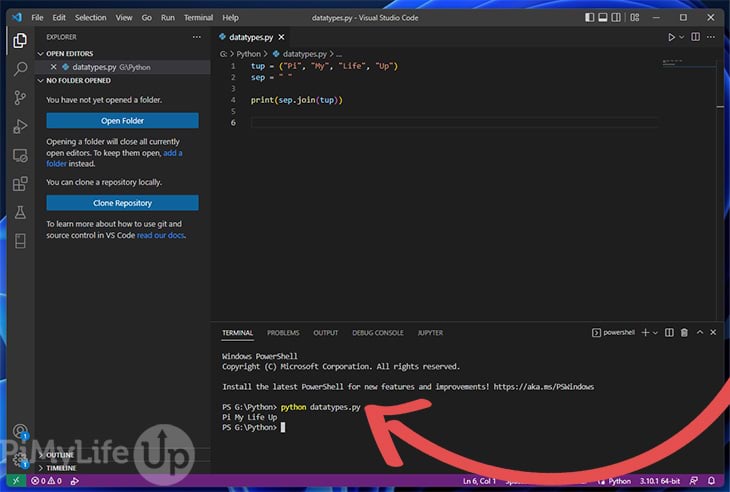
VS Code will automatically open a terminal panel at the bottom of the window, and you will see it run the command to execute your script. Below that command, you should see your message printed out: Hello, CS World!.
The video walks through this entire sequence, from creating the folder to running the code, between
The image below shows what your screen should look like after running the script. You have the code in the editor and the output in the integrated terminal at the bottom.
Congratulations! You have just written and executed your first computer program.
Conclusion
In this pivotal lesson, we bridged the gap between abstract mathematical concepts and concrete programming. You've successfully navigated the first, and often most challenging, steps of a programmer's journey.
Here are your key achievements and takeaways:
- Theory: You learned that high-level source code must be translated for a computer to understand it, and that Python uses an interpreter to do this job.
- Setup: You have built a complete, professional development environment by installing the Python interpreter and the Visual Studio Code editor with its Python extension.
- Execution: You wrote your first Python script (
.pyfile) using theprint()function and successfully executed it, seeing the output directly within VS Code.
You now have a working environment, a "workshop" where you can experiment, build, and learn. In our next lesson, we will use this workshop to begin exploring the fundamental building blocks of the Python language: how to store information in variables and the different data types that Python can work with.