Introduction
Welcome back! In our last lesson, you created a strategic content plan by defining your content pillars and brainstorming faceless content formats. You now have a clear blueprint for what kind of videos you'll create to build your brand and sell your digital products.
Now, we need to choose the right tool for the job. You're currently using Adobe Premiere Pro through your school, but you've rightly pointed out the need to plan for a future without the recurring "Adobe Tax." This lesson is designed to help you make an informed, strategic decision about the video editing software that will become the workhorse of your creative business.
Today, we'll directly address this learning outcome: Compare video editors (DaVinci Resolve, Premiere Pro, and Final Cut Pro) by features, performance, and long-term cost. We'll analyze each option through the lens of your specific goals: creating high-quality faceless content on a budget, with a strong emphasis on performance and speed on your M1 Pro MacBook.
The Three Contenders: An Overview
On the macOS platform, three professional-grade non-linear editors (NLEs) dominate the landscape: Adobe Premiere Pro, Apple Final Cut Pro, and Blackmagic DaVinci Resolve. Each has a distinct history, philosophy, and user base.
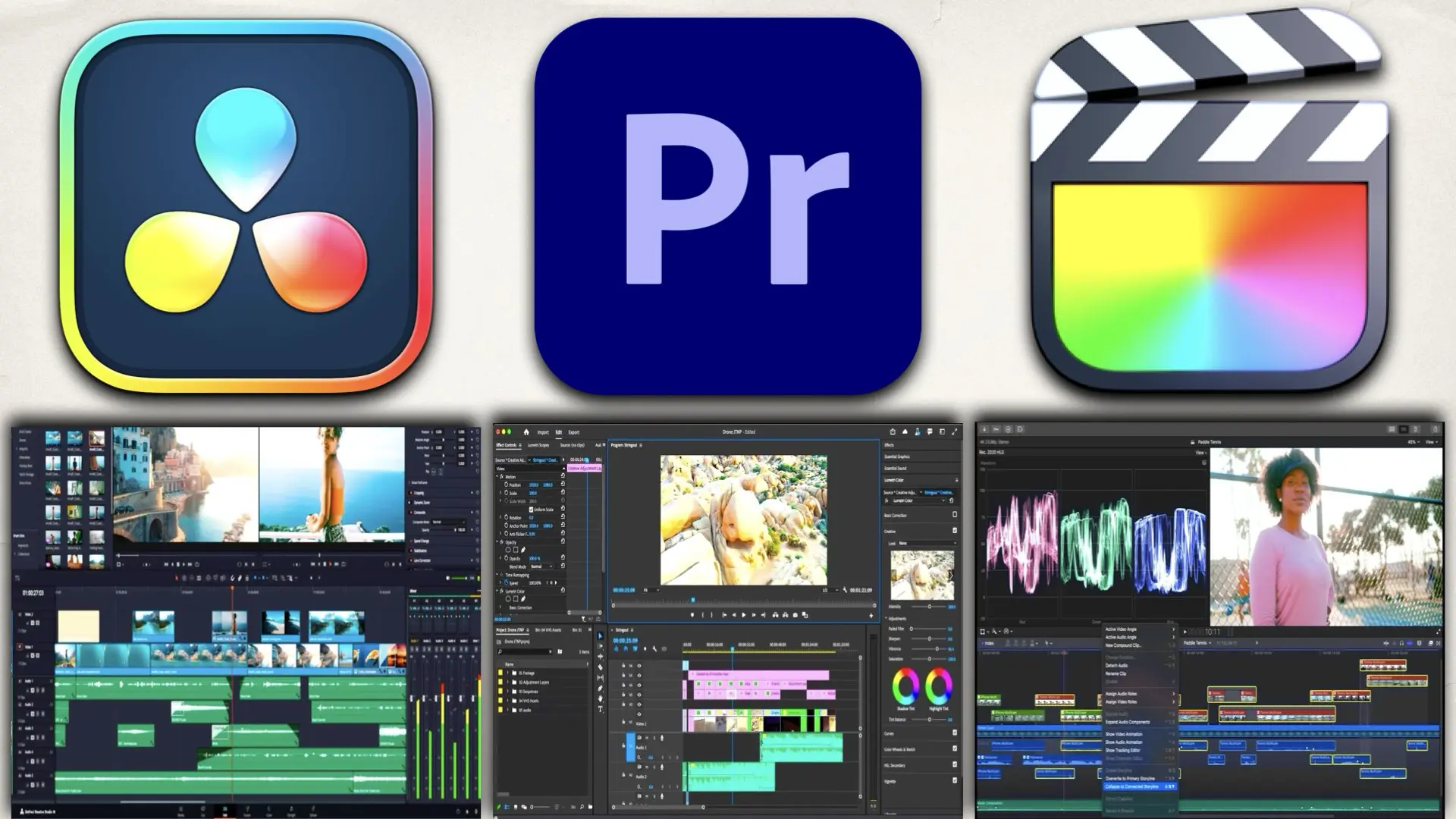
Let's briefly frame each one:
- Adobe Premiere Pro: The application you're already familiar with. It's widely considered the industry standard, especially in collaborative environments. Its main strength is its deep integration with the Adobe Creative Cloud suite.
- Apple Final Cut Pro: Apple's flagship editor, completely redesigned for modern hardware. It's known for its exceptional performance on Apple Silicon and its unique, fast-paced "magnetic timeline."
- DaVinci Resolve: Originally a specialized, high-end tool for Hollywood color grading, Resolve has evolved into a powerful, all-in-one post-production suite. Its most compelling feature for new creators is its incredibly capable free version.
Criterion 1: Features & Workflow
Beyond just cutting clips together, a modern NLE is a hub for color, effects, audio, and titles. Let's see how they stack up.
The Best Video Editor: Premiere vs Final Cut vs Resolve
To start, watch this video from Tyler Stalman. It provides an excellent, balanced overview of the pros and cons of each editor from the perspective of a professional creator.
Watch the segments covering the pros of each editor to understand their core strengths: 00:36 - 03:07: Premiere Pro's strengths (industry standard, flexibility, collaboration). 03:07 - 05:48: Final Cut Pro's strengths (speed, optimization, ease of learning). 05:48 - 08:42: DaVinci Resolve's strengths (world-class color, free version, all-in-one design).
Based on the video and other professional reviews, here's a breakdown by function:
-
Editing Interface & Ease of Use:
- Premiere Pro: Uses a traditional, track-based timeline. This is a very common and flexible paradigm. Since you know this already, it's your baseline.
- Final Cut Pro: Famous for its "magnetic timeline," which automatically ripples and closes gaps. Many editors find this incredibly fast for assembly and rough cuts, though it can be jarring for those used to traditional timelines. It's generally considered the easiest to learn from scratch.
- DaVinci Resolve: Offers a traditional track-based timeline similar to Premiere Pro, making the transition easier. However, the overall program is more complex due to its multiple "Pages" for different tasks (Media, Cut, Edit, Fusion, Color, Fairlight, Deliver).
-
Color Grading:
- This is DaVinci Resolve's clear win. It is the industry standard for professional colorists. Its toolset is deeper and more precise than any other NLE.
- Premiere Pro (Lumetri Color panel) and Final Cut Pro have very capable color tools sufficient for most online content, but they don't match the depth of Resolve.
-
VFX & Motion Graphics:
- Premiere Pro's main advantage is the Dynamic Link with After Effects. For complex motion graphics, this integration is powerful, and you have some experience with After Effects.
- DaVinci Resolve has Fusion built-in. Fusion is a node-based compositing tool, similar in power to After Effects but with a steeper learning curve, especially if you're not used to nodes.
- Final Cut Pro is more basic out of the box but integrates with Apple Motion (a separate ~$50 purchase), which is powerful for creating templates and effects.
-
Audio:
- Resolve includes the Fairlight page, a full-fledged digital audio workstation (DAW).
- Premiere Pro has a good built-in toolset and integrates seamlessly with Adobe Audition for advanced work.
- Final Cut Pro has solid basic tools but is the most limited of the three, encouraging users to move to Logic Pro (a separate purchase) for serious audio work.

Criterion 2: Performance on Apple Silicon
You have an M1 Pro MacBook Pro, a very capable machine. Performance—how smoothly the software runs and how quickly it exports—is a top priority for you. This is where the differences become stark.
Performance Comparison: Apple Final Cut Pro, Adobe Premiere Pro, & DaVinci Resolve
Larry Jordan's website provides some of the most rigorous, data-driven performance tests for NLEs on Apple hardware. His findings are highly relevant to your setup.
Read through the 'TEST RESULTS' and 'SUMMARY' sections of this article. Focus on these key takeaways: Simple vs. Complex Renders: Note the export times for projects with complex effects. See how Premiere Pro compares to the other two. GPU & CPU Usage: Observe how the different apps utilize the hardware. This explains why some are faster than others. Multicam Performance: Pay close attention to this test. The results for Premiere Pro are particularly revealing about its efficiency. You might use multicam for screen recordings paired with product shots. Overall Summary: Read the final verdict on which software is the performance winner on M-series Macs.
As the data from Larry Jordan's tests show:
- Rendering Speed: For complex, effects-heavy projects, Final Cut Pro and DaVinci Resolve are significantly faster than Premiere Pro on Apple Silicon. Final Cut is often the fastest, as it's built from the ground up by Apple to maximize their hardware.
- Resource Efficiency: In multicam editing tests, Final Cut Pro is extraordinarily efficient, using a fraction of the RAM that Premiere Pro consumes. Premiere Pro was found to be "egregiously inefficient," which can lead to dropped frames and a sluggish experience even on powerful hardware. Resolve sits comfortably in the middle, offering good efficiency.
- Stability: While Premiere Pro was historically known for crashes, recent versions have become much more stable. Conversely, some users report that recent Final Cut Pro updates have introduced minor stability issues. DaVinci Resolve is generally considered stable, but its complexity means more potential for encountering bugs.
For your M1 Pro machine, the takeaway is clear: both Final Cut Pro and DaVinci Resolve are better optimized for your hardware than Premiere Pro.
Criterion 3: Long-Term Cost
This is perhaps the most critical factor in your decision. You need a tool that you can own and rely on without a recurring monthly fee eating into your profits.
The Best Video Editor: Premiere vs Final Cut vs Resolve
Let's revisit the Tyler Stalman video and watch the final, crucial segment on pricing. It lays out the financial commitment for each editor in simple terms.
Watch the section on pricing from 16:05 to 17:10. This directly compares the cost models and declares a clear winner in terms of value.
Here is a summary of the pricing models:
-
DaVinci Resolve:
- Free Version: This is not a trial or a stripped-down app. The free version is a professional-grade editor that includes the core editing, color, Fusion VFX, and Fairlight audio pages. It is more than powerful enough for nearly all YouTube and social media content.
- Studio Version: A ~$295 one-time purchase. It adds advanced features like the Neural Engine (for AI tools like magic mask and voice isolation), more effects, and higher resolution/frame rate support. You get free updates for life.
- Verdict: Unbeatable value. You can build your entire business on the free version and only upgrade if you need a specific Studio feature.
-
Final Cut Pro:
- ~$299 one-time purchase from the Mac App Store.
- Like Resolve Studio, you get free updates, and Apple has a long history of supporting the software for many years after purchase.
- Verdict: Excellent value. You pay once and own a top-tier, highly optimized piece of software forever.
-
Adobe Premiere Pro:
- Subscription only. Roughly $22/month for Premiere Pro alone, or $55/month for the full Creative Cloud suite.
- This translates to $264 to $660 per year, every year. If you stop paying, you lose access to the software and cannot edit your projects.
- Verdict: The most expensive option by far and a significant ongoing operational cost for a new business.
Your Decision Framework
Choosing a video editor is a long-term commitment. Let's synthesize this information into a practical decision for you.
| Criteria | Premiere Pro | Final Cut Pro | DaVinci Resolve |
|---|---|---|---|
| Features | Excellent ecosystem integration (After Effects, Audition). Industry standard. | Best-in-class multicam. Strong basic features. Relies on other apps (Motion, Logic) for advanced work. | All-in-one powerhouse. Unmatched color grading. Built-in VFX (Fusion) & audio (Fairlight). |
| Performance | Lagging on Apple Silicon. Inefficient with RAM and complex renders. | The performance king. Extremely fast and optimized for Mac hardware. | Excellent performance, often close to FCP. Well-optimized for GPU usage. |
| Workflow | Traditional track-based timeline. You already know this. | Fast magnetic timeline. Lower learning curve for new users, but an adjustment for others. | Traditional track-based timeline. Steep learning curve for advanced pages (Fusion/Fairlight). |
| Cost | High recurring subscription cost (~$264+/year). | Excellent value (~$299 one-time). | Unbeatable value. Professional free version; affordable one-time purchase for Studio. |
Recommendation & Actionable Next Step
For your specific situation, the most logical path is to start with the free version of DaVinci Resolve.
- It costs you nothing. You can download it today and learn it while you still have access to Premiere Pro.
- It's a professional tool. You are not compromising on quality.
- It aligns with your long-term goals. It frees you from subscription costs and provides a pathway to an even more powerful tool (Resolve Studio) with a single, affordable purchase later on.
- The workflow is transferable. Its traditional timeline will feel more familiar coming from Premiere Pro than Final Cut's magnetic timeline would.
Your task: Before our next lesson, download the free version of DaVinci Resolve from the Blackmagic Design website. Don't get the Studio version yet. Just install the free one, open it, and import some old footage from your phone or a previous project. Get a feel for the interface and try a few basic cuts. See how it feels compared to Premiere Pro.
Conclusion
You now have a comprehensive understanding of the three major video editors and how they align with your needs. This isn't just a technical comparison; it's a business decision that will impact your workflow, finances, and creative capabilities for years to come.
Key Takeaways:
- Premiere Pro is a powerful tool, but its subscription cost and subpar performance on Apple Silicon make it a difficult choice for a new, budget-conscious solo creator.
- Final Cut Pro offers incredible performance and great value with its one-time purchase, making it a fantastic choice for those fully committed to the Apple ecosystem.
- DaVinci Resolve presents the most compelling package for you right now. Its robust free version removes the financial barrier to entry, while its professional feature set and excellent performance ensure you have a tool that can grow with your business.
Preview of the Next Lesson
Once you've chosen your tool, the next step is to start creating. The "faceless" screen recording format is a perfect way to start documenting your process and creating value. In the next lesson, we will focus on this learning outcome: Write a product walkthrough script with a clear hook, value points, and a call to action. This will equip you to create your very first piece of structured, high-value video content.