Welcome to our next lesson in the AWS Core Infrastructure module. Last time, we established the "who" and "what" of AWS security with Identity and Access Management (IAM). We covered how users, groups, roles, and policies work together to enforce the principle of least privilege, a concept that is absolutely critical in the high-stakes environments of FAANG-level companies.
Today, we shift from identity to the fundamental unit of computing in AWS: the EC2 instance. This lesson will teach you how to launch and manage these virtual servers. You'll learn how to select the right hardware for your needs by exploring different instance types and how to establish secure access using cryptographic key pairs. This practical skill is the starting point for almost everything you will build on AWS, from a single web server to a globally distributed microservices architecture.
The Anatomy of an EC2 Instance
Before you launch your first virtual server, it's essential to understand its core components. Think of launching an EC2 instance not as just creating a server, but as assembling a complete computing environment from a set of predefined building blocks.
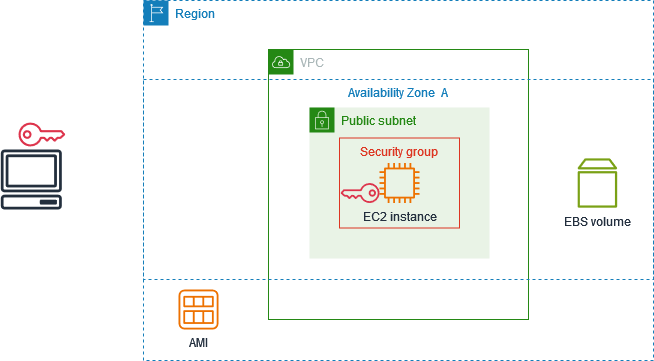
The main components you'll interact with are:
- Amazon Machine Image (AMI): This is the software template for your instance. It includes the operating system (e.g., Amazon Linux, Ubuntu, Windows Server), and can also contain pre-installed application software. AMIs are the foundation upon which your server is built.
- Instance Type: This defines the hardware profile of your instance, including its CPU, memory (RAM), storage, and networking capacity. Choosing the correct instance type is a critical decision for balancing performance and cost.
- Key Pair: This is a set of security credentials used to prove your identity when connecting to the instance. It consists of a public key that AWS stores on the instance and a private key that you store on your local machine. This is the standard for secure SSH access to Linux instances.
- Network (VPC and Security Group): Your instance lives within a Virtual Private Cloud (VPC), your logically isolated section of the AWS cloud. Access to and from your instance is controlled by a Security Group, which acts as a stateful virtual firewall. We will cover Security Groups in depth in our next lesson.
- Storage (EBS Volume): By default, your instance's root operating system is stored on an Elastic Block Store (EBS) volume, which functions as a virtual hard drive.
To get a feel for how these pieces fit together, let's start with a foundational document from AWS.
Get started with Amazon EC2 - Amazon Elastic Compute Cloud
This document provides a concise overview of the components involved in launching an EC2 instance. It serves as a great introduction before we dive into the details.
Please read the Overview section. As you read, focus on how each component—image, key pair, network, security group, and EBS volume—plays a distinct role in the creation of a functional virtual server.
Choosing the Right Tool: EC2 Instance Types
One of the most powerful features of EC2 is the sheer variety of instance types available. A small blog and a high-performance computing cluster have vastly different hardware requirements, and AWS provides specialized options for both. For a DevOps engineer, selecting the right instance type is a crucial skill for optimizing application performance and managing costs effectively.
To navigate this landscape, you first need to understand the naming convention. For example, a t2.micro instance can be broken down:
t: The instance family (in this case, "T" for burstable general purpose).2: The generation (second generation).micro: The size within the family.
The following video provides an excellent breakdown of the major instance families and their intended use cases.
AWS EC2 Instance types Explained | AWS SAA C03
This video from Cloud Champ clearly explains the different categories of EC2 instances and decodes their naming structure.
Watch the following segments to understand how to choose an instance type for a given workload: Instance Naming: Learn how to interpret an instance name like R5.dxlarge. General Purpose: These instances, like the t and m families, provide a balance of compute, memory, and networking. They are ideal for web servers, code repositories, and development environments. Compute Optimized: The c family offers powerful CPUs and is suited for compute-intensive tasks like batch processing, scientific modeling, and dedicated gaming servers. Memory Optimized: The r and x families are designed for workloads that process large datasets in memory, such as in-memory databases (e.g., Redis, Memcached) and real-time big data analytics. Storage Optimized: The i and d families are built for high, sequential read/write access to large datasets on local storage, perfect for NoSQL databases like Cassandra or data warehousing. Accelerated Computing: These instances use hardware accelerators like GPUs for tasks such as machine learning, graphics processing, and data pattern matching.
Understanding these categories allows you to make informed decisions. You wouldn't run a large in-memory database on a compute-optimized instance, nor would you use a memory-optimized instance for a simple static website. Matching the instance type to the workload is a fundamental principle of cloud architecture.
Securing Access with Key Pairs
With the instance type selected, the next critical step is configuring secure access. EC2 uses public-key cryptography to authenticate you when you connect to your Linux instances via SSH.
The mechanism is straightforward:
- You generate a key pair, which consists of a public key and a private key.
- When you launch an EC2 instance, you provide the public key, which is installed on the server.
- To connect, your SSH client uses your private key to prove your identity. The server verifies this using the corresponding public key.
Your private key is the literal "key" to your server and must be guarded carefully. If it's compromised, an attacker can gain full access to your instance.
The following resource provides an excellent explanation of the cryptography involved and, more importantly, the best practices for managing keys in a professional environment.
This article from Overmind goes beyond the basics to discuss the security model and best practices for key pair management, which are crucial for production systems.
Please read the following sections: Start with What is EC2 Key Pairs? and the subsection on Cryptographic Architecture to solidify your understanding of how public-key authentication works in AWS. Then, jump to the section Best practices. Pay close attention to the recommendations for key rotation, using environment-specific keys, and secure storage. These are the practices expected of a senior DevOps engineer. Given your background in IaC with Ansible, you'll find the Terraform examples in this article interesting. They provide a glimpse into how another declarative IaC tool manages cryptographic material—a topic we'll explore in depth in a later module.
Launching and Managing Your First Instance
Now it's time to put theory into practice. We will launch an EC2 instance, connect to it, and manage its state. The video below provides a comprehensive hands-on demonstration. We'll use this video alongside the official AWS documentation for a complete picture.
AWS EC2 Tutorial Beginners to Advance - Full course with Hands On Labs 2023
This tutorial from Cloud Champ walks through the entire process of launching and connecting to an instance. We'll focus on the core steps.
Follow along with these segments: Launch Process: Watch from the beginning of the hands-on demo. Observe the selection of the Region, AMI (Amazon Linux), Instance Type (t2.micro), creation of a Key Pair, and the basic network and security group configuration. The use of "user data" to bootstrap a web server is a common and powerful technique. Connecting to the Instance: A great feature for quick and secure access is EC2 Instance Connect. Watch the segment from EC2 Instance Connect to see how you can connect directly from the browser without managing SSH keys locally. This method leverages IAM for authorization, reinforcing the concepts from our last lesson. Managing the Instance Lifecycle: An instance isn't static. Watch from stopping and starting to understand the differences between stopping, starting, and terminating an instance. The most important concept here is that when you stop and start an instance, its public IP address changes by default. This is a critical point that trips up many beginners.
To reinforce the manual steps for launching and connecting, you can follow the official AWS guide.
Get started with Amazon EC2 - Amazon Elastic Compute Cloud
This guide provides the exact step-by-step instructions for launching, connecting, and cleaning up your instance. It's a great reference to have open as you work.
In Step 1, follow the procedure to launch your instance. Use a t2.micro to stay within the Free Tier. When you create your key pair, be sure to save the .pem file and secure it immediately. On a Linux or macOS system, this means running chmod 400 your-key-name.pem. In Step 2, use the provided ssh command to connect to your new Linux instance. Finally, when you are finished, follow Step 3 to terminate your instance. This is crucial to avoid incurring unexpected charges.

Terminating an instance is irreversible—it's permanently deleted. If you only want to temporarily shut it down to save costs, you would stop it. As you saw in the video, this preserves the EBS root volume but releases the public IP address. For a static public IP that persists across stops and starts, you would use an Elastic IP, a topic also briefly covered in the video and one we'll revisit.
Conclusion
In this lesson, you've taken a significant step from understanding AWS concepts to actively using its core compute service. You now have the foundational skills to provision and access the virtual servers that will run your applications.
Here are the key takeaways:
- EC2 Components: Launching an instance involves orchestrating an AMI (software), an instance type (hardware), key pairs (security), networking (VPC/Security Groups), and storage (EBS).
- Instance Type Selection: AWS offers specialized instance families (General Purpose, Compute Optimized, Memory Optimized, etc.) tailored to different workloads. Matching the instance to the workload is key for performance and cost-efficiency.
- Secure Access: Key pairs, based on public-key cryptography, are the standard for securing SSH access. Protecting your private key is paramount. Modern alternatives like EC2 Instance Connect offer a more managed and often more secure access method.
- Instance Lifecycle: You can start, stop, reboot, and terminate instances. Understanding the implications of each action—especially the ephemeral nature of public IPs on stop/start and the permanence of termination—is critical for effective management.
In our next lesson, we will focus entirely on network security. You'll learn to configure Security Groups and Network ACLs to create a robust firewall around your EC2 instances, controlling exactly what traffic is allowed in and out.