Hello! Welcome back to the course.
In our last lesson, we tackled the crucial topic of session management. We saw how Shopify uses short-lived JWTs (Session Tokens) to securely authenticate requests from your app's frontend to your backend, solving the problem of deprecated third-party cookies. We also briefly touched on a library called @shopify/app-bridge, which provides the authenticatedFetch function to handle this token exchange automatically.
Today, we're going to zoom in on that library. Its role extends far beyond authentication. The "bridge" in its name is literal—it's the fundamental connection that makes your app feel like a native part of the Shopify Admin.
Following your preference for a "first principles" approach, we'll start by asking: why does this bridge even need to exist? By the end of this lesson, you will be able to describe the role of App Bridge in enabling communication between your app and the Shopify Admin.
The "Walled Garden" Problem: The iframe and the Same-Origin Policy
As you know from your full-stack experience, a web application is rendered in the browser based on HTML, CSS, and JavaScript. When you install a Shopify app, its user interface doesn't just get mixed in with Shopify's own code. Instead, Shopify renders your app inside an <iframe>.
An iframe is essentially one webpage embedded inside another. Your app lives at its own URL (e.g., your-app.fly.dev) but is displayed within the Shopify Admin's URL (e.g., your-store.myshopify.com/admin).
This creates a strong security boundary enforced by all modern browsers, known as the Same-Origin Policy. This policy prevents a script from one "origin" (a combination of protocol, domain, and port) from accessing the DOM or data of another origin. In our case, it means your app's JavaScript running inside the iframe cannot directly interact with the Shopify Admin page that contains it. Your app can't change the main title bar, trigger a Shopify notification, or read data from the parent page. This is a deliberate security feature to protect both the merchant and the platform from malicious app code.
So, how can your app provide a seamless experience if it's trapped inside this digital "walled garden"? This is the core problem that App Bridge solves.
App Bridge: The Official Messenger
Shopify App Bridge is a JavaScript library that acts as a secure and standardized communication layer between your embedded app (the client, running in the iframe) and the Shopify Admin (the host). It provides a sanctioned "API" for your app to safely request that the Shopify Admin perform actions on its behalf.
Think of it as a well-defined messaging system. Your app doesn't directly control the Shopify UI; it sends a structured message to the Admin via App Bridge, and the Admin—after validating the request—performs the action.
11 - Shopify Polaris and App Bridge with examples
The video 'Shopify Polaris and App Bridge with examples' from the Code Inspire channel provides a great conceptual overview of this relationship.
Watch from 01:17 to 04:30. The presenter does an excellent job explaining how your embedded app (the green box in the diagram) is separate from the Shopify Admin shell and how App Bridge is the technology that lets them 'talk' to each other to manage things like the title bar and navigation.
This architecture is fundamental to creating a high-quality user experience, which is critical for a successful freelance developer. Merchants expect an app to feel like part of Shopify, not a disconnected third-party website.
Using Shopify App Bridge to Build Faster, More Functional Apps
The official Shopify Partners blog post 'Using Shopify App Bridge...' further explains the 'why' behind its creation, highlighting the need for a unified library to replace older, fragmented tools.
Read the introduction and the 'Performance and flexibility' section. Focus on how App Bridge unifies the development experience across different platforms (desktop, mobile, POS) and improves performance.
How It Works: Actions and UI Components
The mechanism App Bridge uses for communication is a system of actions. Your app dispatches an action to tell the Shopify Admin what to do. Let's look at some of the most common use cases.
Core UI Control
App Bridge gives you control over key UI elements that live outside your iframe, such as:
- TitleBar: Change the page title and add contextual buttons (like 'Save' or 'Cancel').
- Toast: Display brief, non-disruptive success or error messages.
- Modal: Open a dialog window to capture user input or display important information.
- Loading: Show a global loading indicator while your app is fetching data.
- ResourcePicker: Open Shopify's native UI for selecting products, variants, or collections, so you don't have to build this complex feature yourself.
Build Private Apps with Modern API Architecture in 2025
This article from Speedboostr provides a concise summary of the key UI components managed by App Bridge.
Read the section 'Building with Shopify App Bridge'. Pay attention to the subsections on 'Embedded App Architecture' and 'UI Components and Navigation' to reinforce your understanding of what's possible.
A Practical Demonstration
Seeing is believing. The Shopify CLI starter template you're using (based on Remix) comes with App Bridge pre-configured. Let's see how simple it is to trigger these actions in code.
Getting Started with Shopify App Bridge - Create a Shopify App
The 'Getting Started with Shopify App Bridge' video from WeeklyHow provides clear, practical code examples. Although the project in the video uses Remix, the App Bridge calls are conceptually identical to what you would do in any framework.
Watch the following two segments: Toast Messages (11:40 - 12:29): See how a simple Shopify.toast.show() call from within the app triggers a native Shopify toast notification. Modals (14:11 - 17:20): Observe how to define a modal and then trigger it using Shopify.modal.show(). Focus on the pattern: your app code calls a function on a global Shopify object, and the Shopify Admin UI responds.
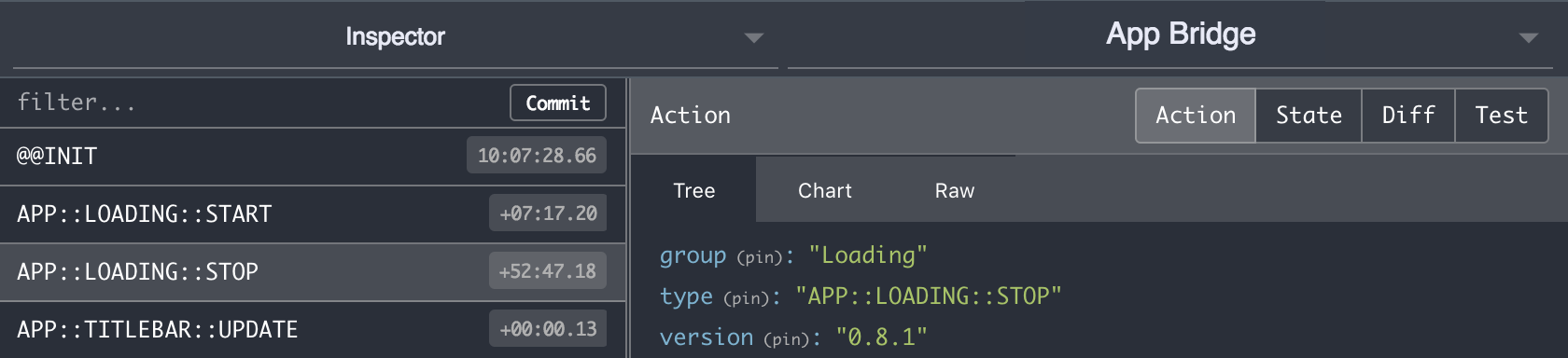
As you saw, your app's code simply calls a JavaScript function. App Bridge packages this into a message, sends it across the iframe boundary, and the Admin UI reacts. You can see these messages being sent using the Shopify App Bridge DevTools extension.
Test your understanding!
A merchant using your app reports that when they click your "Save" button, a "Settings Saved" toast message doesn't appear. Your backend confirms that the data was saved correctly.
Based on what you've learned about App Bridge, what is the most likely cause of the problem, and where would you look to debug it?
Show answer
The most likely cause is a problem in the frontend code that's supposed to trigger the toast message. The data saving correctly on the backend indicates the server-side logic is fine, but the UI feedback failed.
The problem lies in the communication from your app's iframe to the Shopify Admin. You would look at the onClick handler for your "Save" button. You should be checking if the Shopify.toast.show(...) action (or its equivalent in your setup) is being called correctly after the backend confirms a successful save. You could also use the App Bridge DevTools to see if the Toast::SHOW action is being dispatched at all.
Conclusion
In this lesson, we peeled back the layers of Shopify's embedded app architecture. You now understand that App Bridge isn't just a helper utility; it's the essential link that enables a secure and seamless integration between your application and the Shopify Admin.
Key Takeaways:
- The Problem: Embedded apps run in
iframes, and the browser's Same-Origin Policy prevents them from directly interacting with the parent Shopify Admin UI. - The Solution: App Bridge provides a secure messaging system that allows your app to request UI changes from the Shopify Admin.
- The Mechanism: Your app dispatches "actions" (e.g., to show a toast or open a modal), and the Shopify Admin listens for these actions and performs the corresponding UI updates.
- The Goal: Using App Bridge correctly is key to building professional apps that feel like a native part of the Shopify platform, leading to a better merchant experience.
In our next lesson, we'll address the other side of the coin. Now that we know how to make our app control the admin UI, we'll learn how to make the app itself look like the admin UI. We will dive into Shopify's Polaris component library to build a user interface that is consistent, accessible, and perfectly matched to the Shopify look and feel.