Hello! Welcome back to the course.
In our last lesson, we mastered Liquid filters, learning how to format strings, numbers, and dates to present data cleanly. We now have the building blocks of a Liquid template: objects for data, tags for logic, and filters for presentation.
Today, we're zooming out to understand the blueprint of a Shopify theme. The main goal of this lesson is to explain the directory structure of a Shopify theme, covering the purpose of layout, templates, sections, snippets, and assets.
For someone with your full-stack development background, this will feel familiar. Just as a framework like Next.js has a specific file structure (like the app or pages directory) to handle routing and layouts, Shopify has a mandatory structure to ensure themes are secure, performant, and customizable by merchants. Understanding this "convention over configuration" approach is the key to becoming an effective theme developer.
By the end of this lesson, you'll have a clear mental map of how theme files are organized and how they work together to build a complete storefront.
The Big Picture: How a Shopify Page is Assembled
Before we look at individual folders, let's understand the architectural concept. A page on a Shopify store isn't a single HTML file. It's dynamically constructed from a hierarchy of components.

This layered approach is what allows a merchant to, for example, add a "Featured Products" section to their homepage without touching any code. They are interacting with the Section layer within the index (homepage) Template.
Here is what this structure looks like in a typical code editor:
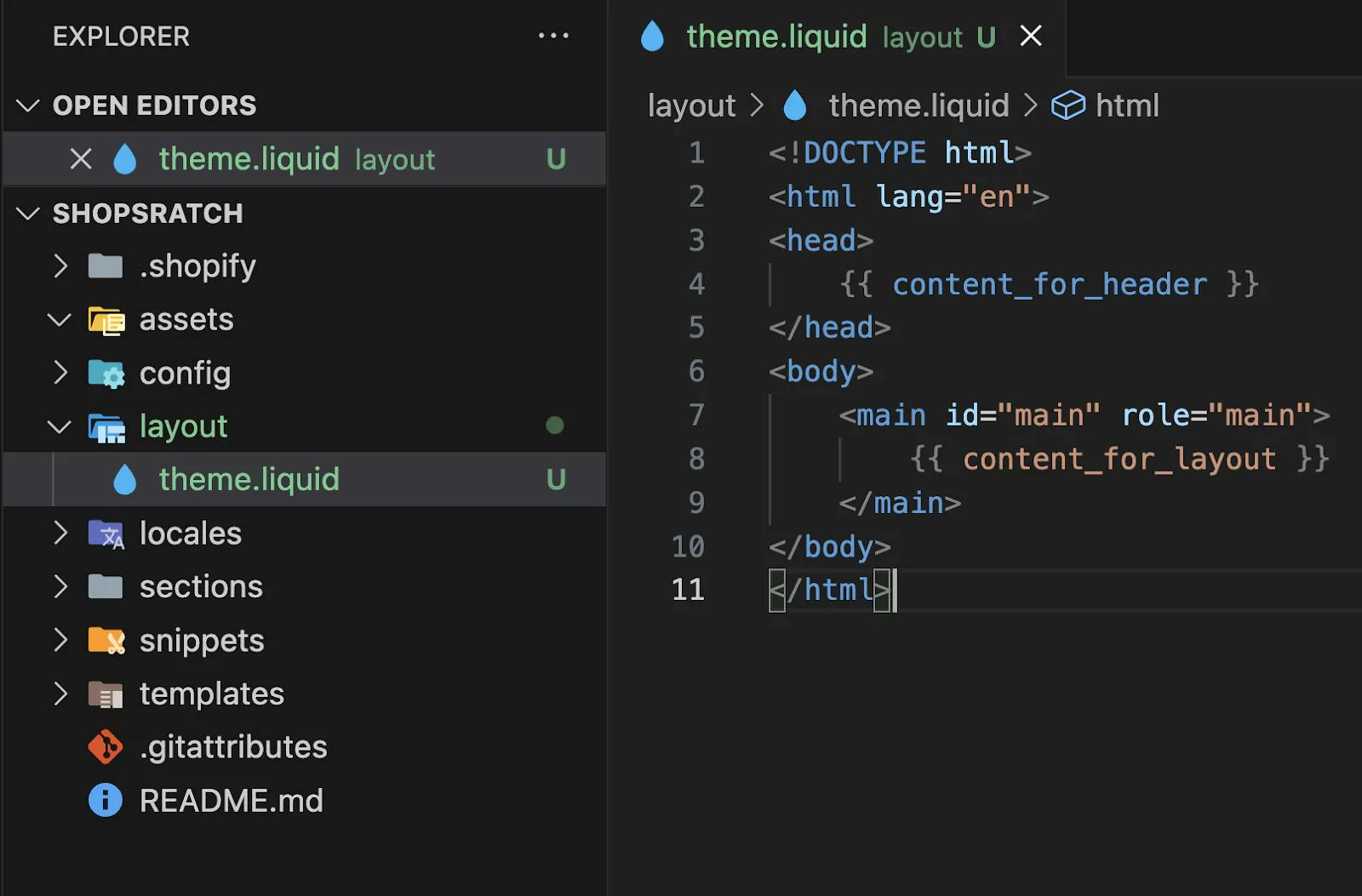
Now, let's dive into the purpose of each of these directories. We'll use a fantastic, in-depth video to guide our exploration. It covers the "why" behind the structure, which aligns with your preference for first-principles understanding.
To start, please consult the official Shopify documentation on Theme Architecture. This will be our reference throughout the lesson. It provides a concise, authoritative overview.
Briefly review the section titled 'Directory structure and component types'. Just get a feel for the list of folders. We will explore each one in detail.
The Core Theme Directories
The video we'll be using provides a comprehensive walkthrough. A key point it makes early on is that Shopify themes have a flat directory structure. You cannot create sub-folders within most of these main directories. This is a platform constraint you must work within.
Shopify Theme Development - Liquid Theme Architecture
Let's begin our tour with this overview from the 'Stacking Context' channel. It sets the stage by explaining the necessity of the file structure and its flat nature.
Watch the video from the beginning until 02:42. The presenter will introduce the main directories and demonstrate the flat-file limitation.
Now let's break down the role of each directory.
1. layout - The Master Shell
The layout directory contains the master template for your theme. The most important file here is theme.liquid.
- Purpose: It acts as the global shell for almost every page on the store. It contains the
<html>,<head>, and<body>tags, and is where you include global assets like your main CSS and JavaScript files. - Analogy: This is very similar to a
_layout.tsxfile in Next.js orindex.htmlin a client-side React app. It defines the static frame into which dynamic page content is injected. - Key Variables:
{{ content_for_header }}: Placed within the<head>, this object is critical. Shopify injects essential scripts here, including analytics and scripts required by Shopify Apps.{{ content_for_layout }}: Placed within the<body>, this is the placeholder where the content from your more specific template files (likeproduct.liquidorcollection.json) will be rendered.
Shopify Theme Development - Liquid Theme Architecture
Let's see a practical explanation of the layout directory.
Watch the segment from 12:01 to 14:48. Focus on the roles of theme.liquid, content_for_layout, and content_for_header.
2. templates - The Page Blueprint
Templates define the content and structure for a specific type of page, like a product page, a collection page, or the homepage (index).
With Shopify's Online Store 2.0 (OS 2.0), there are two kinds of templates:
.liquidtemplates (Legacy): These are files containing Liquid and HTML code. They are less flexible..jsontemplates (Modern): These are data files that simply list whichsectionsshould be rendered on the page. They contain no HTML. This structure is what enables the "Sections Everywhere" feature, allowing merchants to add, remove, and reorder sections on any page, not just the homepage.
Shopify Theme Development - Liquid Theme Architecture
The distinction between JSON and Liquid templates is fundamental to modern theme development. This next clip explains what templates are and introduces this crucial difference.
Watch from 43:39 to 47:30. Pay close attention to how JSON templates are described as containers for sections, which is a significant shift from older theme architectures.
The key takeaway is that JSON templates separate content from presentation. The .json file holds the data and a list of section files to use, while the actual markup lives within the individual section files.
3. sections - Configurable Content Modules
Sections are the heart of modern Shopify theme customization. They are reusable modules of content that merchants can add, configure, and reorder directly in the theme editor.
- Purpose: To create modular, customizable components for building pages.
- Analogy: A
sectionis like a React component that comes with its own prop-types definition. The schema (defined in{% schema %}tags) acts as the prop-types, telling Shopify what configuration options (text fields, color pickers, product selectors) to show the merchant in the UI. - Key Feature: The
{% schema %}tag. This is a JSON object within the section's Liquid file that defines the settings a merchant can control.
Shopify Theme Development - Liquid Theme Architecture
This is the most important concept in OS 2.0. This segment provides a fantastic walkthrough of what sections are, how they are customized, and how their settings are defined in the schema.
Watch from 18:03 to 22:30. This part connects what the merchant sees in the theme customizer to the code in the section file. This is a crucial link to understand.
4. snippets - Reusable Code
Snippets are small, reusable pieces of Liquid code. They help you keep your code DRY (Don't Repeat Yourself).
- Purpose: To extract repetitive code into a single file that can be included in multiple places.
snippetsvs.sections: This is a critical distinction.- Sections are for modular content and are visible and configurable by the merchant in the theme editor.
- Snippets are for modular code and are invisible to the merchant. They are a tool for developers to organize their code better. A snippet might be rendered inside a section.
- Usage: You use the
{% render 'snippet-name' %}tag to include a snippet. You can also pass parameters to them, similar to passing props to a component.
Shopify Theme Development - Liquid Theme Architecture
This clip clarifies the purpose of snippets and how to use them.
Watch the segment from 02:42 to 05:25. It explains what snippets are, the difference between render and the deprecated include, and how to pass parameters.
5. assets - Static Files
This is the most straightforward directory. It holds all your theme's static assets.
- Purpose: Stores CSS, JavaScript, images, and font files.
- Referencing: You must use the
asset_urlLiquid filter to generate the correct URL for a file in this directory. For example:{{ 'theme.css' | asset_url | stylesheet_tag }}. This ensures Shopify serves the asset from its optimized CDN.
Test your understanding!
You want to build a "Product Card" component that will be used on the collection page and in a "Featured Products" section on the homepage. The merchant should NOT be able to add this card as a standalone section from the theme editor.
Where would you create the file for the Product Card's markup?
a) sections/product-card.liquid
b) templates/product-card.liquid
c) snippets/product-card.liquid
Show answer
c) snippets/product-card.liquid
Explanation:
This is a classic use case for a snippet. It's a reusable piece of code (the card's markup) that will be used inside other components (the collection template and the featured products section). Since it's not a top-level, merchant-configurable content block, it should be a snippet, not a section.
Supporting Directories
Two other folders complete the picture:
-
config: This holds the global configuration for the theme.settings_schema.json: Defines the structure of the options you see under "Theme settings" in the customizer (e.g., global colors, typography choices).settings_data.json: Stores the merchant's saved values for the settings defined insettings_schema.json. You typically don't edit this file by hand.
-
locales: This directory is for internationalization (i18n). It contains JSON files with translations for all the text strings in your theme, allowing the store to be displayed in multiple languages.
Conclusion
You now have a complete map of a Shopify theme's architecture. This structure is designed to create a powerful separation of concerns:
layout: The global presentation shell.templates: The blueprints for different page types, primarily pointing to sections.sections: The merchant-configurable content blocks that make up the pages.snippets: The reusable developer components for keeping code clean.assets: The home for all static files like CSS, JS, and images.config: The hub for global theme settings.
Understanding this hierarchy is the single most important step to moving from simply editing Liquid to architecting professional, maintainable Shopify themes.
In our next lesson, we will get our hands dirty. Now that you understand the map, we'll set up a local development environment using the Shopify CLI. You'll pull down a theme to your own computer, connect it to your development store, and start navigating these very folders yourself.