¡Hola! Welcome to your third lesson.
In our last session, we mapped out the territory by identifying the four essential pieces of a DJ setup: the laptop, the controller, the headphones, and the speakers. You learned the specific role each component plays in the system.
Today, we move from the map to the real world. This lesson is all about bringing your setup to life. We will walk through the practical steps of physically connecting your Hercules DJControl Inpulse 200 to your computer and, crucially, making sure the DJUCED software knows how to send audio to the right places. This is your first major hands-on step toward making music!
By the end of this lesson, you will have a fully functional beginner DJ setup, ready for you to start learning the art of mixing.
Your Step-by-Step Setup Guide
Getting everything connected and configured can seem a bit technical at first, but it follows a very logical order. We'll break it down into two main parts: the physical connections and the software configuration.
Part 1: Physical Connections
First, let's get all the hardware plugged in. As a reference, the official Hercules tutorials are excellent guides. The video below walks through the entire process for the Inpulse 200.
Complete install (day 1, 1/3) - DJ Academy – DJControl Inpulse 200
Watch this official Hercules DJ Academy video. It will be our main guide for connecting your gear. The presenter, DJ Hapa, clearly shows every step.
Watch the video from 02:20 to 06:20 and then from 07:04 to 07:57. Follow along as he connects: The controller to the computer via USB (02:20). The speakers to the controller's 'Master' output (03:17). The headphones to the controller's headphone jack (07:04). Pay close attention to which cable goes where. We will cover the software steps shown in the video right after this.
Let's summarize those connections into a clear checklist. You can think of this like following an installation manual.
1. Install the DJUCED Software
Before plugging anything in, it's best practice to install the software.
- Go to www.djuced.com and download the latest version of the software.
- Install it on your computer just like any other application.
2. Connect the Controller to Your Laptop
- Take the USB cable that came with your controller.
- Plug the one end into the back of your DJControl Inpulse 200.
- Plug the other end into a USB port on your laptop.
- You should see some lights on the controller flash on. A great thing about this controller is that it gets its power directly from the laptop through the USB cable—no separate power brick needed!
3. Connect Your Speakers
- Locate the Master Output on the back of your controller. It will have red and white RCA connections.
- Plug your RCA cable into these outputs.
- Connect the other end of the cable to the input on your speakers.
- A quick note from the video: If you have "active" and "passive" speakers, make sure you plug the cable into the main active speaker (the one with the power cord and volume knob).
4. Connect Your Headphones
- Locate the headphone jack on the front or side of your controller. It will be labeled with a small headphone icon.
- Plug your headphones in.
- Heads up: Your headphones might have a large 1/4" screw-on adapter. For the Inpulse 200, you'll likely need to unscrew it to use the smaller 1/8" (3.5mm) plug underneath. Keep that adapter safe, as you might need it for other gear in the future.
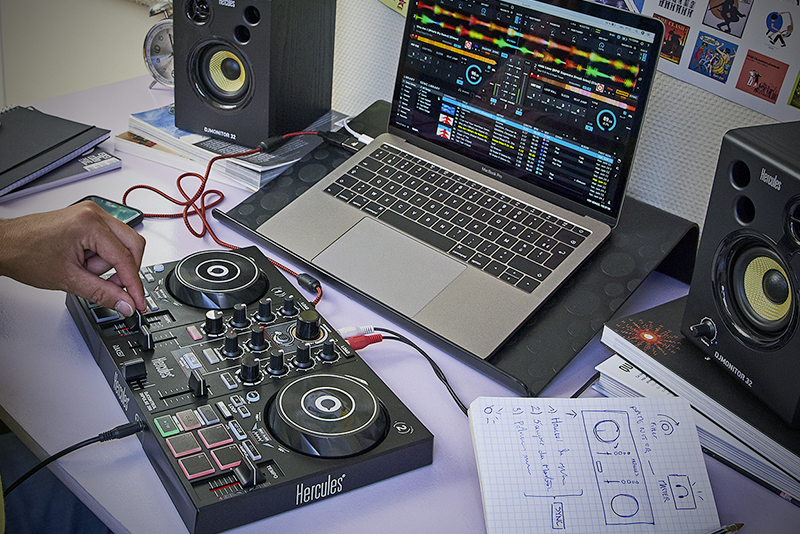
Once you've followed these steps, your physical setup should look something like this:
Part 2: Software Audio Configuration
Now that everything is plugged in, we need to tell the DJUCED software how to use it. This is the most important step. You are essentially telling your computer: "Don't use your own small internal speakers. Instead, send the main music out through the controller to my good speakers, and send the private cueing audio to my headphones."
The controller acts as an external sound card (or audio interface), which is why this step is necessary.
Configuring the Audio Device in DJUCED
When you launch DJUCED for the first time after connecting your controller, it should automatically detect it.
-
The Automatic Prompt: As the first video (LINK) showed around the 03:17 mark, DJUCED will likely ask you if you want to use the controller's sound card or the computer's. You want to use the controller's sound card. Select that option.
-
Manual Configuration: If that prompt doesn't appear, or if you ever need to check the settings, you can do it manually. The process is very simple.
DJControl Inpulse 200 MK2 – Setting up and Overview - English
This second video, for the slightly newer MK2 model, shows exactly where to find the audio settings inside DJUCED. The interface is nearly identical for your purpose.
Watch from 03:27 to 04:26. The presenter shows how to: Open the Settings menu (the gear icon in the top right). Go to the Audio tab. Ensure that your 'DJControl Inpulse 200' is selected as the Audio Device.
To summarize the key step from the video:
- In DJUCED, click the Settings icon (⚙️) in the top-right corner.
- Go to the Audio section.
- Under Audio Device, make sure your Hercules DJControl Inpulse 200 is selected from the dropdown menu.
- The "Outputs" section below can usually be left on the default settings. DJUCED knows to send the Master to the RCA outputs and the Headphones to the headphone jack.
Test your understanding!
Imagine you've followed all the steps, but when you play a track in DJUCED, the music comes out of your laptop's built-in speakers instead of the speakers connected to your controller.
What is the most likely cause of this problem, and where in DJUCED would you go to fix it?
Show answer
The most likely cause is that DJUCED is still set to use your computer's internal sound card as the audio device.
To fix it, you would go to Settings > Audio and change the Audio Device to your Hercules DJControl Inpulse 200.
Conclusion
Congratulations! You have just completed the foundational technical setup for your DJ journey. It may seem like just plugging in cables, but understanding this signal flow is a core skill for any DJ.
Let's recap the key takeaways:
- Connection Order: A logical setup sequence is to install the software first, then connect the controller to the laptop (USB), and finally connect your speakers and headphones to the controller.
- The Controller is Your Sound Card: The most critical step is configuring DJUCED to use the Inpulse 200 as its audio device. This directs the main mix to your speakers and the cue mix to your headphones.
- Settings are Your Friend: If sound isn't going where you expect, the first place to check is always the Settings > Audio menu in your DJ software.
You are now officially set up and ready to go. Your hardware is talking to your software, and you have sound!
In our next lesson, we'll get comfortable with your new workspace. We'll take a tour of the DJUCED software interface, learning how to find your music in the library, load tracks onto the decks, and use the basic playback controls.