Introduction
Welcome back! In the last lesson, we brought your project to life by implementing functions to play one-shot sound effects and looping background music. Your audio module can now handle the two most common audio playback scenarios in a game.
However, all sounds currently play at a fixed, maximum volume. To build a polished game, you need finer control. This lesson addresses the learning outcome: Control global and per-source audio volume at runtime. We will explore:
- The difference between controlling the volume of an individual sound source versus a master "global" volume.
- The underlying API functions in
miniaudiofor both types of control. - How to expose this functionality through your own engine's audio API.
By the end of this lesson, you'll have functions to dynamically adjust the volume of the background music and a master volume that affects all sounds simultaneously, controllable with keyboard input.
Gain vs. Volume: A Quick Primer
Before we dive into code, let's clarify a common point of confusion in audio terminology. You'll often see the terms "gain" and "volume" used, sometimes interchangeably. In professional audio, they have distinct meanings:
- Gain is the level of a signal before it gets processed or amplified. It controls the input strength.
- Volume is the level of a signal after it has been processed. It controls the final output loudness.

In many game audio APIs, including OpenAL and miniaudio, the parameter for controlling loudness is often called gain, even though from a user's perspective, it functions as a volume control. Both libraries use a linear scale where 0.0 is silent, 1.0 is the original recorded volume, and values greater than 1.0 amplify the sound.
Part 1: Per-Source Volume Control
Per-source volume control means changing the volume of a single, specific sound instance. This is essential for tasks like:
- Fading music in or out.
- Making a specific enemy's engine sound quieter because it's damaged.
- Having different types of weapons produce sounds at different volumes.
In the last lesson, we loaded our background music into an audio_sound_t object. Because we have a handle to this specific sound, we can manipulate its properties, including its volume.
To understand the general principle, let's first look at how this is done in OpenAL, a very common low-level audio API.
OpenAL 3D Audio Tutorial 1: Introduction
This video from ThinMatrix provides a concise overview of OpenAL's core concepts. Pay close attention to the part where he explains how to change a source's properties.
Watch from 04:32 to 05:19. The narrator demonstrates the alSourcef function, showing how AL_GAIN is used to set the volume for a specific source.
As you saw, OpenAL uses alSourcef with the AL_GAIN property to control a source's volume. miniaudio provides an even simpler, high-level equivalent.
Let's check the miniaudio documentation to find the function for controlling an individual sound's volume.
Read the short section titled 'Sounds'. You're looking for the function that controls a sound's volume, which is mentioned alongside panning and pitching.
The documentation points us to ma_sound_set_volume(). It takes a pointer to the ma_sound object (our audio_sound_t) and a float for the linear volume.
Let's add this to our audio module.
1. Update audio.h
Add a new function declaration to set the volume of a sound you have loaded.
// src/audio.h
// ... (previous declarations) ...

// Sets the volume of a specific loaded sound.
// Volume is linear: 0.0 is silent, 1.0 is normal.
void audio_sound_set_volume(audio_sound_t* sound, float volume);
2. Implement in audio.c
The implementation is a simple wrapper around the miniaudio function.
// src/audio.c
// ... (other functions) ...

void audio_sound_set_volume(audio_sound_t* sound, float volume) {
    // miniaudio will clamp volume if it's negative, but it's good practice
    // to ensure we don't pass invalid values.
    if (volume < 0.0f) {
        volume = 0.0f;
    }
    ma_sound_set_volume(sound, volume);
}
Now we have a way to control the volume of any sound we have a reference to, like our background music track.
Part 2: Global Volume Control
While per-source control is for specific instances, global control is for broad categories or the entire output. Think of the "Master," "Music," and "SFX" sliders in a game's audio settings.
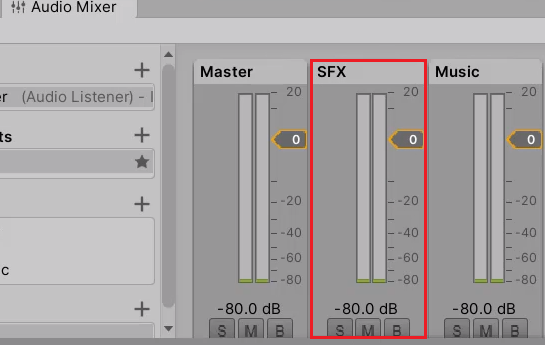
In miniaudio, the ma_engine object that we initialized represents the entire audio system. By adjusting its volume, we can implement a master volume control. In OpenAL, the equivalent concept is adjusting the gain of the single "listener".
How to adjust the volume of a sound in OpenAL? - Stack Overflow
This Stack Overflow answer clearly shows the two distinct ways to control volume in OpenAL: for a specific source and for the global listener.
Read the two answers on the page. The first shows per-source volume with alSourcef (which you've already seen). The second answer shows global volume control using alListenerf.
Now, let's find the miniaudio function for global volume by checking its documentation again.
Let's return to the miniaudio documentation, this time focusing on the Engine section.
Read the paragraphs in the 'Engine' section until you find the function for controlling the 'master volume of the engine'. The documentation also helpfully mentions decibel conversion.
The documentation confirms that ma_engine_set_volume() is what we need. It controls the master volume for everything processed by that engine.
1. Update audio.h
Add a function to control the master volume.
// src/audio.h
// ... (previous declarations) ...

// Sets the master volume for the entire audio engine.
void audio_set_master_volume(float volume);
2. Implement in audio.c
Again, this is a clean wrapper around the miniaudio function.
// src/audio.c
// ... (other functions) ...

void audio_set_master_volume(float volume) {
    if (volume < 0.0f) {
        volume = 0.0f;
    }
    ma_engine_set_volume(&engine, volume);
}
Part 3: Testing in main.c
With our new functions in place, let's update main.c to test them. We'll use the arrow keys to control the music and master volumes.
- Left/Right Arrows: Decrease/Increase the background music volume (per-source).
- Down/Up Arrows: Decrease/Increase the master volume (global).
// src/main.c


#include <stdio.h>
#include <GLFW/glfw3.h>
#include "audio.h"

int main(void) {
    // ... GLFW init, window creation ...

    if (!audio_init()) {
        printf("Failed to initialize audio system.\n");
        // ... cleanup and exit ...
        return -1;
    }

    // --- Load Music ---
    audio_sound_t background_music;
    if (!audio_music_load(&background_music, "assets/your_music_file.mp3")) {
        // ... error handling ...
        return -1;
    }

    // Start playing the music
    audio_music_play(&background_music);

    // --- State variables for input and volume ---
    bool space_was_pressed = false;
    float music_volume = 1.0f;
    float master_volume = 1.0f;

    printf("Controls:\n");
    printf("  Spacebar: Play SFX\n");
    printf("  Left/Right Arrows: Adjust Music Volume\n");
    printf("  Down/Up Arrows: Adjust Master Volume\n");

    while (!glfwWindowShouldClose(window)) {
        glfwPollEvents();

        // --- Trigger Sound Effect ---
        if (glfwGetKey(window, GLFW_KEY_SPACE) == GLFW_PRESS && !space_was_pressed) {
            audio_play_sfx("assets/your_sfx_file.wav");
            space_was_pressed = true;
        }
        if (glfwGetKey(window, GLFW_KEY_SPACE) == GLFW_RELEASE) {
            space_was_pressed = false;
        }

        // --- Volume Control Logic ---
        bool volume_changed = false;
        // Music Volume (Per-Source)
        if (glfwGetKey(window, GLFW_KEY_LEFT) == GLFW_PRESS) {
            music_volume -= 0.1f;
            if (music_volume < 0.0f) music_volume = 0.0f;
            audio_sound_set_volume(&background_music, music_volume);
            volume_changed = true;
        }
        if (glfwGetKey(window, GLFW_KEY_RIGHT) == GLFW_PRESS) {
            music_volume += 0.1f;
            audio_sound_set_volume(&background_music, music_volume);
            volume_changed = true;
        }

        // Master Volume (Global)
        if (glfwGetKey(window, GLFW_KEY_DOWN) == GLFW_PRESS) {
            master_volume -= 0.1f;
            if (master_volume < 0.0f) master_volume = 0.0f;
            audio_set_master_volume(master_volume);
            volume_changed = true;
        }
        if (glfwGetKey(window, GLFW_KEY_UP) == GLFW_PRESS) {
            master_volume += 0.1f;
            audio_set_master_volume(master_volume);
            volume_changed = true;
        }

        if (volume_changed) {
            printf("Master Vol: %.1f | Music Vol: %.1f\r", master_volume, music_volume);
            fflush(stdout); // Make sure the line updates immediately
        }

        // --- Simple delay to prevent keys from being too sensitive ---
        // In a real game, you'd use delta time for this.


        #ifdef _WIN32
        #include <windows.h>
        Sleep(100); // 100 milliseconds


        #else
        #include <unistd.h>
        usleep(100000); // 100,000 microseconds


        #endif

        // ... rendering would go here ...
    }

    // --- Cleanup ---
    audio_music_stop(&background_music);
    audio_music_unload(&background_music);
    audio_shutdown();

    // ... other cleanup ...

    return 0;
}
Compile and run this new version. You should hear the music start. Now, try the controls:
- Press the Left Arrow. Notice how only the music gets quieter. The SFX (when you press Space) will still be loud.
- Set the music volume back to normal with the Right Arrow.
- Now, press the Down Arrow. Notice how both the music and the SFX get quieter. This is your master volume at work.
Conclusion
Fantastic work. You have now implemented a crucial feature for any game engine: comprehensive volume control. Your audio module is now significantly more flexible and is starting to resemble a proper engine subsystem.
Key Takeaways:
- Per-source volume affects a single sound instance. It's controlled in
miniaudiowithma_sound_set_volume(). - Global volume affects all sounds processed by the engine. It's controlled with
ma_engine_set_volume(). - Having separate functions in your engine's API (
audio_sound_set_volume,audio_set_master_volume) creates a clean and understandable interface for the rest of your game code. - Volume in these APIs is typically a linear float value (
0.0to1.0), though they often support amplification with values greater than1.0.
Preview of the Next Lesson:
So far, all our sounds seem to come from inside the player's head. To create an immersive world, sounds need to have a position. In our next lesson, "Implement basic 3D positional audio by updating a sound's position relative to a listener," you will learn how to place sounds in 3D space, making them appear to come from the left or right, and getting quieter as they get farther away.