Hello! Welcome to the next lesson in our journey to build a successful affiliate marketing business.
In the last lesson, we configured the Yoast SEO plugin and used it to optimize the core on-page elements of a blog post: the SEO title, meta description, and URL. This gave you practical control over how your content is presented to search engines.
Today, we'll zoom in on another critical on-page element that Yoast also analyzes: images. Our goal is to learn how to write descriptive alt text for images to improve accessibility and SEO.
This might seem like a small detail, but getting it right serves two powerful purposes. First, it helps search engines "see" and understand your images, which can bring you more traffic. Second, and just as importantly, it makes your website accessible to people who use screen readers, ensuring everyone can understand your content.
1. What is Alt Text and Why is it Important?
Alternative text, or "alt text," is a short written description of an image that you add to your website's HTML code. While it's usually invisible to the average visitor, it plays two vital roles.
To get a clear overview of why alt text is a non-negotiable part of modern web content, please watch the first two minutes of the following video.
How To Write Great Image Alt Text And Get More SEO Traffic
This video from HubSpot Marketing, 'How To Write Great Image Alt Text', provides an excellent introduction to what alt text is and explains its dual benefits for both search engine optimization (SEO) and web accessibility.
Watch from the beginning until 02:01. Focus on the two main reasons for using alt text: helping search engines index your images and making your content accessible to users with visual impairments.
As the video highlighted, effective alt text helps you in three key ways:
- Accessibility: It provides a description for visually impaired users who rely on screen readers. This is a fundamental aspect of creating an inclusive website.
- SEO: It gives search engines like Google crucial context about an image's content. This helps your images rank in Google Image Search and reinforces the topic of your entire page.
- Fallback: If an image fails to load due to a slow connection or a broken link, the alt text will be displayed in its place, so users still know what was supposed to be there.
2. How to Write Effective Alt Text
Now that you understand the "why," let's focus on the "how." Writing good alt text is a skill that balances being descriptive with being concise.
The following article provides a fantastic list of best practices. Please read through this list to get a solid foundation of the rules.
The Complete Guide to Alt Text for SEO and Accessibility
This article, 'The Complete Guide to Alt Text for SEO and Accessibility', clearly outlines the essential best practices for writing effective alt text. It's a perfect reference guide.
Read the section titled 'How to Write Effective Alt Text: Essential Best Practices'. Pay attention to the 7 key rules it presents, such as keeping it concise and avoiding phrases like 'image of...'
To see these principles in action, let's return to the HubSpot video. This next segment provides a great example of transforming a vague description into a specific and useful one.
How To Write Great Image Alt Text And Get More SEO Traffic
This part of the HubSpot video demonstrates the difference between a vague description and a specific, context-rich one. It's a perfect illustration of the rules you just read.
Watch from 02:01 to 03:32. Notice how the initial, simple description ('Baseball player hitting a ball') is improved by adding specific, relevant details.
A common mistake for beginners is "keyword stuffing"—cramming your target keyword into the alt text unnaturally. This hurts user experience and can be flagged by search engines. Your goal is to describe the image accurately. If your target keyword fits naturally into that description, great! If not, don't force it.

3. Handling Different Types of Images
Not every image on your site serves the same purpose. Your approach to alt text should change depending on whether an image is informative or purely decorative.
- Informative Images: These convey information and add context to your content (e.g., a product photo, a chart, a photo illustrating a step in a tutorial). These must have descriptive alt text.
- Decorative Images: These are for visual appeal only and don't add information (e.g., a background pattern, an ornamental border). Adding alt text to these would just be noise for someone using a screen reader. For these, you should use a blank or empty alt attribute.
This short video explains the concept of decorative images and the "empty alt" rule very clearly.
How to write good alt text - Making images accessible with alternative text
This video from Silktide, 'How to write good alt text', explains a crucial distinction: when an image is purely decorative and should be skipped by screen readers.
Watch from 01:25 to 02:01. The 'rule of thumb' presented here (covering the image with your hand) is a simple but effective way to decide if an image is decorative.
To see more examples for different image types, including functional images (like a search button) and complex images (like graphs), the following resource is very helpful.
Image ALT Text: Best Practices, Examples & SEO - UserWay
The UserWay blog post 'Image ALT Text: Best Practices, Examples & SEO' provides tailored advice for different categories of images.
Read the section 'Do’s & don’ts of crafting alt text for images'. Skim through the subsections for 'Informative Images', 'Decorative Images', 'Functional Images', and 'Complex Images' to see how the approach changes for each.
4. How to Add Alt Text in WordPress
Now for the most practical step: adding alt text to your images in your WordPress dashboard. Luckily, WordPress makes this very easy. You can do it right inside the post editor.
When you add an image to a post using the standard Image Block, the settings panel will appear on the right side of your screen. There, you'll find a field specifically for "Alt text."
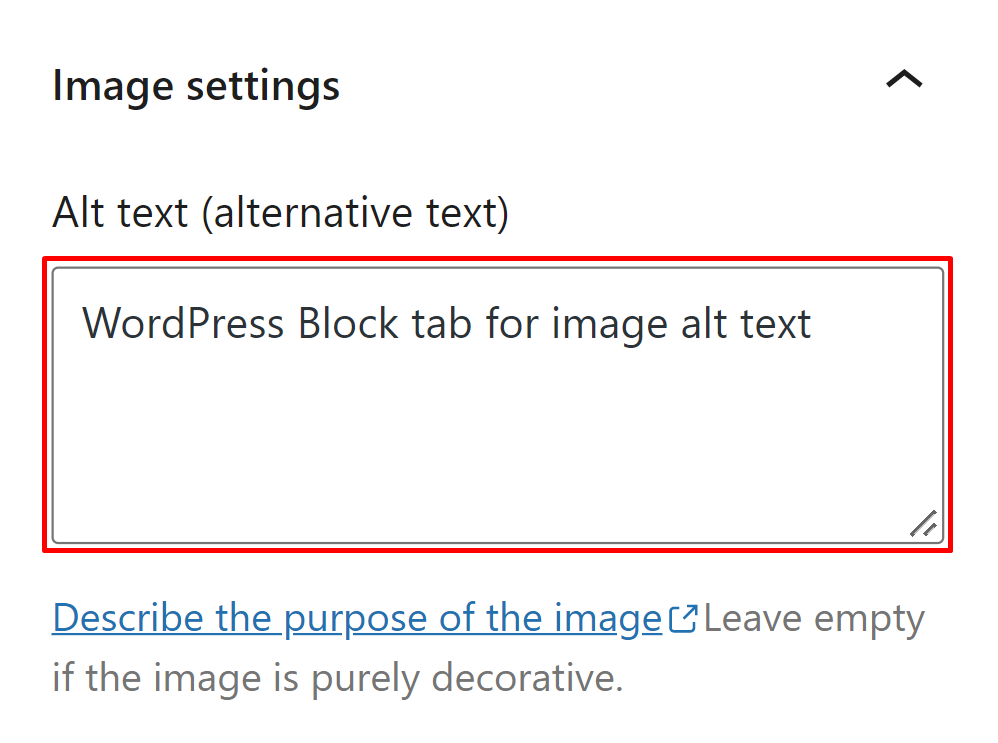
Here are the precise steps:
- In your WordPress post editor, add a new Image Block or click on an existing image.
- With the image block selected, look at the Block settings panel on the right sidebar.
- Find the field labeled "Alt text (alternative text)".
- Type your descriptive, concise alt text into this field.
- If the image is purely decorative, leave this field empty. WordPress will automatically handle it correctly.
- Save or update your post.
That's it! You have now provided valuable information for both search engines and users with screen readers.
Conclusion
You've now learned how to optimize one of the most common elements on any webpage: the image. By writing descriptive alt text, you're not only improving your SEO but also building a more inclusive and professional website.
Key Takeaways:
- Dual Purpose: Alt text is crucial for both accessibility (for screen reader users) and SEO (for search engines).
- Be Descriptive & Concise: Accurately describe what's in the image in about 125 characters or less. Avoid starting with "Image of...".
- Use Keywords Naturally: Include a keyword only if it fits naturally within the image's description. Don't stuff keywords.
- Handle Decorative Images: If an image is purely for decoration, leave the alt text field blank. This tells screen readers to ignore it.
- Simple Implementation: Adding alt text in WordPress is as simple as filling in a field in the image block's settings.
Preview of the next lesson:
We'll continue our focus on on-page SEO by tackling another fundamental element. In the next lesson, you'll learn how to add internal links from a new blog post to other relevant content on your site. This practice helps users discover more of your content and signals the structure of your website to search engines.