Hello! Welcome to your second lesson on Django.
In our last session, you successfully set up a clean, isolated Python virtual environment and installed Django. This is the essential first step for any professional Python project. You now have the tools, so let's use them to build something.
Today, we're going to use Django's command-line utilities to generate the skeleton of a web application. The learning outcome for this lesson is to create a new Django project and app, and explain the directory structure. By the end, you will understand the distinction between a Django "project" and a Django "app," and you'll know the purpose of all the initial files that Django creates for you.
This structure is the foundational boilerplate upon which all your backend logic, from handling requests to interacting with a database, will be built.
1. Django's Core Philosophy: Projects vs. Apps
Before we write any commands, it's crucial to understand a core design philosophy in Django: the separation between a project and an app. Your extensive experience with modular software design in AI will make this concept intuitive.
- A Project is the entire web application. It's a container that holds the configuration, settings, and a collection of one or more apps that work together. Think of it as the complete house.
- An App is a self-contained module within a project that performs a specific function. For example, a blog, a user authentication system, or a product catalog could each be a separate app. Apps are designed to be reusable across different projects. Think of them as the rooms in the house—the kitchen, the bedroom, etc.
To solidify this distinction, please read the following brief section from the "Django Project Structure" article.
Django Project Structure: A Comprehensive Guide
This article clearly explains the fundamental difference between a Django project and a Django app, which is the cornerstone of the framework's architecture.
Please read the section 'Distinction Between Django Projects and Applications'. Focus on how a project is a collection of configurations and apps, while an app is a self-contained, reusable module.
2. Creating Your First Django Project
Now, let's put theory into practice. Open your terminal and navigate to the django_project_1 directory you created in the last lesson. Make sure you activate your virtual environment. Your command prompt should have a (venv) prefix.
# Reminder: Navigate to your project folder
cd path/to/your/django_project_1

# Reminder: Activate the virtual environment (macOS/Linux)
source venv/bin/activate

# Reminder: Activate the virtual environment (Windows)
venv\Scripts\activate
The following video will guide you through creating a project, running the development server, and understanding the files Django generates.
Django Tutorial for Beginners – Build Powerful Backends
This segment from 'Django Tutorial for Beginners' by Programming with Mosh provides a very practical walkthrough of creating a project and explaining the initial directory structure. It also highlights a common pitfall and how to avoid it.
Watch the video from 12:20 to 18:41. Pay close attention to the startproject command and the use of the period (.) at the end to avoid creating an unnecessary nested directory. Also, note the explanation of manage.py versus django-admin.
Executing the Commands
As shown in the video, run the following command to create a project named core in your current directory:
django-admin startproject core .
django-admin: The command-line utility for Django.startproject: The command to create a new project.core: The name we are giving our project's configuration directory..: This tells Django to create the project in the current directory (django_project_1) rather than creating an extra, redundant parent folder.
Your directory structure should now look like this:
django_project_1/
├── venv/
├── core/
│   ├── __init__.py
│   ├── asgi.py
│   ├── settings.py
│   ├── urls.py
│   └── wsgi.py
└── manage.py
Understanding the Project Files
Let's briefly review the purpose of these generated files, which the video introduced.
manage.py: Your project's command-line utility. It's a thin wrapper arounddjango-admin. From now on, you will usepython manage.py <command>to interact with your project. It automatically uses your project'ssettings.pyfile.core/: The Python package for your project. Its name is important for imports.core/__init__.py: An empty file that tells Python that this directory should be considered a Python package.core/settings.py: The heart of your project's configuration. It contains database settings, installed apps, middleware, and much more. We'll be visiting this file often.core/urls.py: The URL declarations for your project; a "table of contents" for your site. It maps URL patterns to the code that should handle them.core/wsgi.py&core/asgi.py: Entry-points for WSGI-compatible (Web Server Gateway Interface) and ASGI-compatible (Asynchronous) web servers to serve your project. You won't touch these for a while.
Test your understanding!
In the video, the presenter first runs django-admin runserver and it fails, but then python manage.py runserver works. Why does the first command fail while the second one succeeds?
Show answer
The django-admin command is a generic utility that doesn't know about any specific project's settings. The command fails because it can't find the settings.py file to load the project's configuration. In contrast, manage.py is created inside your project and is specifically configured to use your project's settings.py file, so it knows how to run the server correctly.
3. Creating and Registering a Django App
With the project "house" built, it's time to add our first "room"—an app. We'll create a simple app called portfolio that will eventually be used to showcase your projects.
The next video segment will guide you through creating and registering this app.
Django Tutorial for Beginners – Build Powerful Backends
This next segment from the same video explains the concept of Django apps and walks you through creating one and, crucially, registering it with your project.
Watch from 22:02 to 25:46. Follow the steps to create a playground app (though we'll name ours portfolio). Pay close attention to the generated file structure and the final step of adding the app to INSTALLED_APPS in settings.py.
Executing the Commands
Run the following command from your project's root directory (where manage.py is located):
python manage.py startapp portfolio
This creates a new portfolio directory. Your project structure is now:
django_project_1/
├── venv/
├── core/
│   └── ...
├── portfolio/
│   ├── migrations/
│   │   └── __init__.py
│   ├── __init__.py
│   ├── admin.py
│   ├── apps.py
│   ├── models.py
│   ├── tests.py
│   └── views.py
└── manage.py
Understanding the App Files
Let's break down the purpose of the files inside the portfolio app.
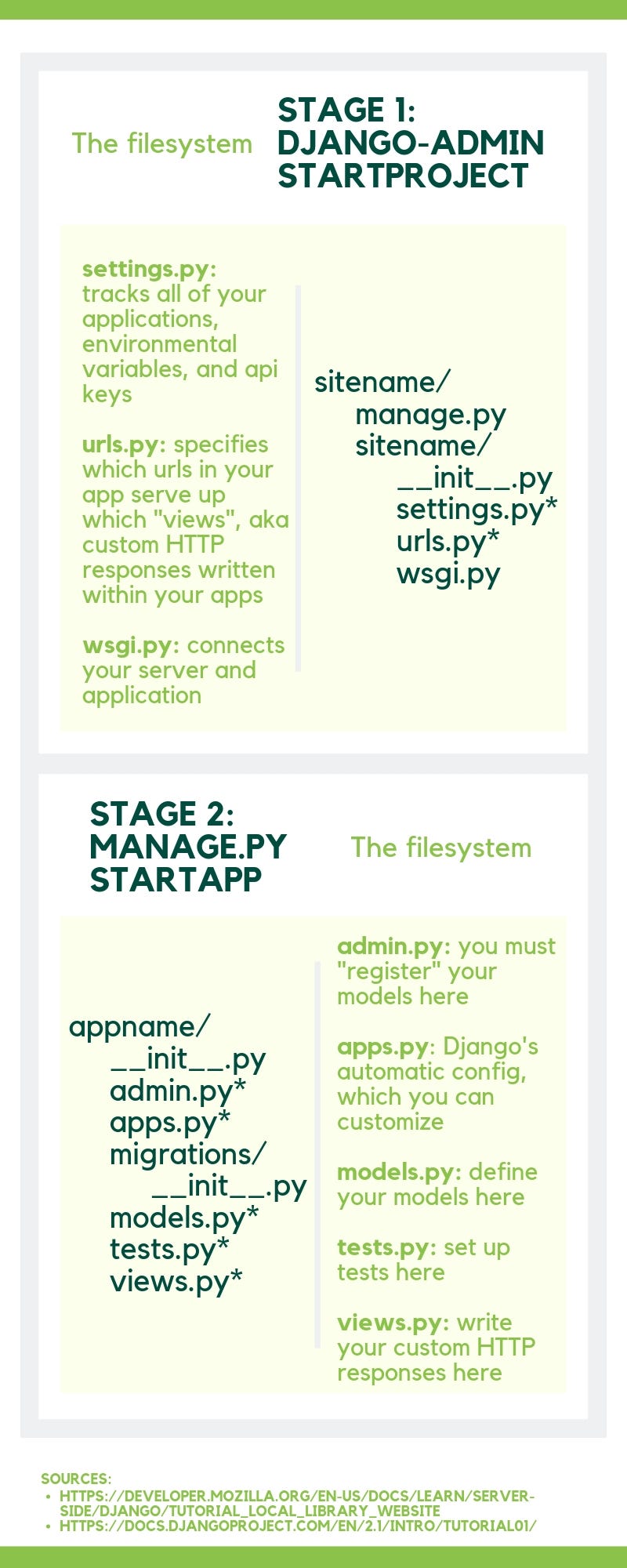
migrations/: This directory stores database migration files. Migrations are how Django tracks changes to yourmodels.pyfile and synchronizes your database schema accordingly.admin.py: This file is for registering your app's models with Django's built-in admin interface.apps.py: A configuration file for the app itself.models.py: This is where you will define your application's data models. Each model is a Python class that maps to a database table.tests.py: For writing unit and integration tests for your app.views.py: This is where you will write the request-handling logic. A view function receives a web request and returns a web response.
Registering the App
As the video emphasized, creating the app is not enough. You must tell your Django project that this new app exists.
Open core/settings.py and find the INSTALLED_APPS list. Add your new app's name to the list:
# core/settings.py

INSTALLED_APPS = [
    'django.contrib.admin',
    'django.contrib.auth',
    'django.contrib.contenttypes',
    'django.contrib.sessions',
    'django.contrib.messages',
    'django.contrib.staticfiles',
    'portfolio',  # Add this line
]
4. A Note on App Organization
You've created one project and one app. But how should you decide what goes into an app? How many apps should a project have? This is a design question. Given your background in building complex systems, thinking about architectural principles like high cohesion and low coupling early on is beneficial.
The final video clip for today touches on these design considerations.
Django Tutorial for Beginners – Build Powerful Backends
This final clip discusses strategies for organizing apps within a larger project, touching on concepts like monoliths, coupling, and cohesion. This provides valuable context for how to structure larger, real-world applications.
Watch from 56:26 to 01:01:50. You don't need to memorize the specifics of the e-commerce example, but focus on the core design principle: an app should do one thing and do it well, with minimal dependency on other apps.
The key takeaway is that good app design promotes reusability and maintainability. An app should be a focused, self-contained unit of functionality.
Conclusion
Well done! You have successfully created the fundamental structure of a Django application. You've taken a significant step from having an abstract tool (pip install django) to having a concrete, runnable project skeleton.
Key Takeaways:
- A Django project is the main container, while apps are modular, reusable components that provide specific functionality.
- Use
django-admin startproject <name> .to create a project in the current directory. - Use
python manage.py startapp <name>to create a new app within the project. - Crucially, you must register every new app by adding its name to the
INSTALLED_APPSlist insettings.py. - The generated files (
settings.py,urls.py,models.py,views.py) provide a clear separation of concerns for configuration, routing, data modeling, and request logic.
Preview of the Next Lesson:
So far, our project doesn't do anything. In the next lesson, "Explain the MTV (Model-Template-View) pattern in Django," we will dive into this core architectural pattern. We'll write our first view in portfolio/views.py, connect it to a URL in core/urls.py, and make our server return its first custom HttpResponse. This is where we start bringing the application to life.