Hello! Welcome back to your Notion course.
In our last lesson, you mastered embedding media, making your pages visually rich and dynamic. We used commands like /image and /video to do this. Today, we're going to zoom in on that powerful / key and unlock its full potential.
This lesson is all about the slash command, arguably the single most important feature for working quickly and efficiently in Notion. You'll learn how to use it not just to add new content, but also to instantly modify and manage existing blocks. Mastering the slash command is a huge step toward building professional-grade templates with speed and precision.
This is our final lesson in the "Notion Workspace and Page Essentials" module. Once you've mastered this, you'll have all the fundamental skills needed to build any static page, and you'll be ready for the next big step: databases.
1. What is the Slash Command?
The slash command is a universal shortcut in Notion. By simply typing a forward slash (/) on a new line or at the end of an existing one, you open a menu of every possible action you can take. This allows you to keep your hands on the keyboard and your workflow uninterrupted.
The official Notion team has a great, concise video that explains the three main uses of the slash command:
- Adding new content.
- Modifying existing content.
- Taking action on content (like duplicating or deleting it).
Let's start by watching this overview.
This official video from Notion, titled 'Using slash commands,' provides a perfect introduction to the core functions of this feature.
Watch the entire video. Pay close attention to the three distinct categories of use: creating new blocks, modifying existing blocks (like changing color), and taking actions (like commenting).
As you saw, the slash command is your central tool for building and shaping a page. Let's break down each of its functions.
2. Adding New Blocks
This is the most frequent use of the slash command. Instead of using your mouse to click a + button, you can instantly create any block type by typing / followed by the name of the block you want.
For example:
/h2creates a medium heading./todocreates a to-do list checkbox./calloutcreates an attention-grabbing callout box./divcreates a divider line.
Notion's official documentation has a comprehensive list of all the available slash commands for creating content.
Keyboard shortcuts – Notion Help Center
The 'Keyboard shortcuts' page from the Notion Help Center contains an exhaustive list of slash commands. Reviewing this will give you a sense of the vast possibilities.
In the article, find the section titled 'Slash commands' (it's near the bottom). Quickly read through the lists under the 'Basic', 'Inline', and 'Database' headings. Don't worry about memorizing them all; just get familiar with what's possible.
This command is how you will eventually build complex database views for your templates, such as the content calendar you want to create.
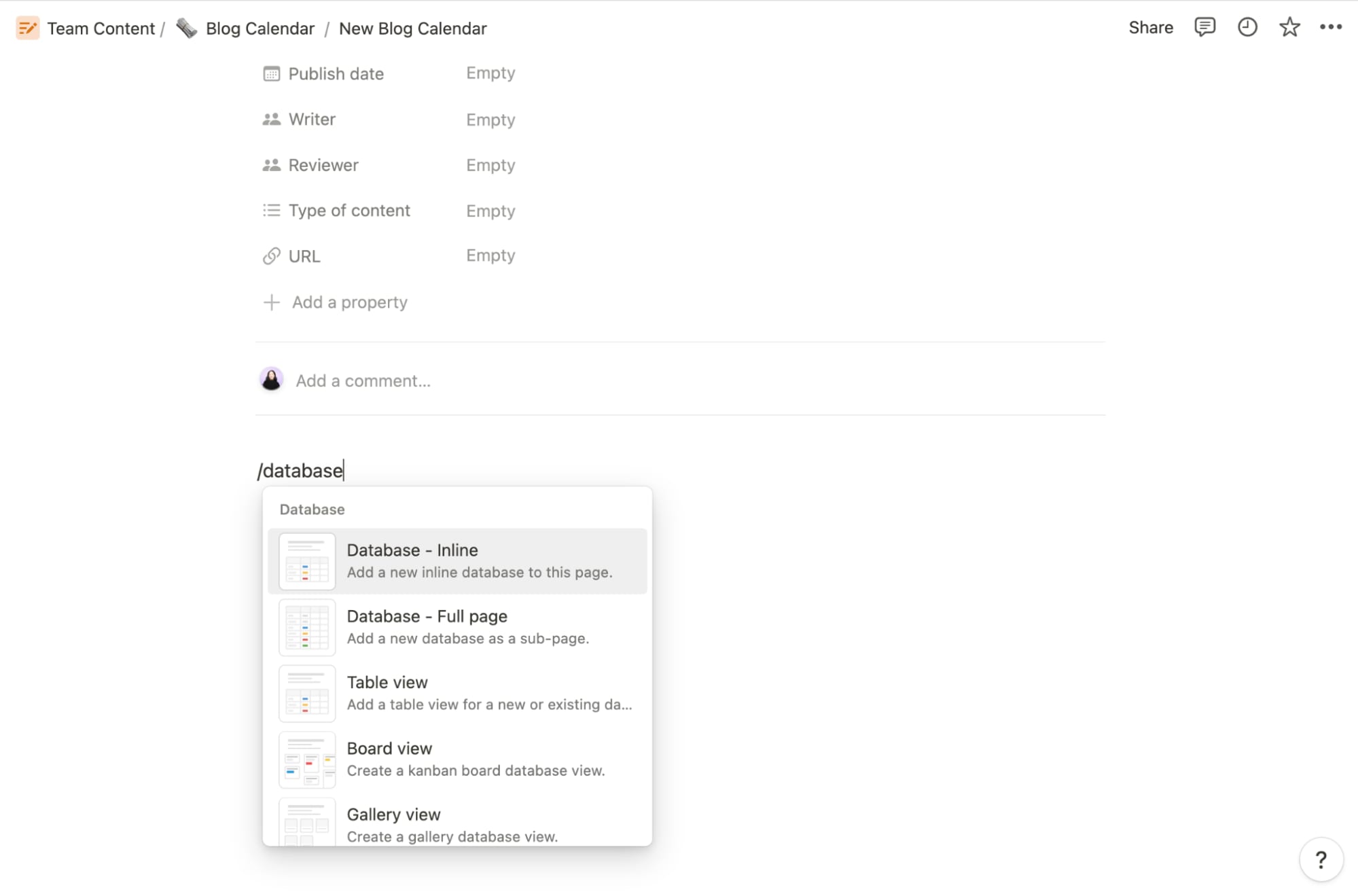
Test your understanding!
You are creating instructions for a template and want to add the following elements in order: a small heading that says "Instructions", a numbered list with two steps, and a final quote block with an inspiring message. What slash commands would you use for each?
Show answer
- For the small heading:
/h3 - For the numbered list:
/numor/1. - For the quote block:
/quote
3. Modifying Existing Blocks
This is where the slash command transitions from a simple tool to a powerhouse feature. You can use it to instantly change the type, color, or other properties of a block you've already created.
The two most common modification commands are:
/turn: Transforms the current block into another type. For example, you can turn a line of text into a bullet point, a toggle, or even a page./color: Changes the text or background color of a block. For example,/redmakes the text red, and/yellow backgroundhighlights the block in yellow.
Let's see this in action. The following guide provides clear animated examples of these commands.
A Guide to Editing and Formatting Text in Notion - Thomas Frank
Thomas Frank's article 'A Guide to Editing and Formatting Text in Notion' has a great section on the slash command with helpful GIFs.
Scroll down to the section 'Editing Text with the Slash Command'. Observe the animated GIFs that demonstrate using /turn to change a block type and /red to change a block's color. This visual reinforcement is very effective.
You can also combine these. Typing /turn h2 will transform a text block into an H2 heading. This is incredibly fast for restructuring documents.
4. A Reference for Speed: The Shortcut Sheet
As you build more complex templates, you'll rely on these commands constantly. Having a quick reference can be very helpful in the beginning.

✍️ Exercise: Slash Command Workout
It's time to put this into practice. Create a new, private page in your Notion workspace and title it "Slash Command Practice".
- On the first line, type
/h1and pressEnter. Type "My Slash Command Workout". - On the next line, type
/todoand pressEnter. Type "Master adding blocks" and pressEnteragain to create a second to-do item. Type "Master modifying blocks". - You decide the second item should be a toggle. With your cursor on that line, type
/turn toggle. The to-do item should now be a toggle list. - Below the toggle, type
/calloutand pressEnter. Type "This is a great way to add instructions to a template!". - With your cursor on the callout block line, type
/blue background. The callout box should now have a blue background. - Below the callout, type
/divand pressEnterto create a divider. - With the divider block selected (you can click it or use arrow keys), type
/duplicate. You should now have two dividers.
By the end of this exercise, you will have used the slash command to create headings, lists, callouts, and dividers, and to modify a block's type and color—all without touching your mouse for those actions.
Lesson Summary and Next Steps
Fantastic work! You have now unlocked the fastest way to build and edit pages in Notion. This skill is foundational and will pay dividends in every future project, especially when you're aiming to create professional templates efficiently.
Key Takeaways:
- The slash
/command is your universal tool for adding, modifying, and managing blocks. - Add new content by typing
/followed by the block name (e.g.,/h1,/todo,/callout). - Modify existing blocks using commands like
/turnto change the block type and/colorto change its appearance. - You can also perform actions like
/duplicateand/delete.
This lesson concludes our first module on page essentials. You have a solid grasp of page structure, block types, layouts, media, and now, the commands to assemble it all with speed.
In the next lesson, we'll round out your efficiency skills by covering keyboard shortcuts for common actions, which perfectly complement the slash command. After that, get ready to dive into the most powerful part of Notion: Databases.