Hello! Welcome back to your Notion course.
In our last lesson, you learned how to architect a page by arranging content into multi-column layouts. You now have the skills to build the skeleton of a professional-grade dashboard.
Today, we'll bring that skeleton to life. This lesson covers how to embed media content such as images, videos, and files into a page. Mastering this will allow you to create visually compelling, informative, and highly functional templates—a key factor in making them valuable and sellable. We'll place rich media directly into the column layouts you now know how to build, completing your foundational page design toolkit.
1. An Overview of Media Blocks
Notion goes far beyond plain text. You can enrich your pages with a variety of media types, turning a simple document into a multimedia hub. This is essential for creating engaging content calendars, project briefs with design mockups, or personal knowledge systems with attached resources.
The primary way to add new content is with the / command. When you type /, you can scroll down to the Media section to see the main options available.

To get a quick video tour of the different media types you can add, let's watch this brief clip from Notion's official channel.
This video, 'Types of content blocks' by Notion, provides a fast-paced overview of the different media blocks you can add to a page.
Watch from 05:28 to 07:04. Pay attention to the variety of ways you can add each media type, such as uploading from your computer versus embedding from a link.
Now, let's break down the most common media types and how to use them effectively.
2. Working with Images
Images are fundamental to creating visually appealing templates. You can use them for page covers, icons, gallery previews, or simply to illustrate a point.
There are three primary ways to add an image:
- Upload: Add an image file directly from your computer.
- Embed Link: Paste a URL to an image hosted online.
- Unsplash: Search a library of high-quality, royalty-free stock photos directly within Notion.
The most direct way to access these options is by typing /image and pressing enter.
For a comprehensive guide on adding and managing images, the Notion Help Center provides a clear reference.
Images, files & media – Notion Help Center
Please read the 'Images' section of the Notion Help Center article titled 'Images, files & media' to understand the different methods for adding images.
In the article, find the section titled 'Media block types' and read the subsection on 'Images'. Focus on the three methods for adding an image (upload, embed, Unsplash).
💡 Tip: The Fastest Method
The quickest way to add an image from your computer is often to simply drag and drop the file directly onto your Notion page. Notion will automatically upload it and place it where you drop it.
3. Embedding Videos, Audio, and Files
Similar to images, you can add other media like videos, audio clips, and files (like PDFs or documents). For each, you have two main choices:
- Upload: Store the file directly in Notion. This is useful for your own video files or documents that need to be part of the template.
- Embed: Link to a file hosted on another service (like YouTube, Vimeo, Spotify, or SoundCloud). The content will be playable directly on your Notion page.
For videos and audio, embedding is almost always the better option to save space and improve page loading speed.
Now, let's explore the specifics of adding these media types.
Images, files & media – Notion Help Center
The same Notion Help Center article also details the process for videos, audio, and general files. Please read the following sections.
Read the sections titled 'Files', 'Videos', and 'Audio'. Note the similar patterns for uploading versus embedding with a link.
⚠️ Important Note on File Limits
Notion has file size limits that depend on your plan.
- Free Plan: 5MB per file upload.
- Paid Plans: A much larger limit (currently 5GB), but performance can suffer with very large files.
For your templates, it's a best practice to keep uploaded files small or embed them from other services to ensure a smooth experience for your customers. As Thomas Frank notes in his article "Images, Videos, and Files", it's not recommended to treat Notion as a primary file storage solution.
Test your understanding!
You want to include a 5-minute tutorial video in a template you're creating. Should you upload the video file directly to Notion or embed it from a service like YouTube? Why?
Show answer
You should upload the video to a service like YouTube or Vimeo and then embed it in Notion. A 5-minute video file would likely exceed the Free Plan's 5MB limit and would slow down page loading for all users, regardless of their plan. Embedding keeps the Notion page lightweight and fast.
4. The Universal /embed Command
What if you want to add content from a service that doesn't have its own dedicated block, like Figma for designs, or Google Maps for a location? For this, Notion has a powerful and versatile /embed block.
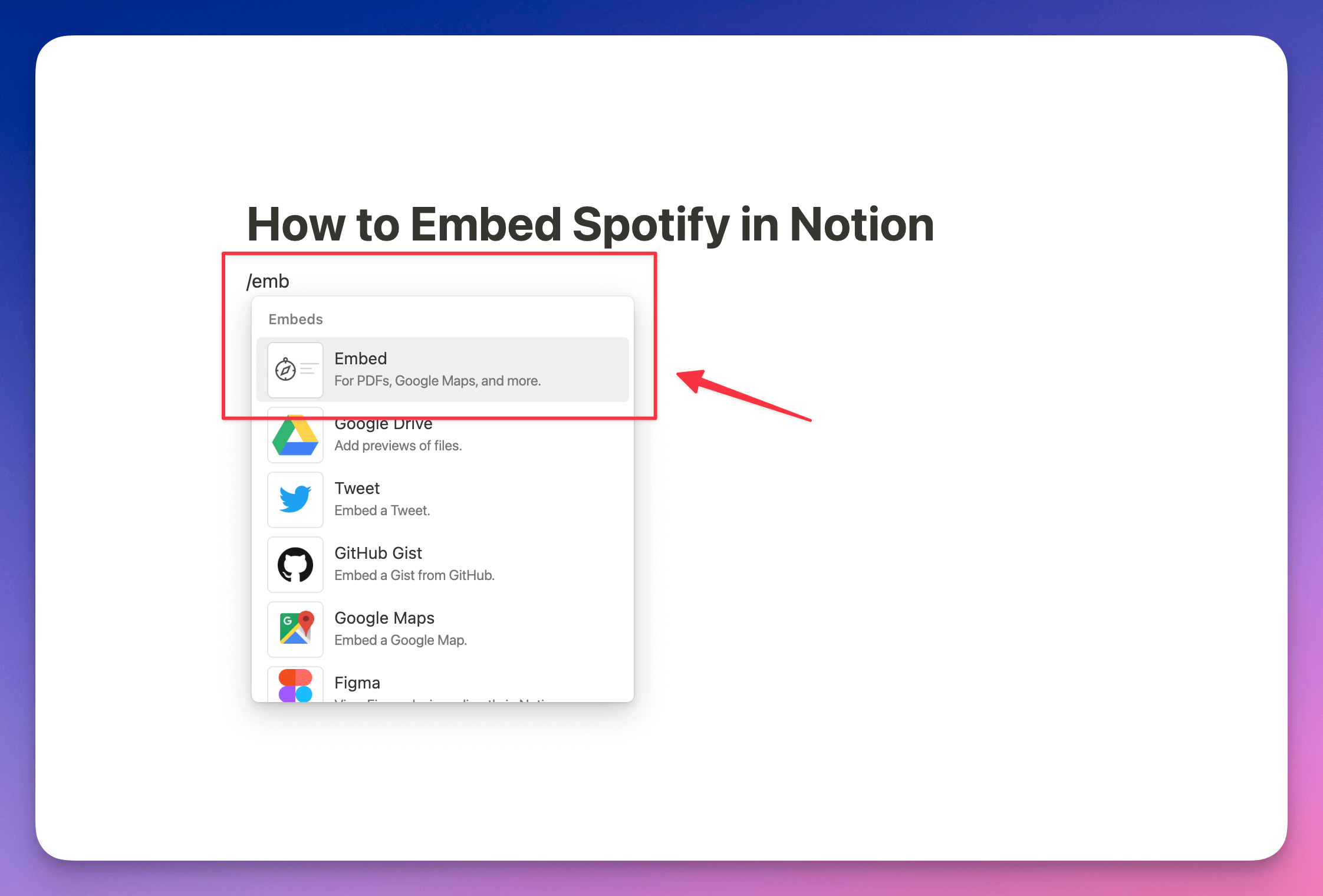
You can use this command for a huge variety of content. Given your background in design and project management, you might use it to embed:
- Figma files for design previews.
- Loom videos for quick walkthroughs.
- Google Drive documents or sheets.
- Typeform surveys.
Let's see a practical example of embedding a Google Map.
In this clip from his 'Notion Tutorial for Beginners,' Kevin Stratvert demonstrates how to use the specific /map command (which functions like the general /embed block) to add a Google Map to a page.
Watch from 25:37 to 26:12. Notice how the process is as simple as pasting a URL into the block that appears.
5. Customizing Your Media
Adding media is just the first step. To create a polished, professional template, you need to control how that media looks and behaves on the page. After adding any media block, you can hover over it to find options for customization.
Key options include:
- Resizing: Drag the black handles on the side of the block to make it larger or smaller.
- Alignment: Position the block to the left, center, or right within its column.
- Captions: Add descriptive text directly below the media.
- Alt Text (for images): Add text for screen readers, improving accessibility.
These options are crucial for creating clean, balanced layouts. The Notion Help Center article provides a complete reference for all the available media block options.
Images, files & media – Notion Help Center
To learn how to fine-tune your media, please read the final major section of the 'Images, files & media' article.
Read the section titled 'Media block options'. Pay special attention to 'Arrange and resize', 'Align', and 'Caption', as you will use these frequently in template design.
✍️ Exercise: Add Media to Your Layout
Let's apply these skills to the "Q4 Initiative" page you worked on in the last lesson.
- Open your "Q4 Initiative" page.
- Add a Cover Image:
- Hover over the top of the page and click "Add cover".
- Click "Change cover" and select an image from the "Unsplash" tab. Search for a term like "business" or "strategy".
- Embed a Video:
- In the "Resources" column you created, type
/video. - Choose the "Embed link" option.
- Paste this YouTube URL for a placeholder video:
https://www.youtube.com/watch?v=Nn_S3_I7_2Q - Click "Embed video".
- In the "Resources" column you created, type
- Add an Image:
- In the "Team" column, type
/image. - Choose the "Unsplash" option and search for a picture of a "team". Select one to insert it.
- Hover over the image, click the alignment icon, and choose "Align center".
- In the "Team" column, type
- Upload a File:
- Below your three-column section, type
/file. - Choose "Upload" and select any small document or image from your computer (like a screenshot or a small PDF).
- Add a caption to the file block, such as "Project Brief PDF".
- Below your three-column section, type
Your page should now feel much more dynamic, with a cover image, an embedded video, a centered image, and an uploaded file.
Lesson Summary and Next Steps
Great job! You can now build pages that are not only well-structured with columns but also visually rich and functional with embedded media. This is the complete foundation for designing any static page in Notion.
Key Takeaways:
- Use the
/command (e.g.,/image,/video,/file) to add media blocks. - You can either upload files directly or embed them from online services. Embedding is usually preferred for performance.
- The
/embedcommand is a universal tool for adding content from hundreds of other apps like Figma and Google Maps. - Use the block options to resize, align, and caption your media to create polished, professional layouts.
This lesson concludes our module on Notion Workspace and Page Essentials. You have mastered the fundamental building blocks of any Notion page.
In our next lesson, we will begin a new module and dive into the true heart of Notion's power: Databases. We'll start by learning how to create inline and full-page databases and configure their most basic properties.