Welcome back! In the last module, you successfully built a complete Content Creation Hub. You now have a powerful, multi-view system to manage your content from the initial idea all the way to a polished, visual portfolio.
Now, we shift our focus from managing external outputs to organizing your internal world of ideas, research, and inspiration. Welcome to Project 3: The Personal Knowledge Management (PKM) System. For a content creator and designer, a PKM system, often called a "second brain," is the fertile ground where your best ideas are captured, connected, and cultivated.
In this lesson, we will build the heart of this system: a flexible 'Notes' database. You will learn how to create this database from scratch and configure the essential properties needed to tag, categorize, and track your thoughts and research effectively.
What is a Personal Knowledge Management System?
Before we start building, let's clarify what we're aiming for. A PKM system is your private, digital library of information. It's a structured place to save everything you want to remember, from book summaries and article clippings to random shower thoughts and meeting notes.
To understand the core concept, spend a few minutes reading the introduction from this helpful article.
Creating a Personal Knowledge Base with Notion
The article 'Creating a Personal Knowledge Base with Notion' from Grizzly Templates provides an excellent definition of a personal knowledge base and explains why Notion is the perfect tool for building one.
Read the first two sections: 'What is a personal knowledge base?' and 'Why choose notion for your personal knowledge base?'. This will set the stage for the system we are about to create.
1. Planning Your 'Notes' Database
Your background in project management will be useful here. Before building any system, it's wise to define its requirements. What information do we need our 'Notes' database to hold?
A professional note-taking system goes beyond just a title and text. The article "How to Track Notes, Ideas & Research in Notion Like a Pro" lists several key properties that turn a simple list of notes into a powerful, searchable library. The most important ones for us right now are:
- Tags/Topics: To categorize notes by theme (e.g.,
Design,Productivity). - Note Type: To specify the kind of note (e.g.,
Book Summary,Quick Idea). - Source/Reference: To link back to the original article, book, or website.
We will now build a database that includes these properties.
2. Building the 'Notes' Database and Its Properties
We'll follow a best practice of keeping our "master" databases in a dedicated, tucked-away page to keep our workspace clean. The following video demonstrates how to build a note-taking system from the ground up. We will use it as a guide to create our database and add its first set of properties.
Notion Masterclass: Build a Note Taking System from Scratch
In his 'Notion Masterclass', Thomas Frank provides a detailed walkthrough of creating a notes database. We'll focus on the initial setup and property configuration.
Watch the segment from 03:40 to 08:33. Pay close attention to how he: Creates a dedicated 'Databases' page for organization. Creates the 'Notes' database and turns it into a full page. Adds and configures several properties, specifically the URL property (which we'll use for sources) and the Select property (which we'll use for note types).
Now, let's break down the specific properties you need to create for your 'Notes' database.
A. Tags (Multi-select Property)
Tags are for high-level categorization. A single note might touch on multiple topics, so we need a property that allows for multiple selections. The Multi-select property is perfect for this.
- Property Type:
Multi-select - Name:
Tags - Purpose: To assign one or more topics to a note, making it easy to find all notes related to "Design" or "Content Creation," for example.
The video below gives a very quick and clear demonstration of creating a Multi-select property.
Simple Note Taking System in Notion (Beginner's Tutorial)
This short clip from 'Simple Note Taking System in Notion' by Productive Setups clearly shows how to add and configure a Multi-select property for categorizing notes.
Watch from 02:38 to 03:49. Notice how you can add several options (e.g., 'business', 'education') and assign multiple tags to a single entry.
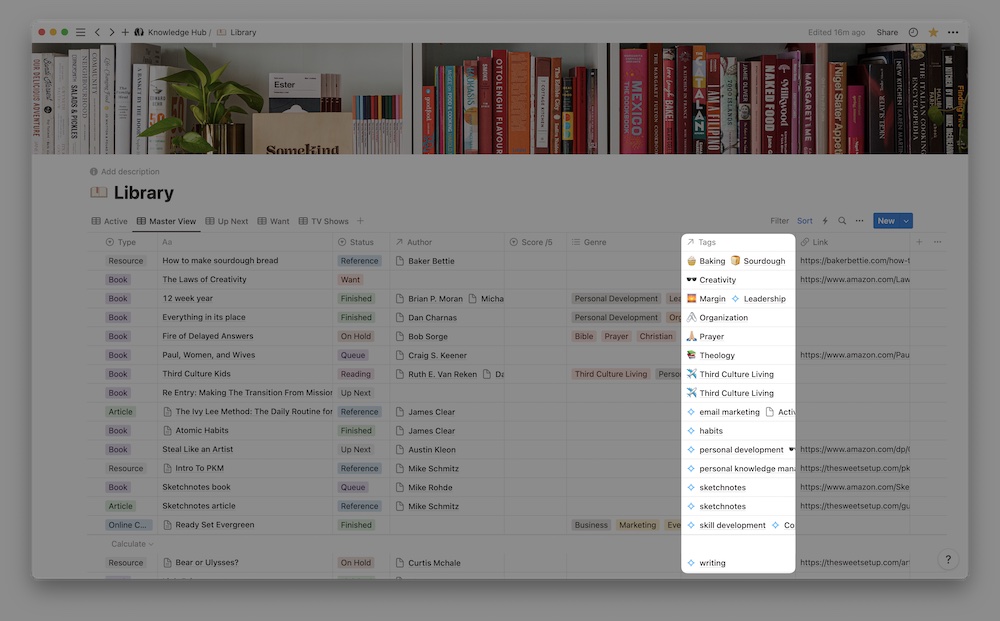
A well-developed tag system is invaluable. The image below shows what a Tags property looks like once you've built up a library of categories.
B. Type (Select Property)
Unlike tags, a note usually has only one primary type. Is it a book summary? A meeting note? A quick idea? For this, we use the Select property, which limits you to a single choice.
- Property Type:
Select - Name:
Type - Purpose: To define the format or context of the note. This helps you filter for specific kinds of information, like seeing all your meeting notes in one place.
C. Source (URL Property)
If your note is based on an external resource, like an article or a video, you need a way to get back to it. The URL property is a simple text field formatted specifically for web links.
- Property Type:
URL - Name:
Source - Purpose: To store the hyperlink to the original webpage, article, or online resource.
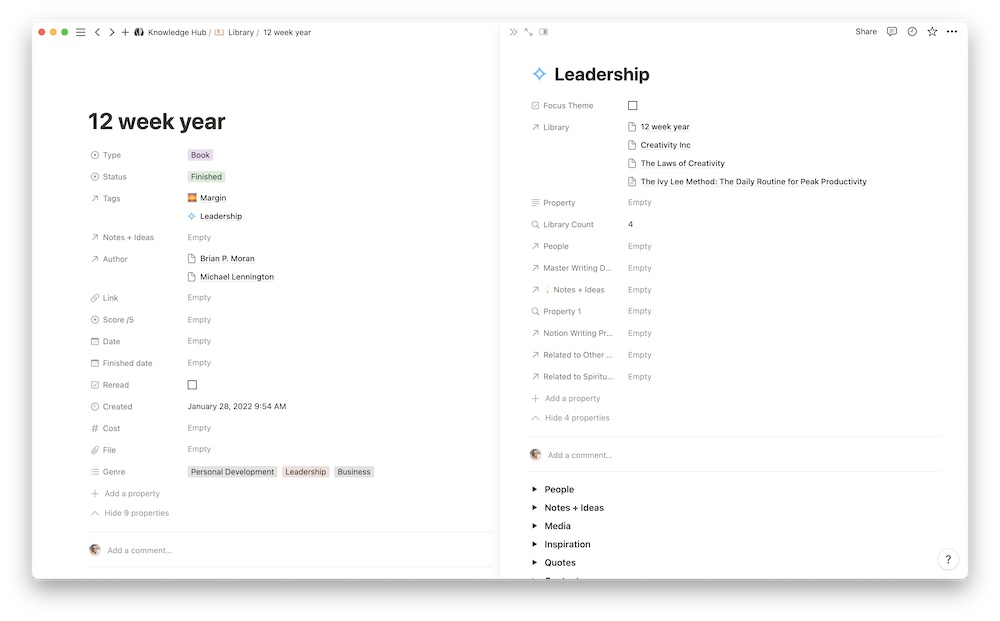
The image below shows these properties working together in a finished database entry. You can see the Type is "Book", it has multiple Tags ("Leadership", "Personal Development"), and a Link (our 'Source').
Test your understanding!
You want to add a Status property to your notes to track whether a note is an 'Inbox' idea, 'In Progress', or 'Archived'. A note can only have one status at a time. Which property type should you use (Select or Multi-select) and why?
Show answer
You should use the Select property. Because a note can only be in one state at a time (it can't be both 'In Progress' and 'Archived' simultaneously), the Select property is the correct choice as it restricts you to a single option.
✍️ Exercise: Build Your 'Notes' Database
It's time to put this all together. Follow these steps to create the foundation of your PKM system.
Your Tasks:
-
1. Create the Structure:
- Create a new, empty page in your sidebar and name it "My PKM System". Give it an icon of your choice (a brain 🧠 or book 📚 works well).
- Inside this page, create another page and name it "Databases". This is where your master databases will live.
-
2. Build the Database:
- Navigate into your new "Databases" page.
- Create a new Full-page database by typing
/databaseand selecting the full-page option. - Name the new database "Notes".
-
3. Configure Properties:
- By default, Notion adds a 'Tags' property. Click its name, then click 'Delete property'. We'll create our own from scratch.
- Click the
+sign to add a new property. Create aMulti-selectproperty and name itTags.- Add a few starter options relevant to you, such as
Content Idea,Design Inspiration,Project Management, andNotion Templates.
- Add a few starter options relevant to you, such as
- Add another property. This time, create a
Selectproperty and name itType.- Add options like
Quick Idea,Article Summary,Book Note, andMeeting Note.
- Add options like
- Add a final property. Create a
URLproperty and name itSource.
-
4. Add Sample Notes:
- Create two new entries in your database to see how it works.
- Note 1: Name it "Idea for a New Notion Template". Set its
TypetoQuick Ideaand itsTagstoNotion TemplatesandContent Idea. - Note 2: Name it "Summary of Grizzly Templates PKM Article". Set its
TypetoArticle Summaryand itsTagtopersonal knowledge management. Paste the article's URL into theSourceproperty.
- Note 1: Name it "Idea for a New Notion Template". Set its
- Create two new entries in your database to see how it works.
You should now have a clean, functional database ready to capture your ideas and research!
Conclusion
Great job! You've successfully built the foundational database for your Personal Knowledge Management system. This 'Notes' database is the central hub where all your ideas, research, and learning will be stored. By thoughtfully setting up properties like Tags, Type, and Source, you've created a structure that is not only easy to use but also powerful enough to scale as your knowledge library grows.
Key Takeaways:
- A Personal Knowledge Management (PKM) system acts as your digital second brain.
- A well-structured 'Notes' database is the heart of a PKM system.
- Use the
Multi-selectproperty for topics or tags where an item can have multiple categories. - Use the
Selectproperty for attributes where an item can only have one value (like a status or type). - The
URLproperty is essential for linking notes back to their original sources.
Preview of the Next Lesson:
Our PKM system is just getting started. Many of our notes will come from things we consume—articles, books, and courses. In the next lesson, we will build a dedicated 'Reading List' database to track these resources. After that, we'll learn one of Notion's most powerful features: creating a Relation to link our 'Notes' database directly to our new 'Reading List'.