Hello! Welcome to the next lesson in Module 11: Marketing and Selling Your Notion Template.
In the last lesson, you wrote a compelling title and product description for your template. You crafted the words that will communicate value and solve your customer's problem. Now, it's time to bring that story to life visually.
This lesson is about how to create high-quality preview images, GIFs, or mockups to showcase your template. As a designer and content creator, this is where your existing skills can give you a significant advantage. A potential customer can't physically hold or test your template, so your visuals aren't just marketing—they are the product in the customer's mind before they buy. We'll focus on creating professional, persuasive images that make your template look as valuable as it truly is.
1. The Strategy: "Don't Tell, Show"
Your product visuals have one primary job: to show the customer exactly what they are getting and how it will make their life better. A list of features in a text description is abstract, but seeing those features in a polished, professional mockup makes them tangible and desirable.
How to Sell Notion Templates on Etsy? The Ultimate Step-By-Step Tutorial for Beginners
To start, let's watch a short clip that explains the importance of product listing images for digital products.
Watch from 06:20 to 09:01. Pay close attention to these key points: The need to show customers exactly what they are getting. Using images to answer potential questions and highlight benefits, not just features. The idea of using mockups to present your template professionally.
A complete set of product images typically includes:
- The Thumbnail/Hero Image: Your most important image. It must grab attention and clearly show the template in an appealing mockup.
- Feature Spotlights: Images that zoom in on specific, high-value parts of your template (e.g., the content calendar, the project dashboard).
- Informational Slides: Graphics that explain "What's Included," "Who It's For," or "How It Works."
- Transformation/Benefit Slides: Showcasing the "before" (chaos) and "after" (clarity) that your template provides.
- Motion: Short GIFs or videos that show the template in action.
2. Creating Professional Mockups in Canva
Taking a simple screenshot of your template is not enough. To create a professional look, you need to place those screenshots into mockups, like a laptop or tablet screen. Canva is an excellent tool for this, and your design background will make this process feel very natural.
How to Create and Sell Canva Templates on Etsy (Full Step-by-Step Tutorial)
This next video is an incredibly detailed, step-by-step guide to creating stunning listing photos in Canva. While the creator is making a Canva template, the principles for creating mockups, using backgrounds, and adding shadows are exactly what you need for your Notion template.
This is a longer, more detailed segment, so grab a digital notepad. Watch from 26:25 to 39:04. Focus on these game-changing techniques: Canvas Setup: Note the recommended dimensions (3000x2250 px) and the trick of using guides to ensure your main content is visible in the square thumbnail view. Finding Mockups: How to use backgrounds and source mockups within Canva or from external sites. The Power of Shadows: Pay very close attention to how adding shadows (around 33:45) instantly makes a flat image look realistic and three-dimensional. This is a key differentiator between amateur and professional visuals.
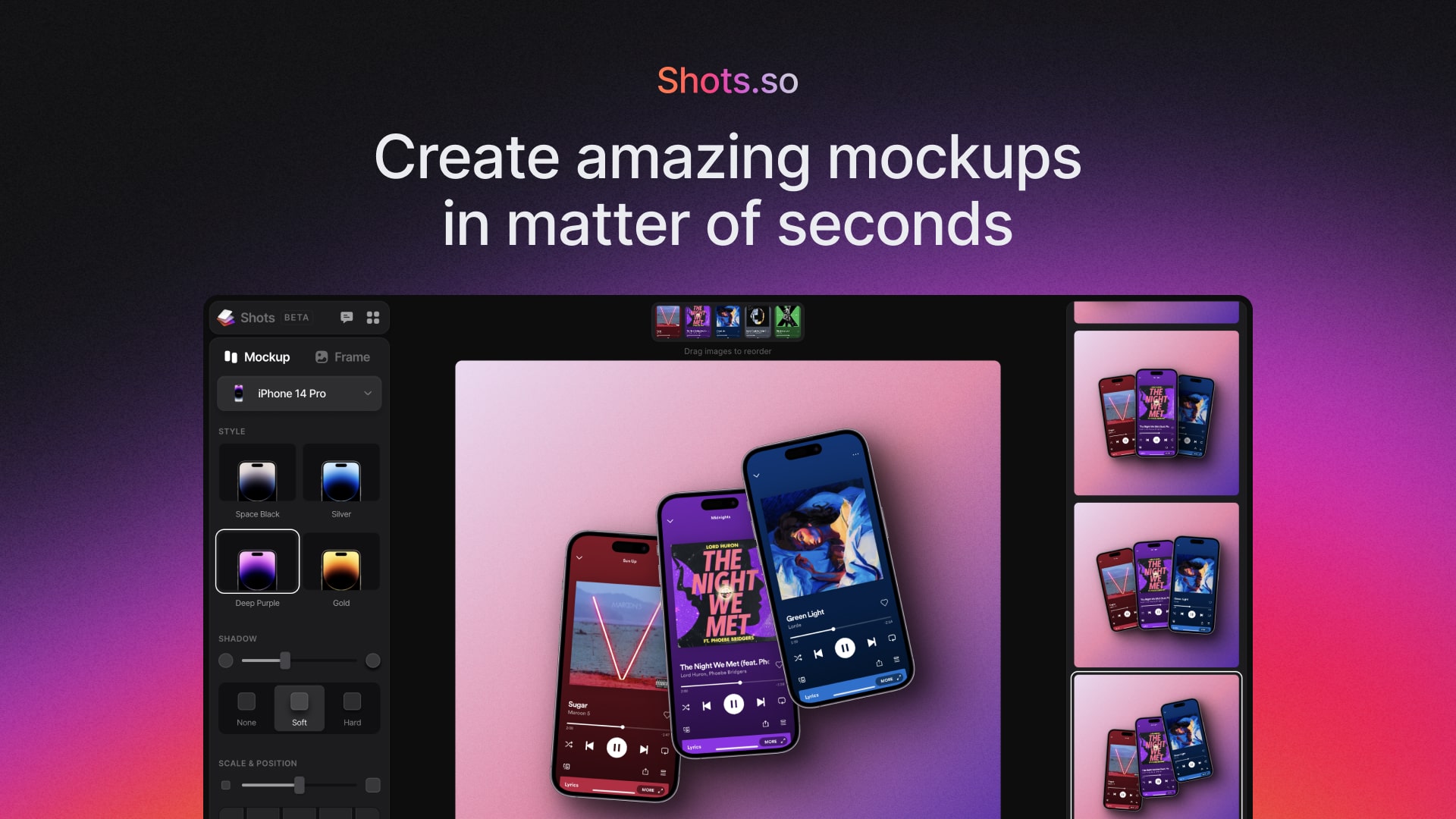
In addition to Canva's built-in tools, there are dedicated apps for creating beautiful mockups very quickly.
3. Creating Informational Slides
Many potential buyers will skim or completely ignore your written product description. Therefore, your images must communicate all the essential information. This is where informational slides come in.
How to Create and Sell Canva Templates on Etsy (Full Step-by-Step Tutorial)
Let's return to the same comprehensive video to see how to create clear and effective informational slides.
Watch from 42:05 to 47:03. The creator demonstrates how to build slides for: 'How It Works': Guiding the customer through the purchase and setup process. 'What's Included': Clearly listing the deliverables (e.g., 'Project Manager Template,' 'Task Manager Template,' 'Video Guide'). 'What's Editable': Setting clear expectations about what the customer can customize.
When designing these slides, use your product copy from the previous lesson as the source material. Pull out the key benefits and the "Who is this for?" statements and present them visually.

4. Elevating Your Brand with "Notion-Style" Illustrations
To create a truly cohesive and premium feel, your marketing visuals should align with the aesthetic of your template itself. One of the most effective ways to do this is by using "Notion-style" illustrations.
Notion Style Illustrations: How to Use Them
The article 'Notion Style Illustrations' from GetIllustrations is an excellent deep-dive into this specific aesthetic. It explains what defines the style, why it's so effective, and how to use it properly.
Read this article from the beginning down to the 'Practical Tips for Implementation' section. Focus on: The definition: Understand the core traits (monochrome, no fills, consistent stroke weight). The psychology: Why this style feels like helpful content rather than aggressive marketing. Common mistakes: Pay attention to the advice on avoiding mixing styles and overusing illustrations. Where to find them: Note the different options for sourcing these illustrations.
By incorporating a consistent set of these illustrations into your product images (and into the template itself), you create a memorable brand identity that looks clean, intentional, and professional.
Test your understanding!
You're creating a "What's Included" slide for your template. According to the resources, which approach is better and why?
A) Use a mix of colorful 3D icons you found online to make the slide "pop" and grab attention.
B) Use a few simple, monochrome, line-art illustrations from a single, consistent collection to label each included item.
Show answer
Approach B is better. The 'Notion Style Illustrations' article explains that this style feels more like helpful content than marketing, builds trust, and reduces cognitive load. Mixing styles (Approach A) creates visual chaos and can make your product look unprofessional, as noted in the article's 'Common Mistakes' section.
5. Bringing it to Life with Motion
Static images are great, but a short GIF or video can be even more powerful. It proves that your template is a living, functional system, not just a pretty picture.
How to Launch a Notion Template Side Hustle
A walkthrough video or GIF is a powerful tool for increasing buyer confidence. The article 'How to Launch a Notion Template Side Hustle' offers a concise tip on this.
Read the short section titled 'Record a walkthrough with Loom (free)'.
You don't need a long, narrated tutorial for your product page. A few short, silent GIFs are often enough. Use a tool like Loom or GIPHY Capture to record yourself:
- Dragging a card on a Kanban board from "In Progress" to "Done."
- Ticking a checkbox and seeing a task disappear from a "To-Do" view.
- Changing a date and seeing the task move on the calendar.
These small animations build immense trust and show the dynamic nature of your template.
✍️ Exercise: Create Your Product Showcase
It's time to build the visual assets for your Project & Task Manager template.
- 1. Take High-Quality Screenshots: Open your template in Notion. Take clean screenshots of the 4-5 most important pages/views. Examples: the main dashboard, the projects gallery, the tasks table, and the Kanban board.
- 2. Create a Hero Image Mockup:
- Open Canva and create a new design with dimensions 3000 x 2250 pixels.
- Using the techniques from the video, place your main dashboard screenshot into a laptop mockup.
- Choose a clean background and add realistic shadows to make it pop.
- 3. Create an Informational Slide:
- Add a new page in your Canva design.
- Create a "What's Included" or "Key Features" slide.
- Use your product description copy to list 3-4 main benefits.
- Bonus: Try to find a free "Notion-style" illustration pack (you can search on sites like IconScout or use Canva's elements, filtering for simple line art) and add a small, relevant icon next to each feature.
- 4. Create a GIF (Optional but Recommended):
- Use Loom or another screen recorder.
- Record a short, 10-15 second clip of you dragging a task across your Kanban board.
- Save it as a GIF. Most screen recorders have this option, or you can use an online converter.
- 5. Save Your Work: Export your Canva designs as PNG files and save your GIF. Keep these in a dedicated "Marketing Assets" folder for your project.
Conclusion
You have now transformed your template from an abstract system into a tangible, desirable product. By creating professional mockups, clear informational slides, and a consistent visual style, you're giving customers the confidence they need to make a purchase.
Key Takeaways:
- Your product visuals are your most important sales tool. "Show, don't tell."
- Use mockups and realistic shadows to make screenshots look professional and three-dimensional.
- Create informational slides to communicate key benefits, as many customers won't read the full description.
- Adopt a consistent "Notion-style" illustration aesthetic to build a clean, trustworthy brand.
- Use short GIFs to demonstrate the dynamic and functional aspects of your template.
Preview of the Next Lesson:
You have your template, your compelling copy, and your stunning visuals. All the pieces are ready. In the next lesson, we will put it all together as you learn to set up a digital storefront to sell your template using a platform like Gumroad or Lemon Squeezy.