Hello! In our last lesson, we explored Rollups and saw how they can automatically summarize data from related databases. You learned to calculate total hours and create dynamic progress bars, which are fantastic for high-level overviews.
However, Rollups are limited to a specific set of pre-defined calculations. What if you need more flexibility? For instance, how would you display a custom "Overdue" message if a project passes its deadline? Or create a unique ID for each task by combining its name and number? For this, you need a more powerful tool.
This lesson introduces Formulas, one of the most versatile features in Notion. By the end of our session, you'll be able to write basic formulas for text manipulation, date calculations, and conditional logic using if statements. Mastering formulas is a huge step toward creating the intelligent, automated, and truly sellable templates you aim to build.
1. Understanding the Anatomy of a Formula
Before writing your first formula, it's essential to understand its basic building blocks. A Notion formula is constructed from a combination of elements that work together inside the formula editor.

To get a solid grasp of these core components and the editor itself, let's start with a video that breaks it all down.
How to Use Notion Formulas 2.0 Like a Pro
In this first part of her 'How to Use Notion Formulas 2.0' video, Kat Waugh provides an excellent overview of the fundamental concepts: variables (properties), data types, functions, and operators.
Watch from the beginning to 10:18. Focus on understanding the four key terms she introduces and how different Notion properties correspond to different data types (text, number, boolean, etc.). This foundation is crucial.
To summarize the key components you'll use:
- Properties: These are the columns in your database (e.g.,
Due Date,Status,Name). They act as the variables in your formula. - Functions: These are pre-built actions that perform a specific task, like adding time to a date (
dateAdd()) or joining text (concat()). - Operators: These are symbols used for calculations and comparisons, such as
+(add),>(greater than), and==(equal to). - Constants & Literals: These are fixed values you type directly into the formula, such as the number
100or a piece of text like"Complete". Text values must always be enclosed in double quotes.
2. Conditional Logic with if Statements
Conditional logic is the heart of any dynamic system. It allows your template to make decisions and display different outputs based on specific criteria. The primary tool for this in Notion is the if() function.
The structure is simple: if(condition, value if true, value if false).
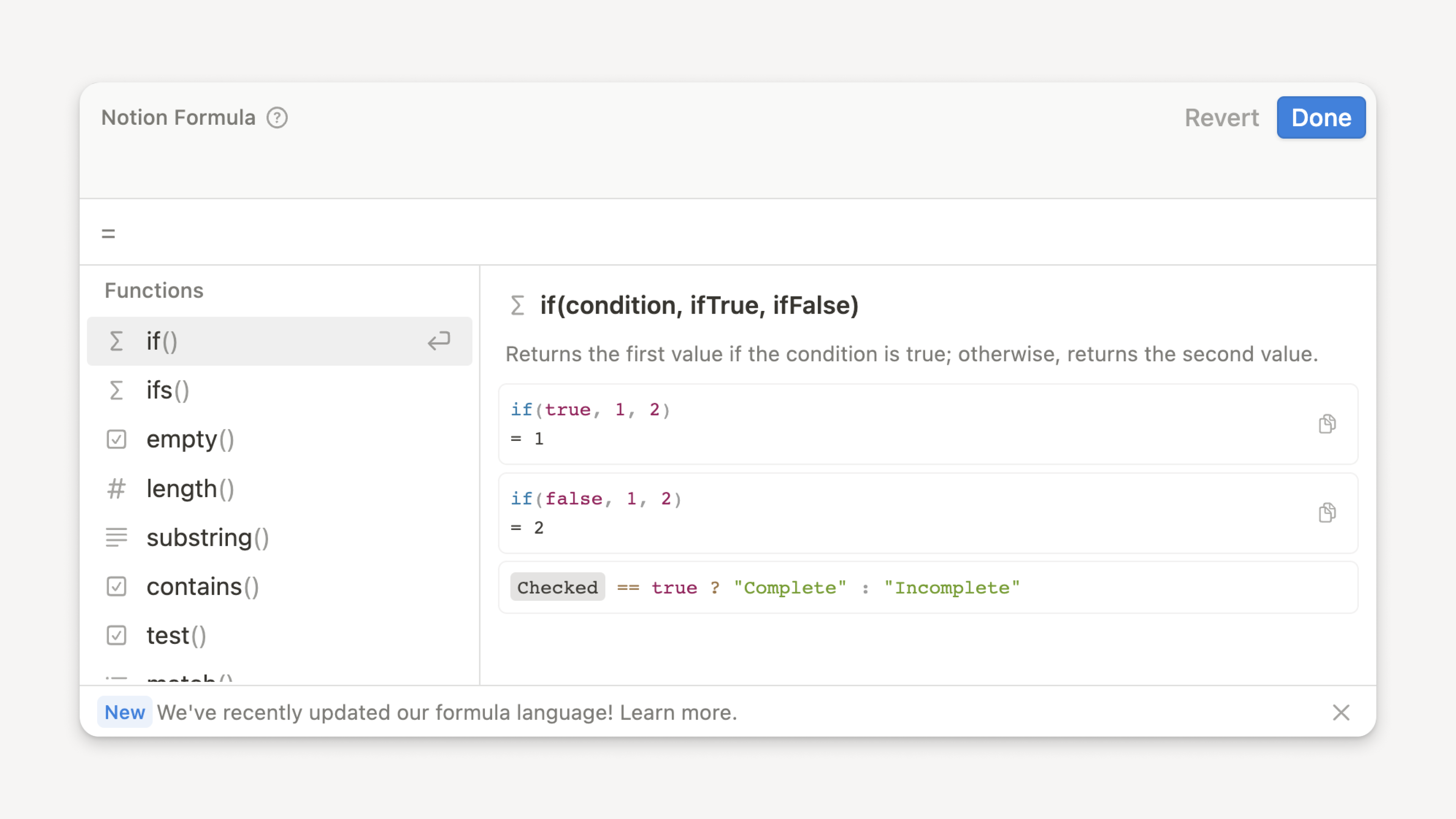
Let's say you want to display a clear status message based on a Done checkbox property. You could write:
if(prop("Done") == true, "✅ Complete", "In Progress")
This formula checks if the "Done" property is checked. If it is, it outputs "✅ Complete"; otherwise, it outputs "In Progress".
The video you just watched provides a fantastic deep-dive into creating these conditional statements.
How to Use Notion Formulas 2.0 Like a Pro
Let's revisit the video from Kat Waugh. This next segment focuses specifically on using if() and ifs() for more complex, multi-layered conditions. She also covers best practices like commenting and formatting, which are vital for building clean, maintainable templates.
Watch from 10:18 to 16:04. Pay close attention to how she builds the if statement step-by-step and then expands it using ifs to handle multiple conditions.
Test your understanding!
You have a Select property named "Priority" with options: "High", "Medium", and "Low". Write a formula that outputs "🚨 Urgent!" if the priority is "High", and "Standard" for all other cases.
Show answer
if(prop("Priority") == "High", "🚨 Urgent!", "Standard")
3. Working with Dates
Date calculations are fundamental to project management and content creation systems. Formulas allow you to calculate deadlines, count down days, and check if items are overdue.
Here are three essential date functions:
dateAdd(date, amount, unit): Adds a certain amount of time to a date. Useful for setting review dates or deadlines.- Example:
dateAdd(prop("Start Date"), 2, "weeks")calculates a date two weeks after the start date.
- Example:
dateBetween(date1, date2, unit): Calculates the time between two dates. Perfect for "Days Left" or "Overdue By" counters.- Example:
dateBetween(prop("Due Date"), now(), "days")calculates the number of days between the due date and today.now()is a special function that returns the current date and time.
- Example:
formatDate(date, format string): Converts a date into a text string with custom formatting.- Example:
formatDate(prop("Due Date"), "dddd, MMMM D, YYYY")would display a date as "Tuesday, June 18, 2024".
- Example:
Let's see a practical example that cleverly combines date functions with the if() statement we just learned.
Notion Formulas for Beginners: The Complete Course
In his 'Notion Formulas for Beginners' course, Thomas Frank solves a common problem: calculating a person's next birthday. This is a fantastic real-world example of advanced date manipulation that involves checking if a date has passed and adjusting the year accordingly.
Watch from 13:53 to 23:01. Don't worry about memorizing every detail. Focus on the logic: he extracts the month/day, combines it with the current year, and then uses an if statement with dateAdd to bump the year forward if the birthday has already passed. This showcases how these functions work together.
4. Text Manipulation
Being able to combine and format text is key to creating clean, descriptive information in your templates. The most common text manipulation task is joining different pieces of text together, which is called concatenation.
In Notion, you can concatenate text using the + operator.
Example: Creating a Unique Task ID
Imagine you have a Projects database where one project is named "Website Redesign" and a related Tasks database with a task numbered 101. You want to create a unique ID like Website Redesign-101.
You could use a formula in the Tasks database like this:
prop("Project Name") + "-" + format(prop("Task Number"))
prop("Project Name")pulls in "Website Redesign".+ "-" +adds a hyphen.format(prop("Task Number"))is crucial. The+operator only works on text, so we must useformat()to convert theTask Number(a number property) into a text string before we can join it.
For a set of clear, practical examples of common formulas, including text manipulation, this article is a great reference.
Everything you need to know about Notion formulas - Khe Hy
This guide from Khe Hy provides several copy-and-paste examples for common Notion formula use cases. We'll focus on the text manipulation example.
Scroll down to the section 'Common Notion formula use cases (that you can copy!)' and read the example titled 'Combining a number and a string'. This reinforces the concept of using format() to convert numbers to text before concatenation.
✍️ Exercise: Supercharge Your Project Manager
Let's apply these new skills to the "My First Connected System" you've been building.
Part 1: Dynamic Status (Conditional Logic)
In your Projects database, you have a Progress rollup. Let's create a formula that displays a more descriptive status.
- Go to your
Projectsdatabase. - Add a
Dateproperty namedDue Dateand set a due date for one of your projects that is in the past. - Add a
Formulaproperty namedProject Status. - Enter the following formula. This is a nested
ifstatement, which checks conditions in order.
This formula first checks if progress is 100% (orif(prop("Progress") == 1, "✅ Done", if(prop("Due Date") < now(), "🔥 Overdue", "⏳ In Progress"))1). If so, it shows "Done". If not, it then checks if the due date is in the past. If so, it shows "Overdue". Otherwise, it shows "In Progress".
Part 2: Days Left Counter (Date Calculation)
Let's add a countdown to the deadline.
- In your
Projectsdatabase, add anotherFormulaproperty. Name itDays Left. - Enter this formula:
dateBetween(prop("Due Date"), now(), "days") - You will see a positive number for future dates and a negative number for past dates.
Part 3: Formatted Days Left (Text & Conditional Logic)
A raw number isn't very user-friendly. Let's combine everything we've learned to make it better.
- Create one more
Formulaproperty namedDeadline. - Enter this more advanced formula:
if(prop("Project Status") == "✅ Done", "Completed!", if(prop("Days Left") < 0, "Overdue by " + format(abs(prop("Days Left"))) + " days", format(prop("Days Left")) + " days remaining"))- This formula checks the
Project Statusyou created. If "Done", it says "Completed!". - Otherwise, it checks if
Days Leftis negative. If so, it displays an "Overdue by..." message. Note the use ofabs()to show a positive number of days. - If the project isn't overdue, it shows the number of days remaining.
- This formula checks the
Once complete, your project database will have intelligent, automated status indicators that make it far more valuable.
Lesson Summary and Next Steps
Fantastic work! You have now unlocked the true power of Notion databases by learning to write Formulas. You've moved beyond simple data entry into the realm of building automated, intelligent systems.
Key Takeaways:
- Formulas Provide Custom Logic: Unlike Rollups, Formulas let you define your own rules, calculations, and text outputs.
if()is for Decision-Making: Conditional logic is the key to making your templates feel responsive and "smart."- Combine Functions for Power: The most powerful formulas often combine date, text, and conditional functions to produce a single, highly informative output.
- Data Types Matter: Always be mindful of whether you're working with text, numbers, or dates, and use functions like
format()to convert between them when needed.
You've now learned how to connect databases with relations, aggregate data with rollups, and perform custom calculations with formulas. But how do you present all this powerful information in a clean, focused way?
In our next lesson, you will learn how to create linked databases. This will allow you to display the same database in multiple places, but with different filters and views applied—the key to building centralized dashboards.