Hello! In our last lesson, you learned how to use Buttons to create manual, one-click automations. This was your first step in making your Notion workspace more dynamic and less repetitive.
Today, we're taking the next logical step from manual clicks to fully automatic workflows with Database Automations. This feature is the engine that will make your future templates feel "smart" and professional. Instead of you telling Notion to do something with a click, Notion will now react on its own based on rules you define. This is the essence of building a true system, not just a collection of pages.
This lesson directly addresses your goal of building sellable templates. A template that automatically updates a task's completion date or assigns a project to the right person when a status changes is significantly more powerful and valuable than a static one. We'll be focusing on the core learning outcome: setting up basic automations that trigger when a property changes.
1. The Anatomy of an Automation: Triggers & Actions
Database automations operate on a simple but powerful "if this, then that" logic. In Notion's terminology, this translates to Triggers and Actions.
- Trigger: The event that starts the automation. This is the "if this..." part. For this lesson, our trigger will be a property being edited (e.g., if a task's
Statusis changed to "Done"...). - Action: What the automation does once it's triggered. This is the "...then that" part (e.g., ...then set the
Completed Dateto today).
To get started, let's watch a brief official overview from Notion that explains these core concepts.
This short video from Notion's official YouTube channel introduces what database automations are and breaks down the trigger-and-action model.
Watch from the beginning to 01:25. Pay close attention to the distinction between a 'trigger' and an 'action'. Also, note the mention of the lightning bolt icon (⚡) at the top of a database—this is where you'll manage all your automations.
As the video showed, you'll access the automations menu via the ⚡ icon at the top right of any database. Once inside, you'll define your trigger.
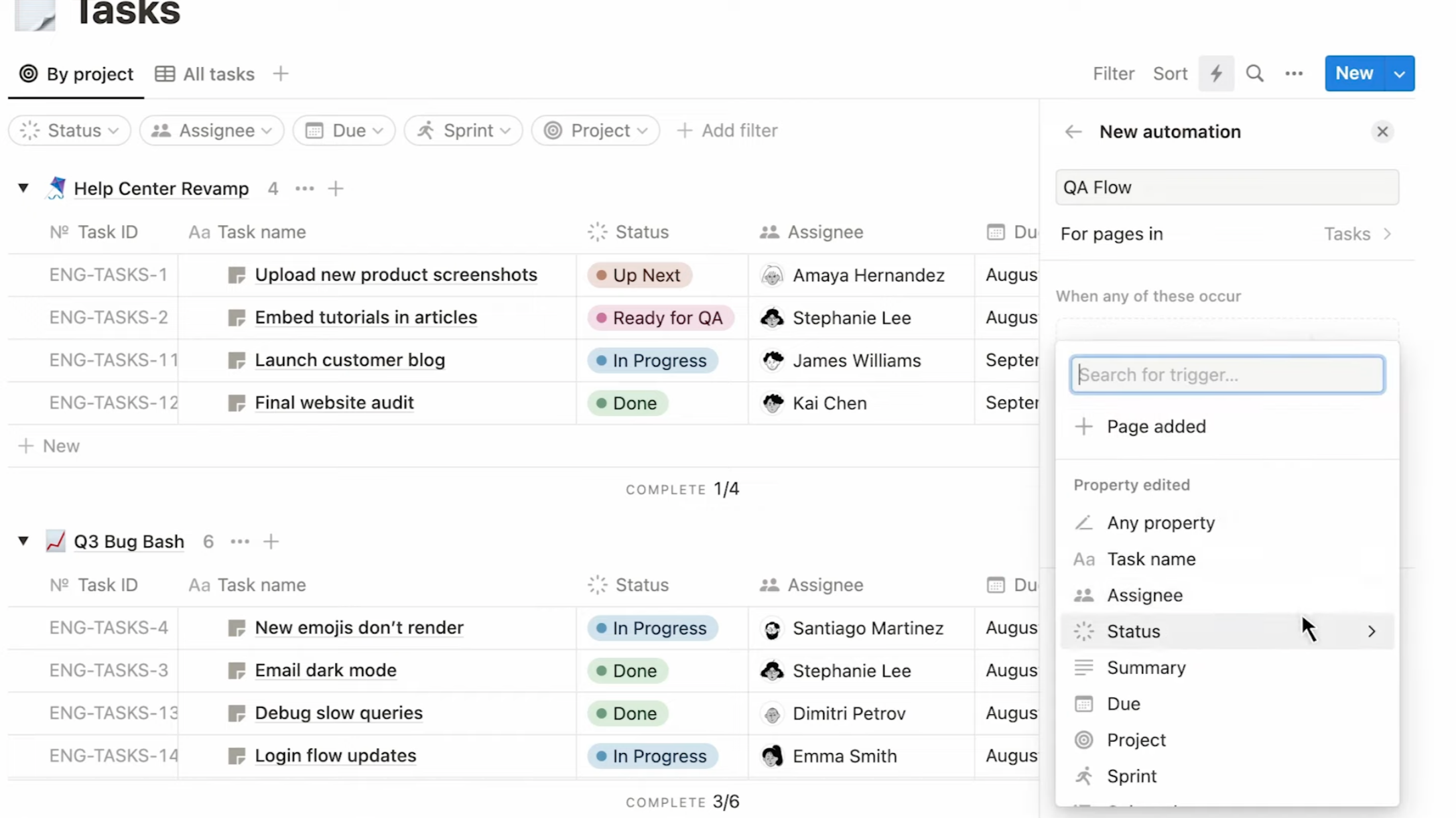
2. Use Case 1: Automatically Stamping a Completion Date
This is one of the most practical and common automations, especially for the project and task management systems you plan to build. Instead of manually entering the date you finished a task, you can have Notion do it for you the moment you mark it as "Done". This not only saves time but also ensures your data is consistently accurate.
The logic is simple:
- Trigger: When the
Statusproperty is changed to "Done". - Action: Edit the
Completed Dateproperty and set its value to "Now" (the exact time) or "Today" (just the date).
Let's see this in action.
Notion's New Automations Feature is a Game-Changer
In this clip, Notion expert Thomas Frank demonstrates exactly how to build this date-stamping automation. He also explains why tracking this data is so valuable for improving time estimates—a key insight for building professional-grade project managers.
Watch from 04:27 to 07:36. Follow along as he sets the trigger for when the status changes to the 'complete' group and then sets the action to populate a date property with a dynamic value ('Now').
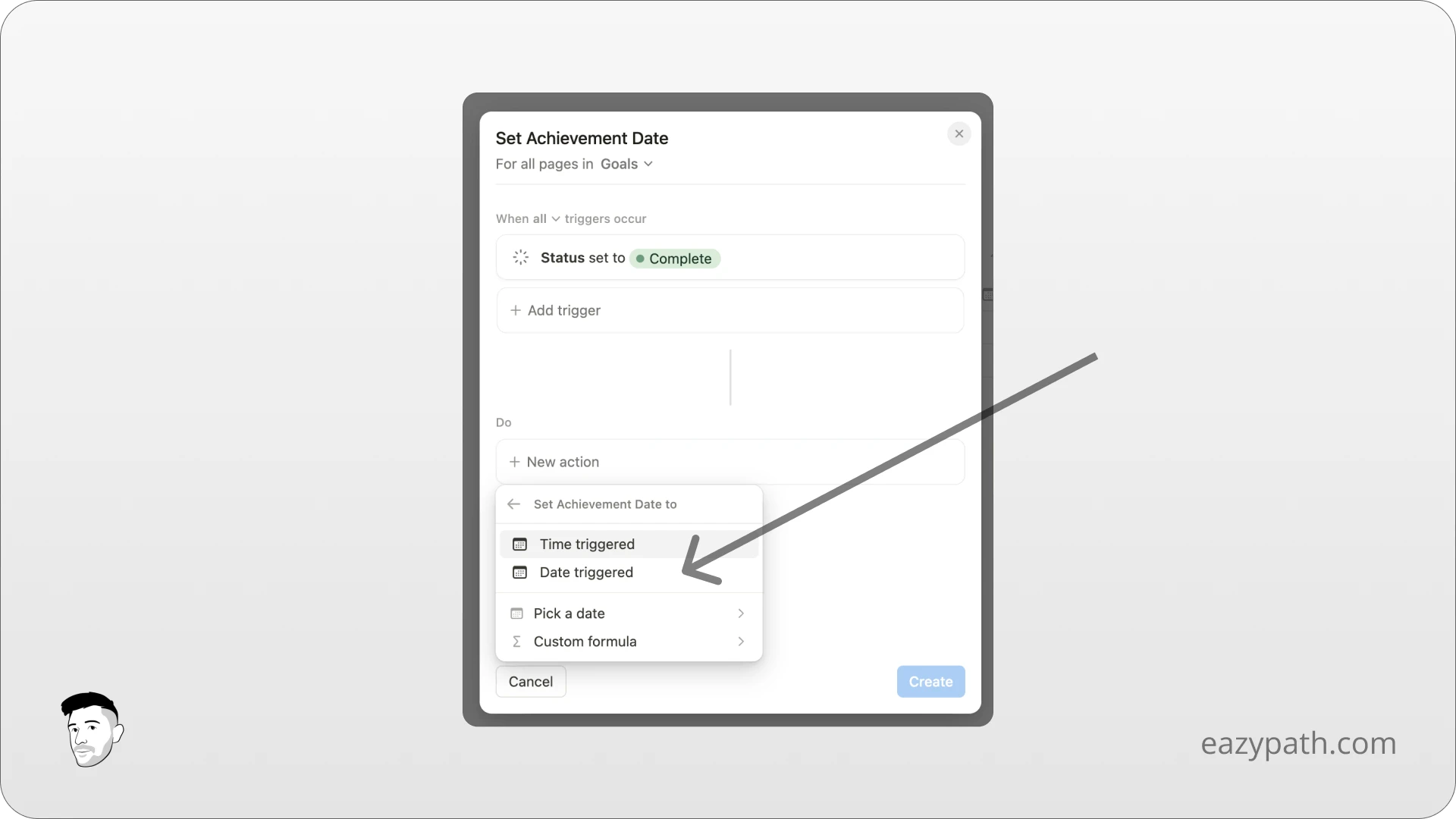
This single automation adds a layer of professionalism to any task manager. For your future clients, it means effortless and accurate tracking of their progress.
3. Use Case 2: Automating Assignments and Handoffs
In any collaborative workflow, whether for project management or content creation, tasks often move from one person to another. You can automate this handoff process.
For example, in a content pipeline, when a writer changes a post's status from "Writing" to "Ready for Edit," you can automatically assign it to your editor. In a project management context, when a task's status becomes "Ready for QA," it can be automatically assigned to the QA lead.
- Trigger: When the
Statusproperty is changed to "Ready for QA". - Action: Edit the
Assigneeproperty and set its value to the specific team member.
The official Notion team has a perfect, quick demonstration of this exact workflow.
Let's return to the official Notion video to see a clear example of automating a task handoff.
Watch from 01:25 to 03:23. Notice how the trigger is a specific option in the 'Status' property ('Ready for QA'), and the action is to populate a 'Person' property with a specific user.
Test your understanding!
You have a content creation database with a Status property ("Idea", "Drafting", "Editing", "Published") and a Publish Date property. You want to automatically record the publish date. What is the trigger and what is the action?
Show answer
- Trigger: The
Statusproperty is edited and set to "Published". - Action: The
Publish Dateproperty is edited and set to "Today".
4. Advanced Application: Chaining Actions & Creating Pages
An automation isn't limited to a single action. One trigger can set off a chain of events, including creating new pages in entirely different databases.
Imagine a Projects database. When you change a project's status to "Active," you might want to automatically:
- Create a "Project Kickoff" page in your
Meetingsdatabase. - Add a "Review project plan" task to your
Tasksdatabase. - Change a "Project Active" checkbox property to
true.
This ability to orchestrate actions across your workspace is what elevates a simple template to an integrated system.
Database automations – Notion Help Center
For a deeper dive into how this works in a project management context, this article from the Notion Help Center is a great reference.
Skim the sections 'Create a database automation', 'Database automation triggers', and 'Database automation actions'. You don't need to memorize everything, but pay special attention to the list of possible actions, such as Add page to and Edit pages in. This will give you a full picture of what's possible.
A Critical Warning
Automations are powerful, but they must be handled with care. One action, Edit pages in..., can be particularly dangerous if misconfigured. If you set up an automation to edit pages in another database but forget to add a filter, the automation could potentially edit every single page in that database.
Notion's New Automations Feature is a Game-Changer
Thomas Frank provides an excellent—and memorable—warning about this feature. This is critical knowledge for anyone building templates for others.
Watch from 19:30 to 22:15. He demonstrates how an unfiltered automation can 'nuke' his data. The key takeaway is to be extremely careful and always double-check your filters when using an automation to edit pages in another database.
✍️ Exercise: Build Your First Database Automations
Now it's time to apply these concepts to the Tasks database you've been working with.
-
Part 1: The "Done Date" Automation
- Navigate to your
Tasksdatabase. - Create a new
Dateproperty called "Completed Date". - Click the
⚡icon and create aNew automation. Name it "Stamp Completion Date". - Set the trigger:
Statusproperty is edited toDone.
- Set the action:
Completed Dateproperty is edited toToday.
- Click
Createand test it by changing a task's status to "Done".
- Navigate to your
-
Part 2: The "High Priority" Automation
- In the same
Tasksdatabase, you should have aSelectproperty forPriority("High", "Medium", "Low"). - Create a new
Checkboxproperty called "🔥 Urgent". - Create a
New automation. Name it "Flag Urgent Tasks". - Set the trigger:
Priorityproperty is set toHigh. - Set the action:
🔥 Urgentproperty is edited to beChecked. - Click
Createand test it by setting a task's priority to "High". You can create a reverse automation as well!
- In the same
Conclusion
You've now unlocked the power of true automation in Notion. By setting up triggers and actions, you can create systems that are not only easier to use but also more reliable, reducing manual work and human error.
Key Takeaways:
- Database automations work on a Trigger and Action model ("if this, then that").
- The most common trigger is a property being edited, such as a
Statuschange. - Common actions include editing another property (like stamping a date) or assigning a person.
- You can chain multiple actions from a single trigger to create complex workflows.
- Be extremely cautious with the
Edit pages in...action and always use filters to avoid unintended changes.
Preview of the Next Module:
You've now completed the "Advanced Database Capabilities" module. You've mastered relations, rollups, buttons, and automations—the fundamental building blocks of any sophisticated Notion system. In our next module, we'll begin our first major project: building a complete Task & Project Manager from scratch, where you will apply everything you've learned to create a powerful, sellable template.