Hello and welcome to the start of a new module!
In the last lesson, we wrapped up Module 1 by mastering keyboard shortcuts, completing your toolkit for creating and editing Notion pages with maximum speed. You now have a solid foundation in the basic building blocks of any Notion workspace.
Today, we take a major step forward as we begin Module 2: Database Fundamentals. Databases are the heart of any powerful Notion system. They are what will allow you to build the dynamic project managers, content calendars, and knowledge systems you aim to create and sell. In this lesson, we'll start with the very first decision you'll make when creating a database: choosing between an inline and a full-page format.
By the end of this lesson, you will be able to differentiate between these two types, understand when to use each, and create them confidently in your own workspace.
1. What is a Notion Database?
Before we dive into the two formats, let's clarify what a database is in the context of Notion. Unlike a simple text page, a database is a structured collection of items, where each item is its own Notion page.
Think of it like a digital filing cabinet. The cabinet itself is the database. Each file folder inside is an item (or "record"). You can label each folder with structured information like "Date Created," "Status," or "Project Name." In Notion, these labels are called Properties. The real power is that when you open a folder, you get a full, blank page where you can write notes, add images, or even put in more databases!
To build a strong mental model, let's start with a video from Thomas Frank that explains this concept clearly and contrasts databases with the spreadsheets you might be more familiar with.
Notion Databases - Full Course for Beginners
This video, 'Notion Databases - Full Course for Beginners' by Thomas Frank Explains, provides an excellent conceptual foundation. We'll watch a short segment to understand what makes Notion databases unique.
Watch the segment from 01:58 to 05:00. Focus on these key ideas: How each record in a database is its own page. What 'properties' are at a high level. The fundamental difference between a Notion database and a spreadsheet.
This distinction is crucial. While a table view looks like a spreadsheet, the underlying structure allows for much more flexibility and multiple ways to visualize the same data—a core concept for building powerful templates.
2. Creating Databases: Full-Page vs. Inline
Now that you have a conceptual understanding, let's look at the two physical forms a database can take. Notion's official YouTube channel has a concise video that demonstrates this perfectly.
Full page vs. inline databases
The official Notion video 'Full page vs. inline databases' quickly demonstrates the creation and conversion process for both database types. It's a perfect visual introduction.
Watch the full video (it's only about 2 minutes). Pay close attention to: The visual difference between a full-page and an inline database. How a full-page database appears in your sidebar. The process of converting from one type to the other.
Let's break down what you just saw.
Full-Page Databases
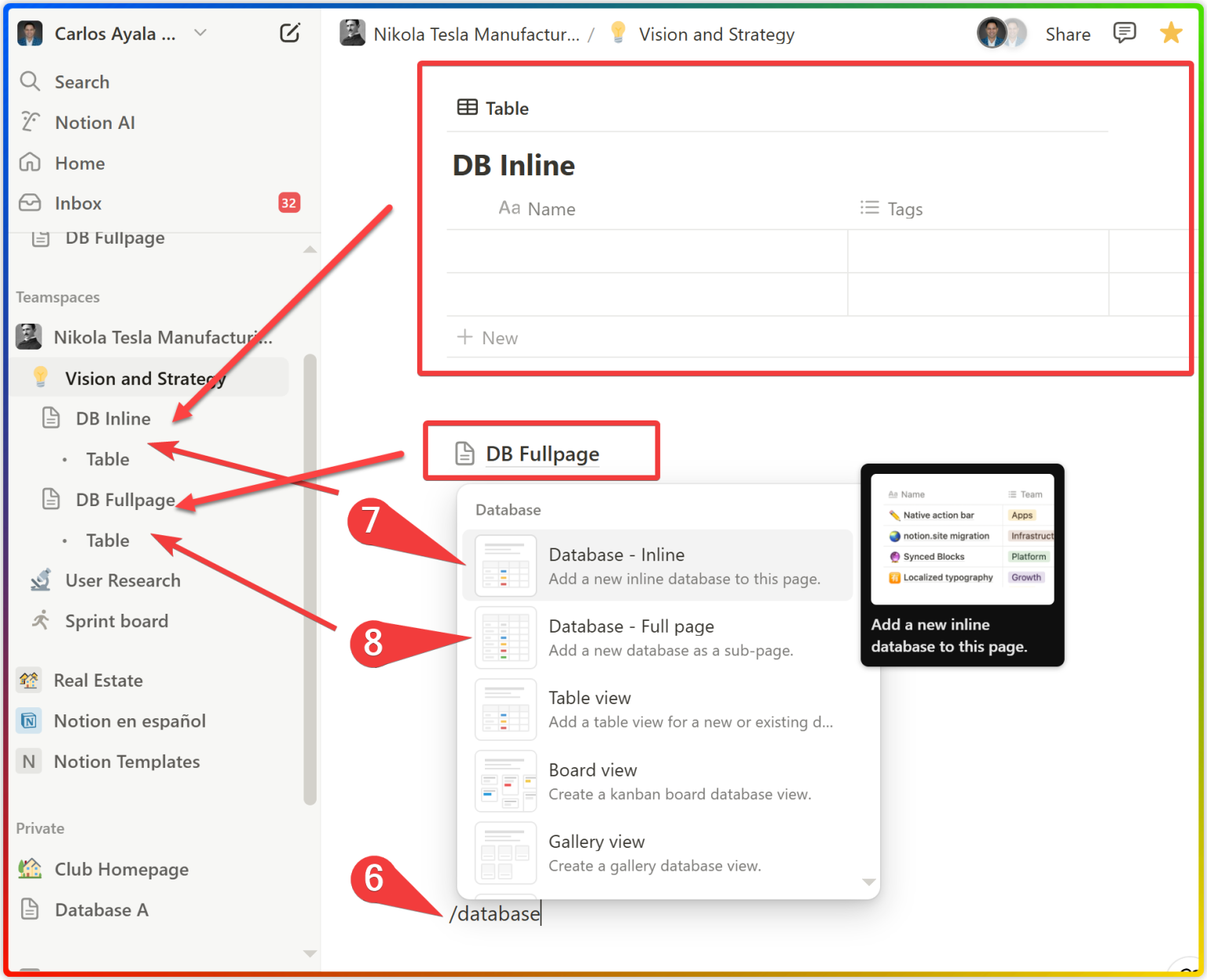
A full-page database is exactly what it sounds like: a database that takes up an entire page.
- Characteristics:
- It lives as a top-level page in your sidebar (or as a sub-page, but it still occupies its own entire screen).
- You cannot add any other blocks (like text or images) above or below it on the same page.
- The database title serves as the page title.
- When to use it: Use a full-page database when the database is the primary focus. This is ideal for your "master" databases that hold all your raw data, such as:
- A complete list of all tasks.
- A library of all your content ideas.
- A repository for all your book notes.
Inline Databases
An inline database is a database that lives inside another page, alongside other content blocks.
- Characteristics:
- It acts like any other block; you can place text, headings, images, and other content above or below it.
- It appears as a sub-page of the page it lives on.
- It has its own title, separate from the main page title.
- When to use it: Use an inline database when you want to display data as part of a dashboard or report. This is essential for building the user-friendly templates you envision. For example:
- On a "Project Overview" page, you could have an inline database showing only the tasks related to that project.
- On a "Today" dashboard, you could have an inline database showing content scheduled to be published today.
3. Converting Between Types
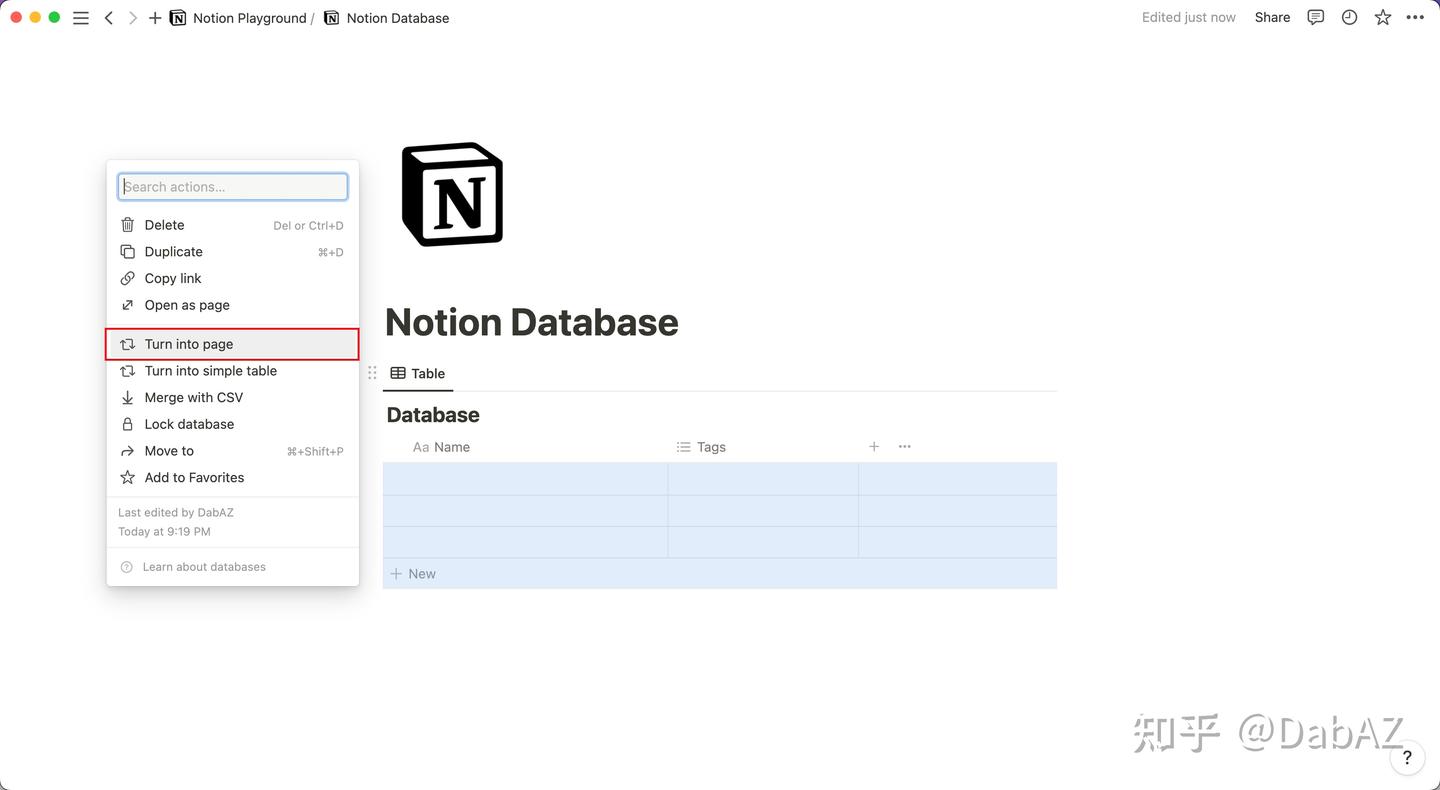
One of the best features of Notion is that this choice is not permanent. You can switch between full-page and inline formats at any time.
-
Inline to Full-Page: Click the
⋮⋮handle next to the inline database's title and selectTurn into page. The database will become a sub-page of the current page. -
Full-Page to Inline: This is a two-step process. First, drag the full-page database from the sidebar into another page. This nests it as a sub-page link. Then, click the
⋮⋮handle next to that link and selectTurn into inline.
For a quick written reference on these concepts, the official Notion documentation is very helpful.
Intro to databases – Notion Help Center
The Notion Help Center article 'Intro to databases' provides a clear, text-based summary of the differences between the two types.
Read the section titled 'Full-page vs. inline databases'. This will reinforce the definitions and conversion methods we just covered.
Test your understanding!
You are building a "Weekly Review" page. On this page, you want to include a summary of your accomplishments, your goals for next week, and a view of all tasks you completed this week.
Which type of database would be most appropriate for displaying the completed tasks on this page? Why?
Show answer
An inline database would be the correct choice. The list of completed tasks is just one component of the "Weekly Review" page, which also contains other text blocks (summaries and goals). An inline database allows you to embed that data directly into the dashboard-style page.
✍️ Exercise: Create Your First Databases
Let's apply what you've learned. You will create two pages that will form the early foundation of the systems you want to build.
-
Create a "Master Content Hub" as a Full-Page Database:
- In your private sidebar, click
+ Add a page. - From the options in the body of the new page, select
Tableunder theDatabasesection. - A new, full-page table database will be created. Name it "Master Content Hub".
- Notice how it takes up the full screen and appears as its own page in your sidebar. This will eventually hold all your content ideas.
- In your private sidebar, click
-
Create a "Creator Dashboard" with an Inline Database:
- Create another new page in your sidebar. Just give it the title "Creator Dashboard".
- On this blank page, type
/databaseand selectDatabase - Inline. - Name this new inline database "This Week's Content".
- Above the database, add a Heading 1 (
/h1) that says "My Weekly Focus". - Observe how the database sits on the page just like any other block, allowing you to build a custom layout around it.
This exercise directly mirrors a professional workflow: using full-page databases as data repositories and inline databases to create functional, user-facing dashboards.
Lesson Summary and Next Steps
Congratulations on completing your first lesson in databases! You now understand the fundamental difference between the two formats and, more importantly, the strategic thinking behind choosing one over the other.
Key Takeaways:
- A Notion database is a collection of pages, structured with properties.
- Full-page databases are standalone and best for storing master sets of data.
- Inline databases are embedded within pages and are perfect for building dashboards.
- Creating a database is easy with the
/databasecommand. - You can always convert between the two types, so your initial choice is flexible.
You've successfully created the containers for your future systems. However, a database with no properties is just a list of pages. In our next lesson, we will bring them to life by learning how to add and configure basic property types like Text, Number, and Checkbox. This is the next step toward organizing your data and building truly functional templates.