Hello! Welcome back to your second lesson in the "Automation Fundamentals" module.
In our last session, you learned how to identify tasks that are good candidates for automation by looking for work that is repetitive, time-consuming, error-prone, and rule-based. We figured out the why and what to automate. Today, we'll dive into the how.
This lesson focuses on the two fundamental building blocks of any automation: triggers and actions. By the end of our time, you will be able to clearly differentiate between a trigger (what starts a workflow) and an action (what the workflow does). Understanding this core distinction is the key to being able to build any automated workflow, no matter how simple or complex.
Let's get started.
The Two Parts of Every Automation
Every workflow you build will follow a simple but powerful pattern: "When this happens, then do that."
- The "When this happens" part is the Trigger.
- The "do that" part is the Action.
A workflow always starts with a single trigger and is followed by one or more actions.
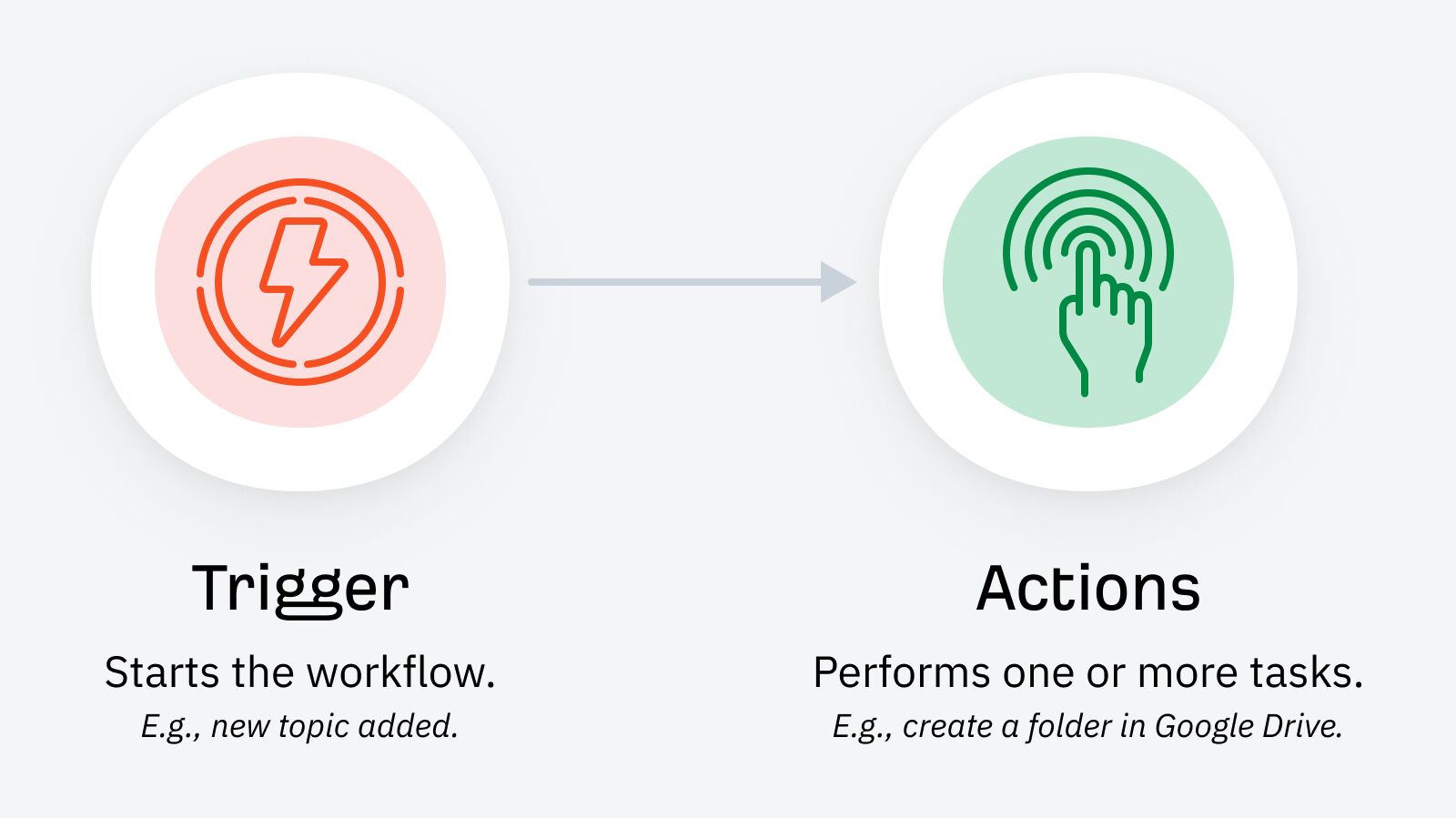
To get a more formal definition of these concepts, let's look at a quick resource.
The Complete Beginner's Guide to n8n: Your First Workflow
The article 'The Complete Beginner's Guide to n8n' from the Contabo blog provides clear, simple definitions for the core components of a workflow. We'll use it to define triggers and actions.
Read the first three subsections under 'Decoding the Node-Based System'. Focus on the descriptions for 'n8n Triggers' and 'Action Nodes'. You can skim the 'Core Logic Nodes' for now; we will cover those in a later module.
What is a Trigger?
As the article explained, a trigger is the specific event that kicks off your automation. It's the starting pistol for the race. A workflow waits patiently until the trigger event occurs, and only then does it spring into action.
Triggers can be based on many different kinds of events. Here are the most common types:
- Schedule-based: The workflow starts at a specific time.
- Example: "Every Friday at 5 PM..."
- Event-based: The workflow starts when something happens in an app.
- Example: "When a new row is added to my Google Sheet..."
- Example: "When a new email with the subject 'Invoice' arrives in Gmail..."
- Manual/Webhook-based: The workflow starts when it receives a specific signal, like a button press or data from another service.
- Example: "When I click the 'Run' button..."
This image shows several examples of different triggers you can use in an automation tool.

What is an Action?
An action is a task that the workflow performs after it has been triggered. Actions are the workhorses of your automation. While a workflow can only have one trigger, it can have many actions that run in a sequence.
Let's pair some actions with the trigger examples from before:
- Trigger: "Every Friday at 5 PM..."
- Action 1: ...get all the new sales leads from a spreadsheet.
- Action 2: ...send a summary report to my manager.
- Trigger: "When a new row is added to my Google Sheet..."
- Action 1: ...read the customer information from that new row.
- Action 2: ...create a new contact in my address book.
- Action 3: ...send a welcome email to that customer.
Notice how the actions happen in a logical order, often using data from the trigger or a previous action.
Seeing It in Practice: Building a Workflow
Conceptual definitions are useful, but seeing it in a real tool makes it click. We're going to watch parts of a video where a beginner-friendly workflow is built using Make.com, a free no-code tool.
The scenario is for a fictional "Kevin Cookie Company." The manual process is:
- A customer submits an order using a Google Form.
- Someone manually adds the order to a tracking spreadsheet.
- Someone emails the customer to confirm the order.
- Someone messages the shipping team in Microsoft Teams.
The goal is to automate this entire process. As you watch, focus on identifying the one trigger and the multiple actions.
Make.com Automation Tutorial for Beginners
This video, 'Make.com Automation Tutorial for Beginners' by Kevin Stratvert, provides an excellent step-by-step example. We'll watch the section where he sets up the trigger.
Watch from 03:10 to 04:15. Notice how he says the first step is the 'trigger' and he selects Google Forms with the option 'Watch responses'. This is the event that will start the automation.
The trigger is now set: "When a new response is submitted in Google Forms."
Now, let's see how the actions are added. Each new module added after the trigger will perform a task.
Make.com Automation Tutorial for Beginners
Next, let's watch how the actions are configured. Pay attention to how each new step performs a distinct task in response to the trigger.
First, watch from 09:14 to 10:14. He adds a Google Sheets module to perform the first action: 'Add a row' to the tracking spreadsheet. Then, watch from 15:48 to 21:28. He adds two more actions: one to 'Send an email' and another to 'Send a message' to Microsoft Teams.
Finally, let's see the whole thing run.
Make.com Automation Tutorial for Beginners
Watch the completed workflow in action. You'll see the trigger fire and then, one by one, the actions execute.
Watch from 21:55 to 23:05. Observe how the single form submission triggers a chain of events: updating the sheet, sending the email, and posting the message.
This example clearly shows the relationship:
- Trigger (1): A new cookie order is submitted via Google Forms.
- Action 1: Add the order details as a new row in Google Sheets.
- Action 2: Send a confirmation email to the customer.
- Action 3: Post a notification about the new order in Microsoft Teams.
Test your understanding!
Imagine you want to automate social media posts. You have a spreadsheet where each row contains the text for a post and the date it should be published.
You want to build a workflow that checks this spreadsheet every day. If it finds a post scheduled for today, it should publish it to LinkedIn and then update the spreadsheet to mark that post as "Published."
What is the trigger, and what are the actions in this workflow?
Show answer
- Trigger: The schedule. Specifically, "Every day" (e.g., at 8:00 AM).
- Action 1: Check the spreadsheet for a row with today's date.
- Action 2: If a post is found, publish the text to LinkedIn.
- Action 3: Update the row in the spreadsheet to mark it as "Published."
(Note: Action 1, checking the sheet, is part of a more complex logic, but for now, it's perfectly fine to think of it as the first step the automation does after it's triggered by the schedule.)
Key Takeaways and What's Next
Excellent work! You now understand the two most fundamental concepts in all of automation.
- A Trigger is the single event that starts a workflow. It's the "when."
- An Action is a task that is performed after the workflow is triggered. It's the "what." A workflow can have one or many actions that run in sequence.
In our last lesson, you identified tasks to automate. Now you can re-examine those tasks and think: what would the trigger be? And what would the actions be?
In the next lesson, we will build on this foundation and explore how no-code tools visually represent workflows using nodes and connections. You've already seen this in the video today—those circles and the lines between them are the "nodes" and "connections" we'll be discussing. This will get us one step closer to building your own automations.