Hello! Welcome back to your journey into Clojure with Emacs.
In our last lesson, you experienced the fundamental REPL-driven feedback loop: writing code in a source file, evaluating it with C-M-x, and testing it in the REPL. This is the heart of Clojure development.
Today, we'll build on that foundation by exploring the power tools that make this workflow truly efficient for larger projects. The learning outcome for this lesson is to utilize the REPL for common development tasks: loading/reloading namespaces, inspecting values, and reading documentation. Mastering these skills will significantly accelerate your development speed and your ability to understand and navigate any Clojure codebase.
By the end of this lesson, you will be able to:
- Manage your application's state by loading and reloading code changes.
- Navigate and explore complex data structures without leaving Emacs.
- Look up documentation for any function instantly.
Let's dive in.
1. Managing Code with Namespaces
In the previous lesson, you updated your running application by re-evaluating a single function definition. But what happens when you have multiple files, or when you rename or delete a function? Your source code and the REPL's memory can become unsynchronized. This is where namespace management becomes essential.
In Clojure, a namespace is a container for a set of related vars (functions, data, etc.). It's analogous to a module in Python or a package in Java, serving to organize code and prevent naming conflicts. Each .clj file typically defines a single namespace.
Loading and Switching Namespaces
The simplest way to synchronize the REPL with your code is to load an entire file. The video below demonstrates this and also explains the crucial concept of the REPL's current namespace.
Learning CIDER - 1 - Jacking into the REPL
This clip from David Kay's 'Learning CIDER' series explains how namespaces work and how to manage them within the REPL.
Watch from 03:58 to 06:56. Pay close attention to: Loading the entire buffer into the REPL (C-c C-k). The concept of the REPL being 'in' a specific namespace (initially user). How to switch the REPL's current namespace to match your file (C-c M-n s).
As the video shows, when you start the REPL, it's in the user namespace. When you load your fx-calculator.core file, its functions are defined within the fx-calculator.core namespace. To call them without the fully qualified name (e.g., (square 5) instead of (fx-calculator.core/square 5)), the REPL must be switched into that namespace.
The command C-c M-n s (cider-ns-set) is a vital part of the workflow, as it tells the REPL to use the namespace of the file you are currently editing.
Exercise 1: Working with Multiple Namespaces
Let's practice this by creating a utility namespace.
- Create a new file: In your
src/fx_calculatordirectory, create a new file namedutils.clj. - Define the namespace and a function: Add the following content to
utils.clj:(ns fx-calculator.utils) (defn average "Calculates the average of a collection of numbers." [numbers] (/ (apply + numbers) (count numbers))) - Load the new file: With your cursor in the
utils.cljbuffer, pressC-c C-k(cider-load-buffer). This evaluates the entire file, making thefx-calculator.utilsnamespace and theaveragefunction available to the REPL. - Switch to your
core.cljfile. - Switch the REPL's namespace: In the
core.cljbuffer, pressC-c M-n s. Your REPL prompt should change tofx-calculator.core=>. - Try to call
average: In the REPL, type(average [10 20 30]). This will fail becauseaverageis not in the current (core) namespace. - Call the qualified function: Now, try
(fx-calculator.utils/average [10 20 30]). This should work and return20. - Switch the REPL again: Go back to your
utils.cljbuffer and pressC-c M-n s. The REPL prompt will change tofx-calculator.utils=>. Now,(average [10 20 30])will work directly.
This exercise demonstrates how namespaces isolate code and how you can control the REPL's context to interact with different parts of your application.
2. The "Reloaded" Workflow for Robust Changes
Loading a buffer with C-c C-k is great for adding or updating functions, but it doesn't handle everything. For instance, if you rename or delete a function, the old definition will still exist in the REPL's memory. This can lead to subtle bugs.
A more powerful approach is the "Reloaded" workflow, which uses the clojure.tools.namespace library under the hood. CIDER provides a command that intelligently scans your project for any changed files, figures out their dependencies, and reloads them in the correct order, removing any stale definitions along the way.
To understand this, let's consult the official CIDER documentation.
The CIDER documentation provides a concise explanation of the 'Reloaded' workflow and the key commands.
Read the section titled '"Reloaded" Workflow'. Focus on the purpose of cider-ns-refresh and its different variations (with prefix arguments).
The key command is C-c M-n r (cider-ns-refresh). This command is your tool for ensuring the REPL's state is a perfect mirror of your saved source code.
Exercise 2: Witnessing a Refresh
Let's see this in action by refactoring the square function from the last lesson.
- Open your
src/fx_calculator/core.cljfile. - Rename the function: Change the
squarefunction topow2:
Make sure to save the file (;; Old version (defn square [x] (* x x)) ;; New version (defn pow2 [x] (* x x))C-x C-s). - Switch to the REPL: Go to the REPL buffer (
C-c C-z). - Try both functions:
- Call
(pow2 5). This will fail because the REPL doesn't know about it yet. - Call
(square 5). This will still work because the old definition is lingering in memory.
- Call
- Refresh the namespaces: Now, from either your
core.cljbuffer or the REPL, pressC-c M-n r. You'll see messages in the minibuffer about reloading. - Try both functions again:
- Call
(pow2 5). It should now work and return25. - Call
(square 5). It will now fail with an "Unable to resolve symbol" error. The refresh has correctly removed the stale definition.
- Call
This workflow is fundamental for managing larger projects and refactoring code with confidence.
3. Inspecting Values
Your background in statistics and data science means you're used to examining complex data. Printing a large nested data structure to the REPL is often unreadable. The CIDER inspector is a powerful tool for interactively exploring any value in your running application.
The following video demonstrates how to use the inspector to navigate a map of all the public functions in a namespace.
REPL driven development with Clojure using Spacemacs, CIDER and clj-kondo
This clip from Practicalli's 'REPL driven development' video provides an excellent demonstration of the CIDER inspector.
Watch from 07:33 to 10:04. The video uses Spacemacs keybindings (comma ...), but focus on the functionality. The standard CIDER commands are: Inspect last result: C-c M-i p Evaluate and inspect expression: C-c M-i e Observe how you can page through large collections (n/p), drill down into values (Enter), and go back up (q or Shift-l in the video, but q is more common to quit the inspector view).

Exercise 3: Exploring a Namespace
Let's use the inspector to explore the clojure.string namespace, which contains functions for string manipulation.
- In your REPL, evaluate the following expression:
The result will be a huge, unreadable map printed to the REPL.(ns-publics 'clojure.string) - Now, use the inspector. Evaluate the same expression, but this time with
C-c M-i e(cider-inspect-eval-last-sexp). Place your cursor after the expression and press the keys. - A new
*cider-inspector*buffer will appear. You are now viewing the map in an interactive browser. - Use
n(next) andp(previous) to page through the list of functions. - Navigate to the entry for the
splitfunction and pressEnteron its key ('split). You'll see details about the symbol. - Press
qto go back. Now navigate to the value forsplit(it will look like#'clojure.string/split) and pressEnter. You can see its metadata, including the file and line number where it's defined. - Press
qto close the inspector.
4. Accessing Documentation
The final pillar of this workflow is instant access to documentation. You don't need to leave Emacs and search the web; CIDER can pull up documentation for any function on demand.
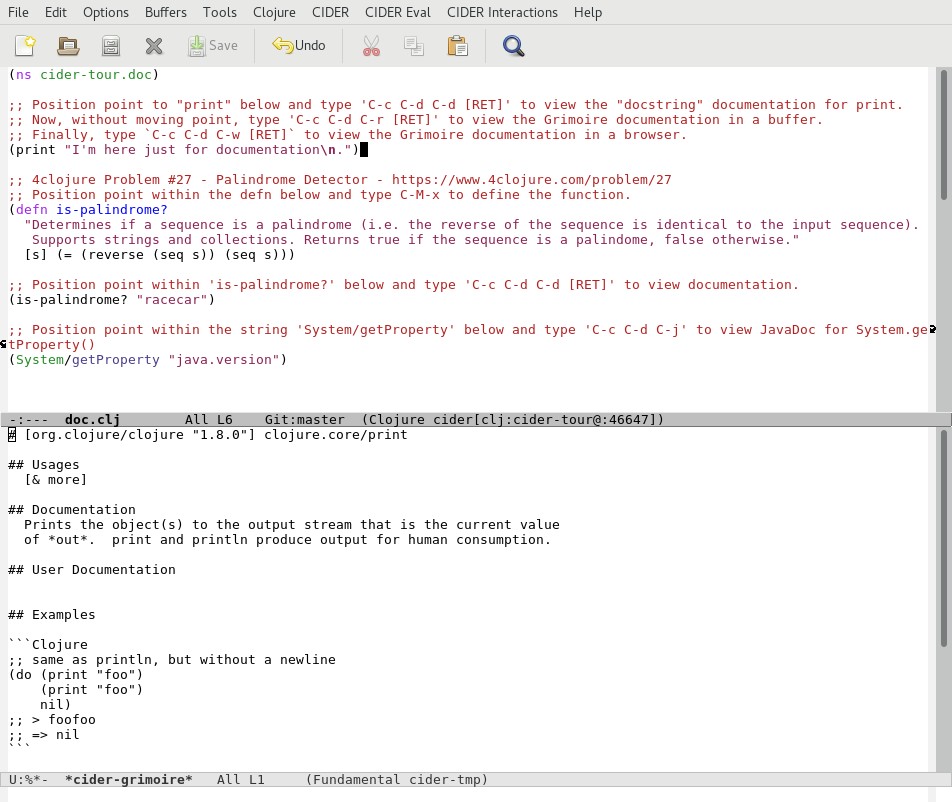
The primary command for this is C-c C-d d (cider-doc). When your cursor is on a function name, this command opens a buffer with its docstring, function signatures, and often examples.
Exercise 4: Looking up Docs
- In any Clojure buffer (or the REPL), type
clojure.string/join. - With your cursor on
join, pressC-c C-d d. A documentation buffer will appear, explaining thatjoinconcatenates a collection into a string. - Now, let's find a function. You want to sort a collection, but you're not sure of the exact function name. You can use
cider-apropos. - Press
C-c C-d a(cider-apropos). At the prompt, typesortand press Enter. - CIDER will show you a list of all functions whose names or docstrings contain "sort", such as
sortandsort-by. This is an incredibly powerful tool for discovery.
Conclusion
In this lesson, you've added a set of powerful tools to your Clojure development workflow. You've moved beyond evaluating single expressions to managing the state of your entire application.
Key Takeaways:
- Namespaces organize your code. Use
C-c C-kto load a file andC-c M-n sto set the REPL's context. - The "Reloaded" workflow via
C-c M-n r(cider-ns-refresh) is the most robust way to synchronize your source code and the REPL, correctly handling additions, changes, and deletions. - The CIDER Inspector (
C-c M-i e,C-c M-i p) is essential for exploring and understanding complex data structures interactively. - Inline documentation (
C-c C-d d) and searching (C-c C-d a) keep you in the flow by bringing information directly to your editor.
Here is a summary of the new commands from this lesson:
| Command | Keybinding | Description |
|---|---|---|
cider-load-buffer |
C-c C-k |
Evaluates the entire current buffer. |
cider-ns-set |
C-c M-n s |
Sets the REPL's namespace to the current buffer's namespace. |
cider-ns-refresh |
C-c M-n r |
Reloads all modified namespaces on the classpath. |
cider-inspect-eval-last-sexp |
C-c M-i e |
Evaluates the expression before the point and inspects it. |
cider-inspect-last-result |
C-c M-i p |
Inspects the last result printed in the REPL. |
cider-doc |
C-c C-d d |
Displays documentation for the symbol at the point. |
cider-apropos |
C-c C-d a |
Searches for symbols matching a regular expression. |
You now have a solid grasp of the interactive development process. However, things don't always go according to plan. In our next lesson, we will cover the final piece of the core REPL experience: interpreting error messages and stack traces within the CIDER environment.