Hello! Welcome to the final module of your PHP Mastery course. We're about to begin the capstone project, where we'll bring together everything you've learned to build a complete web application from scratch.
In previous modules, we've explored Object-Oriented PHP, managed dependencies with Composer, and organized our application logic using the Model-View-Controller (MVC) pattern. Our last lesson on creating reusable view templates was the final piece of the MVC puzzle. However, our application still relies on a collection of manual require_once statements to load our classes. As we start a new, larger project, this approach is no longer sustainable.
Today's lesson addresses this directly. Your learning outcome is to structure a new project using Composer, namespaces, and an MVC pattern. We will lay the foundation for our capstone project by creating a modern, scalable, and professional directory structure. This structure will use Composer for dependency management, PSR-4 for automatic class loading, namespaces for organization, and the MVC pattern for separation of concerns.
Let's get started and build our project's skeleton the right way.
1. The MVC Blueprint
Before we create any files or folders, let's quickly refresh our memory on the MVC pattern, which will serve as the blueprint for our application's architecture. The core idea is to separate an application into three interconnected parts:
- Model: Manages the data and business logic. It interacts with the database and enforces the application's rules.
- View: Responsible for the presentation layer. It displays data to the user and is what the user sees and interacts with.
- Controller: Acts as the intermediary. It receives user input, communicates with the Model to fetch or update data, and then tells the View what to display.
To visualize how these components work together, watch this short and clear explanation.
This video, 'MVC Explained in 4 Minutes' by Web Dev Simplified, provides a concise overview of the MVC pattern and the flow of a request through the system. It's a perfect high-level refresher.
Watch the entire video (it's only 4 minutes). Pay close attention to the diagram showing how the Controller acts as the middleman, ensuring the Model and the View never communicate directly.
This separation of concerns is the guiding principle for the directory structure we are about to create.
2. Setting Up the Project Skeleton
We will now build our project structure step-by-step. Open your terminal and follow along.
Step 1: Initialize the Project with Composer
Every modern PHP project begins with Composer. First, create a new directory for our capstone project and navigate into it.
mkdir capstone-project
cd capstone-project
Now, initialize a new Composer project. This command will walk you through a series of questions to create your composer.json file. You can accept the defaults for most, but pay attention to the package name.
composer init
After you finish, you will have a composer.json file in your directory. This file is the heart of your project's configuration, defining its dependencies and how it should be loaded.
Step 2: Configure PSR-4 Autoloading with Namespaces
This is the most critical step. We will tell Composer how to find and load our application's classes automatically. We do this by mapping a namespace prefix to a directory, following the PSR-4 standard.
Our main application code will live in a directory named app/. We will assign it a base namespace of App. This means a class like App\Controllers\HomeController will be expected to live in the file app/Controllers/HomeController.php.
To configure this, open your composer.json file and add an autoload section:
{
    "name": "your-name/capstone-project",
    "description": "A capstone project for the PHP Mastery course.",
    "authors": [
        {
            "name": "Your Name",
            "email": "you@example.com"
        }
    ],
    "require": {},
    "autoload": {
        "psr-4": {
            "App\\": "app/"
        }
    }
}
- The
"psr-4"key indicates we're using the PSR-4 autoloading standard. "App\\": "app/"creates the mapping. Note the double backslashes\\in the namespace, which is necessary for escaping in JSON.
For a detailed explanation of how Composer uses this configuration to replace manual require statements, the following video is an excellent resource.
PHP Coding Standards, Autoloading (PSR-4) & Composer - Full PHP 8 Tutorial
This video from the Program With Gio channel explains how to configure Composer to autoload your own application classes using PSR-4.
Watch from 16:39 to 19:33. The video demonstrates exactly how to add the autoload section to composer.json, map a namespace to a directory, and then run composer dump-autoload to generate the necessary files.
After saving your composer.json file, run the following command in your terminal:
composer dump-autoload
This command reads your autoload configuration and generates a set of highly optimized PHP files inside a new vendor/ directory. These files contain the logic that can find and include any class in your project on demand.
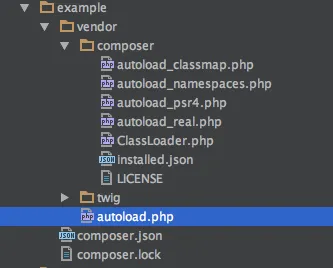
Step 3: Create the MVC Directory Structure
Now, let's create the folders that will house our application code, based on the MVC blueprint.
mkdir app
mkdir app/Controllers
mkdir app/Models
mkdir app/Core
mkdir views
mkdir public
Here's the purpose of each directory:
app/: The root for all our namespaced PHP classes.app/Controllers/: Will hold our controller classes.app/Models/: Will hold our model classes.app/Core/: A place for core application components like the router and database connection class.
views/: Contains our presentation files (HTML templates). These are not classes and therefore do not get namespaced.public/: This is the web server's document root. All requests will be directed here. It's a critical security measure because it ensures that all your sensitive application logic and configuration files inapp/,vendor/, etc., are not directly accessible from a web browser.
The following tutorial provides a great walkthrough of creating a similar structure and explains the reasoning behind it.
PHP MVC Framework Tutorial: Build Your Own from Scratch
The article 'PHP MVC Framework Tutorial: Build Your Own from Scratch' provides a practical guide to structuring a project. The initial sections on directory structure are particularly relevant.
Read the section titled 'The PHP MVC framework structure'. It reinforces the folder structure we just created and explains the benefit of hiding your project files outside the public directory.
Step 4: Implement the Front Controller
The front controller is the single entry point for every request to your application. We will create this file at public/index.php. Its most important job is to load Composer's autoloader.
Create the file public/index.php with the following content:
<?php

// 1. Load the Composer autoloader
require_once __DIR__ . '/../vendor/autoload.php';

echo 'Hello, World! Our project structure is working.';

// We will add routing logic here in the next lesson.
To test this, you can use PHP's built-in web server. Run this command from the root of your project directory (capstone-project/):
php -S localhost:8000 -t public
- The
-Sflag starts the server. - The
-t publicflag sets the document root to ourpublicdirectory.
Now, open http://localhost:8000 in your browser. You should see the message "Hello, World! Our project structure is working." This confirms that your server is set up correctly and your index.php file is being executed.
Step 5: Test the Autoloader with a Namespaced Controller
Let's do one final check to ensure our PSR-4 autoloading is working. We'll create a simple controller and try to instantiate it from index.php.
First, create the file app/Controllers/HomeController.php:
<?php

namespace App\Controllers;

class HomeController
{
    public function index()
    {
        return 'Hello from the HomeController!';
    }
}
Notice the namespace App\Controllers; line. This is essential for the autoloader to find the class.
Now, modify public/index.php to use and instantiate this class:
<?php

// 1. Load the Composer autoloader
require_once __DIR__ . '/../vendor/autoload.php';

// 2. Use the HomeController class
use App\Controllers\HomeController;

// 3. Instantiate the controller and call a method
$controller = new HomeController();
echo $controller->index();
Refresh your browser. You should now see "Hello from the HomeController!". The fact that you didn't need to write require_once 'app/Controllers/HomeController.php'; proves that Composer's autoloader is doing its job perfectly.
Conclusion
Congratulations! You have successfully structured a new PHP project using modern, professional standards. This skeleton is clean, secure, and ready to be built upon.
Key Takeaways:
- Modern PHP projects start with
composer init. - The
composer.jsonfile defines project metadata and dependencies. - PSR-4 autoloading allows Composer to automatically load classes by mapping namespaces to directories (e.g.,
App\->app/). - The front controller pattern uses a single entry point (
public/index.php) and a public document root for enhanced security. - By combining Composer, namespaces, and the MVC directory structure, we've created a scalable and maintainable foundation for our capstone project.
Preview of the Next Lesson:
Now that our application has a solid foundation, we can start building real features. In the next lesson, you will implement a complete user authentication flow (register, login, logout). We will create the necessary models, views, and controllers within the structure we've just built to handle user registration with secure password hashing and a complete login/logout system.