Congratulations on reaching the final lesson of your Excel automation course! Over the past several weeks, you've journeyed from foundational formulas all the way to building complex, automated financial reports. In our last session, you added a dynamic dropdown menu, turning your dashboard from a static report into an interactive analysis tool.
Now, we will tackle the final step in the reporting workflow: distributing your work. This lesson covers how to write a VBA macro that exports your dashboard to a clean, professional PDF file. Crucially, you will learn how to give this PDF a dynamic filename based on the report's content—for example, including the current date or the specific region filtered on the dashboard. This ensures your reports are not only easy to share but also easy to organize and identify.
The ExportAsFixedFormat Method
The primary tool for this task is a built-in VBA method called ExportAsFixedFormat. As its name suggests, it exports an Excel object (like a worksheet or a range of cells) into a fixed format file, most commonly a PDF.
To understand its capabilities, it's helpful to review the method and its most important parameters.
Excel VBA Save As PDF: Step-By-Step Guide And 10 Code ...
This article from Power Spreadsheets provides a comprehensive overview of the ExportAsFixedFormat method. It details the various arguments you can use to control the export process.
Read the introductory section, How To Save An Excel File As PDF. As you read, focus on understanding these key parameters: Type, Filename, Quality, and OpenAfterPublish. These are the ones you will use most often.
As you saw, the method is quite powerful. You can control the quality, whether the file opens after being created, and most importantly, the exact file path and name for the output.
Creating a Basic Export Macro
Let's start by writing a simple macro to export the currently active worksheet to a PDF with a fixed name. This establishes our baseline code.
In the Visual Basic Editor (VBE), you would write a procedure like this:
Sub ExportToPDF_Static()

    ' Define the full path and filename for the PDF
    Dim filePath As String
    filePath = "D:\Excel Reports\DashboardReport.pdf" ' Change this to a folder on your computer

    ' Export the active sheet as a PDF
    ActiveSheet.ExportAsFixedFormat Type:=xlTypePDF, _
                                  Filename:=filePath, _
                                  Quality:=xlQualityStandard, _
                                  OpenAfterPublish:=True

End Sub
Let's break this down:
- We declare a
Stringvariable calledfilePath. - We assign the full path and filename to this variable. Note: You must change
"D:\Excel Reports\DashboardReport.pdf"to a valid folder path on your own computer for this to work. - We call the
ExportAsFixedFormatmethod on theActiveSheetobject.Type:=xlTypePDFspecifies that we want a PDF file.Filename:=filePathtells Excel where to save the file and what to name it, using our variable.Quality:=xlQualityStandardensures a good resolution for the PDF.OpenAfterPublish:=Truewill automatically open the PDF for you to review after it's created.
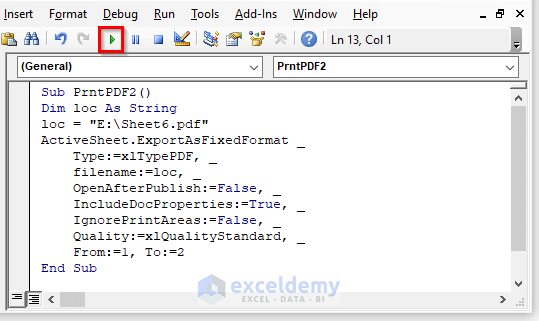
While this works, it has a major limitation: it will overwrite the same file every single time you run it. To make this truly useful, we need to make the filename dynamic.
Building a Dynamic Filename
A dynamic filename is one that changes based on certain data, such as the date or a value in a cell. This is achieved by constructing the filename string in VBA by concatenating, or joining together, several pieces of information.
A typical dynamic filename consists of:
- A file path (the folder where the file will be saved).
- A base name (e.g., "Monthly Sales Report").
- A dynamic component (e.g., the month, a region name, or the current date).
- The file extension (
.pdf).
The following video provides an excellent walkthrough of this process in the context of saving an invoice. The principles are identical for saving a dashboard.
VBA - Save Invoice Worksheet as PDF - to Specific Folder | Filename Based on Cell Value
This video by Chester Tugwell demonstrates how to build a macro that saves a sheet as a PDF with a filename based on cell values. Pay close attention to how he declares variables and then combines them to create the final filename.
First, watch the segment on variable setup. Notice how he declares separate variables for the path and the different parts of the filename. He then populates these variables by reading values from cells on the worksheet. Then, skip ahead and watch how he uses these variables in the export code. He concatenates the path and filename variables right inside the ExportAsFixedFormat command.
From Theory to Practice: Your Dynamic Export Macro
Let's assemble what we've learned into a robust macro. There are two best practices we should incorporate.
- Use
ThisWorkbook.Path: Instead of hardcoding a path like"D:\Excel Reports\", it's better to useThisWorkbook.Path. This property returns the file path of the folder where your Excel workbook is saved. This makes your macro portable—it will work on any computer without needing to edit the path, as long as the user saves the PDF in the same folder as the Excel file. - Reference Sheets by Name: Instead of using
ActiveSheet, it's more reliable to refer to your dashboard by its specific name, likeThisWorkbook.Sheets("Dashboard"). This prevents the macro from accidentally exporting the wrong sheet if the user has another sheet selected when they run it.
Here is an example macro that incorporates these best practices. It constructs a filename using the workbook's path, a base name, a value from cell C13, and the current date.

Sub ExportDashboardPDF_Dynamic()

    ' 1. Declare variables
    Dim savePath As String
    Dim baseName As String
    Dim dynamicPart As String
    Dim fullFilename As String

    ' 2. Define the components of the filename
    savePath = ThisWorkbook.Path & "\"  ' The folder where the workbook is saved
    baseName = "Financial Dashboard"
    dynamicPart = ThisWorkbook.Sheets("Dashboard").Range("C13").Value ' Read a value from a cell

    ' 3. Construct the full filename string
    ' Example output: "C:\Users\...\Financial Dashboard - SaleDetails - 2023-10-27.pdf"
    fullFilename = savePath & baseName & " - " & dynamicPart & " - " & Format(Date, "yyyy-mm-dd") & ".pdf"

    ' 4. Export the specific "Dashboard" worksheet
    ThisWorkbook.Sheets("Dashboard").ExportAsFixedFormat Type:=xlTypePDF, _
                                                      Filename:=fullFilename, _
                                                      Quality:=xlQualityStandard, _
                                                      OpenAfterPublish:=True

    ' Optional: Add a message box to confirm completion
    MsgBox "Dashboard has been exported to:" & vbCrLf & fullFilename

End Sub
This is the kind of professional, reusable code that is at the heart of Excel automation.
Your Final Task: Create an "Export to PDF" Button
Now it's time to implement this on your own dashboard.
- Open the VBE and create a new
Subprocedure namedCreateDashboardPDF. - On your "Dashboard" sheet, decide which dynamic information you want in the filename. A great choice would be the output cell of the
INDEXfunction you created in the last lesson, which shows the currently selected filter category. You can also add the current date using theFormat(Date, "yyyy-mm-dd")function as shown above. - Write the VBA code following the four-step structure in the example above: declare variables, define the components, construct the full filename, and call the
ExportAsFixedFormatmethod on your dashboard sheet. - Go to your "Dashboard" worksheet. From the
Developertab, insert a new button. - Assign your
CreateDashboardPDFmacro to the button and give it a clear label like "Export to PDF". - Test your work! Change the selection in your dashboard's dropdown menu and click the button. A new PDF should be created in the same folder as your workbook, with a filename that reflects your selection.
Conclusion and Course Wrap-Up
You have now mastered the final step of the automated reporting process: creating a distributable, professional-quality output. With a single click, you can now refresh your data, update your KPIs, and export a polished PDF ready for management.
Key Takeaways:
- The
Worksheet.ExportAsFixedFormatmethod is the command used to create PDFs from your Excel sheets via VBA. - Dynamic filenames are essential for version control and organization. They are constructed in VBA by concatenating string variables and values read from worksheet cells.
- Using
ThisWorkbook.Pathmakes your macros portable, and referencing sheets by name (Sheets("Dashboard")) makes them more reliable.
This lesson marks the end of your formal instruction in this course. You have built an incredible set of skills, progressing from simple cell references to creating fully interactive and automated reporting systems. The knowledge you've gained—from SUMIFS and VLOOKUP to PivotTables and VBA loops—forms the complete toolkit of a power user in any accounting or finance role.
Your journey isn't quite over. The final step is the capstone project, where you will have the opportunity to integrate everything you've learned to solve a real-world accounting automation challenge. Congratulations on your dedication and hard work. You are now well-equipped to bring significant value and efficiency to your future career.