Welcome back. In the previous lesson, we successfully automated the creation of an Income Statement, establishing a powerful "Clear, Calculate, Populate" workflow using VBA. You learned to leverage the SUMIFS function within a macro to transform raw trial balance data into a polished financial report.
Today, we will extend that methodology to another cornerstone of financial reporting: the Balance Sheet. This lesson will guide you through writing a VBA macro to generate a complete Balance Sheet from the same trial balance data. More importantly, we'll add a crucial new feature: an automated verification to ensure the statement always balances. Your deep understanding of accounting principles is invaluable here; you already know that Assets must equal Liabilities plus Equity. Our focus will be on translating that fundamental equation into a self-checking automated process, a key skill for building reliable financial models.
From Trial Balance to a Self-Verifying Balance Sheet
Our objective remains consistent: to convert raw data into a structured report. We will use the same trial balance as our starting point, but this time, our macro will focus on the accounts classified for the Balance Sheet.
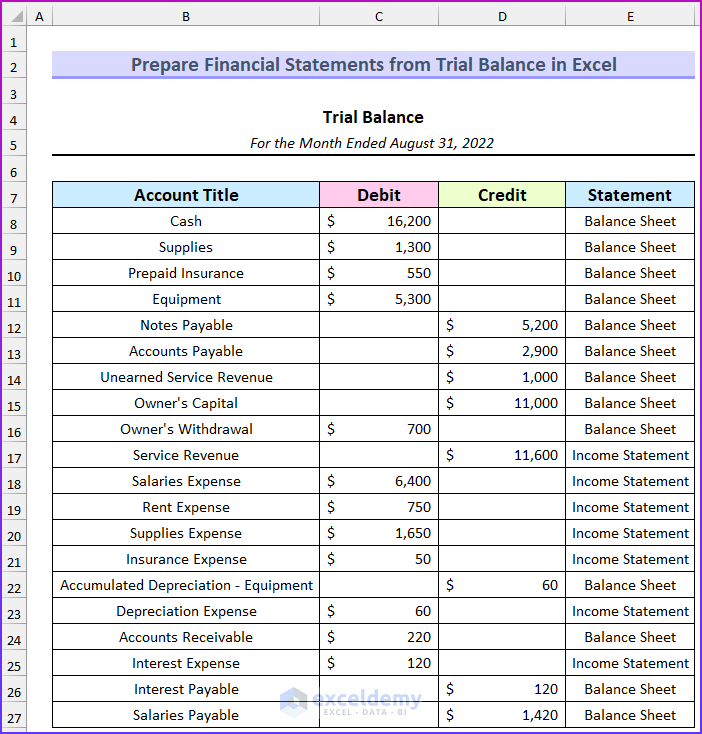
The process will follow the familiar three-step pattern, but with an essential fourth step added for verification:
- Clear Report: Prepare the Balance Sheet template by clearing out old data.
- Calculate Components: Aggregate the various Asset, Liability, and Equity accounts. This step includes retrieving the Net Income figure from the Income Statement we generated in the previous lesson.
- Populate Statement: Write the calculated totals to the correct cells in our Balance Sheet report.
- Verify Balance: Programmatically check if Total Assets equals Total Liabilities and Equity, and report the status to the user.
Adapting the Calculation Logic for the Balance Sheet
While the overall macro structure is similar to the one for the Income Statement, the calculation logic for the Balance Sheet is more nuanced. A Balance Sheet requires separate aggregations for assets, liabilities, and equity. Furthermore, to correctly calculate Total Equity, we must incorporate the Net Income from the Income Statement. This linkage is what integrates our financial statements into a cohesive model.
To handle this, our SUMIFS criteria need to be more specific. A well-structured trial balance will typically have a helper column indicating not just the statement ("Balance Sheet"), but also the account type ("Asset", "Liability", "Equity").
Our calculation strategy will be:
- Total Assets: Sum the
Debitcolumn for all "Asset" accounts, then subtract the sum of theCreditcolumn for contra-asset accounts like "Accumulated Depreciation". - Total Liabilities: Sum the
Creditcolumn for all "Liability" accounts. - Beginning Equity: Sum the
Creditcolumn for "Equity" accounts (like Owner's Capital) and subtract the sum of theDebitcolumn for contra-equity accounts (like Owner's Withdrawal). - Net Income: This is a crucial step. We will not recalculate it. Instead, our macro will read this value directly from the completed Income Statement report sheet.
- Total Equity: Beginning Equity + Net Income.
- Total Liabilities and Equity: The sum of the two corresponding totals.
This logic directly mirrors the accounting principles you've mastered, translating them into a sequence of precise calculations that VBA can execute.
The Balancing Act: Automating Verification
The most significant upgrade in this lesson is the automated balancing check. After the macro populates all the figures, it must perform the final, critical test:
We can implement this in VBA with a simple If...Then...Else statement.
Dim difference As Double
difference = totalAssets - totalLiabilitiesAndEquity

If Abs(difference) < 0.01 Then ' Use a small tolerance for potential floating-point rounding errors
    wsReport.Range("E20").Value = "In Balance"
    MsgBox "Balance Sheet generated successfully and is in balance.", vbInformation
Else
    wsReport.Range("E20").Value = "OUT OF BALANCE by " & Format(difference, "Currency")
    MsgBox "Warning: Balance Sheet is OUT OF BALANCE by " & Format(difference, "Currency"), vbCritical
End If
This simple block of code adds immense value. It transforms the macro from a mere data-entry robot into an intelligent assistant that flags potential errors in the source data or the calculation logic, a core practice in robust financial modeling.
The Complete Balance Sheet Macro
Let's integrate these concepts into a complete macro. This procedure automates the entire workflow: clearing the report, pulling Net Income, calculating all Balance Sheet components, populating the template, and finally, verifying the result.
Sub GenerateBalanceSheet()
    ' Purpose: Clears a Balance Sheet report, generates a new one from a
    '          trial balance, and verifies that it balances.

    ' --- 1. SETUP ---
    Dim wsReport As Worksheet, wsData As Worksheet, wsIncome As Worksheet
    Dim totalAssets As Double, totalLiabilities As Double, beginningEquity As Double
    Dim netIncome As Double, totalEquity As Double, totalLiabilitiesAndEquity As Double

    ' Set references to your worksheets
    On Error Resume Next
    Set wsReport = ThisWorkbook.Sheets("Balance Sheet")
    Set wsData = ThisWorkbook.Sheets("TrialBalance")
    Set wsIncome = ThisWorkbook.Sheets("Income Statement")
    On Error GoTo 0

    ' Check if sheets exist
    If wsReport Is Nothing Or wsData Is Nothing Or wsIncome Is Nothing Then
        MsgBox "A required sheet ('Balance Sheet', 'TrialBalance', or 'Income Statement') was not found.", vbCritical
        Exit Sub
    End If

    ' --- 2. CLEAR PREVIOUS REPORT ---
    ' Adjust ranges to fit your specific Balance Sheet template
    wsReport.Range("D5:D20").ClearContents

    ' --- 3. CALCULATE TOTALS FROM TRIAL BALANCE ---
    ' A. Get Net Income from the Income Statement sheet
    ' Assuming Net Income is in cell D9 of the "Income Statement" sheet
    netIncome = wsIncome.Range("D9").Value

    ' B. Define data ranges on the TrialBalance sheet
    Dim lastRow As Long
    lastRow = wsData.Cells(wsData.Rows.Count, "B").End(xlUp).Row

    Dim debitRange As Range, creditRange As Range, statementTypeRange As Range, accountTypeRange As Range
    ' Assuming: Col C=Debit, D=Credit, E=Statement, F=AccountType("Asset", "Liability", "Equity")
    Set debitRange = wsData.Range("C2:C" & lastRow)
    Set creditRange = wsData.Range("D2:D" & lastRow)
    Set statementTypeRange = wsData.Range("E2:E" & lastRow)
    Set accountTypeRange = wsData.Range("F2:F" & lastRow) ' Helper column is essential

    ' C. Calculate Balance Sheet Components using SUMIFS
    Dim assetDebits As Double, assetCredits As Double
    assetDebits = Application.WorksheetFunction.SumIfs(debitRange, statementTypeRange, "Balance Sheet", accountTypeRange, "Asset")
    assetCredits = Application.WorksheetFunction.SumIfs(creditRange, statementTypeRange, "Balance Sheet", accountTypeRange, "Asset")
    totalAssets = assetDebits - assetCredits ' To account for contra-assets like Acc. Dep.

    totalLiabilities = Application.WorksheetFunction.SumIfs(creditRange, statementTypeRange, "Balance Sheet", accountTypeRange, "Liability")

    Dim equityCredits As Double, equityDebits As Double
    equityCredits = Application.WorksheetFunction.SumIfs(creditRange, statementTypeRange, "Balance Sheet", accountTypeRange, "Equity")
    equityDebits = Application.WorksheetFunction.SumIfs(debitRange, statementTypeRange, "Balance Sheet", accountTypeRange, "Equity")
    beginningEquity = equityCredits - equityDebits ' To account for contra-equities like Withdrawals

    ' D. Calculate final totals
    totalEquity = beginningEquity + netIncome
    totalLiabilitiesAndEquity = totalLiabilities + totalEquity

    ' --- 4. POPULATE THE REPORT SHEET ---
    ' These cell references must match your report template
    wsReport.Range("D10").Value = totalAssets       ' Assuming this is the 'Total Assets' cell
    wsReport.Range("D15").Value = totalLiabilities ' 'Total Liabilities' cell
    wsReport.Range("D18").Value = totalEquity       ' 'Total Equity' cell
    wsReport.Range("D19").Value = totalLiabilitiesAndEquity ' 'Total L+E' cell

    ' --- 5. VERIFY BALANCE ---
    Dim difference As Double
    difference = totalAssets - totalLiabilitiesAndEquity

    If Abs(difference) < 0.01 Then
        wsReport.Range("D20").Value = "In Balance"
        wsReport.Range("D20").Font.Color = vbGreen
    Else
        wsReport.Range("D20").Value = "Out of Balance by: " & Format(difference, "#,##0.00")
        wsReport.Range("D20").Font.Color = vbRed
    End If

    ' --- 6. FINALIZE ---
    wsReport.Activate
    MsgBox "Balance Sheet generation complete. Status: " & wsReport.Range("D20").Value, vbInformation

End Sub
This code provides a robust and reusable solution. By assuming a well-structured trial balance with helper columns, it becomes flexible and easy to adapt. The explicit check at the end provides immediate, actionable feedback, transforming a simple automation script into a powerful accounting tool.
Conclusion
In this lesson, you have taken another significant step in automating financial reporting. You've not only adapted our core reporting macro to produce a Balance Sheet but have also integrated it with the Income Statement and embedded a critical internal control—the balance check—directly into the code.
Key Takeaways:
- The "Clear, Calculate, Populate" pattern is a versatile framework for generating any financial report.
- Automated financial statements must be integrated; the Balance Sheet macro correctly pulls the
netIncomefigure from the Income Statement. - Using specific helper columns in your source data (e.g., for Account Type) makes your VBA code cleaner and your
SUMIFScriteria more reliable. - An automated balancing check (
If Assets = Liabilities + Equity) is an essential feature that adds intelligence and reliability to your reporting macros.
You now have macros to generate the two primary financial statements. The next logical step is to use these automated reports for analysis. In our next lesson, you will extend these macros to automatically calculate and display key financial ratios, turning your raw data into insightful business metrics with a single click.