Welcome back! In our previous lesson, you built a powerful macro to consolidate data from multiple worksheets into a single master list. This is a crucial first step in many accounting workflows. Now that you have the data in one place, the next logical question is: how does this data compare to another set of records?
This brings us to the heart of today's lesson: reconciliation. As someone with a strong background in accounting, you know that reconciliation is a fundamental process used to ensure that two sets of records are in agreement. Whether it's comparing your company's cheque book to the bank statement, matching purchase orders to invoices, or reconciling inter-company accounts, the core task is the same: find what matches, and identify what doesn't.
Today, you will learn how to automate this process by writing a VBA macro to perform a two-way reconciliation between two lists of transactions. We will explore different programming strategies to accomplish this, moving from intuitive methods to more advanced, high-performance techniques that are essential for handling large datasets.
Understanding Two-Way Reconciliation
At its core, two-way reconciliation involves comparing two lists to find three categories of items:
- Items present in both lists (the matches).
- Items in the first list but not in the second (discrepancies, e.g., an uncashed cheque).
- Items in the second list but not in the first (discrepancies, e.g., a bank fee not yet recorded in your books).
Consider a classic bank reconciliation scenario. You have your internal records (Cheque Book Data) and the bank's records (Bank Data).
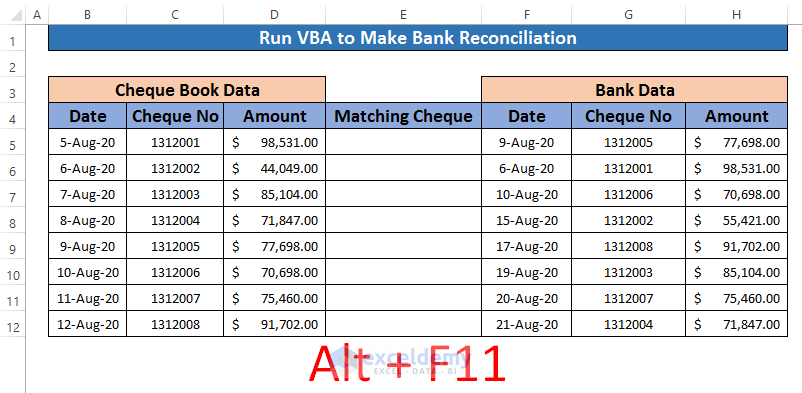
The process involves a systematic comparison to identify which cheques have cleared and which are still outstanding. The general workflow of matching, checking, and handling exceptions is a universal pattern in accounting.

Strategy 1: The Intuitive For Loop with .Find
A straightforward way to approach this in VBA is to loop through each item in the first list and use the Range.Find method to search for it in the second list. If Find returns nothing, you've found a discrepancy. You then repeat the process in the other direction.
This method is logical and easy to understand, making it a great starting point for building your reconciliation logic.
Compare Two Columns Excel VBA Macro
This video from Excel Macro Mania provides an excellent walkthrough of the For loop and .Find method. The presenter clearly demonstrates how to check for discrepancies in both directions.
Please watch the following segments to understand this technique: Setup and Looping: Observe how the macro is set up, variables are declared, and a For loop is used to iterate through each row of data. First Comparison: Pay close attention to how Range.Find is used to check if a product from the first list exists in the second. Notice the If Is Nothing check, which is the key to identifying a discrepancy. Second Comparison: See how the same logic is simply reversed to check for items in the second list that are missing from the first.
While the .Find method is intuitive, it can become slow when you're comparing very large lists (thousands of rows), as it performs a search operation for every single item. For more demanding tasks, we need a more efficient approach.
Strategy 2: The High-Performance Scripting.Dictionary
For professional-grade automation, especially with large datasets, the Scripting.Dictionary object is the tool of choice. A dictionary is a special VBA object that stores unique items (keys) and is optimized for extremely fast lookups.
Here's the strategy:
- Load the "reference" list: You first loop through your second list (e.g., Bank Data) and add each transaction's unique identifier (like a cheque number) to the dictionary. The dictionary automatically handles duplicates and builds an internal index for fast searching.
- Check the "primary" list: You then loop through your first list (e.g., Cheque Book Data). For each item, you use the dictionary's
.Existsmethod to instantly check if that item was in the second list. - Identify discrepancies: If
.ExistsreturnsFalse, you've found an item from your cheque book that isn't on the bank statement.
This method avoids the repetitive, slow searching of the .Find method. Once the dictionary is built, checking for an item is nearly instantaneous, regardless of the list size.
Compare Two Lists with VBA - TheSmallman
This article from TheSmallman.com provides a concise and powerful explanation of using the Scripting.Dictionary for list comparison. It's a technique widely used by VBA professionals for its speed.
Please read the article, focusing on the two main sections: In Compare Lists with VBA, understand why the dictionary is so efficient for this task. In Compare List 1 to List 2, study the code example. Pay special attention to the two loops: the first one populates the dictionary with items from the second column (ar(i, 2)), and the second loop uses If Not .exists(ar(i, 1)) to check items from the first column against it.
Building a Complete Two-Way Reconciliation Macro
Let's now synthesize the dictionary method into a complete, well-commented macro that you can use as a template for your own reconciliation tasks. This macro will compare two lists, "ListA" and "ListB", and output the discrepancies into two separate columns.
Sub ReconcileTwoLists()
    ' Purpose: Performs a two-way reconciliation between two lists using the
    '          efficient Scripting.Dictionary object.

    Dim dict As Object
    Dim ws As Worksheet
    Dim listA As Range, listB As Range
    Dim cell As Range
    Dim lastRowA As Long, lastRowB As Long
    Dim outputRow As Long

    ' --- SETUP ---
    Set ws = ThisWorkbook.ActiveSheet ' Assumes lists are on the active sheet
    Set dict = CreateObject("Scripting.Dictionary")
    dict.CompareMode = vbTextCompare ' Makes the comparison case-insensitive

    ' Dynamically find the last row for each list
    lastRowA = ws.Cells(ws.Rows.Count, "A").End(xlUp).Row
    lastRowB = ws.Cells(ws.Rows.Count, "B").End(xlUp).Row

    ' Define the ranges for the two lists
    Set listA = ws.Range("A2:A" & lastRowA) ' Assumes headers in row 1
    Set listB = ws.Range("B2:B" & lastRowB)

    ' Clear previous results
    ws.Range("D:E").ClearContents
    ws.Range("D1").Value = "In List A, Not in B"
    ws.Range("E1").Value = "In List B, Not in A"

    ' --- PART 1: Find items in List A that are NOT in List B ---

    ' Step 1: Load all items from List B into the dictionary for fast lookup.
    For Each cell In listB
        If Not dict.Exists(cell.Value) And cell.Value <> "" Then
            dict.Add cell.Value, 1 ' Key = cell value, Item = 1 (can be anything)
        End If
    Next cell

    ' Step 2: Loop through List A and check against the dictionary.
    outputRow = 2 ' Start output in the second row
    For Each cell In listA
        If Not dict.Exists(cell.Value) Then
            ' If the item from List A doesn't exist in the dictionary, it's a discrepancy.
            ws.Cells(outputRow, "D").Value = cell.Value
            outputRow = outputRow + 1
        End If
    Next cell

    ' --- PART 2: Find items in List B that are NOT in List A ---

    ' Step 1: Clear the dictionary and re-populate it with items from List A.
    dict.RemoveAll
    For Each cell In listA
        If Not dict.Exists(cell.Value) And cell.Value <> "" Then
            dict.Add cell.Value, 1
        End If
    Next cell

    ' Step 2: Loop through List B and check against the dictionary.
    outputRow = 2 ' Reset output row for the second results column
    For Each cell In listB
        If Not dict.Exists(cell.Value) Then
            ' If the item from List B doesn't exist in the dictionary, it's a discrepancy.
            ws.Cells(outputRow, "E").Value = cell.Value
            outputRow = outputRow + 1
        End If
    Next cell

    ' Clean up
    Set dict = Nothing
    MsgBox "Reconciliation complete."

End Sub
This macro provides a robust and scalable solution. You can copy it into your VBA editor and adapt the range references ("A", "B", "D", "E") to fit your specific worksheet layout.
Advanced Case: Reconciling Contra Amounts
In many accounting scenarios, reconciliation isn't just about finding identical values. Often, you need to match a debit with its corresponding credit (e.g., +$500 and -$500). This requires a different logic where you find and "pair off" matching contra amounts, moving them from an "unmatched" list to a "matched" list.
Transaction Reconciliation with Excel VBA | Excel Challenge | Excel Sifu [DOWNLOADABLE FILE]
This video from ExcelSifu is a fantastic demonstration of this exact type of transaction reconciliation. It walks through the logic and the code required to match positive and negative amounts.
To grasp this advanced technique, please watch these key parts of the video: The Logic Explained: The presenter clearly explains the concept of finding a contra amount, pairing the transactions, and moving them from an "unmatched" to a "matched" list. Code Walkthrough: This is a slow-motion walkthrough of the VBA code in action. You can see exactly how the loops and conditional logic interact with the spreadsheet to find pairs and physically move the data. This visual is invaluable for understanding the process.
This approach is powerful for tasks like clearing accounts or reconciling ledgers where you expect transactions to net to zero.
Conclusion
In this lesson, you have taken a deep dive into one of the most common and critical tasks in accounting automation: two-way reconciliation. You have moved beyond simple data manipulation to building intelligent macros that can compare datasets and identify discrepancies.
Key Takeaways:
- Two-way reconciliation involves comparing two lists to find items unique to each.
- The
Range.Findmethod within a loop is an intuitive but potentially slow method for comparison. - The
Scripting.Dictionaryobject is the professional standard for high-performance list comparison in VBA, offering near-instant lookups. - The core logic involves loading a reference list into the dictionary and then checking the primary list against it using the
.Existsmethod. - This logic can be adapted for specific accounting needs, such as matching contra amounts (+/-) to pair off transactions.
In our next lesson, we will build directly on today's work. Now that you can programmatically find discrepancies, we will enhance the reconciliation macro to highlight discrepancies and output a status report. This will complete the reconciliation workflow by ensuring the results are clearly formatted and easy for anyone to understand.