Hello! In our last lesson, you learned how to reference any cell or range using the Range, Cells, and Offset properties. This gave you the power to pinpoint specific locations on your worksheet.
Today, we will connect that skill to the internal logic of your macros. You'll learn how to read data from a cell into a temporary storage space called a variable, perform operations on that data, and then write the result back to the worksheet. This is the fundamental mechanism for automating calculations and data manipulation, moving you from simply recording actions to building intelligent processes.
What is a Variable?
Think of a variable as a named box in your computer's memory where you can temporarily store a piece of information, like a number, some text, or a date. To use a variable, you first need to "declare" it, which tells VBA to set aside that memory box and give it a name. We do this using the Dim (short for Dimension) keyword.
When you declare a variable, you should also specify its "data type"—what kind of information it will hold. This helps your code run efficiently and prevents errors. Common data types you'll use are:
String: For text (e.g., "Invoice", "John Doe").Long: For large whole numbers (e.g., 150000, -250). Ideal for row counts or invoice numbers.Double: For numbers with decimals (e.g., 19.99, 3.14159).Date: For dates and times.
The following video provides a great introduction to declaring variables.
How to Declare (Dim) and Set VBA Variables (use data types correctly)
This video from Leila Gharani clearly explains the concept of declaring variables, naming conventions, and the importance of data types.
Watch the first segment on declaring variables. Then, continue with the next part which explains how to assign values. Pay close attention to the distinction she makes between assigning simple values (like numbers or text) and assigning objects, which requires the Set keyword. For today's lesson, we'll focus on simple values.
The Read-Process-Write Cycle
Automating tasks often follows a simple but powerful pattern:
- Read: Get a value from an Excel cell and store it in a variable.
- Process: Perform a calculation or manipulation using the variable.
- Write: Place the new value from the variable back into an Excel cell.
The syntax is straightforward:
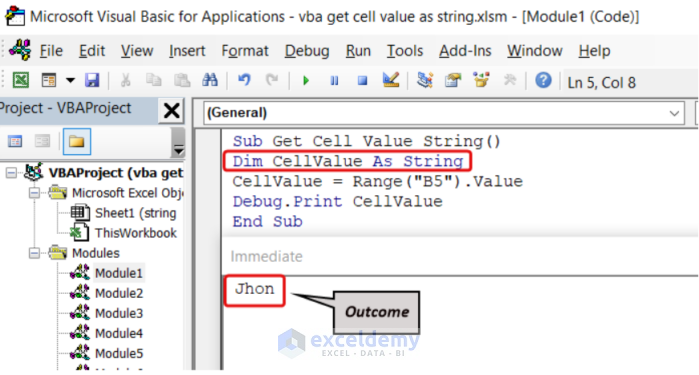
' To read a value FROM a cell TO a variable:
myVariable = Range("A1").Value

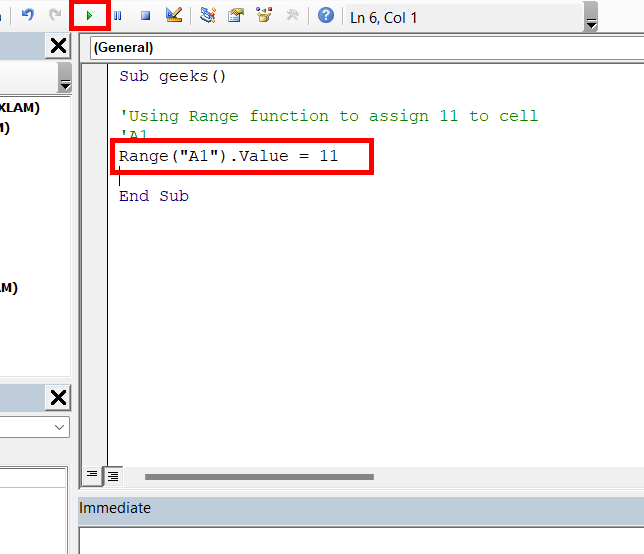
' To write a value FROM a variable TO a cell:
Range("B1").Value = myVariable
Notice the direction: the item on the right side of the equals sign provides the value for the item on the left.
The video below demonstrates this entire cycle in a practical context. Watching the code execute step-by-step is an excellent way to solidify your understanding.
Excel VBA Online Course - 4.1.1 Declaring Basic Variables
This video from WiseOwlTutorials walks through a complete example of reading values, calculating a BMI, and writing the result back to the sheet.
Focus on these key segments: Reading from Cells: Watch how values for weight and height are read from offset cells and assigned to variables in this part. Writing to a Cell: See how the final calculated BMI value is written back to the worksheet right here. Step-by-Step Execution: Finally, watch the code run line-by-line in this demonstration. This will help you visualize how the data moves from the sheet, into VBA, and back again.
A Practical Accounting Example: Incrementing an Invoice Number
Let's apply this to a common accounting task: automatically generating the next invoice number. This simple automation prevents manual entry errors and ensures consistency.
The following resource provides a complete, well-explained macro for our invoice number task.
This article from My Online Training Hub gives a concise and practical example of using variables to automate a common task.
Read the section titled Variables: Your Code's Storage Boxes. The example provided, "Auto-Generate an Invoice Number," is a perfect illustration of the read-process-write cycle we're discussing. Analyze each line of the GenerateNextInvoiceNumber procedure to understand its role.
The code from the article shows the cycle perfectly:
currentInvoice = Range("G9").Value(Read)nextInvoice = currentInvoice + 1(Process)Range("G9").Value = nextInvoice(Write)
Using Variables for Dynamic Cell References
In the last lesson, you learned how to reference cells like Range("A1"). But what if you don't know the exact row or column number when you write the code? You can use variables to build the cell reference dynamically. This is a crucial skill for working with datasets of varying lengths.
For example, instead of writing Range("A5"), you could write Range("A" & myRowVariable). If myRowVariable contains the number 5, the code will work on cell A5. If it contains 100, it will work on cell A100.
The resource below explores this powerful technique in detail.
VBA Tutorial 2 - Reading dynamic data - Excel Macro Mastery
This tutorial from Excel Macro Mastery dives deep into using variables to make your cell references flexible.
Please read the following sections: Start with Using a Variable with Range to see how to combine a variable with the Range property. Next, review The Cells Property to understand its advantages when both the row and column might be variables. Then, read Using Variables With Cells to see this in practice. Finally, look over the Summary table. It's a great quick reference for deciding whether to use Range, Cells, or a combination of both.
Conclusion
You've now learned the critical link between your spreadsheet's data and your VBA code's logic. By mastering how to move values into variables for processing and then write them back, you've unlocked the ability to perform true automation.
Key Takeaways:
- Variables are named storage locations declared with
Dim myVariableName As DataType. - Use appropriate data types like
String,Long, andDoublefor efficiency and accuracy. - To read a value from a cell, use the syntax
myVariable = Range("A1").Value. - To write a value to a cell, use the syntax
Range("A1").Value = myVariable. - This read-process-write cycle is the foundation for automating calculations, data cleaning, and report generation.
- You can use variables within your cell references (e.g.,
Cells(rowVar, colVar)) to make your code dynamic and adaptable.
In our next lesson, we'll build on this by learning how to automate cell formatting. Now that you can calculate and place values correctly, you'll learn how to make them look professional using VBA to control fonts, colors, borders, and number formats.