Hello! Welcome back to our second module.
In our last lesson, we focused on how to structure a Google Sheet to manage individual pages, like blog posts or service descriptions, that live in Hugo's /content directory. We established a clear mapping: each row in your sheet becomes a page, and each column corresponds to a field in that page's front matter.
But what about data that isn't a "page"? Many complex websites need to display collections of information that don't have their own dedicated URLs. Think about:
- A list of testimonials for a homepage carousel.
- A set of pricing tiers for a plan comparison table.
- The structured data for a multi-section homepage layout.
This is where Hugo's data directory comes in. Today's lesson will show you how to structure a Google Sheet to manage data for a Hugo data file, using a homepage as a practical example. This will add another powerful tool to your "vibe coding" arsenal, allowing you to manage not just pages, but also structured data sets from a simple spreadsheet.
The data Directory: Your Site's Mini-Database
First, let's understand the role of the /data directory in a Hugo project. While the /content directory is for content that gets rendered into individual HTML pages, the /data directory is for supplementary data that can be accessed from any template on your site.

You can store data in formats like JSON, YAML, or TOML inside this folder. Hugo automatically loads these files, making the data available to you globally under the .Site.Data variable.
This video from Giraffe Academy provides a concise explanation of the data folder and demonstrates how to access its contents from a template.
Data Files | Hugo - Static Site Generator | Tutorial 20
This video, 'Data Files | Hugo - Static Site Generator', will introduce you to Hugo's data folder. Pay close attention to how the data is structured in the JSON file and how the range function is used in the template to loop through it.
Watch the video from the beginning until 3:30. Focus on: The purpose of the data folder as a 'mini database'. The format of the example states.json file (an array of objects). How the template accesses the data using .Site.Data.states and loops through it.
As you saw, the core idea is simple: place a structured data file (like states.json) in the /data directory, and you can instantly access it from your layouts using .Site.Data.<filename>.
Designing a Google Sheet for a Data File
Now, let's apply this to our workflow. How do we structure a Google Sheet so it can be easily converted into a useful JSON data file? The most common and flexible pattern is to design your sheet to represent a list of objects.
- Each row represents an item in your list (e.g., a testimonial, a feature, a team member).
- Each column header represents a property of that item (e.g.,
author,quote,photo).
Let's imagine we're building a homepage and want to manage a "Features" section. Each feature has an icon, a title, and a short description.
Our Google Sheet would look like this:
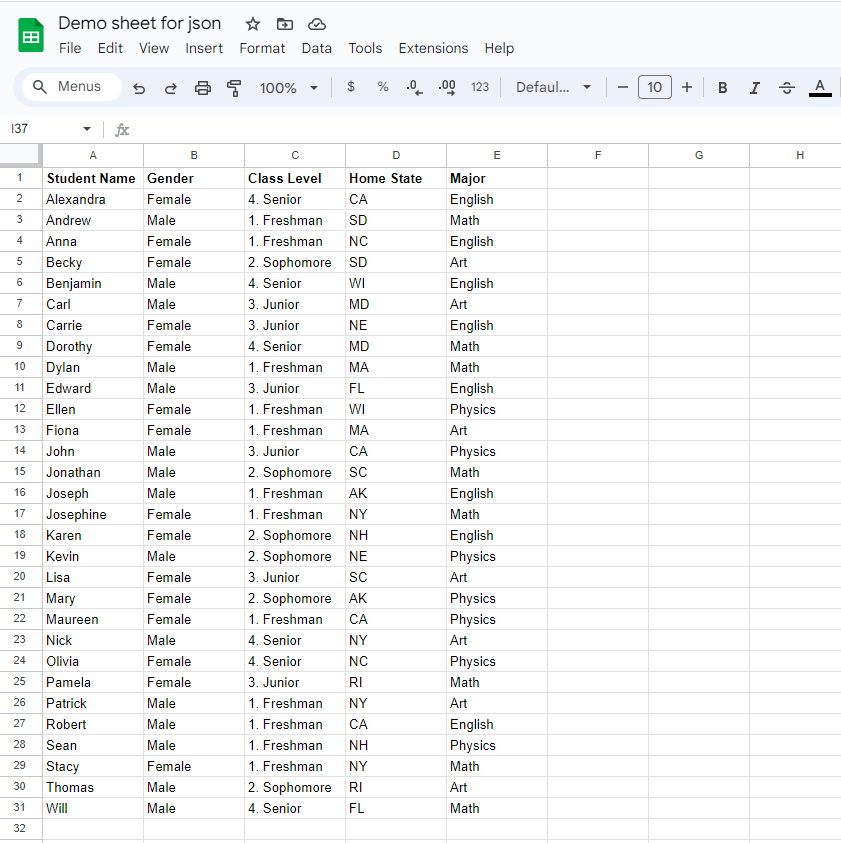
Here's the sheet structure for our "Features" section:
| icon | title | description |
|---|---|---|
fas fa-chart-line |
Advanced Analytics | Track your performance with our powerful analytics dashboard. |
fas fa-users |
Team Collaboration | Invite your team members and work together seamlessly. |
fas fa-shield-alt |
Enterprise-Grade Security | Your data is safe and secure with our robust security measures. |
When processed, this sheet would ideally be converted into a JSON file named features.json inside the /data folder, looking like this:
[
  {
    "icon": "fas fa-chart-line",
    "title": "Advanced Analytics",
    "description": "Track your performance with our powerful analytics dashboard."
  },
  {
    "icon": "fas fa-users",
    "title": "Team Collaboration",
    "description": "Invite your team members and work together seamlessly."
  },
  {
    "icon": "fas fa-shield-alt",
    "title": "Enterprise-Grade Security",
    "description": "Your data is safe and secure with our robust security measures."
  }
]
This clean, structured data is now ready to be used by our homepage template to dynamically generate the "Features" section.
Test your understanding!
You need to create a "Testimonials" section for a homepage. Each testimonial includes the person's name, their company, a quote, and a star rating from 1 to 5. How would you structure the columns in a Google Sheet to manage this data?
Show answer
A good structure for the "Testimonials" sheet would have the following columns:
| name | company | quote | rating |
|---|---|---|---|
| Jane Doe | Acme Inc. | "This service transformed our business!" | 5 |
| John Smith | Globex Corp. | "Incredible results and fantastic support." | 5 |
| Sam Jones | Stark Industries | "A must-have tool for any serious team." | 4 |
Each column header (name, company, quote, rating) becomes a key in the resulting JSON object, and each row becomes an object in the JSON array.
Making Sheet Data Accessible to Hugo
Okay, we've designed our sheet. How do we get that data into Hugo's build process? There are two primary methods, each with its own advantages.
Method 1: Publish as CSV and Fetch Remotely
This is a straightforward and robust method. Google Sheets allows you to publish any sheet to the web as a CSV (Comma-Separated Values) file. Hugo can then fetch this remote CSV file during its build process.
This article provides a clear guide on the first part of this process. While the article's end goal is to generate pages (like we did in the last lesson), the initial steps of preparing and publishing the sheet are exactly what we need for creating data files.
Generate pages from Google Sheets using Hugo's Content ...
This article, 'Generate pages from Google Sheets using Hugo’s Content ...', explains how to publish a sheet and make it accessible via a URL. We will focus only on this part for now.
Read the sections 'Create a Google sheet with some data in it' and 'Get the data from your Sheet and store it in a variable'. Focus on: The steps to Publish to web and select Comma-seperated values (.csv). This gives you a public URL. How the Hugo function resources.GetRemote is used with that URL to fetch the data. How transform.Unmarshal is used to parse the CSV data into a format Hugo can use.
With this method, you get a URL for your CSV data. In a future lesson on templating, you'll see how to use that URL with resources.GetRemote to load the data directly into your homepage layout.
Method 2: Create a JSON API with Google Apps Script
This method is slightly more technical but incredibly powerful, fitting perfectly with the "vibe coding" ethos of creating custom automated workflows. By adding a small script to your Google Sheet, you can turn it into a live JSON API endpoint.
The following video is a complete walkthrough of this process. It shows you how to write the script, convert the sheet's row-and-column data into a clean JSON format, and deploy it as a web app that serves the JSON.
How to Use Google Sheets as a Simple CMS
The video 'How to Use Google Sheets as a Simple CMS' is an excellent, practical guide to creating a JSON API from a spreadsheet. This is a key technique for our workflow.
Watch from 1:21 to 6:11. This is the most critical part of the lesson. Pay close attention to: How to open Google Apps Script from your sheet. The doGet function, which is the entry point for the web request. The code that retrieves the sheet data (it comes in as an array of arrays). The .map() function (at 4:25) that transforms the raw data into a structured array of JSON objects. This is the magic step! How to deploy the script as a web app to get a public API endpoint URL.
This method gives you a clean JSON endpoint that your AI tools can easily be prompted to interact with, or that Hugo can fetch directly during its build. It essentially turns your spreadsheet into a lightweight, headless CMS.
Structuring for Complexity
For truly complex websites, you might need to manage related data. Drawing on your experience with large-scale digital projects, you can think of this like a relational database. You can apply the same principles within Google Sheets.
The article "Run a website off a Google Sheets Database, with Hugo" explores this advanced concept. The author uses different tabs within a single Google Sheet to represent different "tables" of data (e.g., a "Profilers" table and a "Formats" table) and uses IDs to link them, essentially creating foreign keys. This is a powerful technique for managing complex, interrelated data without needing a traditional database. While we won't implement this today, it's a valuable concept to keep in mind for future projects.
Conclusion
You have now learned how to manage structured, non-page data for your Hugo site using Google Sheets. This complements what you learned in the previous lesson, giving you a comprehensive system for content and data management.
Key Takeaways:
- Use the
/datadirectory for structured data that doesn't represent a standalone page, like lists of items for a homepage. - Structure your sheet as a list of objects: Each row is an item, and each column is a property. This translates cleanly to JSON.
- You have two primary ways to access the data:
- Publish to web as CSV: A simple, reliable method for getting a public URL to your data.
- Create a JSON API with Apps Script: A more powerful method that provides a clean JSON endpoint, perfect for automated workflows.
Preview of the next lesson:
We've now explored using Google Sheets for both page content (/content) and structured data (/data). In the next lesson, we will solidify this knowledge by explicitly comparing these two approaches. We'll discuss the key question: When should you store content in the /content directory versus the /data directory? This will give you a clear framework for making architectural decisions in your Hugo projects.