Hello! Welcome to the first lesson of our second module, where we start turning your "vibe coding" concept into a practical reality.
In the last module, you built a solid foundation. You now understand Hugo's core process, its directory structure, and the AI-assisted workflow we'll be using: Idea -> Google Sheet -> AI Prompt -> Generated Code -> Refinement. We wrapped up by configuring the essential hugo.toml file, your site's central control panel.
Today, we take the first major step in connecting your content strategy expertise with Hugo's architecture. This lesson focuses on the critical link between the "Google Sheet" and "Generated Code" stages of our workflow. By the end of this lesson, you will be able to design a Google Sheet schema that maps directly to a Hugo content type's front matter. This is the blueprint for managing your website's content efficiently.
What is Front Matter? The Metadata for Your Content
Before we can build a schema in Google Sheets, we need to understand what we're structuring the data for. In Hugo, every piece of content—be it a blog post, a product page, or a team member profile—is typically a Markdown file. At the very top of that file, enclosed by special markers, lives a block of data called front matter.
Front matter is simply metadata about the content. It's data about the data. Given your experience with various CMS platforms, you're already familiar with this concept. It's like the fields you fill out in WordPress for a new post: Title, Publish Date, Author, Categories, and any custom fields added by plugins for SEO or special layouts.
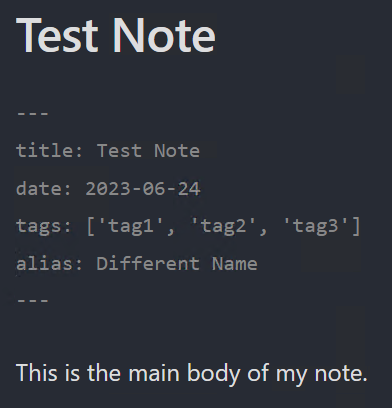
Let's watch a short video that provides a clear overview of front matter and its purpose in Hugo.
Front Matter | Hugo - Static Site Generator | Tutorial 7
This video from Giraffe Academy's Hugo tutorial series offers a great introduction to front matter. It explains what it is, the different formats it can take, and how Hugo's templates use this data to build your web pages.
Please watch from the beginning to 4:11. Focus on understanding: The definition of front matter as metadata. The key-value pair structure. How changing a value in the front matter (like the title) affects the final rendered website.
Designing Your Content Schema
Now that you know what front matter is, the next step is to decide which pieces of metadata you need for a specific type of content. This "plan" or "structure" for your metadata is your schema.
A schema defines all the fields you want to associate with a content type. For example, a "Blog Post" schema might require a title, author, publish_date, and featured_image, while a "Team Member" schema might need a name, job_title, photo, and linkedin_profile.
Hugo's front matter fields fall into two categories:
- Predefined Fields: These are reserved keywords that Hugo understands and uses for specific purposes.
- Custom Parameters: These are any fields you invent to hold data specific to your project's design and needs.
Let's look at the official Hugo documentation to see the most important predefined fields and learn how to create our own.
The official Hugo documentation provides a comprehensive reference on front matter. We'll focus on the list of predefined fields and the section on custom parameters.
First, read the section titled 'Fields'. You don't need to memorize them all, but pay special attention to title, date, draft, description, slug, tags, and categories (taxonomies). Then, read the section titled 'Parameters' to understand how to define your own custom fields under the params key.
Key Predefined Fields (The Essentials)
From your SEO perspective, many of these predefined fields will feel intuitive:
title: The main title of the page. Crucial for the<h1>and<title>tags.description: Used for the meta description tag, vital for SERP snippets.date: The publication date, used for sorting posts and for display.draft: A boolean (trueorfalse) to control if a page is published. Atruevalue means the page will not be built in the live site, perfect for work-in-progress content.slug: Allows you to override the last part of the URL, giving you precise control over your URL structure for SEO.aliases: An array of old URLs that should redirect to this page. Invaluable for site migrations to preserve link equity, a task you're likely very familiar with.
Custom Parameters (params)
This is where you gain full flexibility. Any data that isn't covered by a predefined field goes inside a params block. For a blog post, you might add:
featured_image_urlauthor_nameestimated_reading_timecall_to_action_button_text
By defining these in your schema, you can later write a template that pulls this data to create rich, custom layouts.
Mapping Your Schema to a Google Sheet
Here is the core of our "vibe coding" workflow for content management. The schema you design maps directly to a Google Sheet.
- Each row in the sheet represents one piece of content (e.g., one blog post, one service page).
- Each column header in the sheet is a front matter key.
Let's imagine designing a schema for "Service" pages. We need a title, a short description for a summary card, a featured icon, and the main page content.
Our Google Sheet schema would look like this:
| filename | title | draft | params.icon | params.short_description | content |
|---|---|---|---|---|---|
| seo-audits.md | SEO Audits | false | fa-search | A deep dive into your site's technical health. | This is the full markdown content for the SEO Audits page... |
| content-strategy.md | Content Strategy | false | fa-pencil-alt | We build content plans that drive traffic. | The main content for the Content Strategy service page goes here... |
| link-building.md | Link Building | true | fa-link | Authoritative links to boost your domain. | This page is still a draft and won't be published yet... |
When an AI tool or script processes this sheet, it would take the row for "SEO Audits" and generate a file named seo-audits.md with the following front matter:
---
title: "SEO Audits"
draft: false
params:
  icon: "fa-search"
  short_description: "A deep dive into your site's technical health."
---

This is the **full** markdown content for the SEO Audits page...
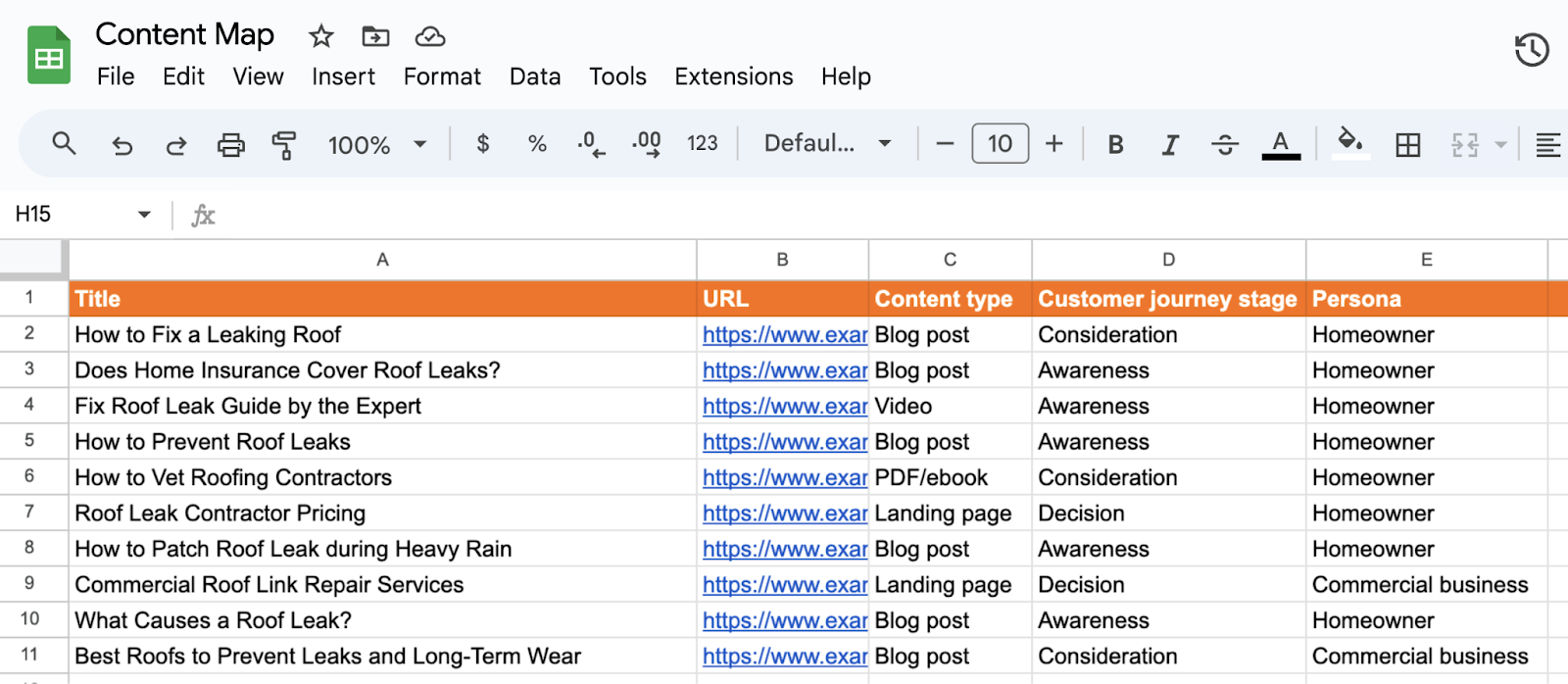
This 1-to-1 mapping is powerful. It turns a spreadsheet—a tool you and non-technical stakeholders are comfortable with—into a powerful, structured CMS for your Hugo site. The image below shows a similar concept, a "Content Map," which you might use in your content strategy work. You can see how its columns could easily be adapted to a Hugo front matter schema.
Enforcing the Schema with Archetypes
Hugo has a built-in feature that aligns perfectly with our schema-driven approach: Archetypes. An archetype is a template for new content files. When you create a new piece of content using the command line (hugo new posts/my-new-post.md), Hugo uses the relevant archetype file to pre-populate the front matter.
This helps ensure consistency. While your Google Sheet is the primary source of truth, archetypes are useful for developers or anyone adding content directly to the project, as they provide a blueprint for what fields are expected.
Let's watch a video that explains how archetypes work.
Archetypes | Hugo - Static Site Generator | Tutorial 8
This video, also from Giraffe Academy, clearly explains and demonstrates Hugo archetypes. It shows how you can customize the default front matter for all new content, and even create different front matter templates for different sections of your site.
Watch the entire video. Pay attention to how modifying the archetypes/default.md file changes the front matter for new pages, and how creating a section-specific archetype (e.g., archetypes/dur1.md) provides a different template for content in that section.
By defining an archetype, you are essentially documenting your schema directly within your Hugo project, making your content structure robust and easy to understand.
Test your understanding!
You are tasked with building a "Case Studies" section for a new website. A case study needs to display the client's name, their industry, the challenge they faced, the solution your company provided, and a key metric demonstrating the result (e.g., "+50% Traffic").
Design a Google Sheet schema for this content type. Which fields would you use? Differentiate between Hugo's predefined fields and your own custom parameters (params).
Show answer
A good schema for the "Case Studies" content type would look something like this in a Google Sheet:
| filename | title | draft | description | tags | params.industry | params.challenge | params.solution | params.key_result | content |
|---|
Breakdown:
- Predefined Fields:
filename: To control the generated file's name (and thus part of its URL).title: The client's name or the project title (e.g., "Client X Revenue Growth").draft: To control publication status.description: A short summary for SEO meta tags.tags: To categorize the case study (e.g., "SEO", "B2B", "E-commerce").
- Custom Parameters (
params):params.industry: The client's industry (e.g., "Healthcare").params.challenge: A short text describing the client's problem.params.solution: A short text describing the solution provided.params.key_result: The main success metric (e.g., "+50% Traffic").
- Main Content:
content: The full, detailed story of the case study in Markdown format.
Conclusion
You've now mastered the conceptual bridge between a simple spreadsheet and Hugo's powerful content engine. By designing a clear schema and mapping it to Google Sheet columns, you've created a scalable and user-friendly system for managing website content.
Key Takeaways:
- Front Matter is Metadata: It's a set of key-value pairs at the top of a content file that describes the content.
- A Schema is Your Plan: Before creating content, you should design a schema—a list of required and optional fields—for each content type.
- Columns as Keys, Rows as Pages: In our workflow, Google Sheet columns map directly to front matter keys, and each row represents a unique page or piece of content.
- Predefined vs. Custom Fields: Use Hugo's built-in fields (
title,draft, etc.) for standard functionality and theparamskey for all your custom data needs. - Archetypes Enforce Consistency: Hugo's archetype feature lets you create templates to ensure new content files adhere to your defined schema.
Preview of the next lesson:
Now that you understand how to structure a schema for individual content pages (which live in Hugo's /content directory), what about data that isn't a page? Think of a list of testimonials for a homepage slider or a set of features for a pricing table. In the next lesson, we will explore how to structure a Google Sheet to manage data for a Hugo data file, which is used for exactly these scenarios.