Hello! Welcome back to our course on building complex websites with Hugo and "vibe coding."
In the last lesson, you learned how to take control of the order of your content by sorting lists based on front matter fields. This gave you the power to arrange posts by date, products by price, and so on.
But what if you don't want to show every piece of content in a list? What if you want to create a special page for "Featured Articles," or a list that only includes services from a specific category? Sorting changes the order, but you still have the same number of items. To selectively display content, you need to filter it.
That brings us to today's lesson. Our learning outcome is to use the 'where' function within a template to filter content displayed on a list page. The where function is one of Hugo's most powerful tools, allowing you to create dynamic and highly specific content listings. For someone with your background in SEO and data analysis, this concept will feel very familiar—it's the programmatic equivalent of applying filters in Google Analytics or a spreadsheet to zero in on the exact data you need.
Today, we will cover:
- The basic syntax and usage of Hugo's
wherefunction. - How to filter content based on different criteria like front matter fields, content type, and taxonomies.
- The range of comparison operators available for building precise filters.
- The correct way to combine filtering, sorting, and pagination in your templates.
- How to write an effective AI prompt to generate filtered lists.
Introducing collections.where
At its core, the where function takes a collection of pages and returns a new collection containing only the items that match your specified criteria. Its general syntax is:
where COLLECTION "KEY" [OPERATOR] VALUE
- COLLECTION: The initial set of pages to filter (e.g.,
.Site.RegularPages). - KEY: The field you want to check (e.g.,
"Section","Type", or a custom field like"Params.featured"). - OPERATOR (optional): The comparison to perform, like
eq(equal),ne(not equal),gt(greater than), etc. If you omit it, Hugo assumes equality. - VALUE: The value to compare against (e.g.,
"blog",true,100).
To get a comprehensive overview of what's possible, let's start with the official documentation.
The official Hugo documentation for the where function is the best place to start. It lays out the syntax and provides a variety of examples.
Read the initial section to understand the syntax (where COLLECTION KEY [OPERATOR] VALUE). Then, scan the 'Operators' table to see the range of comparisons you can make. Don't worry about understanding every operator right now; we'll cover the most important ones.
A crucial point to remember, which we also saw in our last lesson on sort, is that when using a front matter parameter as the KEY, you should use its all-lowercase version (e.g., "params.isfeatured" even if it's isFeatured in your file).
A Practical Example: Filtering by Content Type
One of the most common uses for where is to create separate list pages for different kinds of content, even if all the content files live in the same directory. For instance, you might have articles and case studies mixed in your /content/posts/ directory, but want to display them on separate /articles/ and /case-studies/ pages.
You can achieve this by adding a type field to each content file's front matter and then using where to filter by that type. Let's explore a detailed walkthrough of this exact scenario.
Creating Separate List Pages in Hugo for Different Topics
This article, 'Creating Separate List Pages in Hugo for Different Topics', provides an excellent, step-by-step guide on using the where function to solve a real-world problem.
Read through these three sections. Pay close attention to how the author: Adds a type field to the front matter of the content files. Creates _index.md files with a custom list_filter parameter. Uses this line in the template to perform the filtering: {{ $paginator := .Paginate (where .Site.RegularPages "Type" "in" ( .Params.list_filter )) 1000 }}. This is the core of the technique.
The example in the article is powerful because it shows a flexible approach. Instead of hardcoding the filter value in the template, it pulls the value from the _index.md front matter (.Params.list_filter). This makes the template reusable for any number of filtered lists.
The code where .Site.RegularPages "Type" "in" (.Params.list_filter) also introduces the in operator, which checks if a field's value is present within a list (or "slice") of values. This is incredibly useful when you want a page to show content from multiple types, like an "All Posts" page that includes both build and learn types.
Your Filtering Toolbox: Common Use Cases
The where function is like a Swiss Army knife. Let's look at some of the most useful tools it offers, drawing an analogy to a tool you are very familiar with. The logic of where is almost identical to applying filters in Google Sheets.
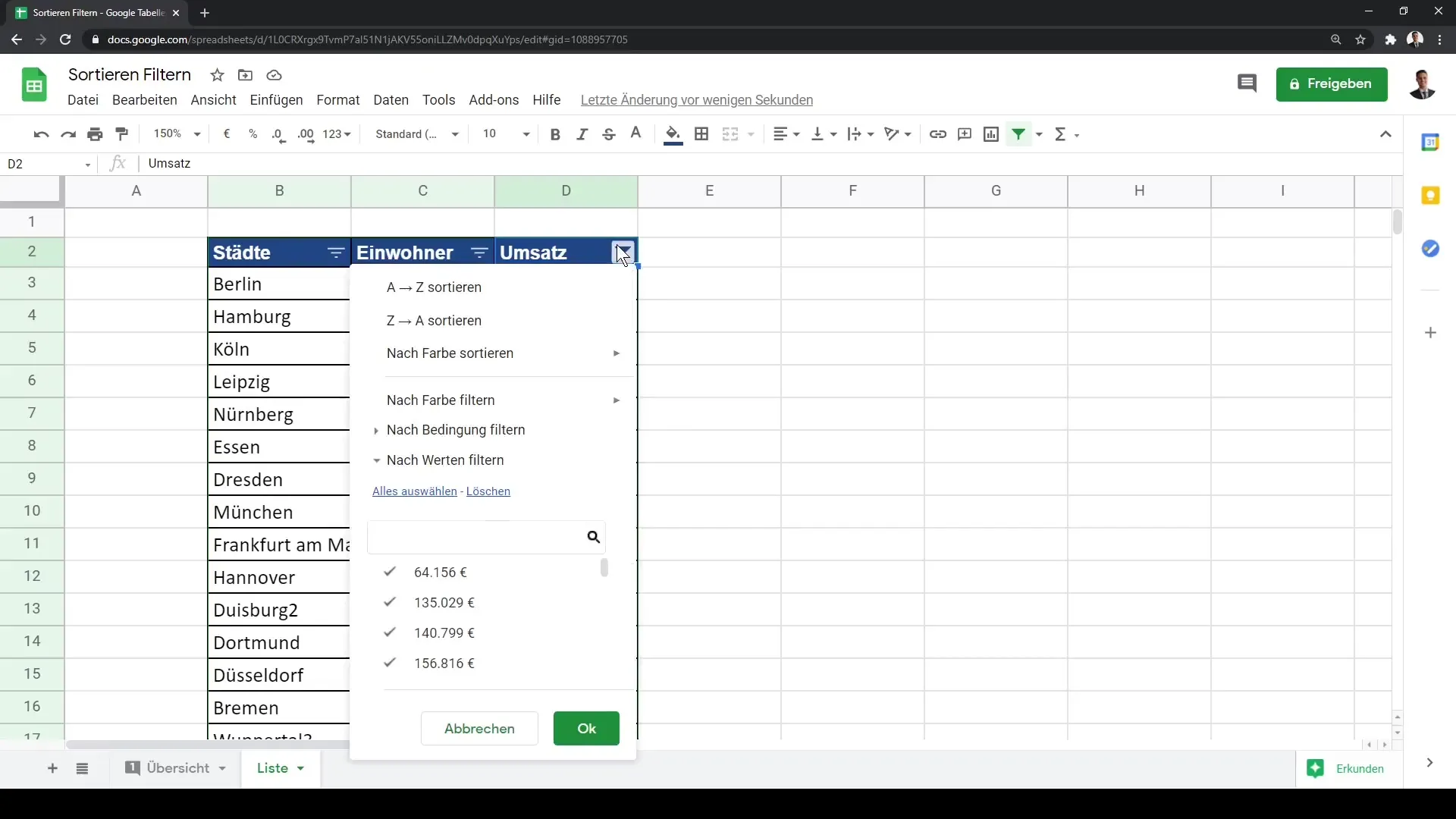
Here are some common filtering recipes:
1. Featuring Content
A classic requirement is to highlight specific posts. Add a boolean flag to the front matter of the posts you want to feature:
Front Matter (post-1.md):
---
title: "My Featured Post"
featured: true
---
Template:
{{/* Get all pages where 'featured' is true */}}
{{ $featuredPosts := where .Site.RegularPages "Params.featured" true }}
{{ range $featuredPosts }}
  <li><a href="{{ .Permalink }}">{{ .Title }}</a></li>
{{ end }}
This is like filtering a "Featured" column in your spreadsheet to show only rows where the value is TRUE.
2. Filtering by a Value in a List (Taxonomies)
Imagine you want to create a page that shows all posts tagged with "SEO". The intersect operator is perfect for this. It checks for any common values between two lists.
Front Matter (post-2.md):
---
title: "Advanced SEO Techniques"
tags: ["SEO", "Content Strategy", "Analytics"]
---
Template:
{{/* Define the tags we're looking for */}}
{{ $targetTags := slice "SEO" "Technical SEO" }}

{{/* Find pages where the page's tags intersect with our target tags */}}
{{ $seoPosts := where .Site.RegularPages "Params.tags" "intersect" $targetTags }}
{{ range $seoPosts }}
  <li><a href="{{ .Permalink }}">{{ .Title }}</a></li>
{{ end }}
This will list any post that has either "SEO" or "Technical SEO" in its tags list.
3. Filtering by Numbers
If you have products with prices or reviews with ratings, you can use numeric operators like gt (greater than) or lt (less than).
Front Matter (product-a.md):
---
title: "Premium Widget"
price: 99.99
---
Template:
{{/* Get all pages with a price greater than 50 */}}
{{ $premiumProducts := where .Site.RegularPages "Params.price" "gt" 50 }}
{{ range $premiumProducts }}
  <li>{{ .Title }} - ${{ .Params.price }}</li>
{{ end }}
Test your understanding!
You are building a knowledge base, similar to the one shown below. All your article files have a front matter parameter status which can be "published", "draft", or "archived".
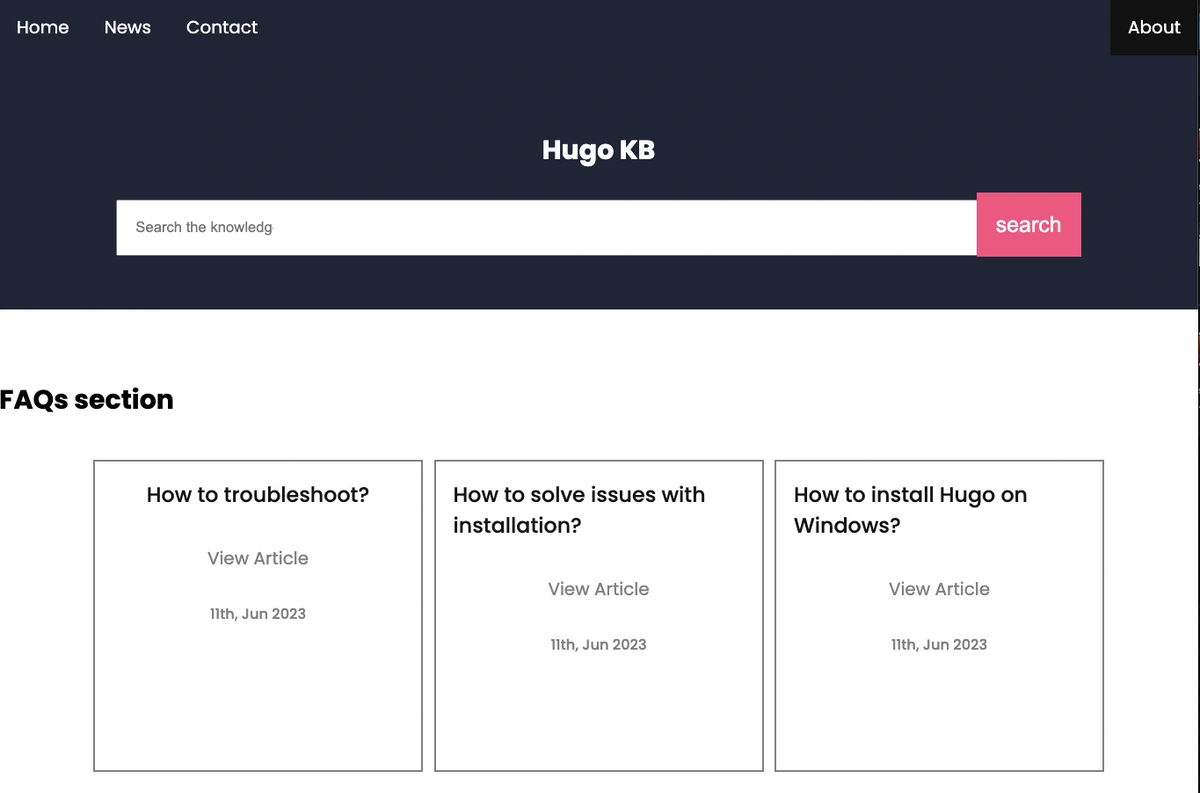
You need to create a list page that shows only the articles with a status of "published". How would you write the where clause to achieve this?
Show answer
You would filter the pages based on the status parameter in the front matter, checking for equality with the value "published".
{{ $publishedArticles := where .Site.RegularPages "Params.status" "eq" "published" }}
{{ range $publishedArticles }}
  {{/* ... template for displaying the article link ... */}}
{{ end }}
Note: You could also write where .Site.RegularPages "Params.status" "published" since eq is the default operator, but being explicit is often clearer.
The Golden Rule: Filter, Sort, Paginate
Just as we established in the previous lesson, the order of operations is critical. Filtering happens before sorting and pagination. If you sort first, you're wasting effort sorting items that will be discarded. If you paginate first, you're only filtering the tiny subset of items on the current page, which will lead to incorrect results and empty pages.
The correct sequence is always:
- Filter: Narrow down your collection to only the pages you need (
where). - Sort: Order the filtered collection (
sortor.By...methods). - Paginate: Create paginated pages from the final, sorted collection (
.Paginate).
Here is a complete example:
{{/* layouts/_default/list.html */}}

{{/* 1. Get the initial collection (e.g., all regular pages in the 'blog' section) */}}
{{ $pages := where .Site.RegularPages "Section" "blog" }}

{{/* 2. FILTER: Keep only pages marked as 'featured' */}}
{{ $filteredPages := where $pages "Params.featured" true }}

{{/* 3. SORT: Order the filtered pages by date, newest first */}}
{{ $sortedPages := sort $filteredPages ".Params.date" "desc" }}

{{/* 4. PAGINATE: Paginate the final, sorted collection */}}
{{ $paginator := .Paginate $sortedPages }}

{{/* 5. Range over the paginator's pages for the current page */}}
{{ range $paginator.Pages }}
  <article>
    <h2><a href="{{ .Permalink }}">{{ .Title }}</a></h2>
  </article>
{{ end }}

{{ partial "pagination.html" . }}
Prompting the AI for Filtered Lists
With this knowledge, you can now write highly effective prompts for your "vibe coding" workflow. A good prompt is specific and provides all the necessary context.
Prompt:
Task: Modify my Hugo list template at
layouts/services/list.htmlto create a filtered and sorted list of services.Context:
- The template currently lists all pages from the 'services' section.
- My service pages are Markdown files located in
content/services/.- Each service has a front matter parameter called
serviceTierwhich can be"Basic","Pro", or"Enterprise".- Each service also has a
monthlyCostparameter (e.g.,monthlyCost: 49).Instructions:
- Filter the list to show only services where
serviceTieris either"Pro"or"Enterprise". Use theinoperator for this.- After filtering, sort the remaining services by
monthlyCostin ascending order (cheapest first).- Apply pagination to the final list.
- Ensure the logic follows the correct order: filter, then sort, then paginate.
This prompt leaves no room for ambiguity and guides the AI to produce the correct, efficient code.
Conclusion
You've now added another essential tool to your Hugo arsenal. The where function moves you beyond simple chronological lists into the realm of truly dynamic websites where content can be sliced, diced, and presented in countless ways based on its underlying data. This is fundamental to building the complex, content-rich sites you're aiming for.
Key Takeaways:
- The
wherefunction filters a collection of pages based on a key, operator, and value. - It can filter by page properties (
Section,Type), front matter (Params), and taxonomies (tags,categories). - A rich set of operators (
eq,ne,gt,lt,in,intersect) allows for precise filtering logic. - The correct and most performant order of operations is always Filter -> Sort -> Paginate.
Preview of the next lesson:
We've now mastered ranging, paginating, sorting, and filtering content for a default list page. But what if you want the list of blog posts to look completely different from the list of services? In the next lesson, we will learn how to create section-specific list layouts that override default templates, giving you full design control over every part of your site.