Hello! Welcome to the first lesson of our module on templating.
In the previous module, we successfully designed a complete workflow to manage website content using Google Sheets. You now have a system where your team can create and approve content, which then automatically generates the necessary Markdown files in your Hugo project's content directory. But a .md file isn't a webpage. So, what happens next? How does Hugo transform that raw content into a fully-styled HTML page that a visitor can see?
The answer lies in templates. Templates are the blueprints that define the structure and design of your pages. This lesson focuses on the very first and most critical rule of templating: how Hugo chooses which blueprint to use for which piece of content. Our goal is to explain Hugo's template lookup order for rendering single pages and list pages.
Understanding this logic is essential. It’s the architectural foundation upon which all your site's layouts are built. Before you can effectively prompt an AI to generate a template, you need to know what kind of template to ask for and where in your project it needs to be saved.
Single Pages vs. List Pages: The Two Kinds of Content
The first step in understanding Hugo's templating is to grasp its fundamental distinction between two types of pages: single pages and list pages. Every page on your Hugo site is one or the other.
- Single Pages: Represent a single, unique piece of content. A blog post, an "About Us" page, a product description page—these are all single pages. They are typically created from individual Markdown files like
content/blog/my-first-post.md. - List Pages: Represent a collection of other pages. The homepage that shows your latest articles, a section page like
/blog/that lists all blog posts, or a tag page that groups content under a specific category are all list pages. They are always generated from an_index.mdfile within a directory.
From your SEO management perspective, this is a familiar concept. You can think of single pages as your specific, targeted "spoke" pages (like a detailed article), while list pages are your authoritative "hub" pages that consolidate and link to the spokes.
Hugo's Directory Structure Explained
To solidify this core concept, please read the following sections from the article 'Hugo's Directory Structure Explained' by Jake Wiesler. It provides a crystal-clear explanation of how content files map to these two page types.
Please read the main 'Content' section, focusing on the subsections 'Content types' and 'List pages vs single pages'. These will firmly establish the difference between files like about.md (a single page) and blog/_index.md (a list page).
Now that you understand the two kinds of pages, let's see where the templates that render them live.
The layouts Directory: Home of the Templates
All templates in a Hugo project reside in the layouts directory. For every page kind, there's a corresponding template file.
single.htmltemplates are used for single pages.list.htmltemplates are used for list pages.
The magic of Hugo lies in how you can organize these template files within the layouts directory to create unique designs for different parts of your site.
List Page Templates | Hugo - Static Site Generator | Tutorial 12
The video 'List Page Templates' by Giraffe Academy provides a great practical demonstration of this. The beginning of the video reinforces the concept of list pages and then shows how a list.html file in the layouts directory controls their appearance.
Watch from the beginning until 4:08. Pay close attention to how the creator first identifies the default template in the theme, and then creates a new layouts/_default/list.html file in the main project to override it. This demonstrates the simplest form of the lookup order.
As you saw in the video, placing a list.html file inside a folder named _default created a fallback template for all list pages. This brings us to the core of today's lesson: the specific rules Hugo follows to find the right template.
Hugo's Template Lookup Order
When Hugo builds a page, it follows a specific sequence of steps to find the most appropriate template. It always looks for the most specific template first before falling back to more generic ones.
Think of Hugo asking a series of questions:
- Is there a template for this specific Content Type?
- If not, is there a default template for this Page Kind?
Let's break this down.
Step 1: Specificity Wins - Templates by Content Type
A "Content Type" in Hugo is usually determined by the section a piece of content is in. For example:
content/blog/my-post.mdhas a content type ofblog.content/services/consulting.mdhas a content type ofservices.
You can create templates that only apply to a specific content type by creating a matching folder in your layouts directory.
- To create a unique layout for all your blog posts, you would create:
layouts/blog/single.html. - To create a unique list page for your services section, you would create:
layouts/services/list.html.
When Hugo renders a blog post, it will first look for layouts/blog/single.html. Only if that file doesn't exist will it look for a more generic template.
Step 2: The Fallback - The _default Directory
If Hugo can't find a template specific to the content type, it falls back to the _default directory. This is Hugo's "last resort."
layouts/_default/single.html: The default template for all single pages that don't have a more specific template.layouts/_default/list.html: The default template for all list pages that don't have a more specific template.
This allows you to define a generic look and feel for your entire site while overriding it for specific sections where needed.
Special Case: The Homepage
The homepage is unique. Hugo looks for a dedicated template for it first: layouts/index.html.
If layouts/index.html exists, Hugo uses it. If it does not, the homepage is treated as a list page and Hugo will use the list template lookup order, ultimately falling back to layouts/_default/list.html. This makes sense because the homepage's job is typically to list content from across your site.
This entire logic is explained perfectly in the article you read earlier.
Hugo's Directory Structure Explained
Let's return to Jake Wiesler's article. The following sections dive deep into the lookup order, mirroring the logic we just discussed.
Please read the sections 'Template lookup order', 'Templates based on content type', and 'Homepage templates'. This will walk you through the logic of the _default directory, type-specific layouts, and the special case for index.html.
Visualizing the Hierarchy
This hierarchical structure of the layouts directory is the key to mastering Hugo templating. Here is a visual representation of how it works:
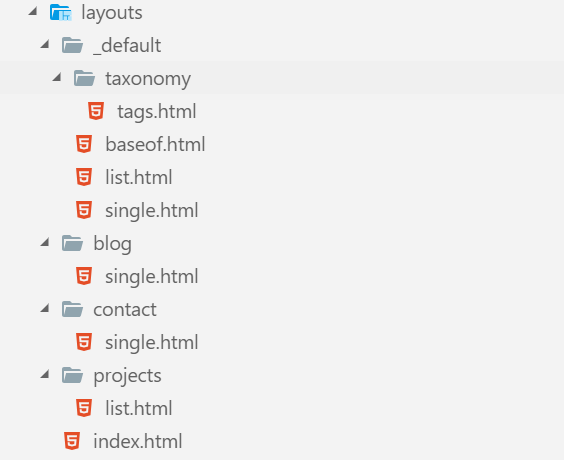
Test your understanding!
Imagine your project has the following file structure:
/content/
  ├── blog/
  │   ├── _index.md
  │   └── my-first-post.md
  └── about.md

/layouts/
  ├── _default/
  │   ├── list.html      (Template A)
  │   └── single.html    (Template B)
  └── blog/
      └── single.html    (Template C)
Which template (A, B, or C) will Hugo use to render each of the following pages?
- The "About" page (
/about/) - The main blog listing page (
/blog/) - The individual blog post (
/blog/my-first-post/)
Show answer
- The "About" page: Hugo will use Template B (
layouts/_default/single.html).about.mdis a single page. Hugo looks for a template matching its content type (which ispage, since it's at the root), doesn't findlayouts/page/single.html, and falls back to the default single template. - The main blog listing page: Hugo will use Template A (
layouts/_default/list.html).blog/_index.mddefines a list page. Hugo looks for a list template specific to theblogcontent type (layouts/blog/list.html). It doesn't find one, so it falls back to the default list template. - The individual blog post: Hugo will use Template C (
layouts/blog/single.html).my-first-post.mdis a single page with content typeblog. Hugo looks for a template atlayouts/blog/single.htmland finds it. This is more specific than the default, so it's used.
Conclusion
You now have the mental model for how Hugo connects content to design. This lookup order is the "if-then" logic that powers the entire rendering process.
Key Takeaways:
- Hugo pages are either single (one item) or list (a collection).
- Templates live in the
layoutsdirectory, withsingle.htmlandlist.htmlbeing the basic template types. - Hugo follows a lookup order from most specific to most general.
- It first checks for a template matching the content's type (e.g.,
layouts/blog/single.html). - If no specific template is found, it falls back to the generic templates in
layouts/_default/. - The homepage has its own special template,
layouts/index.html, which takes highest priority.
Preview of the next lesson:
Now that you know how to tell Hugo which template file to use, the next step is to learn what to put inside that file. In our next lesson, "Write a structured prompt to generate a basic single-page layout for a specific content type," we will take today's theory and put it into practice. You'll use your first "vibe coding" prompt to create a single.html template and learn about the basic variables like .Title and .Content that pull information from your Markdown files.