Hello! Welcome to the eighth and final lesson of the "Advanced Excel for Data Analysis" module.
In our last lesson, we explored conditional formatting, particularly how to use formulas to create custom rules. You learned that the key to powerful, row-specific formatting lies in using formulas that return TRUE or FALSE and understanding absolute vs. relative cell references.
Today, we'll expand on that idea of combining functions. We'll move beyond using them for formatting and see how to embed them directly within each other to perform complex calculations and logical tests in a single cell.
Today's learning outcome: By the end of this lesson, you will be able to combine multiple Excel functions in nested formulas to solve complex analytical problems. This is a capstone skill in Excel that brings together everything you've learned in this module.
1. Understanding Nested Formulas
A nested formula is simply a formula where one function is placed inside another function. The inner function runs first, and its result becomes an input (or "argument") for the outer function.
Think of it like a multi-step instruction. Instead of using one column to calculate a sub-total and a second column to use that sub-total in another calculation, you can combine both steps into one. This is essential for building sophisticated and efficient analytical models.
Let's start with a clear definition and a simple example.
What is a Nested Formula in Excel??? - Tutorial
This short video, 'What is a Nested Formula in Excel???', provides a great introduction to the concept and demonstrates a straightforward example.
Watch the first minute and a half of the video (00:00 - 01:32). Focus on how the MAX function is used inside the AVERAGE function.
As the video showed, the formula AVERAGE(MAX(range1), MAX(range2)) works from the inside out:
- Excel first solves
MAX(range1)to find the highest value in the first set of data. - Then, it solves
MAX(range2)to find the highest value in the second set. - Finally, it takes those two results and feeds them into the
AVERAGEfunction to calculate their average.
This "inside-out" order of operations is the fundamental principle of all nested formulas.
2. Nesting with Logical Functions: IF, AND, OR
The most common and powerful use of nesting in data analysis is to build complex logical tests. You'll often need to check for multiple conditions before deciding what value to return or which calculation to perform. This is where you combine the IF function with AND and OR.
The following video provides an excellent, step-by-step guide to building these types of formulas.
Excel IF Formula: Simple to Advanced (multiple criteria, nested IF, AND, OR functions)
In this video, 'Excel IF Formula: Simple to Advanced' by Leila Gharani, you'll see how to combine logical functions to handle increasingly complex criteria.
Please watch the following three segments: IF with AND (03:17 - 05:00): Learn how to check if multiple conditions are all true simultaneously (e.g., revenue is > 15,000 AND < 20,000). Nested IFs (05:00 - 07:42): This is key. See how to place an IF statement inside another IF statement to handle more than two possible outcomes (e.g., 'Good', 'Exceptional', or a default value). Pay close attention to how the second IF becomes the value_if_false argument for the first IF. IF with OR (07:42 - 09:18): Understand how to check if at least one of several conditions is met.
To reinforce these concepts, the following reading provides clear text-based examples that you can refer back to.
IF AND in Excel: nested formula, multiple statements, and more
This article from the Ablebits blog, 'IF AND in Excel', covers the same ground as the video but in a written format, which can be helpful for review. It also includes examples of nesting multiple IF AND statements.
Quickly read through the sections from the beginning down to 'Nested IF AND statements'. Focus on the structure of the example formulas, which show how to check for values between two numbers and how to nest multiple IF(AND(...)) conditions.
Here's a summary of the logical structures:
IFwithAND:IF(AND(condition1, condition2), value_if_true, value_if_false)- Use this when all conditions must be met.
- Nested
IF:IF(condition1, value_if_true, IF(condition2, value_if_true2, value_if_false))- Use this to create a decision tree with more than two outcomes.
IFwithOR:IF(OR(condition1, condition2), value_if_true, value_if_false)- Use this when at least one of the conditions must be met.
3. Combining Lookup and Other Functions
Nesting isn't just for logic. In a previous lesson, you learned how INDEX and MATCH can overcome the limitations of VLOOKUP. Their true power is realized when you nest them together to perform two-way lookups.
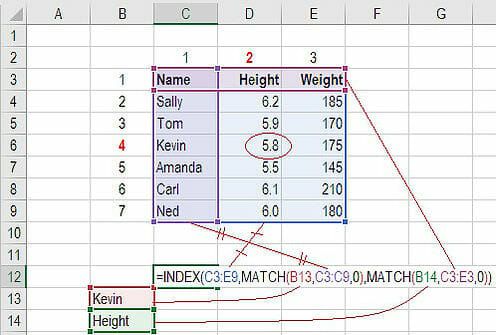
The formula shown, INDEX(C3:E9, MATCH(B13,C3:C9,0), MATCH(B14,C3:E3,0)), works like this:
- The first
MATCHfinds the row number for "Kevin". - The second
MATCHfinds the column number for "Height". - The
INDEXfunction takes the row and column numbers as arguments to pinpoint the exact cell and return its value (5.8).
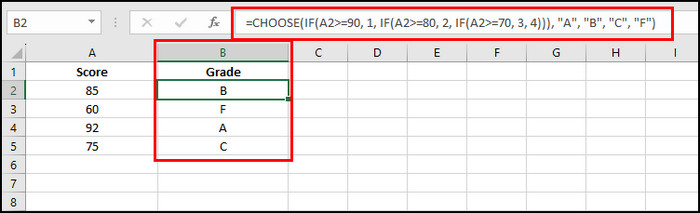
You can get very creative. For example, you can nest multiple IF statements inside a CHOOSE function to assign grades based on scores, which can be more readable than a long chain of IFs.
4. Best Practices: Keeping Your Formulas Readable
While it can be satisfying to write a single, long, complex formula, it can be a nightmare for you (or a colleague) to audit or update later. In a professional environment, clarity is more important than complexity.
Financial modeling, an industry that relies heavily on error-free Excel sheets, has some excellent best practices for this.
Financial Modeling Guide | Excel Training Tutorial - Wall Street Prep
This 'Financial Modeling Guide' from Wall Street Prep provides professional advice on building transparent and auditable Excel models. We'll focus on the section about formula simplicity.
Please read the section 'How to Ensure Simplicity in Financial Models (“BASE”)'. Pay special attention to the advice to 'Simplify IF statements and avoid nested IFs' when they become too complex. Note the powerful example of replacing a nested IF with a combination of MIN and MAX functions.
Here are two critical tips to remember:
- Break It Down: Microsoft doesn't charge you for using extra cells! If a single formula becomes too long (e.g., more than 2-3 nested levels), it's often better to use "helper columns" to perform intermediate calculations. This makes your logic much easier to follow and debug.
- Use Colored Parentheses: When you're editing a complex formula, Excel color-codes the pairs of parentheses. This is an invaluable visual cue to ensure each function has a matching opening and closing parenthesis. If your final parenthesis isn't black, it means something is open and your formula is incomplete.
Practice Exercise
Let's apply this to a scenario you might encounter as a freelance professional. You're using Excel to manage your client tasks and want to automatically assign a priority level.
Data:
Create a new Excel sheet and enter the following data:
| Task Name | Client | Task Type | Urgency |
|---|---|---|---|
| Format Report | ABC Corp | Document Formatting | Medium |
| Research Competitors | XYZ Inc. | Research | High |
| Schedule Meetings | Fashion Hub | Scheduling | High |
| Enter Sales Data | Tech Solutions | Data Entry | Low |
| Draft Blog Post | ABC Corp | Content Creation | Medium |
| Find New Leads | XYZ Inc. | Research | Low |
Your Task:
In a new column E named "Priority", write a single nested formula that assigns a priority level based on the following rules:
- If
Urgencyis "High" ANDTask Typeis "Research", the priority is"P1 - Immediate". - Otherwise, if
Urgencyis "High", the priority is"P2 - High". - Otherwise, if
Urgencyis "Medium", the priority is"P3 - Medium". - For all other cases (i.e.,
Urgencyis "Low"), the priority is"P4 - Low".
Click here for the solution
Assuming your data starts in row 2, click on cell E2 and enter the following formula. Then, drag the fill handle down to apply it to the other rows.
=IF(AND(D2="High", C2="Research"), "P1 - Immediate", IF(D2="High", "P2 - High", IF(D2="Medium", "P3 - Medium", "P4 - Low")))
Formula Breakdown:
IF(AND(D2="High", C2="Research"), "P1 - Immediate", ...): The formula first checks if both urgency is "High" AND the type is "Research". If true, it returns "P1 - Immediate" and stops.... , IF(D2="High", "P2 - High", ...)): If the first test was false, it moves to the nextIF. It checks if urgency is "High". If true, it returns "P2 - High" and stops.... , IF(D2="Medium", "P3 - Medium", "P4 - Low"))): If the second test was also false, it moves to the finalIF. It checks if urgency is "Medium". If true, it returns "P3 - Medium". If false, it returns the final value, "P4 - Low".
Conclusion
Congratulations on completing the "Advanced Excel for Data Analysis" module! You've moved from basic functions to building sophisticated, multi-step formulas that are at the core of solving real-world analytical problems in Excel.
Key Takeaways:
- Nested formulas solve problems from the inside out, using the result of an inner function as an argument for an outer one.
- Combining
IF,AND, andORallows you to build complex decision-making logic directly into your spreadsheet. - Nesting isn't limited to logic; it can be used for advanced lookups (
INDEX/MATCH) and other creative combinations. - Clarity is key. For very complex logic, it's often better to use helper columns than to create a single, unreadable formula.
You now have a solid foundation in the most critical Excel skills for a data analyst.
What's Next?
In our next module, we'll dive into Python Programming Fundamentals. While Excel is an amazing tool for many tasks, Python will allow you to work with much larger datasets, automate repetitive work more effectively, and perform more advanced statistical analysis. The structured, logical thinking you've honed by building complex Excel formulas is the perfect mental preparation for learning to code. I look forward to starting that journey with you