Hello! Welcome to the fifth lesson in our course on using regular expressions for your mail triage project.
In our last lesson, we explored the power of the dot (.) metacharacter as a wildcard. You saw how it could flexibly match any single character, making patterns more adaptable. However, we ended on a puzzle: when we tried to find the literal text REF.9012, our pattern REF.9012 also matched REF-9012. This happened because the dot's special "wildcard" meaning overrode our intention to find a literal period.
Introduction
Today's Goal: This lesson resolves that puzzle. By the end of our session, you will be able to escape metacharacters with a backslash (\) to match them literally (e.g., \. to find a period).
Why it matters: This skill gives you complete control over your patterns. For your mail triage project, you frequently need to find characters that have special meaning in regex. Think of URLs (http://company.com), IP addresses (192.168.1.1), file paths (C:\Reports\), or filenames (report_v1.2.pdf). To match these correctly, you must be able to "turn off" the special behavior of characters like . and \ and force the regex engine to treat them as plain text.
Time to complete: This lesson should take you about 30 minutes.
1. The Concept of "Escaping"
In philosophy, you're familiar with the idea of a metalanguage—a language used to describe another language. In regex, the backslash (\) acts as a "meta-signal." It's an instruction to the regex engine that says, "Pay attention! The very next character should be stripped of its special powers and treated as its literal self." This process is called escaping.
The rule is simple: to match a metacharacter literally, precede it with a backslash.
The text below gives a concise and clear explanation of this principle.
Activity 1: Read the Rule (5 minutes)
Please read the following section from the article Regular Expression Metacharacters- Regex Tutorial. It provides the foundational rule for escaping.
- Article: Regular Expression Metacharacters- Regex Tutorial by an unlisted author.
- Section to Read: Focus on the part titled "How to Escape a Metacharacter".
- What to focus on: Pay attention to the simple
metacharacter->\metacharactertransformation and the clear examples for the plus sign (+) and the period (.).
This section confirms that the 12 metacharacters we've encountered (. ^ $ * + ? { } [ ] \ | ( )) can all be tamed with a backslash.
2. Seeing Escaping in Action
Now, let's watch this concept being demonstrated. The following video clip picks up exactly where our previous lesson's clip left off, directly addressing how to handle the literal dot.
Activity 2: A Visual Demonstration (5 minutes)
Please watch the following segment from Corey Schafer's excellent tutorial. He provides a practical demonstration of escaping both the period and the backslash itself.

- Watch from 02:55 to 03:45.
- What to focus on:
- Notice how
\.successfully matches only the literal periods in the text. - Observe the
koriMS\.comexample. This is directly applicable to your goal of parsing emails. - Pay close attention to how he matches a literal backslash (
\\). This is a key detail: to escape the escape character, you use the escape character!
- Notice how
For a quick second perspective, this clip from The Net Ninja shows the same principle with different metacharacters.
- Watch from 06:33 to 07:20.
- This clip demonstrates escaping an asterisk (
\*) and, once again, the period (\.), reinforcing the universal nature of the backslash escape.
3. Hands-On Practice: Gaining Control
It's time to apply this knowledge in Regex101 and solve the problem from our last lesson.
Activity 3: Escaping in the Lab (15 minutes)
-
Click this link to open a pre-configured Regex101 session: https://regex101.com/r/k56a1r/1
- The Test String pane contains a mix of references, a URL, a filename, and a file path—all common sights in emails.
-
Task 1: Solve the
REF.9012Problem- In the last lesson, the pattern
REF.9012incorrectly matched bothREF-9012andREF.9012. - In the Regular Expression box, type
REF\.9012. - Observe the result. It now correctly matches only the string on line 2. You have successfully used the escape character to specify your intent precisely.
- In the last lesson, the pattern
-
Task 2: Match a URL
- Your goal is to match the URL on line 4:
http://acme.internal.com/login - Try writing a pattern for this. Remember that both the periods and the forward slashes have special meanings in some regex contexts (though Regex101 is lenient with
/). The most robust pattern requires escaping. - A good pattern is
http:\/\/acme\.internal\.com\/login. Notice how every metacharacter is escaped to ensure it's treated literally.
- Your goal is to match the URL on line 4:
-
Task 3: Match a Filename
- Now, write a pattern to find the specific filename
report_v3.1.docxon line 5. - The correct pattern is
report_v3\.1\.docx. This forces both dots to be treated as literal periods.
- Now, write a pattern to find the specific filename
-
Task 4: Match a Windows File Path
- Finally, write a pattern to find the file path
C:\Users\Publicon line 7. - As you saw in the video, the backslash must escape itself. The pattern is
C:\\Users\\Public.
- Finally, write a pattern to find the file path
These exercises demonstrate how escaping is not an obscure feature but a daily necessity for writing accurate and reliable patterns for real-world text.
4. Visual Summary: Escaping in the Wild
To bring this all together, let's look at a common, complex pattern: an email validator. Don't worry about understanding the whole thing; just focus on the escaped dot.
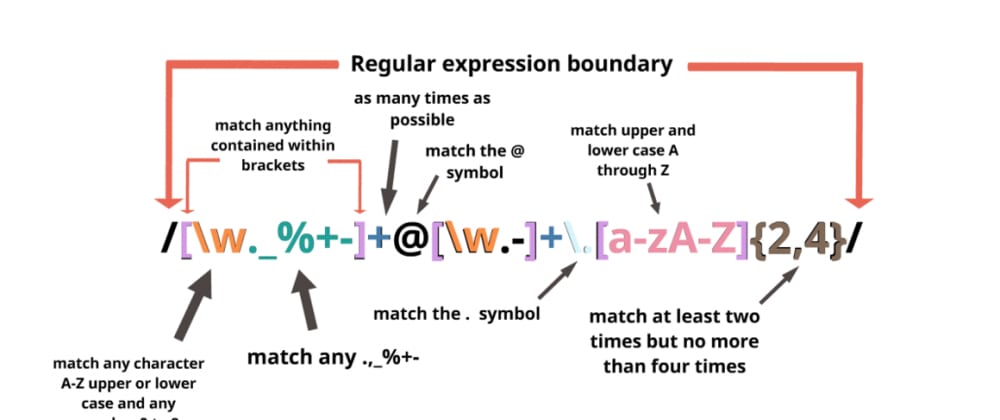
This diagram breaks down an email-matching regex. Notice the highlighted \. component. It shows how escaping is essential to correctly match the dot that separates the domain name from the top-level domain (like in example.com).
Conclusion
Congratulations! You've just mastered a fundamental concept that transforms you from a regex novice into a precise practitioner. You now have the power to distinguish between a character's special role and its literal meaning.
Key Points We've Covered:
- The Escape Character: The backslash (
\) is used to escape metacharacters. - Function: Placing a
\before a metacharacter (e.g.,.*+\) removes its special function, forcing the regex engine to match it as a literal character. - Application: This is critical for matching real-world text like URLs, IP addresses, and filenames that contain special regex characters.
What's Next?
We've now seen how to match literal characters, how to use a wildcard (.), and how to force wildcards back into being literals (\.).
In our next lesson, we'll explore character sets (using []). This will give us a new kind of power: the ability to match a character if it's on a specific list you provide. This offers a perfect middle ground between the "anything" of a dot and the "one specific thing" of a literal character. For example, you could write Ref[-:]123 to match Ref-123 or Ref:123, but not Ref 123. It's all about increasing the precision of your patterns.