Hello again. In our last session, we focused on building a data quality gate for our pipeline by validating incoming API data with Pydantic. This ensures that the JSON data we ingest is structured and correct. Now, we'll turn our attention to another ubiquitous data source in any data engineer's work: CSV files.
This lesson will equip you to handle two of the most common and frustrating challenges associated with file-based ingestion: files that are too large to fit into memory, and files that don't adhere to standard formatting. We will cover how to read massive CSV files efficiently using a technique called "chunking" and how to resolve frequent parsing errors related to character encoding and non-standard delimiters. This is a critical skill for making your data pipeline's ingestion stage robust and scalable.
The Challenge: When Files Outgrow Memory
Your experience with Python likely includes using the Pandas library, where a simple pd.read_csv() is the standard way to load a file. This works perfectly for small to medium-sized datasets. However, in a data engineering context, you'll inevitably encounter files that are several gigabytes in size—far larger than the available RAM on your machine. Attempting to load such a file in one go will lead to a MemoryError and crash your script.
The solution is to not load the entire file at once. Instead, we process it in smaller, manageable pieces, or "chunks."
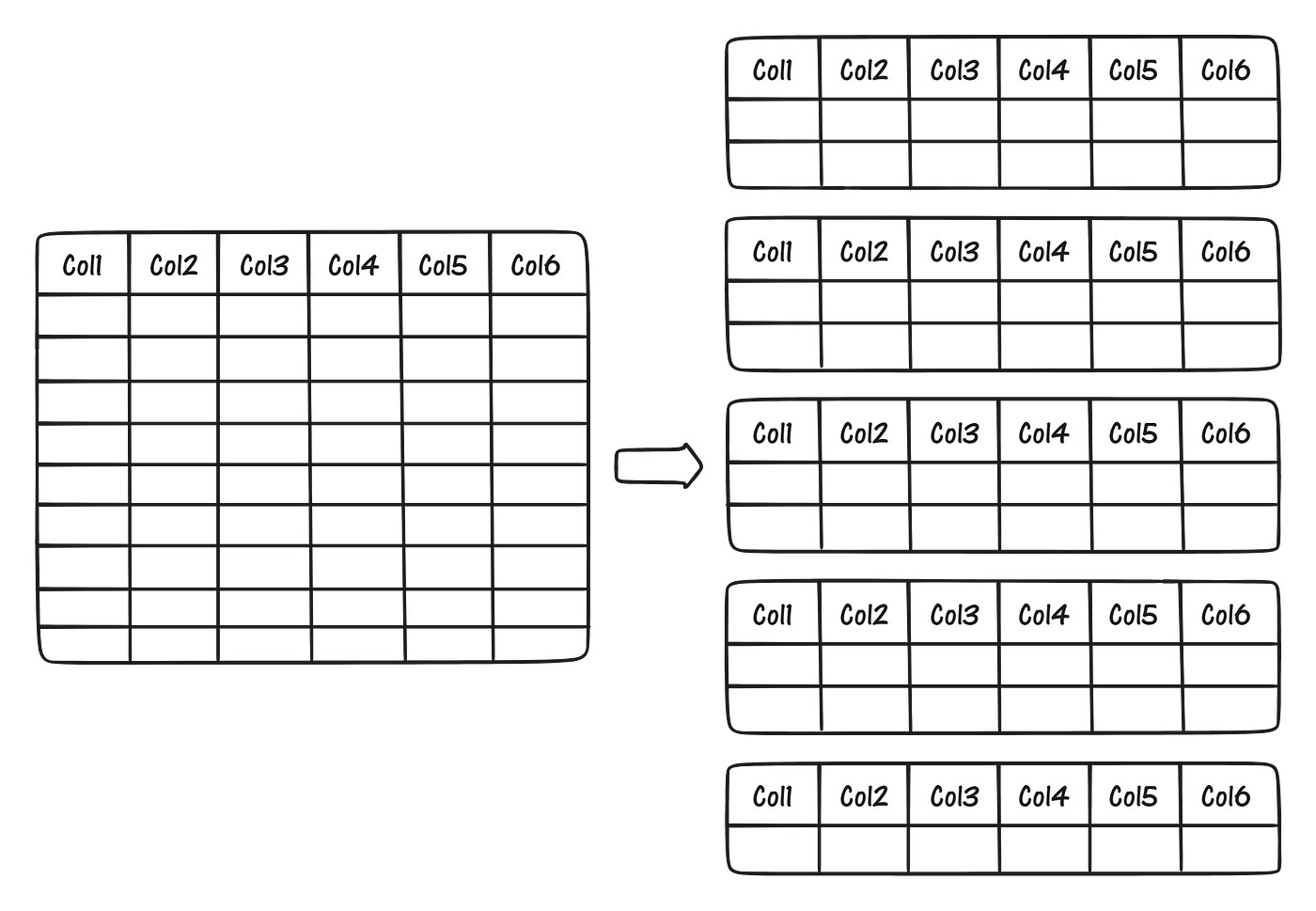
This approach allows you to process files of virtually any size with a constant, low memory footprint. You read a chunk, perform some processing on it (like cleaning, filtering, or aggregation), and then move to the next chunk, collecting the results as you go.
Implementing Chunked Reading in Pandas
Pandas provides a wonderfully simple way to enable this behavior through the chunksize parameter in the pd.read_csv() function. Instead of returning a DataFrame, specifying chunksize returns an iterator that yields a DataFrame for each chunk.
The following video from TechTrek by Keith Galli provides an excellent, practical demonstration of this process. He works with a 9GB file, showing not just how to read it in chunks but also how to perform aggregations on each chunk to distill the massive dataset into a useful summary.
How to work with big data files (5gb+) in Python Pandas!
Watch this video to see a complete, real-world example of processing a huge file that would be impossible to load directly into memory.
Focus on these key segments: Using chunksize: See how the chunksize parameter is used and how it changes the function's return value into an iterator. Processing Chunks: Observe the pattern of looping through the iterator, and for each chunk, selecting columns and performing a groupby aggregation to reduce its size. Combining Results: Understand how the processed summaries from each chunk are collected and then combined into a final, much smaller, and manageable DataFrame.
As you saw, the pattern is straightforward: loop through the chunks, process each one, and append the results to a list. Finally, pd.concat() is used to combine the list of processed chunks into a single DataFrame. This is a fundamental technique for any data pipeline that needs to handle large file uploads.
Resolving Common CSV Parsing Issues
Beyond file size, you will frequently encounter CSVs that cause pd.read_csv() to fail for other reasons. The two most common culprits are character encoding and non-standard delimiters. The "Pandas read_csv() Tutorial" from Kanaries is an excellent reference for these problems.
Pandas read_csv() Tutorial: Import CSV Files Like a Pro
This guide provides a clear and concise reference for the most important read_csv parameters, with dedicated sections for solving the exact issues we're covering.
Please read the following sections: Start with the parameter table to get an overview of the tools at your disposal, noting sep, encoding, and chunksize. Then, read the section on Encoding Issues. This explains the common UnicodeDecodeError and how to solve it with the encoding and encoding_errors parameters. Next, review the section on Different Delimiters to learn how to use the sep parameter for files that use tabs, semicolons, or other separators. Finally, the Common Errors section provides a great summary, mapping specific errors like UnicodeDecodeError and ParserError directly to their solutions.
Let's summarize the key points from the reading.
1. Character Encoding
A UnicodeDecodeError is one of the most common errors you'll face. It means Pandas, which defaults to utf-8 encoding, encountered a sequence of bytes that isn't valid in that encoding. This often happens with files generated by older systems or on different operating systems (e.g., Windows-generated files).
The fix is to specify the correct encoding:
encoding='utf-8': The modern standard, always try this first.encoding='latin-1': Common in Western Europe.encoding='cp1252': Frequently used by Windows applications.
If you have a file where you cannot determine the encoding, or if only a few characters are problematic, you can use encoding_errors='replace' or encoding_errors='ignore' to prevent the entire read operation from failing. For programmatic detection, the chardet library is the standard tool.
2. Delimiters
The 'C' in CSV stands for "Comma," but in practice, any character can be used as a field separator. Tab-separated (.tsv) and semicolon-separated files are very common, especially in European locales where the comma is used as a decimal separator.
If you see your data loaded as a single column with the full row content, it's a clear sign of a delimiter mismatch. The sep parameter (an alias for delimiter) is the solution:
sep='\t'for tab-separated files.sep=';'for semicolon-separated files.sep='|'for pipe-separated files.
Putting It All Together: A Robust CSV Ingestion Function
Now, let's combine these concepts into a practical function that you could use in your data pipeline. This function will read a CSV in chunks while allowing for custom encoding and delimiters. It will also incorporate another performance best practice: using the usecols parameter to load only the columns you actually need, which further reduces memory usage.
import pandas as pd
import logging

def process_large_csv(filepath: str,
                      chunk_size: int = 100_000,
                      columns_to_keep: list = None,
                      sep: str = ',',
                      encoding: str = 'utf-8'):
    """
    Reads and processes a large CSV file in chunks to manage memory usage.

    Args:
        filepath (str): The path to the CSV file.
        chunk_size (int): The number of rows to read per chunk.
        columns_to_keep (list, optional): A list of column names to load.
                                          If None, all columns are loaded.
        sep (str): The delimiter to use.
        encoding (str): The file encoding.

    Returns:
        pandas.DataFrame: A consolidated DataFrame of the processed data.
    """
    logging.info(f"Starting to process {filepath} in chunks of {chunk_size} rows.")

    processed_chunks = []

    try:


        # Create an iterator that reads the CSV in chunks
        chunk_iterator = pd.read_csv(
            filepath,
            chunksize=chunk_size,
            usecols=columns_to_keep,
            sep=sep,
            encoding=encoding,
            encoding_errors='replace', # Replace problematic characters
            low_memory=False # Recommended for chunked processing
        )

        for i, chunk in enumerate(chunk_iterator):
            logging.info(f"Processing chunk {i+1}...")


            # --- Your processing logic goes here ---
            # For example, you might filter rows, clean data, or derive new columns.
            # Let's imagine we only want records where a 'status' column is 'active'.
            # if 'status' in chunk.columns:
            #     chunk = chunk[chunk['status'] == 'active'].copy()
            # -----------------------------------------

            processed_chunks.append(chunk)

        logging.info("All chunks processed. Concatenating results.")


        # Combine all the processed chunks into a single DataFrame
        final_df = pd.concat(processed_chunks, ignore_index=True)

        logging.info(f"Successfully loaded and processed {len(final_df)} rows from {filepath}.")

        return final_df

    except FileNotFoundError:
        logging.error(f"Error: The file was not found at {filepath}")
        return pd.DataFrame() # Return an empty DataFrame on error
    except Exception as e:
        logging.error(f"An unexpected error occurred: {e}")
        return pd.DataFrame()


# Example usage:
# required_cols = ['user_id', 'event_timestamp', 'product_id', 'status']
# my_data = process_large_csv(
#     'path/to/your/large_file.csv',
#     columns_to_keep=required_cols,
#     sep=';'
# )
This function serves as a robust template for your ingestion scripts. It's resilient to memory errors, handles common file format issues, and provides logging for visibility into the process.
Conclusion
In this lesson, we've tackled the practical challenges of ingesting data from CSV files in a real-world data engineering pipeline. You are now equipped with the strategies to handle files of any size and format.
The key takeaways are:
- Use
chunksizefor Large Files: To avoidMemoryError, use thechunksizeparameter inpd.read_csvto process files in manageable pieces. - Solve Encoding Errors: When faced with a
UnicodeDecodeError, specify the correct file encoding using theencodingparameter (e.g.,'latin-1','cp1252'). - Handle Custom Delimiters: For files not separated by commas, use the
sepparameter to specify the correct delimiter (e.g.,'\t',';'). - Optimize with
usecols: To further improve performance and reduce memory usage, always specify the exact columns you need with theusecolsparameter.
We have now covered how to reliably extract data from two key sources: APIs and files. The logical next step is to load this raw data into our data warehouse. In the next lesson, we will do just that, implementing the first stage of our Medallion architecture by loading this data into a 'bronze' landing zone in our Postgres database.