Hello! Let's continue your journey toward AZ-204 certification.
In our previous lessons, you've built a solid foundation in cloud security. You've learned how to:
- Enable a managed identity for an Azure service.
- Use the
DefaultAzureCredentialclass in a .NET application to authenticate securely without credentials in your code. - Create and manage an Azure Key Vault and its secrets using the Azure CLI.
Today, we're going to connect all these concepts in a practical, real-world scenario. The learning outcome for this lesson is to refactor an application to retrieve a database connection string from Key Vault instead of app configuration. This is one of the most common and critical tasks for an Azure developer, and mastering it is essential for building secure applications and for passing the AZ-204 exam.
We'll start with a standard .NET application that has a connection string hardcoded in its configuration files—a security risk. By the end of this lesson, you will have refactored it to securely pull that same connection string from Azure Key Vault at runtime, making your application significantly more secure.
1. The Problem: Secrets in Configuration
In traditional .NET development, it's common practice to store sensitive information like database connection strings or API keys in the appsettings.json file. Your experience with .NET means you're likely very familiar with this pattern:
// In Program.cs
var connectionString = builder.Configuration.GetConnectionString("DefaultConnection");
builder.Services.AddDbContext<MyApplicationDbContext>(options =>
    options.UseSqlServer(connectionString));
And the corresponding configuration in appsettings.json:
{
  "ConnectionStrings": {
    "DefaultConnection": "Server=tcp:mydemoserver.database.windows.net,1433;Initial Catalog=my-db;..."
  }
}
While using User Secrets in Visual Studio helps during local development, it doesn't solve the problem for deployed environments. Checking appsettings.json with a production connection string into source control is a major security vulnerability.
Our goal is to remove the connection string from the appsettings.json file entirely and load it securely from Key Vault, without having to significantly change the application logic that depends on it.
2. The Solution: The Key Vault Configuration Provider
The ASP.NET Core team provides an elegant solution for this: the Key Vault configuration provider. This provider integrates directly into the .NET configuration system, allowing your application to treat secrets in Key Vault just like any other setting in appsettings.json.
This approach has a major benefit: your application code, like builder.Configuration.GetConnectionString(...), does not need to change. The configuration system simply gets the value from a new, secure source.
The following diagram illustrates this secure architecture. When running in Azure, the App Service uses its Managed Identity to authenticate with Key Vault and retrieve the necessary secrets.
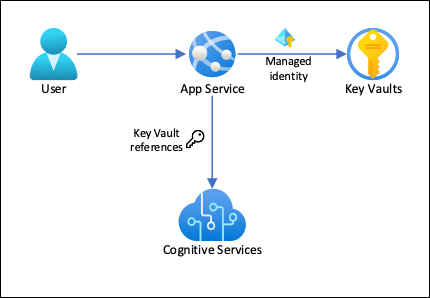
Let's explore how to implement this.
Step 1: Add the Necessary NuGet Package
First, you need to add the Azure.Extensions.AspNetCore.Configuration.Secrets package to your project. This package contains the Key Vault configuration provider.
dotnet add package Azure.Extensions.AspNetCore.Configuration.Secrets
Step 2: Configure the Provider in Program.cs
Next, you modify your Program.cs to "add" Azure Key Vault as a configuration source. This is typically done only for production environments.
// In Program.cs
using Azure.Identity;

var builder = WebApplication.CreateBuilder(args);

if (builder.Environment.IsProduction())
{
    // Get the Key Vault URI from appsettings.json
    var keyVaultUri = new Uri(builder.Configuration["KeyVaultUri"]);

    // Add Key Vault as a configuration source
    builder.Configuration.AddAzureKeyVault(keyVaultUri, new DefaultAzureCredential());
}

// ... rest of your application startup code remains the same
Let's break this down:
- We store the non-sensitive URI of our Key Vault in
appsettings.json. - We call
AddAzureKeyVault, passing it the vault's URI and an instance ofDefaultAzureCredential. DefaultAzureCredentialwill automatically use the application's managed identity when running in Azure to authenticate.- The provider then fetches all the secrets from your Key Vault and adds them to the
IConfigurationcollection.
Naming Secrets in Key Vault
There's a crucial detail: how does a secret name in Key Vault map to a configuration key in .NET? Since Key Vault secret names cannot contain colons (:), you use a double dash (--) as a separator.
| .NET Configuration Key | Key Vault Secret Name |
|---|---|
ConnectionStrings:DefaultConnection |
ConnectionStrings--DefaultConnection |
The configuration provider automatically handles this translation for you.
To see a detailed walkthrough of this entire process, the following video is an excellent resource.
Stop Storing Secrets in appsettings.json! Use Azure Key Vault Instead
The video 'Stop Storing Secrets in appsettings.json! Use Azure Key Vault Instead' by Milan Jovanović provides a clear, modern demonstration of how to integrate Key Vault with an ASP.NET Core application.
Please watch from 04:40 to 13:53. The first part (until 08:09) shows a manual way of fetching secrets, but the most important section starts at 08:09, where he demonstrates integrating the Key Vault configuration provider using AddAzureKeyVault.
3. Hands-On Lab: Refactoring an Azure Function
Now it's time to apply these concepts. We will work through a guided lab from Microsoft Learn. This lab uses an Azure Function, but the principles are identical for an Azure App Service Web App. It also introduces a slightly different, yet powerful, way to integrate Key Vault that is specific to the Azure App Service platform.
Lab 07: Access resource secrets more securely across services
This official Microsoft Learn lab, 'Access resource secrets more securely across services', will guide you through the full end-to-end process of securing a connection string.
This lab is the main activity for our lesson. Follow the instructions from 'Exercise 1' through 'Exercise 4'. I will provide key commentary on the steps below. The goal is to complete the lab within our study time.
Lab Walkthrough and Commentary
As you work through the lab, keep these key points in mind.
-
Exercise 1: Create Azure Resources
- You will create a Storage Account (our "database" for this lab), a Key Vault, and a Function App. This sets the stage for our scenario.
-
Exercise 2: Configure Secrets and Identities
- Task 1: Configure a system-assigned managed service identity. This is the first crucial step. You're giving your Function App an identity in Microsoft Entra ID.
- Task 2: Create a Key Vault secret. You'll store the Storage Account's connection string in your Key Vault. This moves the secret out of your app's configuration.
- Task 3: Configure a Key Vault access policy. Here, you connect the two. You grant the Function App's managed identity permission to
GETsecrets from the Key Vault. Without this, access will be denied. - Task 4: Create a Key Vault-derived application setting. This is the key part of the refactoring in this lab. You'll create an application setting in the Function App with the name
StorageConnectionStringand a special value:@Microsoft.KeyVault(SecretUri=...).
What is
@Microsoft.KeyVault(...)?
This is a feature of Azure App Service and Azure Functions. The platform sees this special syntax, automatically uses the app's managed identity to connect to Key Vault, fetches the secret specified by the URI, and injects its value into theStorageConnectionStringapplication setting at runtime. This achieves the same goal as theAddAzureKeyVaultprovider but requires no code changes or extra NuGet packages. It's a very powerful, platform-level feature. -
Exercise 3 & 4: Build and Test the Application
- In the C# code for the Function (
FileParser.cs), you'll see that it retrieves the connection string simply by reading an environment variable:string connectionString = Environment.GetEnvironmentVariable("StorageConnectionString"); - The Function App's code is unaware that the value is coming from Key Vault. The Azure platform handles the magic behind the scenes.
- When you complete the lab, you will have successfully deployed and run an application that accesses a connection string stored securely in Key Vault, using a managed identity for authentication.
- In the C# code for the Function (
Conclusion
In this lesson, we bridged the gap between managing secrets and consuming them securely in a .NET application. You have successfully refactored an application to remove a hardcoded connection string and retrieve it from Azure Key Vault.
Key Takeaways:
- Storing secrets like connection strings in
appsettings.jsonis a security risk for deployed applications. - The ASP.NET Core Configuration Provider (
AddAzureKeyVault) is a code-based approach that integrates Key Vault into theIConfigurationsystem. Secrets are named with--to represent hierarchy (e.g.,ConnectionStrings--DefaultConnection). - App Service Key Vault References (
@Microsoft.KeyVault(...)) are a platform-based, zero-code approach to inject secrets from Key Vault directly into an application's settings. - Both methods rely on the same fundamental security model: an Azure resource with a managed identity is granted access policies or RBAC roles on a Key Vault.
Next Steps
You've now completed the module on connecting to Azure services securely, a cornerstone of the AZ-204 exam. You have a deep, practical understanding of managed identities and Key Vault.
In our next module, we will shift our focus from security to performance. The first lesson will introduce you to a key service for optimizing application responsiveness: "Describe the features and use cases of Azure Cache for Redis."