Introduction
Welcome back! In the last lesson, you successfully created, tested, and deployed your first HTTP-triggered Azure Function. You saw how Visual Studio and the Azure Functions Core Tools provide a seamless development experience for building serverless applications.
That function, however, was self-contained. The real power of Azure Functions lies in their ability to act as the "glue" between different cloud services. This is where bindings come in. Today's lesson directly addresses the learning outcome: Configure input and output bindings to connect an Azure Function to Azure Storage.
We will explore how bindings declaratively connect your function to other resources, allowing you to read and write data with minimal code. Your experience with integration and service-based architecture will highlight the value of this abstraction, as it removes the need for manual SDK client instantiation and connection management.
Our journey will cover:
- Understanding the concept of input and output bindings.
- Adding an output binding to an HTTP-triggered function to write data to Azure Blob Storage.
- Adding an input binding to another function to read data from Blob Storage.
- Combining these concepts in a practical, blob-triggered scenario.
1. The Power of Bindings
Before we write any code, let's establish a clear mental model for what bindings are. At its core, a binding is a declarative way to connect an Azure Function to another resource. Instead of writing code to create a storage client, manage connection strings, and handle data streams, you simply add an attribute to your function's method or its parameters. The Azure Functions runtime takes care of all the underlying plumbing.
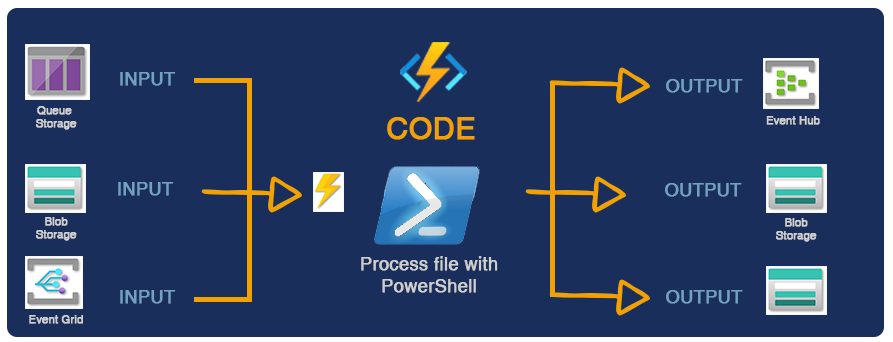
Bindings have a direction:
in(Input Binding): Provides data to your function.out(Output Binding): Takes data from your function and sends it to an external resource.inout: A special case for some bindings that can do both.
Let's watch a short video to solidify this concept.
Azure Functions Bindings Tutorial | Service Bus | Storage
The first part of this video by Kamal Rathnayake provides a concise explanation of what bindings are and the problem they solve.
Watch from the beginning to 01:42. Focus on how bindings simplify the integration process compared to manually using service SDKs.
2. Writing Data with Output Bindings
Let's start with a practical example. We'll modify the HTTP-triggered function from the previous lesson. Instead of just returning a static message, we'll make it accept a POST request and write the request body to a new blob in an Azure Storage container.
Step 1: Add the Storage Bindings Extension
To use bindings for Azure Storage, you must add the appropriate NuGet package to your project. This package contains the necessary attributes and runtime logic.
Open a terminal in your project's directory (or use the Package Manager Console in Visual Studio) and run the following command:
dotnet add package Microsoft.Azure.Functions.Worker.Extensions.Storage.Blobs
Note: We use Storage.Blobs because we are interacting with Blob Storage. Other services have their own extension packages.
Step 2: Modify the Function Code
Now, let's modify the HttpExample.cs file. We will change the function to accept a POST request and add an output binding. The function will return the content that it writes to the blob.
Since you're using the .NET Isolated Worker model, the return value of the function method is used for the output binding. To support multiple outputs (the HTTP response and the blob output), we need to create a helper class.
-
Create a new C# class file named
MultiOutput.cs:public class MultiOutput { [BlobOutput("samples-workitems/{rand-guid}.txt", Connection = "AzureWebJobsStorage")] public string? BlobContent { get; set; } public HttpResponseData? HttpResponse { get; set; } } -
Now, update your
HttpExample.csfile with the following code:using Microsoft.Azure.Functions.Worker; using Microsoft.Azure.Functions.Worker.Http; using Microsoft.Extensions.Logging; using System.Net; namespace Company.Function { public class HttpExample { private readonly ILogger _logger; public HttpExample(ILoggerFactory loggerFactory) { _logger = loggerFactory.CreateLogger<HttpExample>(); } [Function("HttpExample")] public static MultiOutput Run([HttpTrigger(AuthorizationLevel.Anonymous, "get", "post")] HttpRequestData req) { var logger = req.FunctionContext.GetLogger("HttpExample"); logger.LogInformation("C# HTTP trigger function processed a request."); // Read the request body string requestBody = new StreamReader(req.Body).ReadToEnd(); // Prepare the HTTP response var response = req.CreateResponse(HttpStatusCode.OK); response.Headers.Add("Content-Type", "text/plain; charset=utf-8"); response.WriteString($"Received and saved: {requestBody}"); // Return both the HTTP response and the blob content return new MultiOutput() { BlobContent = requestBody, HttpResponse = response }; } } }
Let's break down the [BlobOutput] attribute:
"samples-workitems/{rand-guid}.txt": This is the path for the output blob.samples-workitemsis the name of the blob container. The runtime will create this for you if it doesn't exist.{rand-guid}.txtis a binding expression. The runtime will automatically generate a new GUID for each execution, ensuring unique blob names.
Connection = "AzureWebJobsStorage": This tells the binding which connection string to use from your configuration file (local.settings.json).
Step 3: Configure and Test Locally
-
Configure
local.settings.json: In the previous lesson, you created a storage account when publishing your function. We need its connection string. Navigate to that storage account in the Azure portal, find Access keys under Security + networking, and copy one of the connection strings. Update yourlocal.settings.jsonfile:{ "IsEncrypted": false, "Values": { "AzureWebJobsStorage": "PASTE_YOUR_CONNECTION_STRING_HERE", "FUNCTIONS_WORKER_RUNTIME": "dotnet-isolated" } } -
Run the Function: Press
F5in Visual Studio to start the local debugger. -
Test with
curl: Open a new terminal and run the following command to send aPOSTrequest with a JSON body.curl -X POST http://localhost:7071/api/HttpExample -d "This is a test message." -
Verify: You should see the response
Received and saved: This is a test message.in your terminal. Now, go to the Azure portal, navigate to your storage account, select Containers, and you will find a new container namedsamples-workitems. Inside, there will be a new text file with a GUID for a name, containing the text "This is a test message."
3. Reading Data with Input Bindings
Now let's do the opposite: create a new function that uses an input binding to read a specific blob's content.
For this exercise, we will follow a structured lab guide. This lab walks you through creating a new function, configuring its connection, adding a BlobInput binding, and testing it. This will provide excellent hands-on reinforcement.
Lab 02: Exercise 5 - Create a function that integrates with other services
The official Microsoft Learning lab 'Implement task processing logic by using Azure Functions' contains a perfect exercise for our goal. We will focus on Exercise 5, which is dedicated to creating a function that integrates with Blob Storage.
Follow all the tasks within 'Exercise 5: Create a function that integrates with other services'. This will guide you through: Uploading a sample file to Blob Storage to act as our input. Creating a new HTTP-triggered function named 'GetSettingInfo'. Registering the storage extension (which you've already done, but it's good to see it again). Writing the C# code using the [BlobInput] attribute. Testing the function locally using curl.
After completing the lab exercise, you should have a clear understanding of how the [BlobInput] attribute works. The key line of code is in the function signature:
...
[BlobInput("content/settings.json", Connection = "AzureWebJobsStorage")] string blobContent
...
Here, the runtime fetches the content of settings.json from the content container and automatically populates the blobContent string variable for you. Your function logic can then use this variable directly.
For more technical details on the types you can bind to and the attribute properties, the official documentation is an excellent reference.
Azure Blob storage input binding for Azure Functions
The Microsoft Learn documentation provides an in-depth reference for the Blob storage input binding.
Briefly review the 'Attributes' section to understand the BlobInputAttribute properties. Then, look at the 'Usage' section (Isolated process tab) to see the different C# types you can bind the blob content to, such as string, byte[], or even a Stream for large files.
4. A More Realistic Scenario: Blob-Triggered Functions
So far, we've used an HTTP trigger and then added storage bindings. A very common pattern is to use a storage trigger itself. For example, you can have a function that automatically runs whenever a new file is uploaded to a specific blob container.
Let's see a complete example of creating, testing, and deploying a function that is triggered by a blob.
How To Create Azure Function With Blob Storage Trigger
This video from Azure Innovation Station provides a great end-to-end demonstration of creating a blob-triggered function.
Watch the video from 00:45 to 11:09. The demonstrator will guide you through: Creating the storage container. Setting the connection string in local.settings.json. Running the function locally and testing the trigger by uploading a file. Deploying the function to Azure and ensuring the connection string is set in the cloud configuration.
This pattern is incredibly useful for any kind of automated data processing pipeline, such as image resizing, log file processing, or data ingestion into a database.
Conclusion
In this lesson, you have unlocked a fundamental capability of Azure Functions: integrating with other services using bindings. By moving connection and I/O logic out of your code and into declarative attributes, you can build powerful and maintainable serverless workflows.
Key Takeaways:
- Bindings are declarative attributes (
[BlobInput],[BlobOutput]) that handle the complexity of connecting to Azure services. - The Storage Blob extension (
Microsoft.Azure.Functions.Worker.Extensions.Storage.Blobs) must be added to your project via NuGet. - Output bindings allow your function to write data. In the isolated model, this is often done via the function's return type.
- Input bindings provide data to your function as parameters, which are automatically populated by the runtime.
- Connection strings are managed in
local.settings.jsonfor local development and in Application settings when deployed to Azure. - Bindings can be combined with any trigger, enabling powerful event-driven patterns like blob-triggered processing.
Next Steps
We have now explored event-driven functions triggered by HTTP requests and blob creation. In our next lesson, we will explore another common requirement: running tasks on a schedule. You will learn how to implement a timer-triggered Azure Function for scheduled tasks, which is ideal for batch jobs, data cleanup, and generating periodic reports.