Hello! Welcome to our next lesson.
In our last session, we focused on managing blobs at scale by creating lifecycle management policies to automate tiering and deletion. We've covered how to store data and how to manage it over its lifetime. Now, we need to address a fundamental aspect of cloud development: controlling who can access that data.
This lesson focuses on the learning outcome: Generate and use Shared Access Signatures (SAS) to grant limited, delegated access to blob resources.
We'll explore how to provide secure, temporary access to clients (like a web browser or a mobile app) so they can interact with your blobs directly, without ever exposing your powerful and secret storage account keys. This is a cornerstone of secure Azure development and a critical topic for the AZ-204 exam.
1. The Challenge of Delegated Access
Imagine an application where users can upload their own profile pictures. You wouldn't want to embed your storage account's access key into the client-side code—that would be a major security breach, giving anyone who inspects the code full control over your entire storage account.
So, how do you grant a specific user permission to upload just one file to a specific container for a limited time? This is the problem that Shared Access Signatures (SAS) solve.
Before we dive into SAS, it's helpful to understand where it fits. In Azure, we often talk about two "planes" of operation:
- Control Plane: This is for managing Azure resources themselves (e.g., creating a storage account, configuring a network). Access here is managed by Azure Role-Based Access Control (RBAC).
- Data Plane: This is for accessing the data inside a resource (e.g., reading a blob, writing to a queue).
While RBAC can also be used for data plane access, SAS provides a different, token-based model for granting temporary, delegated access directly to clients.
To see a great explanation of this concept and get an introduction to SAS, please watch the first few minutes of this video from John Savill.
Azure Blob Data Permissions Deep Dive (360 in 360)
This video provides an excellent breakdown of the control plane vs. data plane and introduces Shared Access Signatures as a granular way to control data plane access.
Watch from timestamp 00:58 to 06:11. Focus on: The distinction between the control plane and data plane. How access keys provide full control, making them too powerful for client applications. The introduction of Account SAS and Service SAS as more granular alternatives.
2. What is a Shared Access Signature?
As you just saw, a SAS is not a user identity but a security token. Specifically, it's a set of query parameters appended to a resource's URI. This token contains a signature and specifies the permissions, start time, and expiry time for the access.
Let's watch a short video from Microsoft that clearly defines what a SAS is and its core components.
Introduction to SAS (Shared Access Signature)
This official Microsoft Azure video succinctly defines a SAS and what it specifies.
Watch from timestamp 01:16 to 02:19. Pay attention to the four things a SAS defines: the resource, the scope of access, the validity duration, and the permissions.
3. The Three Types of Shared Access Signatures
Azure provides three types of SAS, each serving a different purpose and offering a different level of security. Understanding these is crucial for choosing the right tool for the job.
Let's refer to the official Microsoft documentation, which provides a concise overview.
Grant limited access to data with shared access signatures (SAS)
This document is the definitive guide to SAS. We'll use it to understand the three distinct types of SAS.
Please read the introduction and the 'Types of shared access signatures' section. Note the key difference in how each SAS is secured (signed).
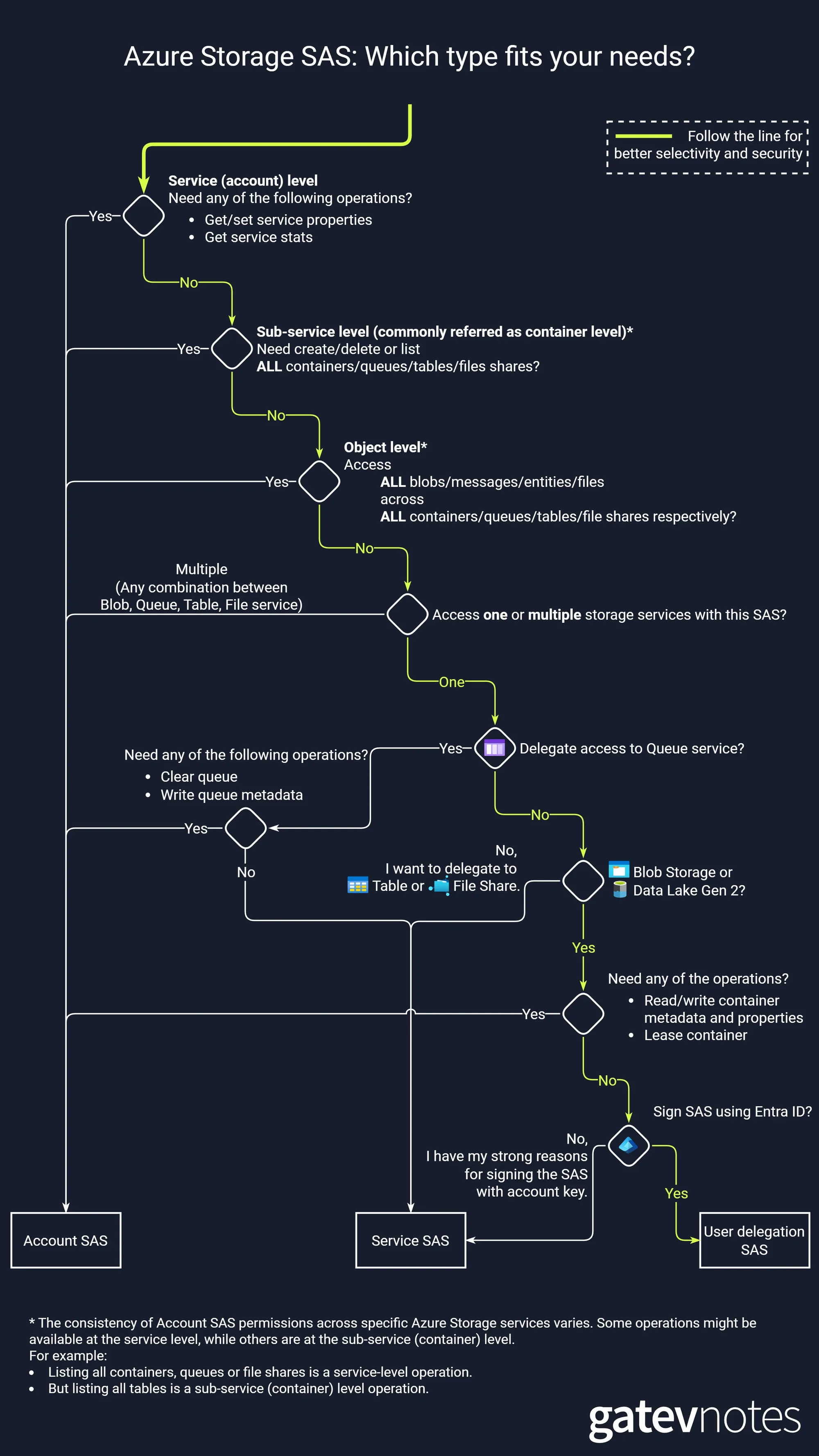
Let's summarize the key characteristics of each type:
-
Account SAS:
- Signed with: Storage Account Key.
- Scope: Can delegate access to resources in one or more storage services (Blob, File, Queue, Table).
- Use Case: Useful for administrative tasks or when a client needs broad, but still temporary, access across different services. It's the most powerful and should be used with caution.
-
Service SAS:
- Signed with: Storage Account Key.
- Scope: Delegates access to a resource in only one storage service (e.g., a specific blob, a container, a queue).
- Use Case: The most common type for granting access to specific blobs or containers. For example, giving a user read-only access to a single image file.
-
User Delegation SAS:
- Signed with: A user delegation key obtained using Microsoft Entra ID (formerly Azure AD) credentials.
- Scope: Blob storage only (containers or blobs).
- Security: This is the most secure and recommended type of SAS because it doesn't require your code to ever handle the storage account key. Access is granted based on the user's RBAC permissions.
This decision tree provides a great visual summary for choosing the right SAS.
4. Anatomy of a SAS URI
A SAS token is a string of query parameters. Understanding these parameters is key to creating and troubleshooting them.
The following video segment does an excellent job of dissecting a SAS URI and explaining each parameter. Given your background in REST APIs and web development, this structure should feel familiar.
Introduction to SAS (Shared Access Signature)
Let's return to the Microsoft Azure video to get a detailed breakdown of a SAS token's structure and its parameters.
Watch from timestamp 06:06 to 13:37. This is a detailed segment, so focus on understanding the purpose of key parameters like: sv (Signed Version) ss (Signed Services - for Account SAS) srt (Signed Resource Types - for Account SAS) sp (Signed Permissions - e.g., 'r' for read, 'w' for write) st (Signed Start) and se (Signed Expiry) sig (The Signature)
Here's an example of what the UI for generating an Account SAS looks like in the Azure Portal, corresponding to the parameters you just learned about.

5. Managing SAS: Revocation and Stored Access Policies
A critical security question is: "What if a SAS token is leaked?"
If you create an ad-hoc SAS (where all parameters are in the URI) that is signed with the account key, the only way to revoke it is to regenerate the account key itself. This is a massive disruption, as it invalidates all SAS tokens signed with that key.
To solve this, you can use a Stored Access Policy.
- A Stored Access Policy is a policy you define on a resource container (like a blob container).
- It specifies the start time, expiry time, and permissions for a SAS.
- You can then create a Service SAS that references this policy. The SAS inherits its constraints from the policy.
- To revoke the SAS, you simply modify or delete the stored access policy. This immediately invalidates any SAS linked to it, without requiring you to regenerate the account key.
Important: Stored access policies are only supported for Service SAS. User Delegation SAS has its own revocation mechanism tied to the user delegation key's validity and the user's permissions in Microsoft Entra ID.
6. Generating a User Delegation SAS with .NET
Now for the practical part. We'll focus on creating a User Delegation SAS, as it's the most secure and aligns with modern authentication practices. Given your extensive C# and .NET experience, we can go straight to the code.
The process involves these main steps:
- Authenticate to Azure using Microsoft Entra credentials.
- Request a "user delegation key" from Azure Storage. This key is temporary and tied to your identity.
- Use this key to sign a SAS token with the desired permissions and expiry.
The following Microsoft Learn article provides the exact code you need.
Create a user delegation SAS for a blob with .NET - Azure Storage
This is a hands-on guide for creating a User Delegation SAS using the Azure SDK for .NET. It's tailored perfectly to your technical background.
Please read through these sections to understand the end-to-end coding process. We will break down the key snippets below.
Let's walk through the essential code snippets from the article.
Step 1: Get an Authenticated Client
First, you need a BlobServiceClient that is authenticated using your Azure credentials. The DefaultAzureCredential class from the Azure.Identity library makes this easy. It automatically tries several authentication methods (like Visual Studio login, Azure CLI login, etc.).
using Azure.Identity;
using Azure.Storage.Blobs;

// Assumes 'accountName' is your storage account name
string endpoint = $"https://{accountName}.blob.core.windows.net";

// The DefaultAzureCredential will use the credentials of the user/principal running the code.
BlobServiceClient blobServiceClient = new BlobServiceClient(
    new Uri(endpoint),
    new DefaultAzureCredential());
Prerequisite: The identity running this code must have an Azure RBAC role like Storage Blob Data Contributor to access data and Storage Blob Delegator to be able to create a user delegation key.
Step 2: Request the User Delegation Key
Next, you ask the blob service for a temporary key that can be used for signing. You specify how long this key should be valid (up to 7 days).
using Azure.Storage.Blobs.Models;

// Get a user delegation key valid for 1 day
UserDelegationKey userDelegationKey =
    await blobServiceClient.GetUserDelegationKeyAsync(
        DateTimeOffset.UtcNow,
        DateTimeOffset.UtcNow.AddDays(1));
Step 3: Build the SAS Token
Now you use the BlobSasBuilder to define the specific permissions for your SAS token. You specify the container, blob, permissions, and expiry.
using Azure.Storage.Sas;

BlobSasBuilder sasBuilder = new BlobSasBuilder()
{
    BlobContainerName = "sample-container",
    BlobName = "sample-blob.txt",
    Resource = "b", // 'b' for blob, 'c' for container
    StartsOn = DateTimeOffset.UtcNow,
    ExpiresOn = DateTimeOffset.UtcNow.AddHours(1) // Grant access for 1 hour
};

// Specify permissions: Read and Write
sasBuilder.SetPermissions(BlobSasPermissions.Read | BlobSasPermissions.Write);
Step 4: Generate the SAS URI
Finally, you generate the SAS query string by "signing" the builder's configuration with your user delegation key. You then append this to the blob's base URI.
// Get the account name from the client
string accountName = blobServiceClient.AccountName;

// Generate the SAS query parameters string
string sasToken = sasBuilder.ToSasQueryParameters(userDelegationKey, accountName).ToString();

// Construct the full URI with the SAS token
UriBuilder fullUri = new UriBuilder()
{
    Scheme = "https",
    Host = $"{accountName}.blob.core.windows.net",
    Path = $"sample-container/sample-blob.txt",
    Query = sasToken
};

Console.WriteLine($"Blob SAS URI: {fullUri.Uri}");
The resulting URI can be given to a client, which can then use it to read or write to sample-blob.txt for the next hour.
7. SAS Best Practices
Using SAS correctly is vital for security. A misconfigured or leaked SAS can be a significant vulnerability.
Grant limited access to data with shared access signatures (SAS)
Let's revisit the main SAS document to review the essential best practices. These are common exam topics and crucial for real-world security.
Read the 'Best practices when using SAS' section carefully. These are principles you should always follow.
Here is a summary of the most important rules:
- Use a User Delegation SAS when possible. It's the most secure option.
- Always use HTTPS. Never send a SAS over an unencrypted HTTP connection.
- Have a revocation plan. Use Stored Access Policies for Service SAS or rely on the short lifetime of a User Delegation Key.
- Apply the principle of least privilege. Grant the narrowest permissions, for the shortest time, to the most specific resource necessary. A read-only SAS for a single blob is much safer than a read/write SAS for an entire container.
- Be careful with start/expiry times. To account for clock skew between machines, it's a good practice to set the start time 15 minutes in the past and be mindful that access might persist for a few minutes after the official expiry time.
Conclusion
In this lesson, you've learned how to securely delegate access to your Azure Blob Storage resources. This is a fundamental pattern for building applications that interact with storage.
Key Takeaways:
- Shared Access Signatures (SAS) provide temporary, granular, and signed access to storage resources without exposing account keys.
- There are three types: Account SAS (broadest), Service SAS (resource-specific), and User Delegation SAS (most secure, uses Microsoft Entra ID).
- A SAS is a URI with query parameters defining permissions, expiry, and a signature.
- Stored Access Policies provide a mechanism to manage and revoke Service SAS tokens without regenerating account keys.
- The .NET SDK provides a clear path to programmatically generate the recommended User Delegation SAS using
BlobSasBuilderand aUserDelegationKey.
Next Steps
We've now seen how to create, manage, and secure access to individual blobs. However, what happens when multiple clients try to modify the same blob at the same time? In our next lesson, Implement blob lease operations for optimistic concurrency control, we will tackle this problem by learning how to lock a blob for exclusive use.