Introduction
In our last lesson, you configured the full "control panel" of the HTTP Request node, mastering how to send precisely crafted requests using headers, query parameters, and a request body. This gave you control over the data you send to an API. Now, we'll focus on the other half of the conversation: processing the data you get back.
This lesson is dedicated to extracting specific fields from API responses using n8n expressions. This is a fundamental skill for any automation. In the context of your CI/CD goals, this is how you will parse a webhook payload to get a commit message, extract a build ID from a Jenkins API response, or check the status of a deployment from a GitHub Actions API call. We will cover the syntax for navigating JSON data and the best practices for transforming that data into a clean, usable format for the next steps in your workflow.
The Language of Automation: JSON and Expressions
At its core, data in n8n flows between nodes as a series of JSON objects. Your proficiency with Python means you're already very familiar with the underlying concepts of key-value pairs (like dictionaries) and lists. n8n expressions are the tool you use to navigate this data structure.
To get a solid visual and conceptual foundation, the following video provides an excellent overview of JSON structure and its fundamental data types.
Master n8n JSON & Data Transformation in 30 Minutes (Most Valuable n8n Skill)
This video from Jono Catliff, "Master n8n JSON & Data Transformation," breaks down the core concepts you need to understand data flow in n8n.
Watch these two key segments: Key-Value Pairs: This explains the basic building block of JSON data. Data Types in JSON: Pay close attention to how different types (string, number, array, object) are represented in the n8n interface. This will help you quickly identify the structure of an API response.
An n8n expression is any code wrapped in double curly braces: {{ }}. Inside these braces, you can write JavaScript-based syntax to access and manipulate data. The two most important variables you will use are:
$json: Represents the JSON data from the current node's input.$node: A special object that allows you to access the output data from any previous node by its name.
The combination of these variables and standard object navigation syntax (dot notation and bracket notation) is what allows you to pinpoint any piece of data in your workflow.
Navigating API Responses
Most API responses are structured as nested JSON objects and arrays. To extract a specific value, you must trace the path to it from the root of the JSON object.
- Dot Notation: Used to access properties of an object. For example,
{{$json.body.user.name}}would access thenameproperty inside theuserobject, which is itself inside thebodyobject. - Bracket Notation for Arrays: Used to access an element in an array by its index. Remember, indexing is zero-based, just as in Python. For example,
{{$json.users[0].email}}would get theemailof the first user in theusersarray. - Bracket Notation for Keys: Also used when an object key contains spaces or special characters (e.g., a hyphen). For example,
{{$json['user-id']}}.
The following guide is an essential reference for expression syntax. It covers these patterns in detail and includes a very helpful list of common mistakes.
n8n Expression Syntax - n8n Skills
This guide from n8n Skills provides a comprehensive reference for writing n8n expressions.
Focus on these sections: The Core Variables $json and $node. This explains the fundamental variables for accessing data. The Common Patterns section, which covers accessing nested fields and array elements using both dot and bracket notation. The Data Type Handling section, to see how to work with arrays and strings using built-in methods. Briefly scan the Common Mistakes table. It's an excellent debugging checklist.
Best Practice: The Edit Fields (Set) Node
While you can use expressions in almost any field of any node, the best practice is to centralize your data transformation logic in one place. The Edit Fields node (often referred to by its old name, Set) is designed for this exact purpose. It allows you to create new fields, rename existing ones, and transform values, preparing a clean and simple data object for the subsequent nodes in your workflow.
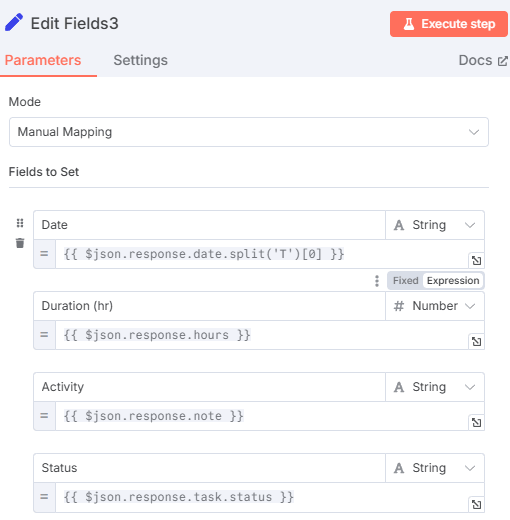
Using the Edit Fields node makes your workflows much easier to read and debug. Instead of hunting through multiple nodes to find where a piece of data was changed, you have a single, dedicated step for all data shaping.
The official n8n documentation reinforces this approach.
Expressions for data transformation - n8n Docs
This page from the n8n Docs explains the role of expressions and the Edit Fields node.
Read the introduction to understand why the Edit Fields node is the recommended tool for this job. Then, review the webhook body example for a clear demonstration of extracting a nested field. Finally, look over the Common issues section for troubleshooting tips.
Hands-On Exercise: Parsing an API Response
Let's apply these concepts by building on the workflow from our previous lesson.
-
Open your previous workflow or create a new one with a Manual trigger and an HTTP Request node named
Get Posts. -
Configure the
Get Postsnode as before:- Method:
GET - URL:
https://jsonplaceholder.typicode.com/posts - Enable Send Query Parameters and add a parameter: Name
userId, Value1.
- Method:
-
Execute the
Get Postsnode. Inspect the output. You'll see it's an array of JSON objects, where each object is a post. -
Add an
Edit Fieldsnode and connect it to theGet Postsnode. We will use this to extract and reformat data from the first post in the array. -
In the
Edit Fieldsnode, add the following fields under Fields to Set:- Field 1:
- Name:
Post Title - Value (switch to expression mode):
{{ $('Get Posts').item.json.title }}
- Name:
- Field 2:
- Name:
Author ID - Value (expression):
{{ $('Get Posts').item.json.userId }}
- Name:
- Field 3:
- Name:
Body Summary - Value (expression):
{{ $('Get Posts').item.json.body.substring(0, 30) + '...' }} - Note: Here we are using the JavaScript
.substring()method directly within the expression to truncate the text.
- Name:
- Field 1:
-
Execute the
Edit Fieldsnode. By default, it will only output the new fields you've defined. -
Experiment with
Include Other Input Fields:- Below "Fields to Set," toggle on Include Other Input Fields.
- Set the dropdown to All and execute again. Notice the output now includes your new fields and all the original fields.
- Change the setting to All Except and add
bodyto the Fields to Exclude. Execute and observe that the longbodyfield is now gone. This is a powerful way to clean up your data flow.
This video demonstrates these techniques, including renaming fields, selecting which fields to pass on, and accessing elements within arrays.
n8n Edit Fields Set Node: Transform Data Like a Pro
This video from Ryan & Matt Data Science provides a practical guide to using the Edit Fields node.
Watch these segments to see the techniques from our exercise in action: Renaming and Selecting Fields: This covers renaming a field and using the "Include Other Input Fields" options. Accessing Array Elements: See the practical application of zero-based indexing to pick a specific item from a list. Combining and Manipulating Strings: This demonstrates combining fields and using string methods like .toUpperCase() and .split().
A Note on Python
For the vast majority of data extraction and transformation tasks, expressions are the most efficient and idiomatic tool in n8n. However, for extremely complex logic—such as intricate parsing algorithms or stateful transformations that are difficult to express in JavaScript snippets—you can use the Code node. As you know, this node fully supports Python. We will dedicate an entire module later in the course to mastering it, allowing you to bring your full Python skillset to bear on the most advanced automation challenges.
Conclusion
You have now learned the critical skill of processing API responses. By mastering n8n expressions, you can dissect any JSON payload, extract the exact information you need, and reshape it for subsequent steps in your automation.
Key Takeaways:
- Data flows in n8n as JSON, which you can navigate using expressions wrapped in
{{ }}. - Use dot notation (
.) for object properties and bracket notation ([]) for array elements to target specific fields. - The
Edit Fields(orSet) node is the best-practice tool for centralizing data extraction and transformation logic. - You can use built-in JavaScript methods (e.g.,
.substring(),.split()) within expressions for basic data manipulation.
In our next lesson, we will shift our focus to triggering workflows from external events. You'll learn how to set up and use the Webhook node, enabling your n8n workflows to be initiated by events like a git push, a new CI build completion, or any other system capable of sending an HTTP request.