Hello! Welcome to Module 9.
In our previous lessons, we built a complete content pipeline. Your system can now collect trending data, generate content, and, as of the last lesson, schedule it to be published at optimal times across LinkedIn, X, and Instagram. You've essentially built an autonomous content publisher.
But automation without feedback is blind. How do you know if the content is resonating? Are you generating thought-leadership, or just noise? This is where our focus shifts from publishing to monitoring and improvement.
This lesson kicks off that feedback loop. Our learning outcome is to retrieve engagement metrics (likes, comments, shares) from the LinkedIn, X, and Instagram APIs. We will write the code to query each platform's API and pull the raw data that tells us how our content is performing. This is the foundational step for making your agent truly intelligent.
1. The Feedback Loop: Why We Measure
Before diving into the APIs, let's establish the "why." The ultimate goal of your project is to create engaging content. Engagement is measured through concrete metrics:
- Likes (or Reactions): A quick signal of approval or interest.
- Comments: A stronger signal indicating the content sparked a conversation.
- Shares (or Retweets): The strongest signal, as it shows the content was valuable enough for someone to broadcast it to their own network.
By retrieving these numbers for each post your agent creates, you can start to answer critical questions: Which topics get the most shares on LinkedIn? Do X threads perform better than single posts? Do carousels on Instagram get more saves?
Our task today is to build the data-gathering functions that will empower us to answer these questions in the next lesson.
2. Retrieving Instagram Post Metrics
The Instagram Graph API (which is part of the Meta for Developers platform) provides detailed insights for media objects. The process involves two main steps: first, identifying the media you want to analyze, and second, querying the /insights endpoint for that media's ID.
For a practical overview of this flow, the following video is a great primer. Although it's in Python, the API concepts and endpoint logic are identical to what we'll implement in TypeScript.
Instagram Graph API Insights with Python
Watch this video to understand the logic of fetching Instagram insights. It clearly demonstrates the two-step process: getting the media ID and then requesting insights for that ID.
Please watch these two key sections: Getting User Media (01:31 - 04:42): Focus on how the .../media endpoint is called to get a list of recent posts. The crucial output here is the id of each post. Getting Media Insights (04:42 - 08:05): This section shows how to use the media ID to call the .../<media-id>/insights endpoint with a metric parameter to retrieve specific data like engagement, impressions, and reach.
Now, let's consult the official documentation to find the exact metrics we need.
Instagram Media Insights - Meta for Developers
The official Meta documentation provides the definitive list of available metrics and the precise syntax for requesting them. This is our source of truth.
Please review the following sections: Request syntax: Understand the structure of the GET request, especially the metric query string parameter. Metrics: This is the most important table. Scan for comments, likes, and shares to confirm their availability for FEED and REELS media types. Examples: Look at the Sample post metric request and Sample post metric response to see a complete API call and its JSON output. This shows you the data structure you'll need to parse.
TypeScript Implementation
Let's create a new file, src/monitoring/metrics.ts, to house our functions. You will need the ID of the post you want to analyze. You would typically store this ID when your agent publishes the post.
Here’s a function to fetch the core engagement metrics for a given Instagram post.
// src/monitoring/metrics.ts

// Assume you have these in a config file
const INSTAGRAM_API_VERSION = 'v20.0'; // Use a recent, available version
const INSTA_ACCESS_TOKEN = process.env.INSTA_ACCESS_TOKEN;
const INSTA_HOST_URL = 'https://graph.facebook.com'; // For Instagram Business accounts

interface InstagramMetrics {
  likes: number;
  comments: number;
  shares?: number; // Shares might not always be available
}

export async function getInstagramPostMetrics(mediaId: string): Promise<InstagramMetrics> {
  // We request likes, comments, and shares in one call.
  const metricsToQuery = 'likes,comments,shares';
  const url = `${INSTA_HOST_URL}/${INSTAGRAM_API_VERSION}/${mediaId}/insights?metric=${metricsToQuery}&access_token=${INSTA_ACCESS_TOKEN}`;

  try {
    const response = await fetch(url);
    if (!response.ok) {
      const errorData = await response.json();
      throw new Error(`Instagram API error: ${JSON.stringify(errorData)}`);
    }

    const insights: { data: { name: string; values: { value: number }[] }[] } = await response.json();

    const metrics: Partial<InstagramMetrics> = {};
    for (const insight of insights.data) {
      if (insight.name === 'likes') {
        metrics.likes = insight.values[0].value;
      }
      if (insight.name === 'comments') {
        metrics.comments = insight.values[0].value;
      }
      if (insight.name === 'shares') {
        metrics.shares = insight.values[0].value;
      }
    }

    // Ensure we have default values if metrics are missing
    return {
      likes: metrics.likes ?? 0,
      comments: metrics.comments ?? 0,
      shares: metrics.shares ?? 0,
    };

  } catch (error) {
    console.error('Failed to fetch Instagram metrics:', error);
    throw error;
  }
}
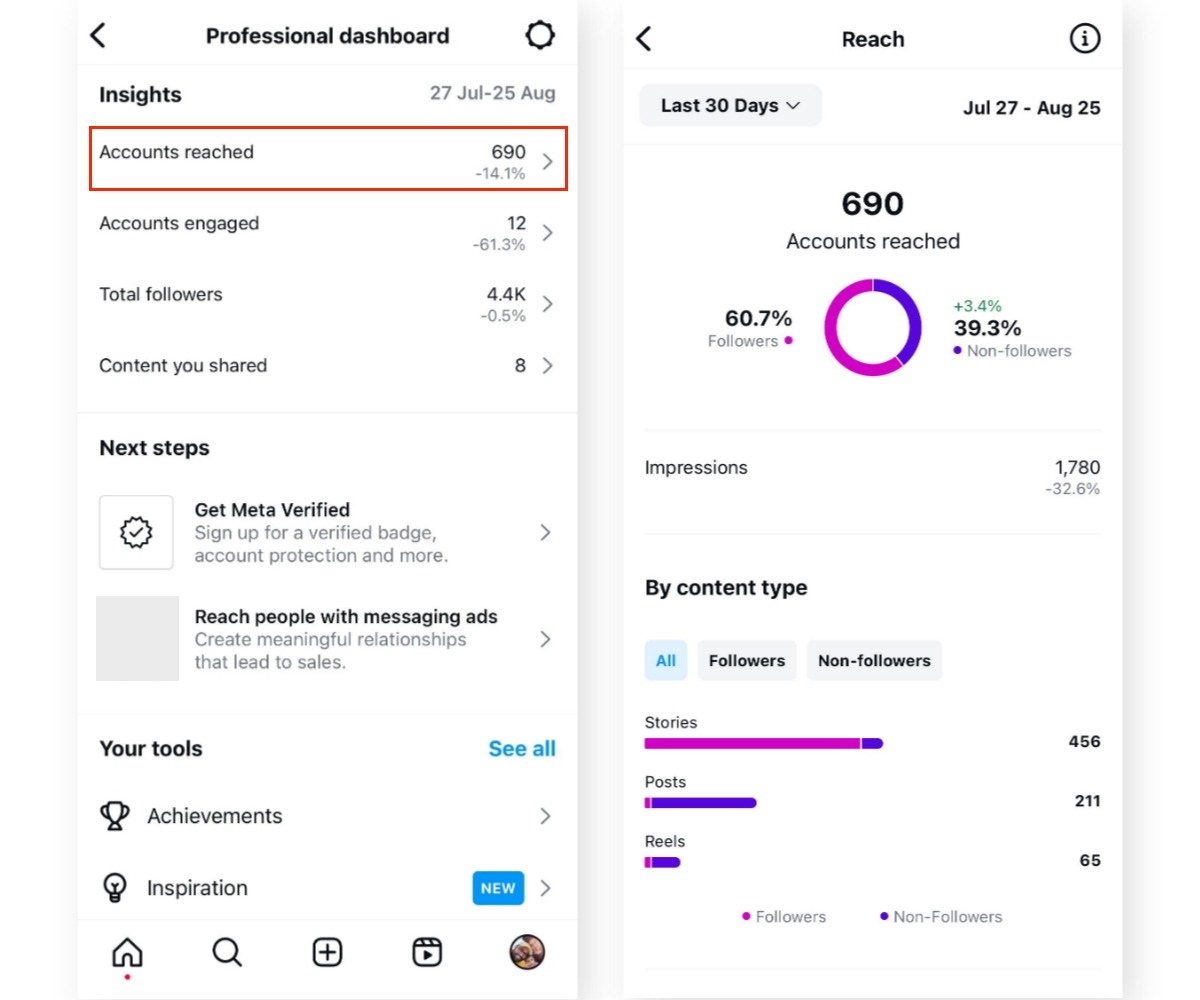
This data directly corresponds to the numbers you see in the Instagram app's professional dashboard.
3. Retrieving LinkedIn Post Metrics
For LinkedIn, we'll be working with statistics related to an "organization share." This is the standard way to track metrics for content posted on a company page, which is a common pattern for professional thought-leadership.
The official documentation is very clear and provides everything we need.
Organization Share Statistics - LinkedIn
The Microsoft Learn documentation for 'Organization Share Statistics' is our primary resource. It details the endpoint, permissions, and request/response structures.
Focus on these key sections: Permissions: Note the rw_organization_admin permission. Your LinkedIn app must have this scope granted. Share Statistics Data Schema: This table explicitly defines the metric fields we need: likeCount, commentCount, and shareCount. Retrieve Statistics for Specific Shares: This is our exact use case. Study the curl sample request. It shows how to query for one or more shares using their URNs.
As you can see, you need a Share URN (e.g., urn:li:share:7132564752928563200) to retrieve metrics for a specific post. Your publishing function from Module 8 should return or store this URN when it creates a post.

TypeScript Implementation
Now, let's add a function to src/monitoring/metrics.ts that translates the curl example from the documentation into a TypeScript fetch call.
// src/monitoring/metrics.ts (continued)

const LINKEDIN_API_VERSION = '202405'; // Use a recent version
const LINKEDIN_ACCESS_TOKEN = process.env.LINKEDIN_ACCESS_TOKEN;
const ORGANIZATION_ID = process.env.LINKEDIN_ORGANIZATION_ID; // e.g., '2414183'
const ORGANIZATION_URN = `urn:li:organization:${ORGANIZATION_ID}`;

interface LinkedInMetrics {
  likes: number;
  comments: number;
  shares: number;
  clicks: number;
  impressions: number;
}

export async function getLinkedInPostMetrics(shareUrn: string): Promise<LinkedInMetrics> {
  // The URN must be URL-encoded for the query parameter.
  const encodedOrgUrn = encodeURIComponent(ORGANIZATION_URN);
  const encodedShareUrn = encodeURIComponent(shareUrn);

  const url = `https://api.linkedin.com/rest/organizationalEntityShareStatistics?q=organizationalEntity&organizationalEntity=${encodedOrgUrn}&shares=List(${encodedShareUrn})`;

  try {
    const response = await fetch(url, {
      headers: {
        'Authorization': `Bearer ${LINKEDIN_ACCESS_TOKEN}`,
        'LinkedIn-Version': LINKEDIN_API_VERSION,
        'X-Restli-Protocol-Version': '2.0.0', // Required by this endpoint
        'Content-Type': 'application/json',
      },
    });

    if (!response.ok) {
      const errorData = await response.json();
      throw new Error(`LinkedIn API error: ${JSON.stringify(errorData)}`);
    }

    const result: { elements: { totalShareStatistics: any }[] } = await response.json();

    if (result.elements.length === 0) {
      // If the post has no stats, the API returns an empty array.
      return { likes: 0, comments: 0, shares: 0, clicks: 0, impressions: 0 };
    }

    const stats = result.elements[0].totalShareStatistics;

    return {
      likes: stats.likeCount ?? 0,
      comments: stats.commentCount ?? 0,
      shares: stats.shareCount ?? 0,
      clicks: stats.clickCount ?? 0,
      impressions: stats.impressionCount ?? 0,
    };

  } catch (error) {
    console.error('Failed to fetch LinkedIn metrics:', error);
    throw error;
  }
}
4. Retrieving X (Twitter) Post Metrics
The X API (v2) provides a straightforward endpoint to get information about Tweets, including their public engagement metrics. Unlike the other platforms, you don't need a special "insights" endpoint. You simply request the Tweet object itself and specify that you want the public_metrics field included in the response.
To do this, you'll make a GET request to /2/tweets/:id, where :id is the ID of the Tweet.
TypeScript Implementation
Here's the function for src/monitoring/metrics.ts. It takes a Tweet ID (which your publisher should return) and uses the tweet.fields parameter to request the public_metrics object.
// src/monitoring/metrics.ts (continued)

const X_ACCESS_TOKEN = process.env.X_BEARER_TOKEN;

interface XMetrics {
  likes: number;
  replies: number;
  retweets: number;
  quotes: number;
  impressions: number;
}

export async function getXPostMetrics(tweetId: string): Promise<XMetrics> {
  // We specify which fields we want back. 'public_metrics' contains all engagement counts.
  const url = `https://api.twitter.com/2/tweets/${tweetId}?tweet.fields=public_metrics`;

  try {
    const response = await fetch(url, {
      headers: {
        'Authorization': `Bearer ${X_ACCESS_TOKEN}`,
        'Content-Type': 'application/json',
      },
    });

    if (!response.ok) {
      const errorData = await response.json();
      throw new Error(`X API error: ${JSON.stringify(errorData)}`);
    }

    const result: { data: { public_metrics: any } } = await response.json();
    const metrics = result.data.public_metrics;

    return {
      likes: metrics.like_count ?? 0,
      replies: metrics.reply_count ?? 0,
      retweets: metrics.retweet_count ?? 0,
      quotes: metrics.quote_count ?? 0,
      impressions: metrics.impression_count ?? 0,
    };

  } catch (error) {
    console.error('Failed to fetch X metrics:', error);
    throw error;
  }
}
This function gives you a clean, structured object with all the key engagement indicators for any Tweet created by your agent.
Conclusion
Congratulations! You have now built the sensory input for your content agent. With the functions in src/monitoring/metrics.ts, your system can now programmatically measure the performance of every piece of content it publishes on LinkedIn, Instagram, and X.
Key Takeaways:
- Platform-Specific Endpoints: Each platform has a unique API for metrics:
/<media-id>/insightsfor Instagram,/rest/organizationalEntityShareStatisticsfor LinkedIn, and/2/tweets/:idwith thepublic_metricsfield for X. - Post ID is Key: For all platforms, the process begins with having the unique identifier (ID or URN) of the post you want to analyze. This should be captured and stored during the publishing step.
- Authentication and Permissions: API calls for metrics require proper authentication (Bearer Tokens, OAuth) and, in some cases, specific app permissions/scopes (
instagram_manage_insights,rw_organization_admin).
Preview of the next lesson:
We are now collecting raw data. But numbers on their own are not insights. In our next lesson, "Aggregate engagement data to identify top-performing topics and formats," we will take the metrics fetched by today's functions and start analyzing them. You'll learn how to store this data over time and implement logic to determine which content themes and formats are truly driving engagement, making your agent's strategy smarter with every post.