Hello! Welcome to the first lesson in your journey from motion design to code. We're starting at the very beginning: understanding the fundamental "why" behind animation in user interfaces. Your goal is to be able to build the entire pipeline, from concept to code, and this lesson lays the critical design foundation for everything that follows.
Today, we will explore how motion serves as a powerful communication tool in a digital world. You will learn to describe its crucial roles in guiding user attention and providing meaningful feedback. By the end, you'll see animation not as mere decoration, but as a functional component of a well-designed user experience. This conceptual understanding is what will elevate your future CSS work from simply making things move to making them move with purpose.
The Digital-Physical Divide
In the physical world, we have a rich set of cues to understand how things work. We feel the click of a button, see a door swing on its hinges, and sense the weight of an object in our hands. Digital interfaces, by contrast, are flat and intangible. How do we know our tap on a glass screen was registered? Where did that new menu come from?
Motion bridges this gap. By imitating the physics of the real world, animation can provide context, signal relationships between elements, and make our interactions feel more natural and intuitive.
One of the main reasons motion is so effective is because it directly taps into our visual system's built-in wiring. Let's begin with a short reading that explains this.
The Role of Animation and Motion in UX - NN/G
This article from the Nielsen Norman Group provides a great overview of the role of motion. We'll be referring to it a few times in this lesson.
Please read the introduction, starting from the opening paragraph down to the end of the third paragraph. Pay close attention to the explanation of why motion attracts our attention and the key takeaway about using it with a "light touch."
As the article highlights, our peripheral vision is highly sensitive to movement. This is a survival trait, but in UI design, it means that every animation, no matter how small, will grab the user's attention. This power can be used to clarify and guide, or it can become a source of distraction and annoyance. Our goal throughout this course is to learn how to use it for good.
A Framework for Purposeful Motion
To use motion effectively, it helps to have a framework for thinking about its purpose. Google's Material Design system offers a simple and powerful model, categorizing motion into three primary roles: Informative, Focused, and Expressive.
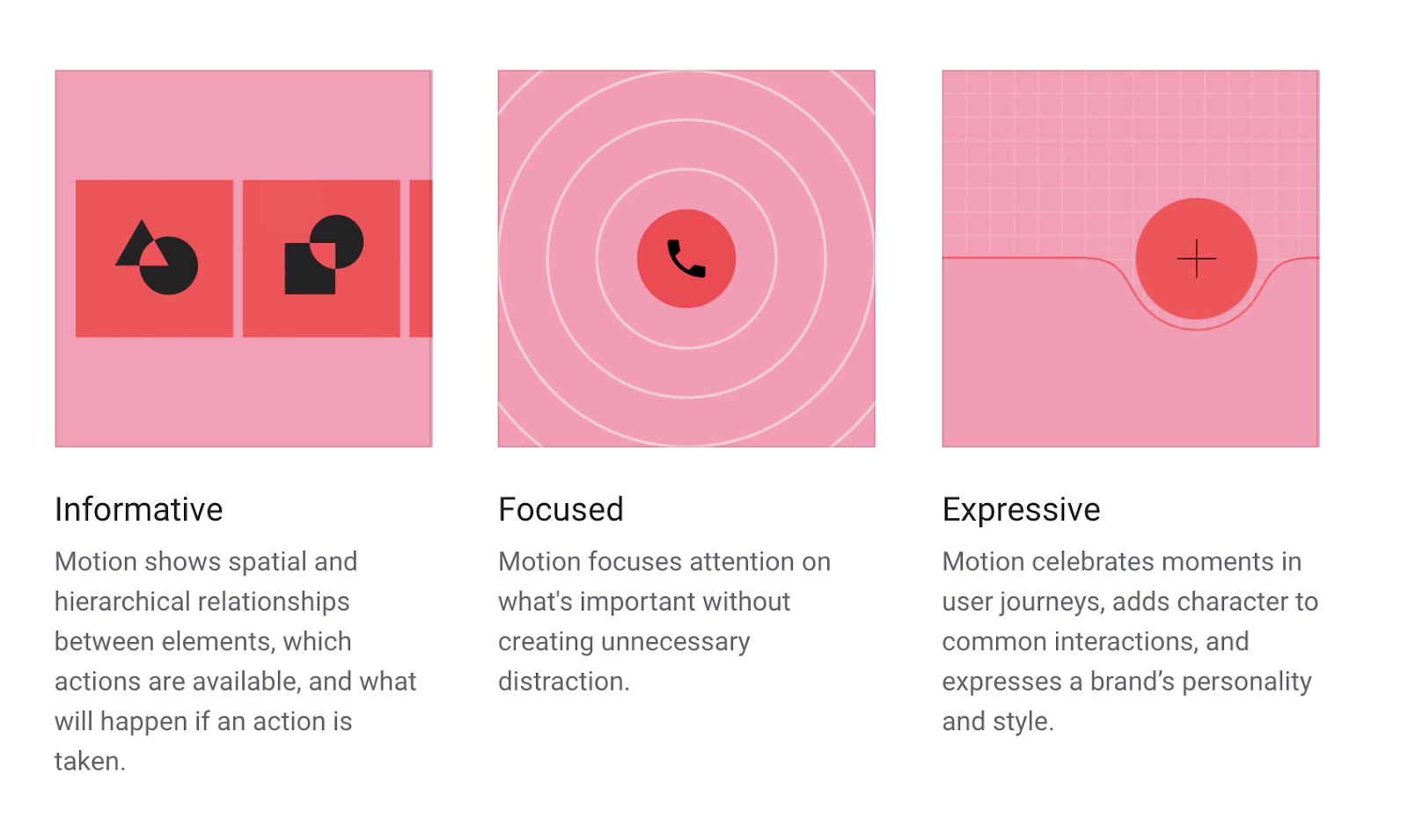
Let's watch a brief segment from a video by the Chrome for Developers team that introduces these principles.
Motion design in UI - Designing in the Browser
This video, "Motion design in UI," provides a concise explanation of the Material Design principles for motion.
Watch from the beginning until the overview of the principles is complete. This will give you a clear definition of what "Informative," "Focused," and "Expressive" mean in this context.
These three principles give us a lens through which we can analyze and design UI animations. Let's break down the two most critical functional roles—providing feedback and guiding attention—which correspond directly to the Informative and Focused principles.
Role 1: Providing Feedback (Informative Motion)
Informative motion helps users understand what's happening. It answers questions like: "Did the system receive my command?", "Is it working?", or "What's the result of my action?". This type of motion makes an interface feel responsive and reliable.
Confirming Actions
When a user clicks a button, a subtle animation provides instant confirmation that the action was registered. This removes ambiguity and builds user confidence. Without it, a user might wonder if their click worked and click again, leading to frustration. This is the domain of micro-interactions.
A great example is the process of sending a message.
UI Animation, Motion Design & Micro Interaction Basics
This clip from "UI Animation, Motion Design & Micro Interaction Basics" demonstrates a brilliant functional animation.
Watch the demonstration of the animated "Send" button from this section. Notice how a single element communicates three distinct states: ready to send, sending (loading), and sent (confirmation).
In that example, the user's eye doesn't have to move. The button itself transforms to provide continuous feedback about the state of the system. This is a perfect example of efficient, informative motion.
Showing System Status and Overcoming Change Blindness
Animation is also essential for showing changes in the interface that the user might otherwise miss. A classic example is a shopping cart icon updating after you add an item. If the number on the icon just changes silently, users focused on the "Add to Cart" button might not notice. This phenomenon is called change blindness. A subtle animation—like the cart icon wiggling or the number briefly scaling up—draws the eye and confirms the action's success.
The following reading from the Nielsen Norman Group article explores this concept with excellent examples.
The Role of Animation and Motion in UX - NN/G
This section dives deep into using motion for feedback.
Please read the section titled Motion for Feedback. Focus on the concepts of "change blindness" and how animation provides noticeable feedback for both direct actions and system state changes.
Role 2: Guiding Attention (Focused Motion)
Focused motion acts as a director, guiding the user's eye through the interface in a logical sequence. It helps establish hierarchy, manage complexity, and create a smooth narrative flow.
Directing the Flow of Information
When a new screen appears, animating elements in a staggered sequence can guide the user's focus naturally from one piece of content to the next. Instead of everything appearing at once, which can be overwhelming, a staggered or sequential animation creates a clear path for the eye to follow.
20 Motion Design Principles with Examples for UI/UX ...
This article from Mockplus provides many practical examples of motion principles. We'll look at two that are directly related to guiding attention.
Read the sections on Smooth Content Reveal and Sequential Animation. These principles show how to introduce content in a controlled way that directs user focus.
As you can see, animating content into view isn't just for style; it's a technique to reduce cognitive load and improve comprehension.
Hinting at Interactivity
Motion can also serve as a signifier, hinting at how an element can be interacted with. A slight bounce on a card might suggest it can be dragged. A radiating halo on a slider can draw attention to it and invite interaction. This is a subtle but powerful way to improve the discoverability of features in your UI.
The Chrome for Developers video provides two simple, effective examples of using motion to focus attention on an important action.
Motion design in UI - Designing in the Browser
Let's return to "Motion design in UI" for some more examples.
Watch the segment on focused motion from this section. Notice how both the "ringing" and "shiny" button effects are designed to draw the eye to a primary call-to-action without being overly distracting.
Bringing It All Together
In practice, these roles often overlap. A well-designed animation can be both informative (showing where a menu came from) and focused (guiding the eye to its new contents). When used to define spatial relationships and transitions between views—like a list item expanding to fill the screen—we can call it structural motion. It helps the user build a mental map of the application's architecture.
Finally, we have expressive motion. This is where you add personality and character, celebrating moments in the user's journey. While function should always come first, expressive details are often what make an application memorable and delightful to use.
Conclusion
In this first lesson, we've established the foundational theory of UI motion. You've learned that animation is not an afterthought but a core component of user experience design that serves clear, functional purposes.
Key Takeaways:
- Motion bridges the gap between the flat, digital world and our physical intuition.
- It is a powerful tool because it instinctively captures human attention.
- The primary roles of UI motion are to be informative (providing feedback and showing status) and focused (guiding attention and establishing hierarchy).
- When these roles are combined effectively, they help users build a mental model of the interface, reduce cognitive load, and create a more responsive and engaging experience.
In our next lesson, we will build on this foundation by learning to distinguish between functional animation (which we've focused on today) and purely decorative animation. We will look at more concrete examples to sharpen your eye for what makes an animation purposeful versus what just adds noise.