Hello! Welcome to your first lesson. Your goal is to prepare for technical interviews by mastering algorithms, and our first step on that journey is to set up the tools we'll need. Just as a chef needs a kitchen, a programmer needs a working development environment.
In this lesson, we will focus on installing Python, the programming language we'll use throughout this course, and running your very first program. By the end of this 60-minute session, you will have installed the Python interpreter, written a simple "Hello, World!" script, and executed it from your computer's command line. This foundational skill is the gateway to writing and testing all the algorithms we will study later.
Let's get started.
1. Your Programming Toolkit: Python and a Code Editor
First, what is Python? Python is a popular, high-level programming language known for its clear and readable syntax. This makes it an excellent language for learning programming fundamentals and algorithmic concepts. The code you write is processed by a program called the Python interpreter, which translates your commands into instructions the computer can execute.
To write your Python code, you'll use a code editor. While you could use a basic text editor like Notepad, a proper code editor offers helpful features like syntax highlighting (coloring your code to make it more readable) and other tools that make programming much easier.
2. Setting Up Your Environment
Now, let's get Python and a code editor installed on your computer. We'll use the video below and a detailed article to guide you.
Python for Beginners - Learn Coding with Python in 1 Hour
To start, please watch the first few minutes of this video from the Programming with Mosh channel. It provides a great visual walkthrough of downloading Python and the PyCharm code editor.
Watch the video from the beginning until timestamp 03:02. This covers: Installing Python: Pay close attention to the instruction for Windows users to check the 'Add Python to PATH' box. This is crucial. Installing a Code Editor (PyCharm): The video recommends PyCharm, which is an excellent choice. Follow the steps to download and install the free Community Edition.
For more detailed, step-by-step instructions that you can read at your own pace, the following article from Real Python is an excellent resource. It covers installation for Windows, macOS, and Linux.
How to Install Python on Your System: A Guide
This Real Python article provides comprehensive instructions for installing Python. Use it alongside the video or as a primary guide, focusing on the section for your operating system.
Read the section that matches your computer's operating system: For Windows: Read the section titled "Windows: How to Install Python Using the Official Installer". It walks you through downloading from Python.org and running the installer. For macOS: Read the section titled "macOS: How to Install Python Using the Official Installer". For Linux: Read the section "Linux: How to Check or Get Python". Most Linux distributions allow you to install Python easily using a package manager (e.g., sudo apt install python3 on Debian/Ubuntu).
A Critical Step for Windows Users
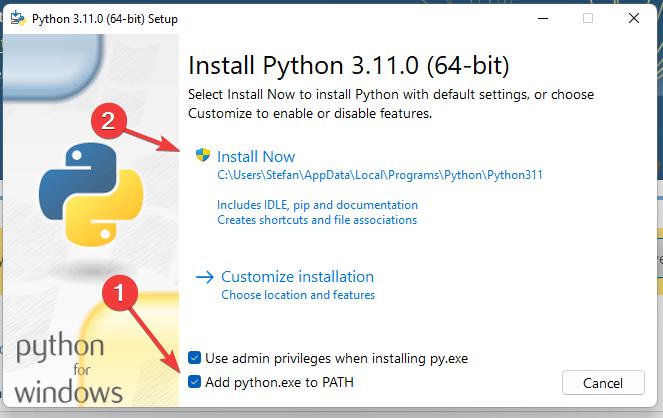
If you are using Windows, it is very important that you check the box that says "Add python.exe to PATH" during installation. The PATH is a list of directories that your command line searches when you type a command. Adding Python to the PATH allows you to run the Python interpreter from any folder on your computer by simply typing python.
3. Verifying Your Installation with the REPL
Once the installation is complete, let's verify that everything is working. We'll do this using the command line and a feature called the Python REPL (Read-Eval-Print Loop). The REPL is an interactive shell where you can type Python code one line at a time and see the result immediately.
-
Open your command line:
- Windows: Press the
Winkey, typePowerShellorcmd, and pressEnter. - macOS/Linux: Open the
Terminalapplication.
- Windows: Press the
-
Check the Python version: Type the following command and press
Enter. You should see the version number you just installed.python --versionNote: Depending on your system (especially on macOS and Linux), you might need to use
python3instead ofpython. If the first command gives an error, trypython3 --version. -
Start the REPL: Now, type
python(orpython3) by itself and pressEnter.
You should see some information about the Python version followed by a>>>prompt. This prompt means you are now in the Python interactive session!
The article below explains the REPL in more detail.
How to Run Your Python Scripts and Code
Read this section from Real Python to understand more about the interactive mode (REPL) you just entered.
Read the section titled "How to Run Python Code Interactively". Focus on understanding what the REPL is and how it works. You can try typing a simple math expression like 2 + 5 at the >>> prompt and see what happens.
To exit the Python REPL and return to your normal command line, you can type exit() and press Enter.
4. Writing and Running Your First Program
Now that Python is installed, let's write and run a complete program. The traditional first program is called "Hello, World!".
Step 1: Write the Code
Open the PyCharm editor you installed earlier.
- Create a new project. The Mosh video (from 03:02 onwards) shows how to do this.
- Inside your project, create a new file and name it
hello.py. The.pyextension is how we tell the computer that this is a Python file. - In the file, type the following single line of code:
print("Hello, World!")
This code uses the built-in print function to display the text string "Hello, World!" on the screen. Save the file.
Step 2: Run the Code from the Command Line
While you can run code directly inside PyCharm, a fundamental skill for any programmer is to run scripts from the command line.
-
Open your command line/terminal (PowerShell, cmd, or Terminal).
-
Navigate to the correct directory. You need to tell the command line where you saved your
hello.pyfile. Use thecd(change directory) command. For example, if you saved the project on your Desktop in a folder calledpython_projects, you might type:cd Desktop/python_projects -
Execute the script. Once you are in the same directory as your
hello.pyfile, type the following command and pressEnter:python hello.py(Remember to use
python3if needed for your system).
You should see the text Hello, World! printed in your terminal. Congratulations, you've just run your first Python program!

For a textual explanation of this process, refer to the following resource.
How to Run Your Python Scripts and Code
This section of the Real Python article details exactly what you just did: running a Python script from the command line.
Read the section titled "How to Run Python Scripts From the Command Line", focusing on the part about using the python command.
Conclusion
In this lesson, you have successfully set up your complete Python development environment. This is a huge and essential first step.
Here are the key takeaways:
- You installed the Python interpreter, the engine that runs your code.
- You installed PyCharm, a code editor that will help you write your programs.
- You learned how to verify your installation and experiment with code using the Python REPL.
- You wrote a simple "Hello, World!" program and, most importantly, learned how to run it from the command line.
You are now fully equipped to start programming. In our next lesson, we will begin exploring the building blocks of Python. We'll learn how to use variables to store information, work with basic data types like numbers and text, and write programs that can interact with a user.