Hello and welcome back!
In the last few lessons, you've learned the essential mechanics of trading: how to place market and limit orders to both buy and sell cryptocurrencies. But after you click that "Buy" or "Sell" button, what happens next? How do you keep track of everything you've done?
This lesson is all about bookkeeping. Your learning outcome is to review your order and trade history to track your activity. We will cover where to find your pending orders, a complete log of all orders you've placed, and a detailed history of every trade that has been executed. This is a crucial skill for managing your portfolio, tracking your performance, and staying organized.
Orders vs. Trades: What's the Difference?
Before we dive into the Binance interface, it's important to understand the distinction between an "order" and a "trade."
- An Order is an instruction you send to the exchange. For example, "I want to buy 0.1 BTC at a price of $60,000." This is a limit order. If you place a market order, the instruction is "Buy 0.1 BTC at the best available price now."
- A Trade is the actual execution of that instruction. It's the moment your order is matched with someone else's, and the exchange of assets happens.
One order can result in one or more trades. For instance, if you place a large order, it might be filled by several smaller orders from different people on the other side of the order book.
Finding Your Activity on the Binance Interface
Binance consolidates all of your spot trading activity in one convenient place at the bottom of the main trading screen. There are three key tabs you'll use:
- Open Orders: Shows your active limit orders that are waiting to be filled.
- Order History: A log of all orders you have placed, including filled, canceled, and partially filled ones.
- Trade History: A detailed record of every single trade that was executed.
Let's start with a guide from Binance Academy that points you to the right place.
Your Guide to Binance Spot Trading
This article from the Binance Academy will quickly show you where to find your order details on the main trading page.
Please scroll down to the section titled 'How to view my order details'. This short section and its accompanying image show you the tabs at the bottom of the screen where you can track your open orders and view your history.
Now, let's see it in action. The following video shows a trader placing a market order and then immediately checking the order history to see the record of the transaction.
Binance Tutorial For Beginners 2026 (FULL STEP-BY-STEP GUIDE)
This short clip provides a practical demonstration of how an order appears in your history right after it's executed.
Watch the clip from 00:38:54 to 00:39:11. Notice how the user navigates to 'Order History' at the bottom left to see the details of the market order they just placed.
A Closer Look at Order and Trade History
Let's break down the information you'll find in these sections.
Order History
Your Order History is a comprehensive log of your instructions to the exchange.
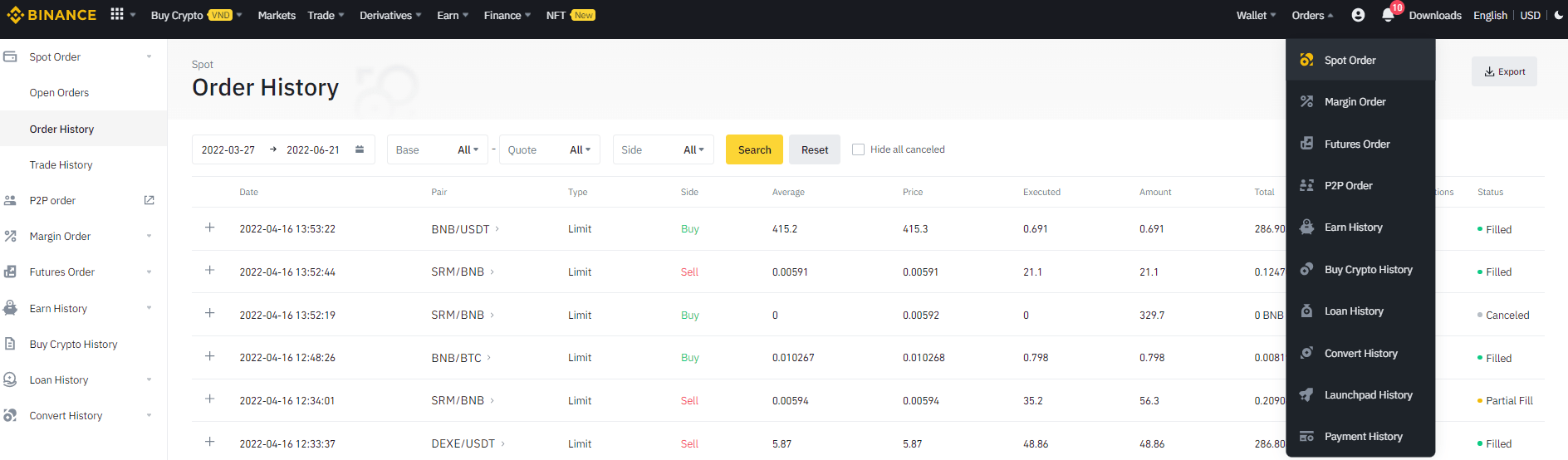
Here you can see all the critical information about each order:
- Date: When you placed the order.
- Pair: The trading pair, like BTC/USDT.
- Type: Limit, Market, etc.
- Side: Buy or Sell.
- Average: The average price at which the order was filled.
- Price: The target price you set for a limit order.
- Executed: The amount of the order that was successfully filled.
- Amount: The total amount of the order.
- Status: Whether the order is
Filled,Canceled, orPartially Filled.
Trade History
The Trade History tab focuses only on the executions. If a single one of your limit orders was filled by three smaller trades, you would see one entry in "Order History" but three separate entries here.

The key columns here are:
- Date: The exact time the trade was executed.
- Price: The price at which that specific trade was executed.
- Amount: The quantity of the asset traded.
- Fee: The trading fee you paid to Binance for the transaction.
- Total: The total value of the trade (Price x Amount).
Filtering Your History
As you make more trades, these lists can get long. Binance provides powerful filtering options to help you find what you're looking for. You can filter by date, trading pair, and side (buy or sell).
This next video briefly touches on using the date filter.
HOW TO SPOT TRADE ON BINANCE (BINANCE TUTORIALS FOR BEGINNERS)
Watch this quick segment to see how you can filter your history to see trades from the last day, week, month, or a custom date range.
Watch from 00:04:19 to 00:04:49. The video explains how to adjust the time period to view your past activities, which is essential for reviewing your performance over specific periods.
Exporting Your History for Record-Keeping
A very useful feature on Binance is the ability to export your trade history as a file (e.g., an Excel spreadsheet). This is incredibly helpful for tracking your overall profit and loss, doing your own analysis, or for tax purposes. Given your interest in business, maintaining clear records is a valuable habit.
The following resource provides step-by-step instructions. We will focus only on exporting your Spot Trade History, as that's what we've been learning about.
How to get trade history from Binance Global
This guide from the Cryptact Help Center gives clear, step-by-step instructions on how to download your trade history from Binance. We will use it to learn how to export our spot trading records.
Please find the section titled '4. Spot trade history'. Follow the 2-3 steps listed there. This will guide you through navigating to your Spot Order history, clicking 'Export', and generating a file of your trades for a specific period.
Conclusion
You are now equipped with the essential skills to not only place trades but also to track and review them effectively. Being able to navigate your trading history is fundamental to being an organized and informed trader.
Key Takeaways:
- An order is an instruction, while a trade is the execution of that instruction.
- You can find your Open Orders, Order History, and Trade History in tabs at the bottom of the Binance trading screen.
- Order History shows all orders you've placed and their status (Filled, Canceled).
- Trade History provides a detailed log of every completed trade, including the fee paid.
- You can filter your history by date and trading pair to easily find specific transactions.
- Binance allows you to export your trade history, which is crucial for record-keeping and performance analysis.
What's Next?
So far, we have focused entirely on the mechanics of trading—how to use the tools Binance provides. You know how to buy, sell, and review your activity.
In the next module, we will shift our focus to the analysis behind trading. To decide when to buy or sell, traders analyze market data, and the most common tool for this is the price chart. In our next lesson, we will begin this journey by learning how to read a candlestick chart to understand price movements.