Hello! Welcome back to our module on Managing Your Binance Portfolio.
In our last lesson, you learned the crucial skill of checking your total portfolio balance and viewing your individual asset allocation within your Spot Wallet. This allows you to see exactly what you own and how it's distributed.
Today, we'll build on that by learning how to easily change that allocation. The goal for this lesson is to learn how to use the 'Convert' function for small, simple trades. This tool is the simplest and most direct way to swap one cryptocurrency for another on Binance, making it perfect for beginners who want to make quick adjustments to their portfolio without navigating the more complex trading interfaces.
What is Binance Convert? The Simple Way to Trade
Before diving into the full trading screen with its charts and order books (which we'll cover in a future module), it's best to start with a simpler tool. Binance Convert is designed specifically for this purpose. It allows you to exchange one asset for another instantly at a guaranteed rate with zero trading fees.
To get a clear understanding of what Binance Convert is and why it's the ideal starting point for trading, please read the following article from the official Binance blog.
Binance Convert 2025 Guide – Trade Crypto Instantly
This official guide from Binance, titled 'Binance Convert 2025 Guide – Trade Crypto Instantly', clearly outlines the purpose and benefits of using this feature.
Please read the sections titled 'What is Binance Convert?' and 'Binance Convert vs. Spot Trading: Why Choose Convert?'. Pay close attention to the table comparing Convert and Spot Trading, and the explanations for 'Simple Execution', 'No Minimum Order Size', and 'Slippage-free Trading'.
As the article explained, the key advantages of using Binance Convert for simple trades are:
- Simplicity: The interface is clean and straightforward, without any of the complex charts or order books found in the standard spot trading view.
- Zero Trading Fees: The amount you see in the quote is the exact amount you will receive.
- Guaranteed Price: When you preview a conversion, the price is locked in for a few seconds. This protects you from slippage—where the price changes between when you place an order and when it's executed.
- Low Minimums: You can make very small trades, which is perfect for when you're just starting out and want to experiment with small amounts.
A Practical Walkthrough of Binance Convert
Now, let's see how this works in practice on the Binance app. The best way to learn is by watching a demonstration.
First, here's a visual reminder of how to find the 'Convert' function, which is typically accessed via the main 'Trade' button.

Next, watch this official video from Binance. It provides a clear, step-by-step walkthrough of performing a simple, instant conversion.
How to Convert Crypto on Binance - Swap BTC, USDC, Alts Instantly: A Beginner's Guide (2026 Edition)
This official video, 'How to Convert Crypto on Binance', will guide you through finding and using the Convert function on the mobile app.
Watch the video from the beginning up to 02:34. The presenter will explain what Convert is, show you how to find it, and walk you through an 'Instant' conversion. Focus on the key steps: selecting assets, entering the amount, previewing the quote, and confirming the trade.
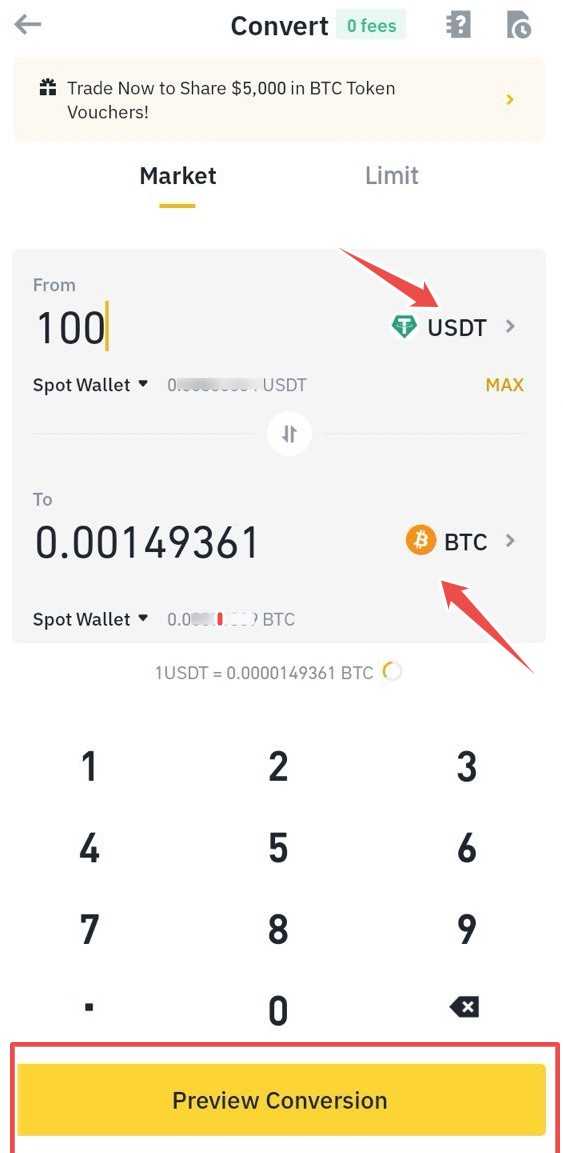
To reinforce what you just saw, here is the main Convert screen you'll be using.
Understanding Market vs. Limit Conversions
The video focused on an "Instant" conversion, which is also known as a Market order. This is the most common type for simple trades. However, you'll also see an option for a Limit order. It's helpful to know the difference.
- Market Convert: You are telling Binance, "I want to swap my crypto right now at the current best price." The trade happens instantly. This is what you'll use for most of your simple swaps.
- Limit Convert: You are telling Binance, "I want to swap my crypto, but only if the price reaches a specific target that I set." This gives you more control over the price, but your trade is not guaranteed to execute immediately—it will only happen if the market reaches your target price.
For a clearer explanation of this difference within the Convert tool, the following video is very helpful.
The ONLY Binance Tutorial You'll Ever Need (FOR BEGINNERS)
This video provides another look at the Convert tool, and specifically explains the difference between a Market and a Limit order.
Watch from 13:46 to 18:16. The presenter first recaps a market order and then demonstrates how to set up a limit order. For the purpose of this lesson on simple trades, focus on mastering the concept of the market order.
Try It Yourself: A No-Risk Exercise
Since your preference is for hands-on learning, let's do a quick exercise. You don't need to actually execute a trade, but following these steps will help you get comfortable with the interface.
Imagine you have 50 USDT in your Spot Wallet and want to buy a small amount of Bitcoin (BTC).
- Open your Binance app and navigate to the Convert screen.
- Make sure you are on the Market tab.
- In the 'From' field, select USDT.
- In the 'To' field, select BTC.
- Enter
50as the amount of USDT to convert. - Tap Preview Conversion.
- Look at the quote you receive. You'll see the amount of BTC you would get and a small timer counting down.
- Do not confirm the trade. Simply let the timer expire.
- Notice the 'Refresh' button appears. Tap it to get a new, updated quote.
This simple exercise simulates the exact process of a real conversion and helps build your confidence in using the tool.
Conclusion
You've now learned the simplest and most direct method for trading on Binance. The Convert function is an essential tool, especially when you're starting out or just need to make a quick swap without any fuss.
Key Takeaways:
- Binance Convert is the ideal tool for beginners to make small, simple trades.
- It offers a simple interface, zero trading fees, and a guaranteed price through a real-time quote.
- A Market Convert order executes your trade instantly at the current market price.
- A Limit Convert order allows you to set a specific target price for your trade.
What's Next?
Now that you know how to view your assets and how to convert them, there's one more core portfolio management skill we need to cover. You may have noticed that when you deposit fiat currency, it often goes into your Funding Wallet, while the Convert tool uses funds from your Spot Wallet.
In our next lesson, we will address this by learning how to transfer assets between your different Binance wallets. This is a quick but vital step to understand how to move your money to where you need it for trading or other activities.