Hello! In our last lesson, we wrapped up the fundamentals of Python by learning how to bundle data and behavior together using classes. You created a Character class, a blueprint for any character in our RPG.
But there's a crucial piece missing. When you run your script, your hero might defeat a goblin and gain experience, but as soon as the program closes, all that progress vanishes. To create a real game, you need persistence—the ability to save game state and load it back later.
That is exactly what we'll cover in this lesson. Your goal is to learn how to read text from files and write data to files using Python. This skill is the foundation for saving and loading games, managing game assets, and creating configurable game settings.

The Golden Rule: Using with open()
To work with a file in Python, you first need to open it. The most important practice to learn is using the with statement. This creates a temporary context where the file is open, and it automatically closes the file for you when you're done, even if errors occur. This prevents common bugs and resource leaks.
Let's watch a video that explains this best practice.
Python Tutorial: File Objects - Reading and Writing to Files
The video 'Python Tutorial: File Objects' by Corey Schafer clearly explains why using a with statement is the standard and safest way to handle files.
Watch from 03:06 to 05:41. Focus on the difference between opening a file manually (and having to remember f.close()) versus using with open(...) as f:. This is the pattern we will use for the rest of the course.
The basic syntax looks like this:
# The 'w' stands for 'write' mode. This creates the file if it doesn't exist.
with open('my_first_file.txt', 'w') as f:
    # We can work with the file object 'f' inside this block.
    pass

# Once the block is exited, the file is automatically and safely closed.
Files can be opened in different modes. The most common ones are:
'r'- Read mode: For reading an existing file. This is the default mode.'w'- Write mode: For writing to a file. Warning: This will create a new file or completely overwrite an existing one.'a'- Append mode: For adding new content to the end of an existing file without deleting its current contents.
Writing to a File: Saving Your Progress
Let's start by saving a character's state. We'll use the 'w' (write) mode to save the data to a text file. The f.write() method is used to write a string to the file.
Python Tutorial: File Objects - Reading and Writing to Files
This next segment from Corey Schafer's video demonstrates how to write to files using different modes.
Watch from 14:38 to 16:55. Pay attention to how 'w' creates and overwrites a file, and how you can use f.write() to add text.
Now, let's apply this to our Character class from the last lesson. We can save a character's vital stats to a file named savegame.txt.
class Character:
    def __init__(self, name, health, attack_power):
        self.name = name
        self.health = health
        self.attack_power = attack_power

# Create our hero
hero = Character("Arin", 85, 20) # Health is 85 after a tough battle!

# Save the game
try:
    with open('savegame.txt', 'w') as f:
        f.write(f"Name:{hero.name}\n")
        f.write(f"Health:{hero.health}\n")
        f.write(f"Attack:{hero.attack_power}\n")
    print("Game saved successfully!")
except IOError as e:
    print(f"Error saving game: {e}")
Notice the \n at the end of each line. This is the newline character, which ensures each piece of data is on its own line, making it easier to read later.
Reading from a File: Loading Your Game
Now that our hero's state is saved, how do we load it back? We'll open the file in 'r' (read) mode and process its contents.
While there are several ways to read a file, the most efficient and Pythonic way for most cases is to loop directly over the file object. This reads the file one line at a time, which is very memory-efficient for large files.
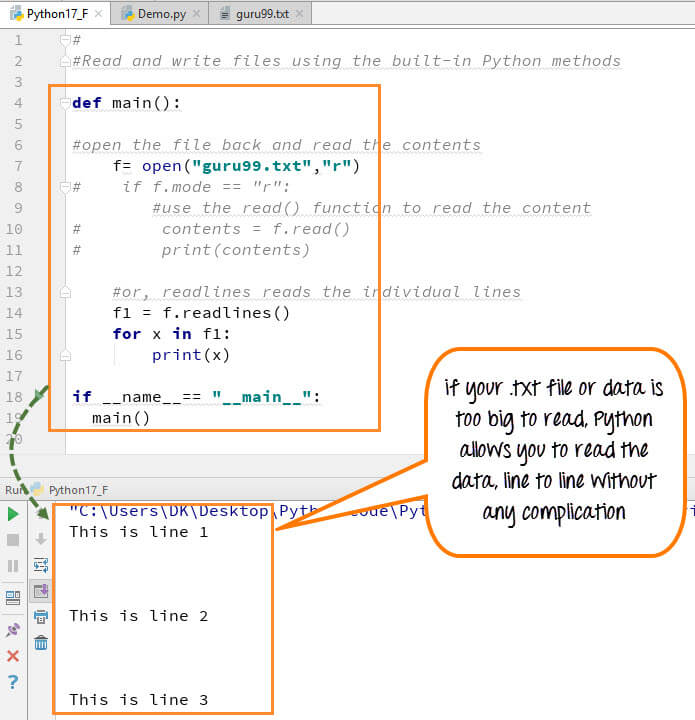
Let's watch a short clip that demonstrates different reading methods.
Python Tutorial: File Objects - Reading and Writing to Files
This part of the video covers the various ways to read data from a file.
Watch from 05:41 to 08:30. Pay special attention to the for line in f: method (starting around 07:40), as this is the most common and efficient technique.
Now, let's write the code to load our savegame.txt and restore our character's state.
# Create a placeholder for our loaded character data
loaded_stats = {}

try:
    with open('savegame.txt', 'r') as f:
        for line in f:
            # .strip() removes whitespace and newlines from the start/end of the line
            key, value = line.strip().split(':')
            loaded_stats[key] = value
    print("Game loaded successfully!")

    # Re-create the character object from the loaded data
    # We need to convert Health and Attack back to integers
    loaded_hero = Character(
        name=loaded_stats['Name'],
        health=int(loaded_stats['Health']),
        attack_power=int(loaded_stats['Attack'])
    )

    print(f"Welcome back, {loaded_hero.name}! Your health is {loaded_hero.health}.")

except FileNotFoundError:
    print("No save file found. Starting a new game.")
except IOError as e:
    print(f"Error loading game: {e}")
Here, we're using a try-except block to gracefully handle the case where the save file doesn't exist yet. This is a crucial aspect of writing robust programs.
Test your understanding!
Imagine your RPG has a log that records important events. Create a function called log_event(event_message) that takes a string and appends it as a new line to a file named gamelog.txt.
Remember to:
- Open the file in append mode (
'a'). - Add a newline character (
\n) to the end of the message so each log entry is on a new line.
Call your function a few times, for example: log_event("Player entered the dark forest.") and log_event("Player found a healing potion."). Then, check the contents of gamelog.txt.
Show answer
def log_event(event_message):
    """Appends an event message to gamelog.txt."""
    try:
        with open('gamelog.txt', 'a') as f:
            f.write(event_message + '\n')
    except IOError as e:
        print(f"Could not write to log file: {e}")

# Let's log some events
log_event("Game started.")
log_event("Player entered the dark forest.")
log_event("Player found a healing potion.")

print("Events have been logged to gamelog.txt")
If you open gamelog.txt after running this code, you will see each message on a separate line. If you run the script again, new messages will be added to the end of the file.
A Better Way: Using JSON for Structured Data
Manually splitting strings with split(':') works, but it can become messy and error-prone, especially for complex data like inventories (lists) or nested stats (dictionaries).
A much better approach for game data is to use JSON (JavaScript Object Notation). It's a standard text format that maps perfectly to Python's dictionaries and lists. Python has a built-in json module that makes this incredibly easy.
json.dump(): Dumps your Python object (like a dictionary) into a file in JSON format.json.load(): Loads a JSON file and converts it back into a Python object.
Let's see how simple it is to write a dictionary to a JSON file.
The video 'Write files using Python!' from Bro Code has a great, quick segment on using the json module.
Watch from 08:15 to 10:30. Notice how json.dump() takes your data and the file object as arguments. The indent argument is optional but makes the file much more readable for humans.
Now, let's refactor our save/load system to use JSON. It's much cleaner!
import json # Don't forget to import the module!

# --- SAVING ---
hero_data = {
    "name": "Arin",
    "health": 85,
    "attack_power": 20,
    "inventory": ["Health Potion", "Iron Sword", "Map"]
}

with open('savegame.json', 'w') as f:
    json.dump(hero_data, f, indent=4) # 'indent=4' makes it pretty!
print("Game saved to JSON file.")


# --- LOADING ---
with open('savegame.json', 'r') as f:
    loaded_data = json.load(f)
print("Game loaded from JSON file.")

# 'loaded_data' is now a Python dictionary, identical to 'hero_data'
print(f"Welcome back, {loaded_data['name']}!")
print(f"Your inventory: {loaded_data['inventory']}")
As you can see, you don't need to do any manual string splitting or data type conversion. The json module handles it all, including lists for things like inventories. This is the recommended way to handle most game data and save files.
A Note on Binary Files
So far, we've only worked with text files (.txt, .json). But what about non-text files, like images for your sprites, or audio files for music and sound effects?
These are called binary files. To work with them, you simply add a b to the mode: 'rb' for reading binary and 'wb' for writing binary. You won't be writing image files from scratch, but you'll often read them to load into your game. Corey Schafer's video demonstrates this by copying a picture.
Python Tutorial: File Objects - Reading and Writing to Files
This final clip shows how to handle binary files, like images, which is essential for loading game assets.
Watch from 19:45 to 22:13. The key takeaway is the use of 'rb' (read binary) and 'wb' (write binary) modes. You don't need to understand the bytes themselves, just the mode change.
We won't go deep into this now, but remember 'rb' for when we start loading images for our RPG in future modules!
Conclusion
You've just learned one of the most practical and powerful skills in programming. Being able to save and load data is what turns a simple script into a persistent application.
Here are your key takeaways:
- Always use the
with open(...) as f:syntax to ensure files are closed properly. - The main modes are
'r'(read),'w'(write/overwrite), and'a'(append). - For simple text, you can use
.write()to save strings and aforloop to read lines. - For structured data like character stats and inventories, JSON is the best choice. Use
json.dump()to save andjson.load()to load. - For non-text files like images and sounds, use binary modes (
'rb','wb').
This lesson marks the end of our first module, Python Programming Fundamentals. You have built a solid foundation, moving from variables all the way to object-oriented programming and file handling.
In our next lesson, we will begin the exciting journey into Module 2: Introduction to Game Development with Pygame. We'll finally leave the text console behind and create our very first visual game window. The skills you learned today will be absolutely essential later on when we implement the save/load feature for the graphical RPG you'll be building.